How to Fill Out a PDF Form Online for Free (Even Forms Without Fields)
Application forms, tax forms, school enrolment packs, medical questionnaires, rental applications: an enormous amount of paperwork still arrives as a PDF. You can fill a PDF form online free of charge without printing it, writing by hand and scanning it back. This guide covers both kinds of form you will meet, the ones with real fillable fields and the flat ones that are just a picture of a form, plus how to sign, lock and send the result.
Two kinds of PDF form
Before you start, it helps to know which kind of form you have.
- Fillable forms contain real form fields: text boxes, checkboxes, radio buttons and dropdowns built into the file. Government agencies, banks and large companies usually publish forms this way.
- Flat forms look like forms but have no fields. They are often scans of paper forms, or PDFs exported from a word processor. You cannot click into a box, but you can place text on top of the blank lines.
PDFbat handles both in the same place, so you do not need to work out the type first. Open the form and the editor tells you.
How to fill a PDF form online free: fillable forms
- Open Fill & Sign and drop in the form, or choose it from your Drive. You will need a free PDFbat account; if you are not signed in, the editor keeps your file and reopens it after sign up.
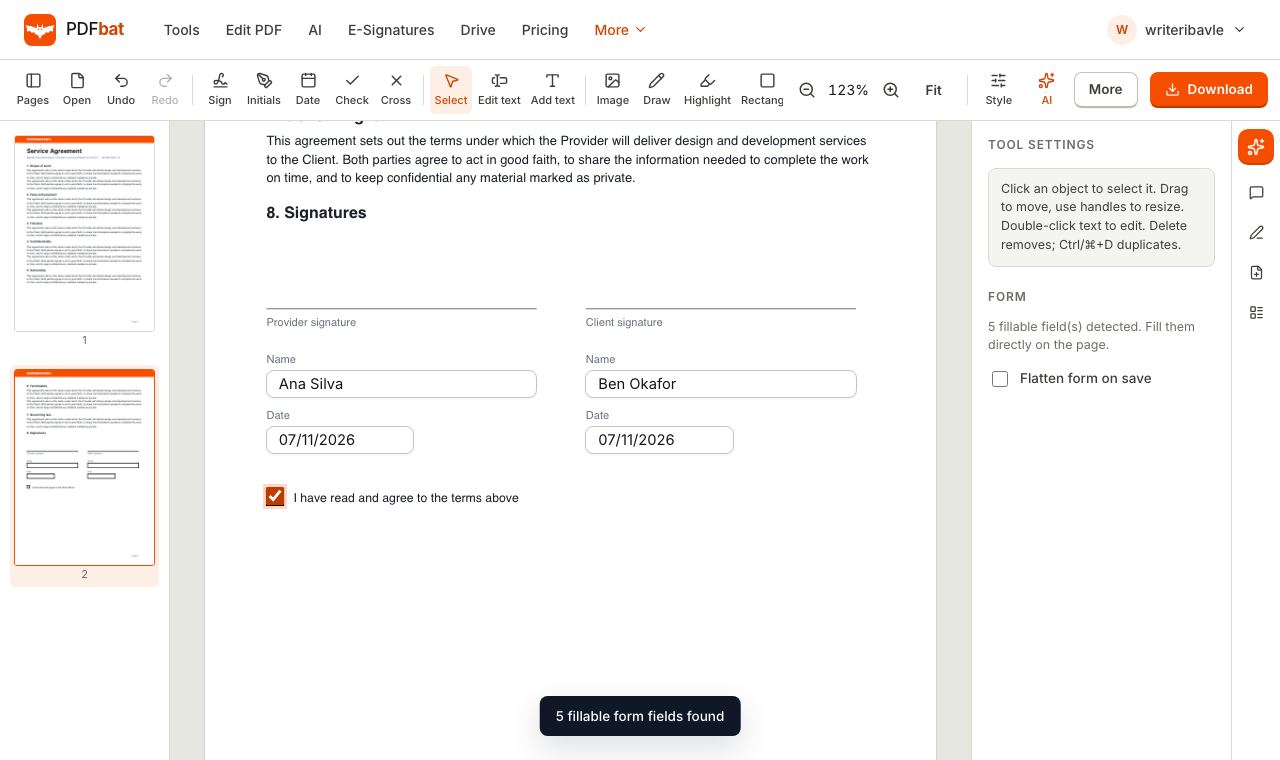
- PDFbat scans the file for form fields. When it finds them, a message such as "24 fillable form fields found" appears and each field becomes an active box on the page.
- Click into a field and type. Press Tab to jump to the next field and Shift+Tab to go back.
- Tick checkboxes and choose radio button options with a click. Pick from dropdowns and list boxes using the menu that opens.
- If the form needs a signature, choose Sign in the toolbar, create your signature, and click where it should go. Use Initials and Date in the same way.
- Open the Style panel and, under Form, tick Flatten form on save if you want the answers locked in.
- Click Download. The completed form downloads and a copy is saved to Edited PDFs in your Drive.
Should you flatten the form?
Flattening merges the answers into the page so they become part of the document rather than editable field values.
| Situation | Flatten? |
|---|---|
| --- | --- |
| Sending a final copy to an agency, employer or landlord | Yes, so nothing can be changed |
| Some PDF viewers show your answers blank or in the wrong font | Yes, it fixes display issues |
| You want to finish the form later | No, keep the fields editable |
| The recipient needs to import the data from the fields | No, flattening removes the fields |
If you forget to flatten, you can also run the finished file through the Flatten PDF tool afterwards.
How to fill a flat PDF form without fields
When no fields are found, you place your answers on the page yourself. It takes a few more clicks but the result looks just as clean.
- Open the form in Fill & Sign.
- Choose Add text and click at the start of each blank line. Type your answer.
- Use Check to place a tick and Cross to place an X in boxes.
- Click Date and then click the page to stamp today's date. It is placed as normal text, so you can change it if the form wants a different date or format.
- Use Sign and Initials for signature lines.
- Select any item to move it, or nudge it with the arrow keys for precise alignment.
- Download when you are done.
Getting text to line up neatly
- Zoom in with the zoom buttons before placing text on small lines. Fit returns to full width.
- Set the font size once in the Style panel before you start; new text boxes use the same settings, so every answer matches.
- Serif looks natural on older, typewriter style forms; Sans suits modern forms.
- Use Whiteout to cover printed placeholder text like "Enter name here" before typing over it.
Signing the form
Many forms end with a signature line. Click Sign and choose one of three ways to create a signature:
- Draw it with a mouse, trackpad, finger or stylus.
- Type your name and pick from several handwriting styles.
- Upload a photo of your signature on white paper. The background is removed automatically.
Tick Save for next time and your signature appears as a one click option on future documents in the same browser. Drag the corners to resize it so it sits on the line.
If a form has to be signed by several people, such as both landlord and tenant, or an employee and a manager, it is better to send it through Request Signatures. Each person gets a private link, signs in their browser, and you receive one completed copy with an audit trail.
Common problems and fixes
My typing disappears or shows blank in another viewer
Some PDF viewers, particularly older ones and some mobile mail apps, do not draw form field values properly. Flatten the form before sending and the answers become part of the page, visible everywhere.
The text does not fit in the box
Long answers can overflow small fields. On a flat form, reduce the font size in the Style panel. On a fillable form, keep answers concise or abbreviate where the form allows. If the form offers an additional sheet or "continued" page, use that.
No fields were found, but the form looks fillable
The boxes may simply be drawn lines and rectangles rather than real fields. Treat it as a flat form and use Add text, Check and Date.
The checkbox tick looks different from the form's style
Fillable checkboxes use the style defined by the form's creator. On flat forms, choose between Check and Cross and set the colour in the Style panel so it matches the pen colour the form asks for, usually black or blue.
The form says the file is too large to upload
Many portals limit uploads to a few hundred kilobytes. After filling the form, compress it. Our guide on how to compress a PDF to 100 KB walks through the settings.
The form is password protected
If the form opens with a password, enter it when asked. If it opens freely but blocks editing, you will need the owner's permission to change it.
Tips for specific forms
Government and tax forms
Official fillable forms often include calculated fields and validation scripts. PDFbat fills the field values but does not run form scripts, so totals will not calculate automatically. Do the sums yourself and type the result. Always check the agency's own instructions on whether electronic signatures are accepted for that form.
Job applications and HR forms
Flatten before you submit, and name the file clearly, for example Jane Smith Application Form.pdf. Keep the unflattened copy in your Drive in case you need to correct something.
Medical and school forms
These often repeat the same details (name, date of birth, address) across pages. On a flat form, type the first instance, then copy and paste the wording into each later box so the spelling stays identical. Where the same answer appears twice on one page, select it and use Duplicate in the Style panel, then drag the copy into place.
Forms in other languages
Answers can be typed in any script, including Devanagari, Arabic, Chinese, Japanese, Tamil, Thai and Cyrillic. PDFbat picks a font that contains the letters and shapes them correctly. See our guide to adding text in any language to a PDF for details.
A checklist before you submit a form
Most rejected forms are rejected for simple reasons. Run through this list before you send yours:
- Every required field is complete. Scroll through every page, including the last one, which often holds a declaration or signature box.
- Dates are in the format the form asks for. Some forms want day, month, year; others want month first. The Date stamp is editable, so change it if needed.
- Names match your ID. Use the same spelling and order of names as your passport or other official document.
- Boxes are ticked, not just highlighted. Use Check or the form's own checkbox, not the Highlight tool.
- The signature is on the line, sized like a handwritten one, not tiny or huge.
- The form is flattened if it is the final copy.
- The file name is clear and the file size meets the portal's limit.
- You kept a copy. Your Drive already holds one in Edited PDFs, which is handy if the organisation asks you to resend.
Filling forms on a computer or Chromebook
On Windows, Mac, Linux and ChromeOS, Fill & Sign runs in Chrome, Edge, Safari or Firefox with nothing to install, which makes it a good option on work or school computers where you cannot add software. A mouse and keyboard make Tab navigation fastest for long forms, and a trackpad works well for drawing a signature.
Filling forms on iPhone and Android
Fill & Sign works in mobile browsers without an app. On a phone, tap a field to bring up the keyboard and use the zoom buttons when boxes are small. Turning the phone sideways gives more room. The page list opens as a drawer from the left and the Style panel slides up from the bottom.
PDFbat compared with Adobe Acrobat Reader
The free Adobe Acrobat Reader can fill fillable forms and add text and a signature to flat ones, and it is a solid choice if you already have it installed. PDFbat does the same in a browser without installing anything, and adds a few extras for the same job: automatic Drive copies of each completed form, full support for non Latin scripts, a one click flatten option, and a direct path to sending the form to other people for signature.
Privacy
Your form is processed on PDFbat servers to write the answers into the file, then returned as a download. A copy goes to your private Drive (1 GB free) so you can find it again, and you can delete it at any time. Forms often contain sensitive data like ID numbers and medical details, so when you share the final file, send it directly to the organisation that requested it, and remove copies you no longer need.
Summary
To fill a PDF form online free, open it in Fill & Sign. If fields are found, click and type, tick boxes, and choose options. If the form is flat, use Add text, Check, Cross and Date. Sign with Sign, tick Flatten form on save for a final copy, and download.
Frequently asked questions
How do I know if a PDF has fillable fields?
Open it in Fill & Sign. If the form has real fields, a message tells you how many were found and each field appears as a box you can click and type into. If no message appears, the form is flat and you add text where needed.
What does flatten mean?
Flattening turns the filled fields into ordinary page content. The answers can no longer be changed and they look the same in every PDF reader, which is useful before you send a final copy.
Can I save a half filled form and finish later?
Yes. Download it without flattening and a copy is saved to your Drive. Open it again later and the fields still hold your answers.
Can I fill a PDF form on my phone?
Yes. Fill & Sign runs in Safari and Chrome on iPhone and Android. Tap a field to bring up the keyboard and use the zoom buttons for small boxes.
Is it really free?
Yes. You need a free account, and the free plan handles files up to 25 MB. Pro removes the daily task cap and raises the file size limit.
Can I type answers in Hindi, Arabic or Chinese?
Yes. Text you add to a form can be in any language and script, and it stays readable and searchable in the downloaded PDF.