How to Add Text in Any Language to a PDF (Arabic, Chinese, Hindi and More)
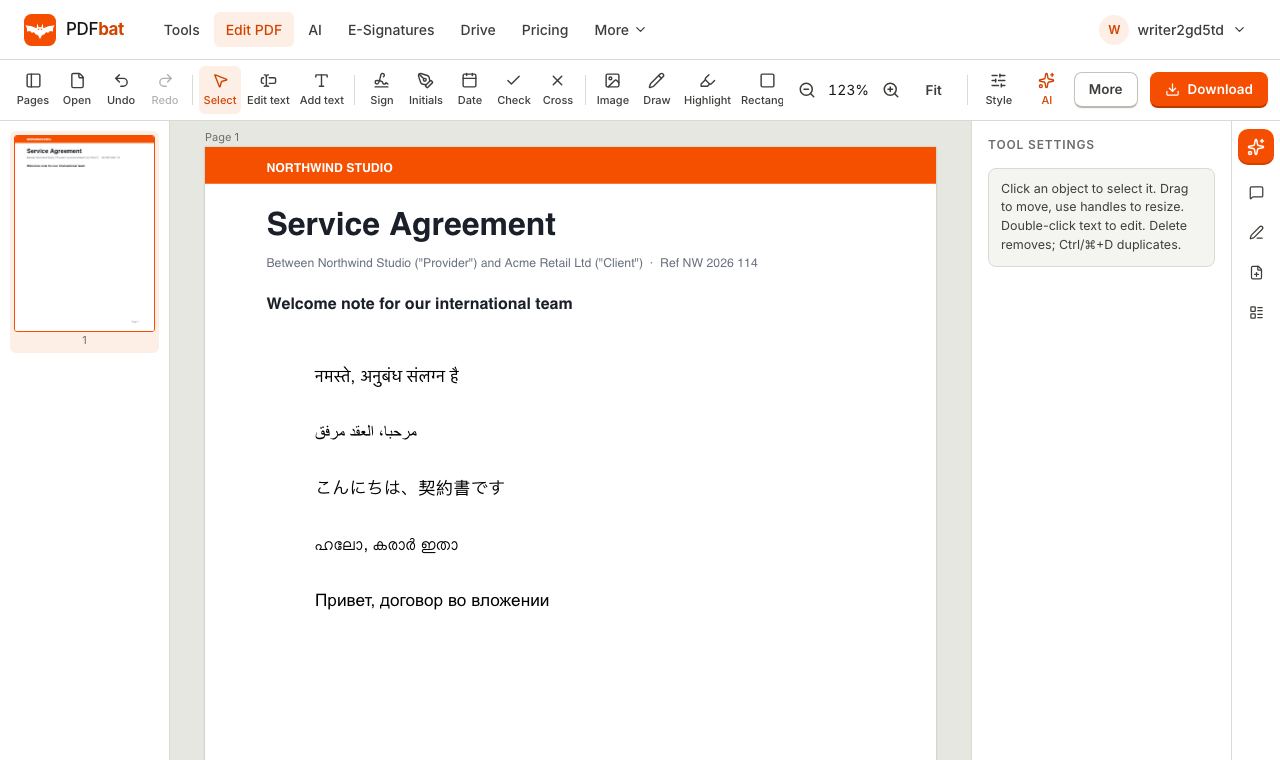
If you have ever tried to add text in Arabic to a PDF and ended up with empty boxes, disconnected letters or words running backwards, you are not alone. The same happens with Hindi, Chinese, Tamil, Thai and even accented European letters in many PDF tools. This guide explains why it happens, how to add text in any language to a PDF so it looks right and stays searchable, which scripts are supported, and how to fix the problems that still come up.
Why non English text breaks in PDFs
There are two separate problems, and a tool has to solve both.
Problem 1: the font has no glyph for your letter
A PDF has to embed a font that actually contains every character you type. Many tools only ship fonts with basic Latin letters. Type a character outside that set and the viewer has nothing to draw, so you get an empty rectangle (often called "tofu"), a question mark, or nothing at all.
Problem 2: the text is not shaped
Many scripts are not simply one letter after another. They need shaping, where the software chooses the right form of each letter depending on its neighbours:
- Arabic, Persian and Urdu letters take different forms at the start, middle and end of a word and must join together, written right to left.
- Devanagari (Hindi, Marathi, Nepali, Sanskrit) combines consonants into conjuncts and moves some vowel signs before the consonant they follow in speech.
- Tamil, Malayalam, Bengali, Telugu and Kannada have their own conjuncts, vowel signs that wrap around consonants, and reordering rules.
- Thai, Lao and Khmer stack vowel and tone marks above and below letters.
Without shaping, the letters may all be present but the word is unreadable to a native speaker. This is the most common reason Hindi or Malayalam text "looks wrong" in a PDF even when no boxes appear.
How PDFbat handles every script
PDFbat uses two pieces of technology to get this right:
- Noto fonts. Google's Noto family covers nearly every writing system in Unicode. For each character you type, PDFbat uses your chosen font family if it has the glyph, and otherwise falls back through Noto fonts for each script until it finds one that does.
- HarfBuzz shaping. HarfBuzz is the shaping engine used by Chrome, Android and many other platforms. Every run of non Latin text is shaped with it, so Indic conjuncts, mark positioning and Arabic joining are correct.
Two more details make the result practical:
- Text stays searchable and copyable. Each shaped glyph is mapped back to the original characters, so you can search the PDF and copy the words out.
- Files stay small. Only the glyphs you actually use are embedded, not the entire font, which matters for large CJK fonts.
How to add text in Arabic to a PDF, step by step
The steps are the same for every language. Arabic is used as the example here.
- Open the PDFbat editor and drop in your PDF. You need a free account, which takes seconds to create.
- Click Add text in the toolbar.
- Click where the text should go. You can drag the box into its exact position afterwards.
- Type or paste your Arabic text. Pasting from a word processor, a website or a translation tool works fine.
- Open the Style panel to set size and colour. Use the alignment buttons to align the text right for Arabic, Persian, Urdu and Hebrew.
- Drag the box to fine tune its position.
- Click Download. The finished PDF has correctly joined, right to left Arabic text and a copy is saved to your Drive.
Typing in other languages
Exactly the same steps work for Hindi, Bengali, Tamil, Telugu, Malayalam, Gujarati, Punjabi, Chinese, Japanese, Korean, Thai, Russian, Greek, Hebrew and more. You can also mix scripts in one box, such as an English sentence with a Japanese product name, or a Hindi address with an English postcode.
Editing existing text in another language
Edit text works on lines that are already in the PDF. Click the line, retype it in any language, and save. The original characters are removed and the new text is written in their place. Our guide to editing text in a PDF without Acrobat covers this in detail, including what to do with scanned documents.
Supported scripts
| Region | Scripts and languages |
|---|---|
| --- | --- |
| Europe and the Americas | Latin (including Vietnamese, Polish, Turkish, Czech, Romanian), Cyrillic, Greek, Armenian, Georgian, Cherokee, Canadian Aboriginal syllabics |
| Middle East and North Africa | Arabic, Persian, Urdu, Hebrew, Syriac, Tifinagh |
| South Asia | Devanagari (Hindi, Marathi, Nepali, Sanskrit), Bengali, Gurmukhi (Punjabi), Gujarati, Odia, Tamil, Telugu, Kannada, Malayalam, Sinhala, Tibetan, Thaana, Ol Chiki, Meetei Mayek |
| East Asia | Chinese (Simplified and Traditional), Japanese, Korean, Mongolian, Yi |
| Southeast Asia | Thai, Lao, Khmer, Myanmar, Javanese, Balinese, Sundanese, Tagalog |
| Africa | Ethiopic (Amharic, Tigrinya), N'Ko, Vai, Adlam |
Beyond these, PDFbat ships fonts for dozens of historic and minority scripts, along with mathematical and other symbols.
How to type in another language on your device
If you can see the text but cannot type it, you need a keyboard for that language. Copying and pasting also works.
- Windows: Settings, then Time and language, then Language and region. Add a language and its keyboard, then switch with Windows key and Space.
- Mac: System Settings, then Keyboard, then Text Input. Click Edit and add an input source. Switch from the menu bar or with Control and Space.
- iPhone and iPad: Settings, then General, then Keyboard, then Keyboards, then Add New Keyboard. Tap the globe key to switch.
- Android: In Gboard settings, open Languages and add one. Gboard offers phonetic input for many Indian languages, so you can type Hindi or Malayalam using English letters.
Tips for specific languages
Arabic, Persian and Urdu
- Align right in the Style panel so the text lines up with the page margin.
- Keep each box in one main direction. Short English words or numbers inside Arabic text generally work, but for long English phrases, a separate text box gives more predictable placement.
- Urdu is rendered in a clear Naskh style rather than the Nastaliq calligraphic style seen in many Urdu publications. It is fully readable but looks different from newspaper Urdu.
Hindi and other Indian languages
- Type normally and let the shaping engine form conjuncts. Do not insert special joiner characters unless you specifically need them.
- If a conjunct looks different from what you expect, check the source text. Copying from some older websites brings in legacy encodings that are not standard Unicode.
Chinese, Japanese and Korean
- CJK characters are larger and denser than Latin letters. A size one or two points smaller than your English text often looks balanced.
- Chinese characters shared between languages use the Simplified Chinese design by default. Japanese kana and Korean Hangul render in their own forms; a handful of shared characters may show a slightly different regional shape in Japanese or Traditional Chinese text.
Thai, Lao and Khmer
- Text boxes do not wrap automatically, so press Enter where you want a new line. These scripts have no spaces between words, so choose a natural break point between words or phrases.
Bold and italic
- Bold is available for most scripts. Italic applies to Latin, Greek and Cyrillic; most other writing systems have no italic form, so they stay upright.
Watermarks, page numbers, headers and forms
The same text engine powers other tools, so any language works there too:
- Watermark a document with "سري" or "गोपनीय" (confidential).
- Add page numbers or headers and footers in your own language. Our guide on how to add page numbers to a PDF shows the options.
- Turn plain text in any script into a clean document with Text to PDF.
- Fill flat forms with answers in your language using Add text in Fill & Sign. See how to fill a PDF form online free.
Fixing a PDF where another tool already left boxes
If you already added text with another tool and it came out as boxes or broken letters, the damage is baked into that file: the characters were drawn with a font that could not display them. To fix it, open the PDF in the PDFbat editor, choose Edit text and click the broken line. If the editor shows the original characters, retype or paste the correct text and save. If the line cannot be picked up, cover it with Whiteout and add the text again with Add text. Either way, the new text is written with a font that has the right glyphs.
Working with translated documents
Translators and international teams often need to place a translated sentence next to the original, add a translated caption under an image, or stamp a bilingual note on every page. A few habits help:
- Paste the translation straight from your translation tool rather than retyping it, which avoids typos in scripts you do not read.
- Ask a native speaker to check the final PDF, not just the source text, so they see exactly what the reader will see.
- For a note that must appear on every page, a watermark or header is faster than adding text page by page.
- Translated text is often longer than the original. Reduce the font size slightly or split it across two lines with Enter.
Common problems and fixes
The preview looks slightly different from the downloaded PDF
The editor shows text using your browser's fonts while you work. The downloaded file uses Noto fonts embedded in the PDF, so letter shapes can differ slightly. Spacing and position are preserved.
Copied text comes out in the wrong order
Some PDF readers handle right to left text better than others when copying. Try another reader, such as a modern browser's built in viewer. Search inside the PDF generally works either way.
Some characters still show as boxes in another program
That usually means the other program is not reading the embedded font, for example a basic text extraction tool. Open the file in a full PDF viewer to confirm it displays correctly.
Text overlaps the original content
Use Whiteout to cover the area first, then add your text on top. If the text underneath is sensitive, use Redact instead, which deletes it.
Privacy
Your PDF is processed on PDFbat servers to embed the text and fonts, then returned to you. A copy is saved in your private Drive (1 GB free), which you can delete at any time. The free plan handles files up to 25 MB.
Summary
To add text in Arabic to a PDF, or text in any other language, open the editor, choose Add text, click the page, type or paste, align right for right to left scripts, and download. PDFbat picks a Noto font for each character, shapes it with HarfBuzz, and keeps the text searchable, so you get readable Hindi, Chinese, Tamil, Thai or Arabic in the final file without boxes or broken letters.
Frequently asked questions
Why do I see boxes or question marks instead of my text?
The tool you used embedded a font that does not contain those letters. PDFbat checks every character and automatically switches to a Noto font that has it, so nothing turns into boxes.
Does right to left text work?
Yes. Arabic, Persian, Urdu and Hebrew are shaped and laid out right to left, with Arabic letters joined in their correct forms.
Can I search and copy the text afterwards?
Yes. PDFbat stores the original characters alongside the shaped glyphs, so search and copy and paste work in most PDF readers.
Which languages are supported?
Every major writing system and many minority ones, including Latin, Cyrillic, Greek, Arabic, Hebrew, Chinese, Japanese, Korean, Devanagari, Bengali, Tamil, Telugu, Kannada, Malayalam, Gujarati, Gurmukhi, Thai, Lao, Khmer, Myanmar, Ethiopic, Georgian, Armenian and Tibetan.
Can I mix languages in one line?
Yes. You can type English and Japanese, or Hindi and English, in the same text box. Each part uses a font that suits its script.
Does it work for watermarks and page numbers?
Yes. The same text engine powers the Watermark, Page Numbers, Header and Footer, Bates Numbering and Text to PDF tools.