How to Edit Text in a PDF Without Adobe Acrobat (Free, in Your Browser)
You found a typo in a contract, a wrong date on an invoice, or an old phone number in a brochure, and the only copy you have is a PDF. You do not need an Adobe Acrobat subscription to fix it. This guide shows you how to edit text in a PDF without Acrobat, for free, in any modern browser on Windows, Mac, Chromebook, Linux, iPhone or Android. It also explains why some PDFs resist editing, how to avoid the classic "white box" mistake, and what to do when a line simply will not change.
Why PDFs are hard to edit
A Word document stores text as flowing paragraphs. A PDF does not. It stores each piece of text as a set of glyphs placed at exact coordinates on the page, along with the font needed to draw them. That design is why a PDF looks identical on every screen and printer, and it is also why editing one feels awkward.
Three things follow from that structure:
- There are no real paragraphs. A paragraph you see on screen is often dozens of separate lines, sometimes split into fragments. Changing one word does not make the rest of the paragraph reflow.
- Fonts are usually partial. To keep files small, most PDFs embed only the letters that actually appear. If the original document never used a capital Q, the embedded font may not contain one, so a reliable editor has to substitute a matching font for new text.
- Covering is not removing. Drawing a white rectangle over a word hides it from view, but the original characters stay in the file. Anyone can select, copy or search them.
That last point matters more than most people realise. Many free tools only draw a box on top and place new text over it. The PDF looks right, but the old number, name or price is still in there. A proper edit replaces the original characters, and that is how PDFbat handles it.
How to edit text in a PDF without Acrobat, step by step
You need a free PDFbat account (a username and password). Sign up takes a few seconds, and if you drop a file in before signing up, the editor keeps it and reopens it right after.
- Open the PDFbat editor and drop your PDF onto the page, click Choose PDF, or use Open from Drive if the file is already in your PDFbat Drive. Password protected PDFs ask for the password first.
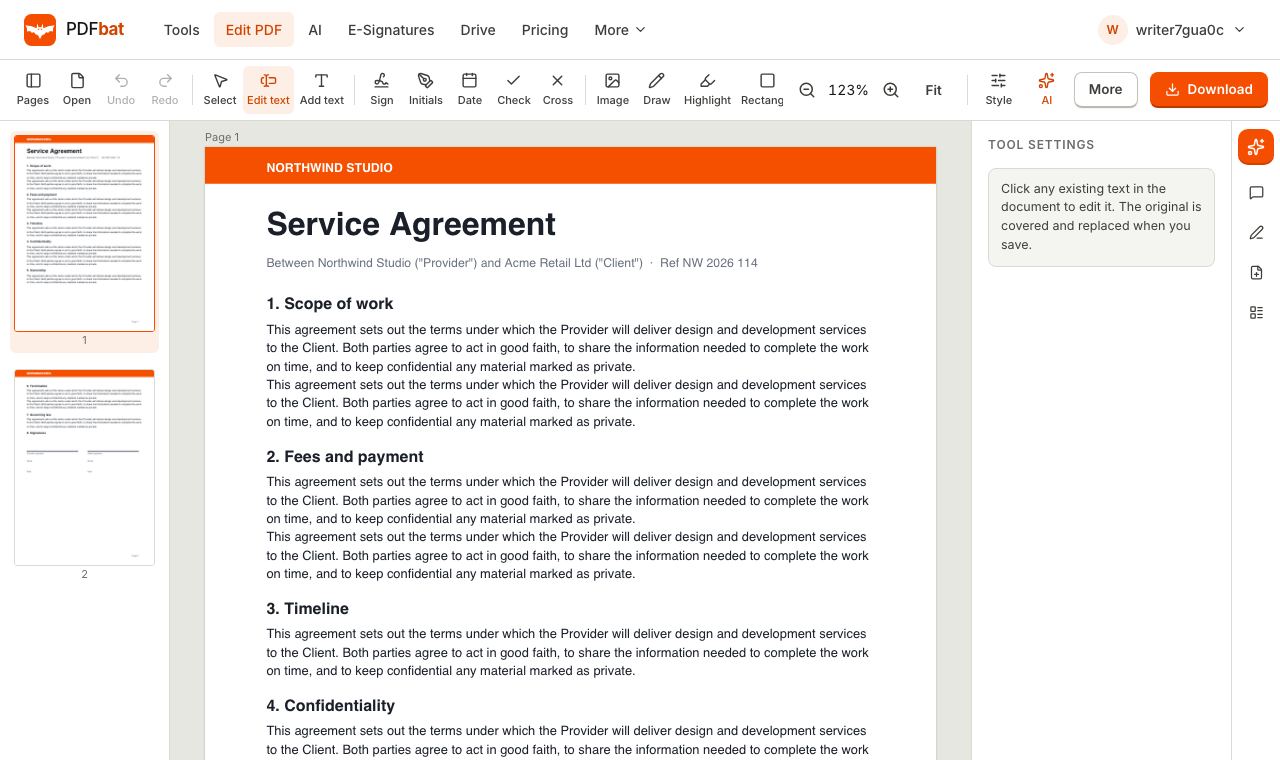
- Click Edit text in the toolbar. Every line of existing text on the page becomes clickable.
- Click the line you want to change. An editable copy appears in the same position, at the same size, in the same colour, with bold and italic carried over where the original used them.
- Type your correction. Use Undo and Redo (or Ctrl+Z and Ctrl+Shift+Z) if you change your mind.
- Open the Style panel to fine tune the result: font family (Sans, Serif or Mono), size, colour, bold, italic, alignment (left, centre, right) and an optional background.
- Click anywhere outside the text box to finish, then repeat for any other lines. Use the Pages panel to jump between pages.
- Click Download. PDFbat erases the original characters under each edited line, writes your new text in their place, and downloads the finished PDF. A copy is also saved to your Drive in the Edited PDFs folder.
What happens when you save
The edit happens in two parts. First, the area around the original line is erased from the page content, which removes those characters from the file rather than hiding them. Second, your new text is written into the same spot as real, selectable text. If you open the downloaded file and search for the old wording, it will not be found. That is the key difference between a real edit and a cover up.
Adding new text instead of changing old text
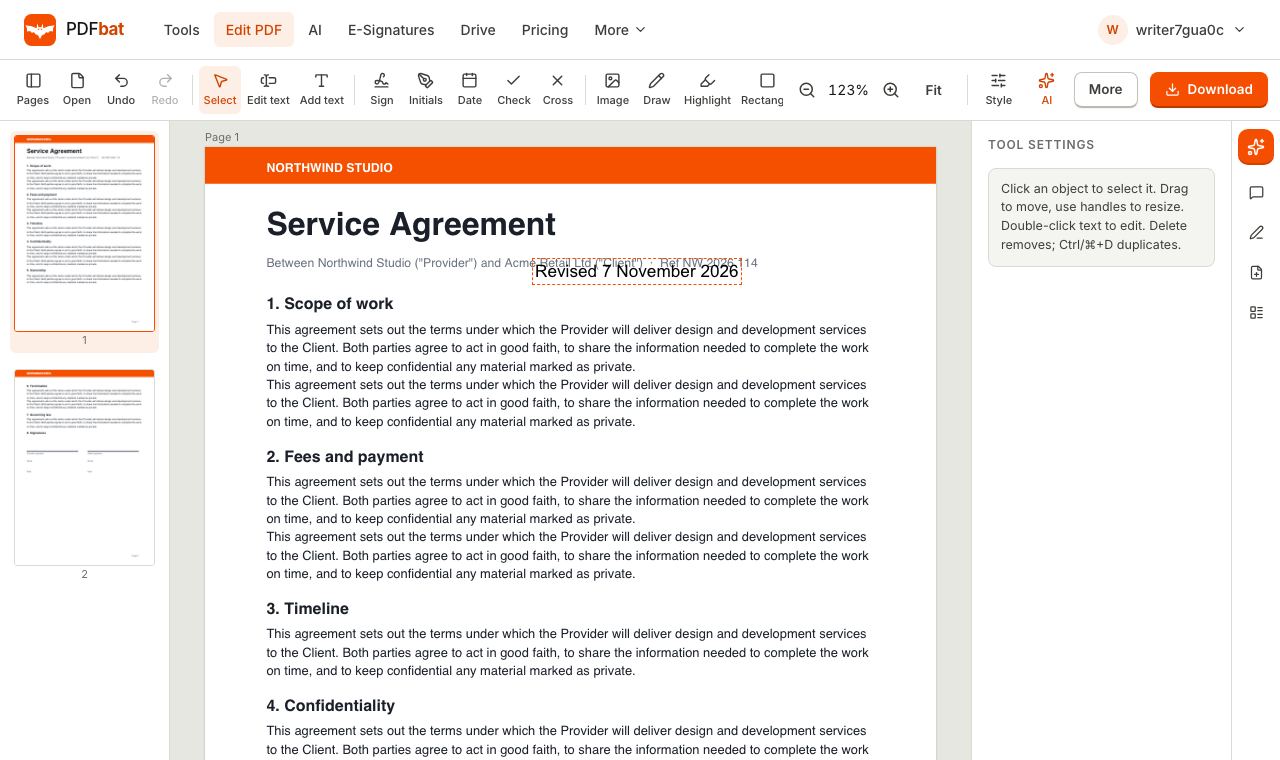
Sometimes you do not need to change anything, you just need to add something: a note in the margin, a revised date, a reference number or your name.
- Choose Add text in the toolbar.
- Click where the text should start and begin typing.
- Drag the box to reposition it, or use the arrow keys for small nudges.
- Adjust size, colour and font in the Style panel.
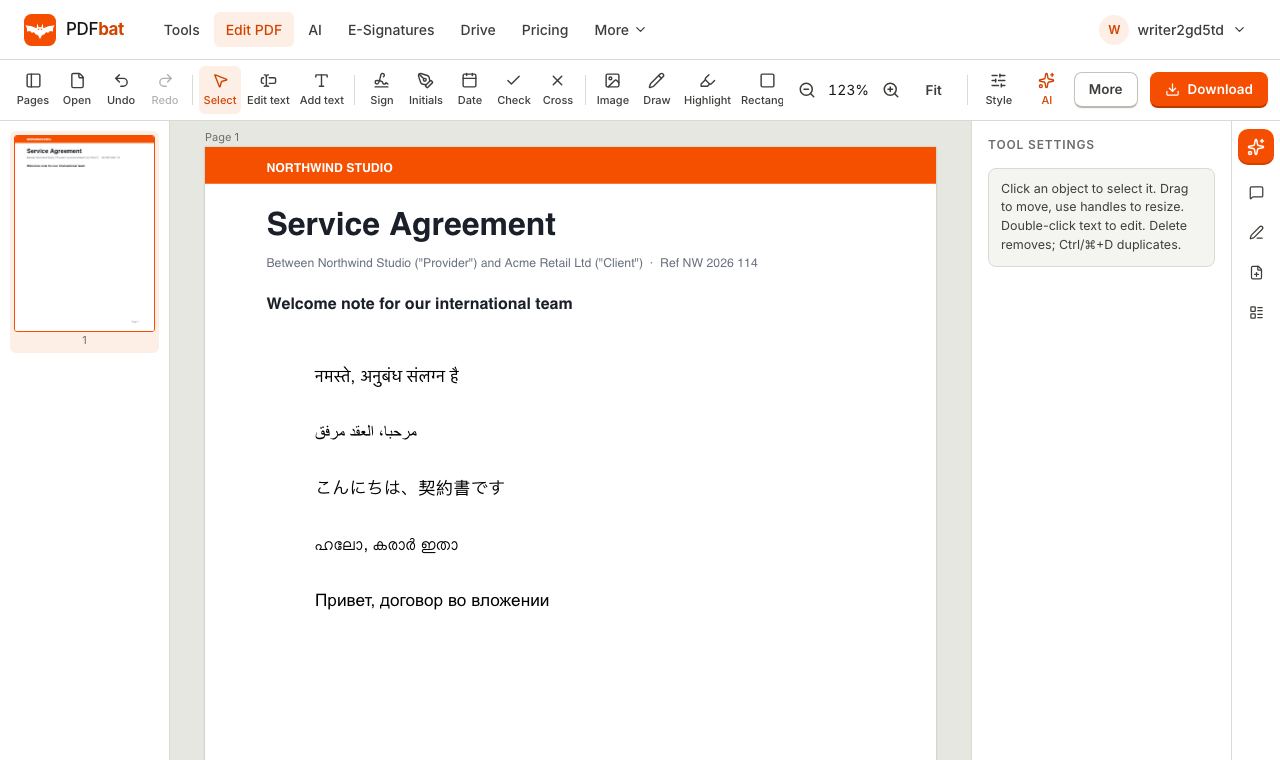
New text can be in any language. Hindi, Arabic, Japanese, Malayalam, Russian and many other scripts render correctly in the downloaded PDF, and the text stays searchable. Our guide to typing any language in a PDF explains how that works.
Other edits you can make in the same session
Text is usually only part of the job. The editor toolbar also includes:
- Image to insert a logo, photo or stamp.
- Draw for freehand marks, and Highlight to mark passages.
- Rectangle, Ellipse, Line and Arrow for callouts and diagrams.
- Whiteout to cover an area with a white (or any colour) box.
- Redact to permanently delete text and images in an area.
- Link to make an area clickable, pointing to a web address or another page.
- Comment to leave a sticky note.
- Sign, Initials, Date, Check and Cross for signing and ticking boxes.
The Pages panel lets you drag pages into a new order, rotate, duplicate or delete a page, and insert a blank page. When you finish, the More menu hands the result straight to other tools such as compress, password protect, watermark or page numbers, so you do not need to download and upload again.
PDFbat compared with Adobe Acrobat
Adobe Acrobat is the reference PDF editor, and it does a lot. The free Acrobat Reader lets you view, comment, fill and sign, but editing existing text requires a paid Acrobat Standard or Pro subscription. Acrobat Pro can also reflow text across a paragraph, run OCR on scans, and handle advanced print production.
PDFbat focuses on the everyday edits most people need, in a browser, at no cost for normal use.
| Task | PDFbat (free account) | Adobe Acrobat |
|---|---|---|
| --- | --- | --- |
| Edit existing text | Yes, line by line | Yes, with a paid plan |
| Add text, images, shapes | Yes | Yes, with a paid plan |
| Text in any script | Yes, with automatic font fallback | Depends on installed fonts |
| True redaction | Yes | Yes, in Acrobat Pro |
| Paragraph reflow | No, edit each line | Yes |
| OCR for scans | No | Yes, in Acrobat Pro |
| Install required | No, runs in the browser | Desktop app or Acrobat online |
If you regularly rewrite whole paragraphs or work with scanned documents all day, Acrobat Pro may be worth it. If you need to fix a date, a name, a figure or a sentence, a browser editor does the job.
Common problems and fixes
The text I clicked is the wrong size or position
Some PDFs store text with unusual spacing or scaling. Select the edited box and adjust Size in the Style panel, then drag the box or use the arrow keys to line it up with neighbouring text. Zooming in with the zoom buttons makes alignment easier.
My new line is longer than the original
Because PDFs do not reflow, a longer line can run into the margin or overlap text beside it. Try one of these:
- Shorten the wording.
- Reduce the font size by half a point or one point. Small changes are rarely noticeable.
- Split the text: edit the original line to hold the first part, then use Add text for a new line below.
The font looks slightly different
PDFbat matches the family (sans, serif or mono), weight, style and colour, but it cannot always reuse the exact embedded font because that font may be incomplete. For a single word inside a sentence, edit the whole line so the font is consistent across it rather than mixing two fonts side by side.
Rotated text will not edit
Text at an angle cannot be edited in place, and the editor tells you so. Use Whiteout to cover it, then Add text to type the replacement. Remember that Whiteout only covers, so if the old text is sensitive, use Redact over it first.
Nothing happens when I click on a scanned page
A scan is a photograph of a page. There are no characters for Edit text to find. Cover the words with Whiteout, matching the fill colour to the paper if it is not pure white, then add new text with Add text and pick a font and size that look similar.
The PDF will not open
If it asks for a password, enter the password to open it. If it is larger than 25 MB on the free plan, try the Compress PDF tool first, or upgrade to Pro for larger files. Damaged files sometimes open after a pass through the Repair tool.
Tips for specific situations
Contracts and agreements
Edit before anyone signs. Once a document has been signed, changing it can make the signature meaningless or raise questions. If the document has already been sent for signature, void it and send a corrected version instead. When you are ready to collect signatures, send the PDF for signature so the final file is sealed.
Invoices and receipts
Change amounts, dates and reference numbers line by line, and double check totals because the PDF will not recalculate anything. Never alter an invoice or receipt to misrepresent a transaction.
Resumes and CVs
For small changes like a new phone number or job title, Edit text works well. For a full rewrite, editing the original Word or Google Docs file and exporting a new PDF will look cleaner.
Forms
If the PDF has fillable fields, use Fill & Sign instead, which types into the real fields. See our guide on how to fill a PDF form online.
Removing personal information
Do not rely on Whiteout or a black rectangle to hide account numbers, names or addresses. Use Redact, which deletes the content underneath when you save. Our guide to redacting a PDF permanently covers this in detail.
Editing on a phone, tablet or Chromebook
The editor runs in Safari, Chrome, Edge and Firefox, so it works on Chromebooks, iPads and phones too. On a small screen, the Pages panel opens as a drawer from the left and the Style panel slides up from the bottom. Tap Fit to fit the page to your screen width, zoom in before tapping a line, and turn the device sideways for more room.
Privacy and where your file goes
Your PDF is processed on PDFbat servers to apply the edits, then returned to you as a download. A copy is kept in your private Drive so you can find it again; you can delete it whenever you like. The free plan includes 1 GB of Drive storage. Because edited text and redactions remove the original characters rather than covering them, the file you share does not leak the words you changed.
Summary
To edit text in a PDF without Acrobat, open the file in the PDFbat editor, choose Edit text, click the line, type the correction, adjust the style if needed and download. Use Add text for new content, Redact for anything that must disappear, and keep lines close to their original length for the cleanest result.
Frequently asked questions
Can I edit text in a PDF without Acrobat for free?
Yes. Open the PDF in the PDFbat editor in any browser, choose Edit text, click the line you want to change and type. You need a free account, and there is nothing to install.
Will the old text still be hidden in the file?
No. When you edit existing text, PDFbat erases the original characters in that area when you save and writes your new text in their place, so nobody can copy or search for the old words later.
Can I edit a scanned PDF?
A scanned page is a picture, so there is no real text for Edit text to pick up. Cover the old words with Whiteout and type the replacement with Add text, choosing a font and size that match.
Does editing change the fonts?
The new text uses the closest matching family (sans, serif or mono) with the original size, weight, style and colour. The exact embedded font usually cannot be reused because PDFs often contain only the letters already shown on the page.
Why can't I edit some lines?
Rotated text cannot be edited in place. Cover it with Whiteout and add new text on top instead. Text that is really part of an image, such as a logo or a scan, also cannot be edited.
Is there a file size limit?
The free plan accepts PDFs up to 25 MB. Pro raises the limit and removes the daily task cap.