How to Add Page Numbers to a PDF Online (Page X of Y, Roman Numerals, Skip the Cover)
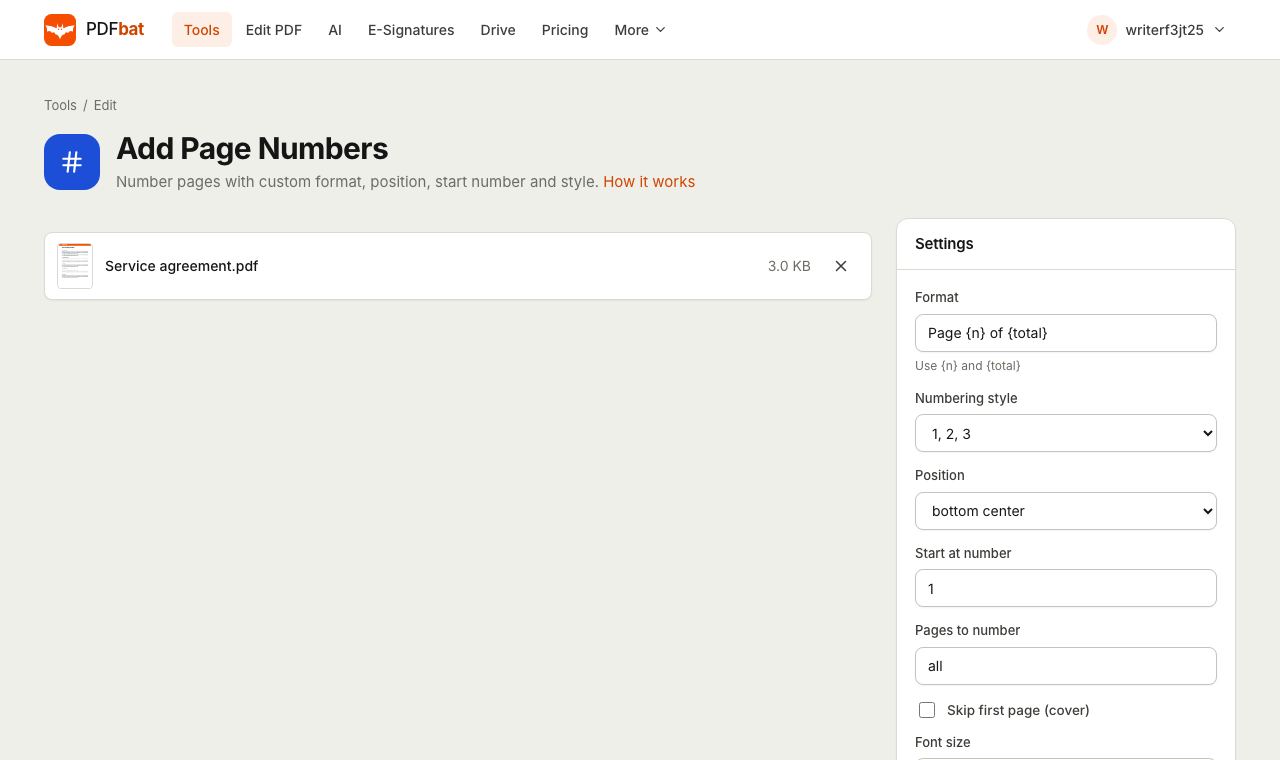
If you need to add page numbers to a PDF, you do not have to open Word again, export a new copy or buy a desktop editor. PDFbat stamps numbers straight onto the pages of your existing file, in your browser, with full control over the wording, position, font, colour and starting number. This guide walks through every option, explains the settings that trip people up (like the "of Y" total when you skip a cover), and covers the situations that come up most often: reports, theses, legal bundles, scanned documents and quick jobs on a phone.
Why number the pages of a PDF at all
Page numbers sound like a small detail until someone says "see the table on the page after the chart" in a meeting. Numbered pages make a long document easier to discuss, review and print. They also matter in specific settings:
- Reports and proposals. Reviewers refer to page numbers in their comments, and a table of contents is useless without them.
- Theses and academic submissions. Many universities require Roman numerals for the front matter and Arabic numerals from the first chapter.
- Contracts and legal bundles. Numbered pages make it obvious if a page is missing or has been swapped.
- Printed handouts. If a stapled stack falls apart, numbered pages go back together in seconds.
- Merged documents. When you combine several files into one, their original numbering no longer makes sense, so a fresh sequence across the whole file is the clean fix.
How to add page numbers to a PDF step by step
You need a free PDFbat account to run tools. It only takes a username and password, and your first file is kept while you sign up so you come straight back to it.
- Open Add Page Numbers.
- Drop your PDF onto the upload area, click to browse, or use Choose from Drive if the file is already in your PDFbat Drive.
- Check the Format box. The default is
Page {n} of {total}. Change it to whatever wording you want (more on this below). - Pick a Numbering style:
1, 2, 3,i, ii, iiiorI, II, III. - Choose a Position: top left, top center, top right, bottom left, bottom center or bottom right.
- Set Start at number if the first numbered page should show something other than 1.
- Use Pages to number and Skip first page (cover) to control which pages get a number.
- Adjust Font size, Font, Color and Margin (pt) if you want a different look.
- Click Add Page Numbers.
The numbered PDF downloads automatically, and a copy is saved to your Drive so you can find it again later. The result screen also lets you carry the file straight into another tool, such as compressing it or adding a password, without uploading it again.
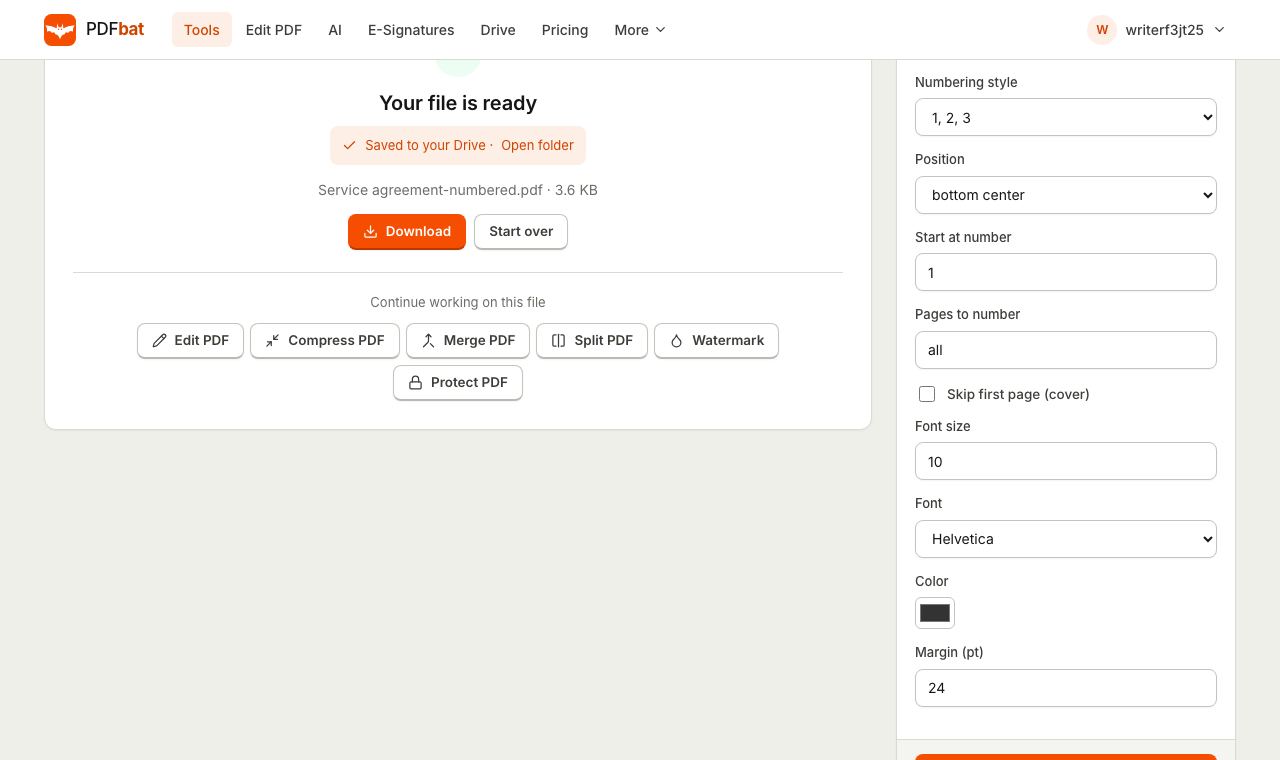
Every option explained
Format: the words around the number
The format box is plain text with two placeholders:
{n}is replaced by the page number.{total}is replaced by the total count.
Some formats that work well:
| You type | Page 3 of a 12 page file shows |
|---|---|
| --- | --- |
{n} | 3 |
Page {n} | Page 3 |
Page {n} of {total} | Page 3 of 12 |
{n} / {total} | 3 / 12 |
Appendix A, page {n} | Appendix A, page 3 |
Seite {n} von {total} | Seite 3 von 12 |
You can write the surrounding words in any language. Keep the text short, because it is drawn on a single line.
Numbering style: Arabic or Roman numerals
1, 2, 3 is the standard choice. i, ii, iii (lowercase Roman) is the traditional style for prefaces, acknowledgements and tables of contents. I, II, III (uppercase Roman) suits formal documents and some legal styles. The style applies to both {n} and {total}, so Page {n} of {total} in lowercase Roman reads "Page iii of x".
Position: where on the page
There are six positions across the top and bottom of the page. Bottom center is the most common for books and reports. Bottom right is popular for business documents and makes numbers easy to spot when flicking through a printed stack. Top right works well if the bottom of your pages already holds a footer, a disclaimer or a signature line.
If a page in your file is rotated (for example, a landscape table inside a portrait report), the number is still drawn upright from the reader's point of view, in the same corner as on the other pages.
Start at number
This sets the first number that appears. Use it when:
- The PDF is chapter 2 of a larger work and should continue from page 47.
- You skip a cover page but still want the first numbered page to show 2, as if the cover were page 1.
- You are numbering the body of a thesis separately from its front matter.
Pages to number
By default every page is numbered (all). You can type a range instead:
3-lastnumbers from page 3 to the end.1-10numbers only the first ten pages.oddorevennumbers alternating pages.2, 4-8, 12numbers a specific mix.
Page positions here always refer to the physical pages of the file, counting the first page as 1, no matter what number you want printed on them.
Skip first page (cover)
Tick this to leave the first page untouched. It is the quickest way to handle a title page or cover letter. It works together with the range box, so all plus "Skip first page" numbers pages 2 to the end.
Font, size, colour and margin
You can choose Helvetica (clean and modern), Times (classic serif, good for academic and legal work) or Courier (typewriter style). The default size is 10 points, which matches most body text footers. Colour defaults to a dark grey (#333333) that reads clearly without shouting; pick a lighter grey for a subtle look or black for scanned pages that will be photocopied.
Margin is the distance in points from the edge of the page to the number. The default is 24 points, about a third of an inch. Raise it if your printer trims the edges or if the number sits too close to the edge for binding.
Getting the "of Y" total right
This is the part that confuses most people, so here is exactly how it works. The total is the number of pages you number, plus any offset from your start number. In other words, the last numbered page always shows the total.
| Situation | Settings | Result on a 10 page file |
|---|---|---|
| --- | --- | --- |
| Number everything | all, start 1 | Page 1 of 10 to Page 10 of 10 |
| Skip the cover, count from 1 | skip first, start 1 | Page 1 of 9 to Page 9 of 9 |
| Skip the cover, but count it | skip first, start 2 | Page 2 of 10 to Page 10 of 10 |
| Continue a sequence | all, start 47 | Page 47 of 56 to Page 56 of 56 |
The last row shows the catch with continuing a sequence: the total becomes the final page number of this file, not of the whole book. If you need "of 300" across several separate files, use Page {n} without the total, or merge the files first and number them all in one pass.
Common situations and how to handle them
Skip the cover and table of contents
Leave "Skip first page" unticked and enter 3-last in Pages to number. Set Start at number to 1 if the introduction should be page 1, or to 3 if you want the numbering to reflect the physical position.
Roman numerals for front matter, Arabic for the body
Run the tool twice:
- First pass: Pages to number
2-6(your front matter), stylei, ii, iii, format{n}, start at 1. - Download the result, or use the result screen's Add Page Numbers shortcut to carry it into a second pass. Then set Pages to number to
7-last, style1, 2, 3, start at 1.
Keep the same position, font and size in both passes so the two sequences look consistent. Use {n} rather than {total} here, since a total from one pass would not match the other.
Numbering a merged file
When you combine chapters, appendices and attachments with Merge PDF, each source file brings its own numbering, which will clash. Merge first, then add page numbers to the combined file so the sequence runs from start to finish. If the source files already had numbers in the same spot, choose a different position for the new ones so they do not overlap. Our guide to merging PDF files without software covers ordering and bookmarks.
Scanned documents
Scans are just images of pages, but numbers stamp onto them like any other PDF. Two tips: choose black and a slightly larger size (11 or 12 points) so the number survives printing and copying, and check the margin, because many scans have dark edges or punch holes near the border. A margin of 30 to 40 points usually clears them.
Double sided printing
If you print on both sides and bind on the left, a corner number ends up on the inner edge, near the binding, on every other sheet. The simple fix is the bottom center position, which looks right on both fronts and backs. Each run of the tool counts the pages it numbers one after another, so splitting odd and even pages into separate passes would give the wrong sequence. Stick with a centred number for anything you plan to print double sided.
Very large files
The free plan accepts files up to 25 MB. Most text documents are far smaller than that, even at hundreds of pages. If a scanned file is over the limit, run it through Compress PDF first, then add numbers to the smaller copy.
Adding page numbers on a phone, Mac or Windows
PDFbat runs entirely in the browser, so the steps are the same everywhere.
- iPhone and iPad: open the tool in Safari, tap the upload area and choose Browse to pick a PDF from Files or iCloud Drive. The finished file downloads to your Downloads folder in Files, and the copy in your PDFbat Drive is there if you want to grab it later on another device.
- Android: use Chrome, tap the upload area and pick the file from your phone storage or Google Drive. The result lands in Downloads.
- Mac: works in Safari, Chrome, Firefox or Edge. Preview on the Mac cannot add page numbers by itself, which is why many Mac users end up here.
- Windows: works in Edge, Chrome or Firefox. There is nothing to install and no admin rights needed, which helps on work laptops.
On a small screen, the options panel is longer than the screen, so scroll down to find Add Page Numbers after you set everything.
Browser tool versus desktop software
| PDFbat in the browser | Desktop PDF editors | |
|---|---|---|
| --- | --- | --- |
| Install | None | Download and install |
| Cost | Free plan, or Pro at $4 a month | Often a paid subscription |
| Page X of Y | Yes | Yes |
| Roman numerals | Yes | Usually |
| Skip cover, custom ranges | Yes | Yes |
| Works on phone | Yes | Rarely |
| Offline use | No | Yes |
Desktop editors make sense if you edit PDFs all day, offline, with complex layouts. For adding page numbers to a document now and then, a browser tool is quicker and works on any computer, including ones you do not control.
Common problems and fixes
- The number overlaps an existing footer. Increase the margin, switch to a top position, or use a corner the footer does not reach.
- The total looks wrong. See the "of Y" section above: the total equals the last number printed, so adjust the start number or drop
{total}. - Numbers appear on the cover. Tick "Skip first page (cover)" or type a range that starts after it.
- "Invalid page range". The range mentions a page beyond the end of the file. Check the page count and use
lastinstead of a fixed number for the end. - The file is password protected. If the PDF asks for a password to open, remove it first with Unlock PDF (you need to know the password), then add numbers. See how to remove a password from a PDF.
- Old numbers are still visible. The tool adds new text on top of the page; it does not remove numbers that are already printed there. Place the new numbers elsewhere, or delete the old ones with the PDF editor first.
More numbering and labelling tools
- Header & Footer places text in all six top and bottom positions at once, so you can put the page number at bottom center, the document title at top left and the date at top right in a single pass. It supports
{n},{total},{date}and{file}. - Bates Numbering stamps legal style identifiers with a prefix, optional suffix and zero padded digits (ABC000001), continuing across several files in order.
- Watermark is the right tool if you want "DRAFT" or "CONFIDENTIAL" across the page rather than a small label in the margin.
Privacy and limits
Files travel to PDFbat over HTTPS and are processed in memory. The result is stored only in your private Drive, which comes with 1 GB free, and you can delete it at any time. The free plan includes 10 tasks a day with files up to 25 MB, which is plenty for occasional numbering. Pro costs $4 a month and removes the daily task limit, which is useful if you number documents as part of your regular work.
Frequently asked questions
Can I start numbering at a different page?
Yes. Tick "Skip first page (cover)" to leave the cover blank, or type a range such as 3-last in "Pages to number". Set "Start at number" to choose the first number that appears.
Can I use Roman numerals for the front matter?
Yes. Choose i, ii, iii or I, II, III in "Numbering style". To mix Roman front matter with Arabic body pages, run the tool twice on different page ranges.
Why does "Page 1 of 9" show the wrong total?
The total counts only the pages you number, plus any offset from the start number. If you skip a cover and want the total to include it, set the start number to 2.
Will the page numbers cover my content?
They are placed inside the page margin, 24 points from the edge by default. If they overlap a footer, raise the margin value or pick a top position instead.
Can I number pages on my phone?
Yes. The tool runs in any modern mobile browser, so you can upload from your phone, add numbers and download the result without installing an app.
What is Bates numbering?
A legal numbering scheme with a prefix and zero padded numbers, such as ABC000001, that continues across a whole set of documents. Use the Bates Numbering tool for that.