How to Remove a Password From a PDF You Can Already Open (Free, Any Device)
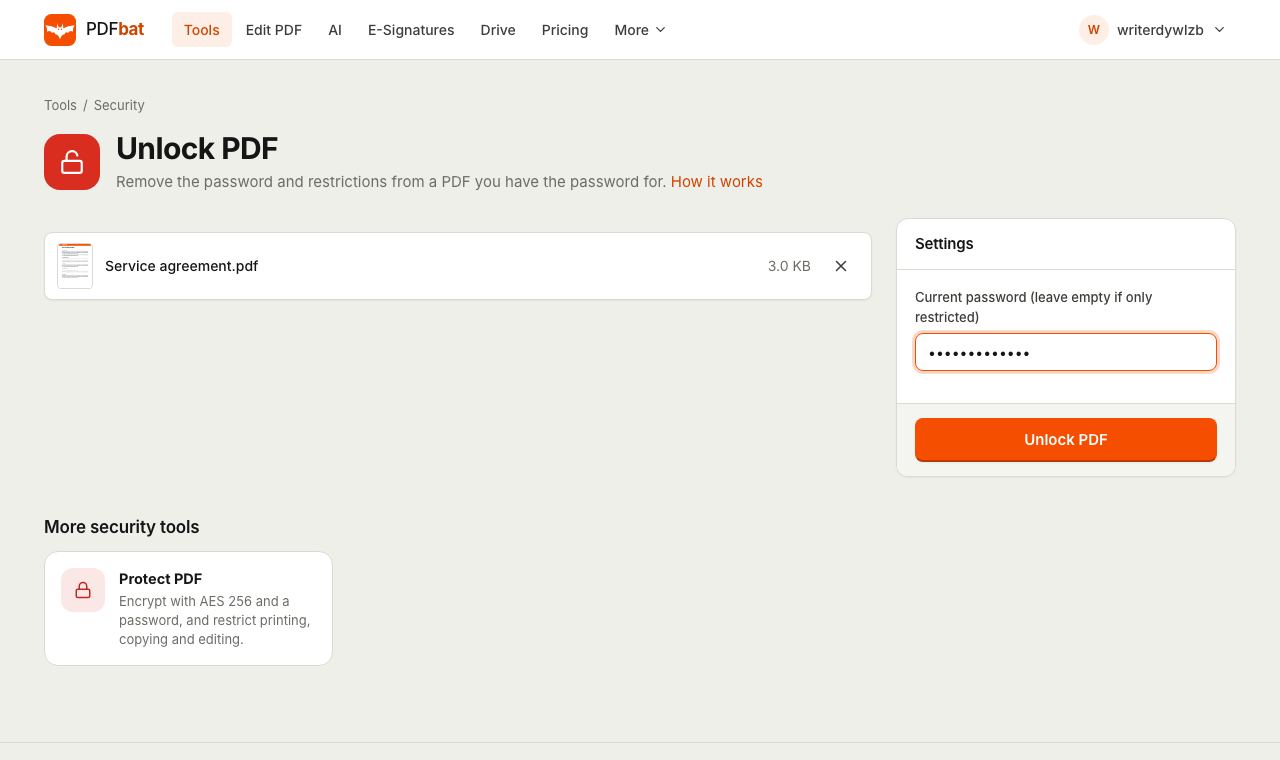
Bank statements, credit card bills, payslips, insurance policies and tax forms often arrive as password protected PDFs. That makes sense while the file is travelling through email, but once it is safely on your own computer, typing your date of birth every time you open it gets tiresome. If you know the password, you can remove the password from the PDF permanently in a few seconds and get a normal file that opens straight away.
This guide covers exactly how to do it, what the different kinds of PDF password mean, how to handle files that open fine but refuse to print, and what to do when things go wrong. One thing up front: unlocking only works when you know the password. PDFbat cannot remove an unknown open password, and no honest tool can.
Open passwords and permission restrictions
PDFs can be locked in two different ways, and it helps to know which one you have.
An open password (sometimes called a user password) stops the file from being viewed at all. When you double click it, your reader asks for a password before showing anything. The content is encrypted, so without the password it is unreadable. Banks and payroll providers use this.
Permission restrictions (set with an owner password) let anyone open and read the file, but block certain actions. You might find that Print is greyed out, you cannot select and copy text, or you cannot fill in a form or add comments. Many government forms, ebooks and company documents are set up like this.
A file can have both. PDFbat's Unlock PDF removes the open password and every restriction in one go, as long as you can supply the open password when there is one.
How to remove a password from a PDF, step by step
You need a free PDFbat account (a username and password). Everything runs in the browser, so there is nothing to download.
- Open Unlock PDF and sign in.
- Upload the locked PDF. Free accounts can upload files up to 25 MB.
- In Current password, type the password you normally use to open the file.
- If the file opens without asking for a password but will not let you print, copy or edit, leave the box empty. That kind of file only has restrictions.
- Click Unlock PDF.
Your unlocked copy downloads immediately, with "unlocked" added to the file name, and a copy is saved to your PDFbat Drive (1 GB free). Open it to check: it should open with no prompt, and printing and copying should work.
The original file is untouched. You now have two versions, the protected one from the sender and your unlocked copy.
Finding the password your bank or employer used
If you have lost the email that came with the file, the password is often built from details the sender already has about you. The covering email or the sender's website usually explains the format. Common patterns include:
- your date of birth, written as
DDMMYYYYorDDMMYY, - the first four letters of your name in capitals or lower case, followed by your birth year or date of birth,
- the last four, five or six digits of your account number, card number or customer ID,
- your PAN, national ID or employee number,
- your registered mobile number or postcode.
Look at the bottom of the original email, or search the sender's help pages for "password to open statement". If you still cannot work it out, contact the sender and ask them to resend the document or tell you the format. That is the only legitimate route for an open password you do not know.
Remove a PDF password on iPhone, Android, Mac and Windows
On iPhone or iPad
Save the PDF from Mail by tapping the attachment, then the share icon, then Save to Files. Open PDFbat in Safari, go to Unlock PDF and pick the file through Browse. After unlocking, the new copy appears in Files, Downloads. You can move it into an iCloud Drive folder so it is easy to find later.
On Android
In Gmail, tap the download arrow on the attachment so it is saved to your Downloads folder. Open PDFbat in Chrome and upload it from there. The unlocked copy is saved back to Downloads.
On Mac
Preview has a workaround: open the file with its password, choose File, Export as PDF and save it without the encryption option. That works for open passwords but often keeps or mishandles permission restrictions, and it is only available on that Mac. PDFbat removes both kinds of lock and stores a copy in your Drive.
On Windows
A common trick is to open the PDF in Chrome or Edge with the password and use Print, Save as PDF. That does remove the password, but it rebuilds the file through the printer engine: links, bookmarks, form fields and sometimes text selection can be lost, and the file is often larger. Unlock PDF removes the encryption without rebuilding the pages, so the document stays the same.
Removing print and copy restrictions
If the file opens without a password but Print is greyed out or text will not copy, it only has restrictions. In Unlock PDF, leave Current password empty and click Unlock PDF. The result has no permission limits.
Only do this for documents you have the right to use that way, such as your own forms or files your organisation sent you. Restrictions are sometimes there for licensing reasons.
Common problems and fixes
"Incorrect password" or the unlock fails. Passwords are case sensitive and phones often capitalise the first letter automatically. Check for a trailing space if you pasted it. Try the date format variants, such as 01021990 versus 010290.
The file opens on my computer without a password, but the tool says it needs one. Some PDF readers remember passwords for you. Your reader may have saved it, so the file looks unprotected. Check the reader's saved passwords, or find the original email.
The unlocked file still asks for a password. You may be opening the original instead of the new copy. Look for the file name ending in "unlocked" in your Downloads folder or Drive.
The file is larger than 25 MB. Free accounts accept files up to 25 MB. If your statement is bigger, ask the sender whether they can split it into smaller files, or check whether you have a smaller version, such as a single month instead of a full year. Once a file is unlocked, Compress PDF can shrink it for storage or uploading.
I do not know the password at all. PDFbat cannot help with that, and it will not try. Encryption exists so that only people with the password can read the document. Ask the sender for the password or a new copy.
I want to change the password rather than remove it. Unlock the file with the current password, then protect the unlocked copy with a new one using Protect PDF.
What you can do once a PDF is unlocked
An unlocked file works with every other PDF tool, which is usually the real reason people want the password gone.
- Merge statements. Combine twelve monthly statements into one annual file with Merge PDF. The guide to merging PDFs covers ordering and naming.
- Extract pages. Pull out only the page a landlord or visa office asked for.
- Compress for upload. Many portals reject large or encrypted files. Unlocking and compressing together solves both.
- Fill or sign. Forms with restrictions often block typing. After unlocking, you can fill and sign them in the editor.
- Convert to images. Turn a page into a JPG for an app that only accepts pictures.
Unlocking a year of statements
Unlock PDF handles one file per task, which keeps things simple when each statement has its own password. If you are preparing a tax return or a mortgage application and have twelve monthly statements, work through them in order:
- Put all the locked files in one folder and rename them by month, such as
01 January.pdf, so they sort correctly. - Unlock each one. The password is usually the same for every statement from the same bank, so this is quick.
- Merge the unlocked copies into a single file and check the page order.
- Protect the merged file with one new password if you are sending it to an adviser.
Twelve files is more than the free plan's 10 tasks a day, so either split the job across two days or use Pro, which is $4 a month with no daily limit.
Should you remove the password at all?
Removing the password is a good idea when the file lives somewhere only you can reach, such as an encrypted laptop or a private cloud folder, and you open it often. It is a bad idea when the file sits in a shared Downloads folder, on a family PC or in a synced folder that other people can see. In those cases, keep the protected original and unlock a copy only when you actually need to print or edit it, then delete the copy afterwards.
Comparison with desktop software
| PDFbat Unlock PDF | Adobe Acrobat Pro | Print to PDF trick | |
|---|---|---|---|
| --- | --- | --- | --- |
| Cost | Free (10 tasks a day), Pro $4 a month | Paid subscription | Free |
| Install needed | No | Yes | No |
| Removes open password | Yes, with the password | Yes, with the password | Yes, with the password |
| Removes restrictions | Yes | Yes, with owner password | Often blocked |
| Keeps links, forms and bookmarks | Yes | Yes | Often lost |
| Works on phones | Yes | Separate app | Varies |
Every option on this list needs the password. If a site claims to remove an unknown open password from a strongly encrypted PDF, it is either guessing weak passwords for you or not being honest about what it does.
Security and privacy notes
Removing a password makes the file easier for you to open, and also easier for anyone else who gets hold of it. Keep that in mind.
- Store unlocked statements in a private folder or encrypted disk, not on a shared family computer's desktop.
- Before sending an unlocked file to someone else, remove details they do not need with Redact PDF. The permanent redaction guide explains how to check it worked.
- If you need to send it on, protect it again with a new password. The password protection guide covers sharing passwords safely.
- Files are uploaded over an encrypted connection, and results are kept in your private Drive, visible only to your account. Delete them from Drive when you no longer need them.
Summary
To remove a password from a PDF, you need the current password, a browser and about ten seconds. Upload the file to Unlock PDF, type the password (or leave it empty for restrictions only), and download a clean copy that opens without a prompt and can be printed, copied and edited. Keep the unlocked copy somewhere private, and add a fresh password before you share it.
Frequently asked questions
Can you remove a password I do not know?
No. Unlock PDF needs the current open password. It cannot guess, crack or bypass an unknown password, which is what keeps protected documents safe.
What is the difference between an open password and restrictions?
An open password is needed to view the file at all. Restrictions, set with an owner password, only limit printing, copying or editing. PDFbat removes both, and for a file that only has restrictions you can leave the password box empty.
Does unlocking change the content or quality?
No. Text, images, fonts, links and form fields stay exactly as they were. Only the encryption and the permission limits are removed.
Can I add a password back later?
Yes. Use Protect PDF to encrypt the file again with AES 256 and a new password whenever you need to send it.
Can I remove a PDF password on my phone?
Yes. Unlock PDF runs in Safari on iPhone and Chrome on Android with nothing to install, and the unlocked copy is saved to your Downloads and your PDFbat Drive.
Is it free?
A free account includes 10 tasks a day on files up to 25 MB. Pro is $4 a month for unlimited tasks.