How to Merge PDF Files Into One Without Installing Software
You can merge PDF files without software in a couple of minutes: no Acrobat licence, no installer, no admin rights on a work laptop. PDFbat combines PDFs and images into a single document in your browser, in exactly the order you choose, and can add a bookmark for each original file so the result is easy to navigate. This guide covers the steps, every option, ordering tricks, special cases like double sided scans and mixed photos, and fixes for the problems people hit most often.
When you need to combine PDFs into one file
Merging is one of the most common document jobs. Typical reasons:
- Applications. Many portals accept a single upload, so a form, CV, certificates and ID need to become one file.
- Monthly statements and invoices. Twelve separate files are easier to send and archive as one.
- Reports with appendices. Chapters written by different people, plus spreadsheets exported to PDF.
- Scanned pages. Scanner apps often save each page as its own file.
- Receipts for expenses. Photos of receipts plus a PDF claim form, combined into one document for finance.
How to merge PDF files without software, step by step
You need a free PDFbat account to run tools, which takes only a username and password. Your first file is kept while you sign up, so you can carry on straight away.
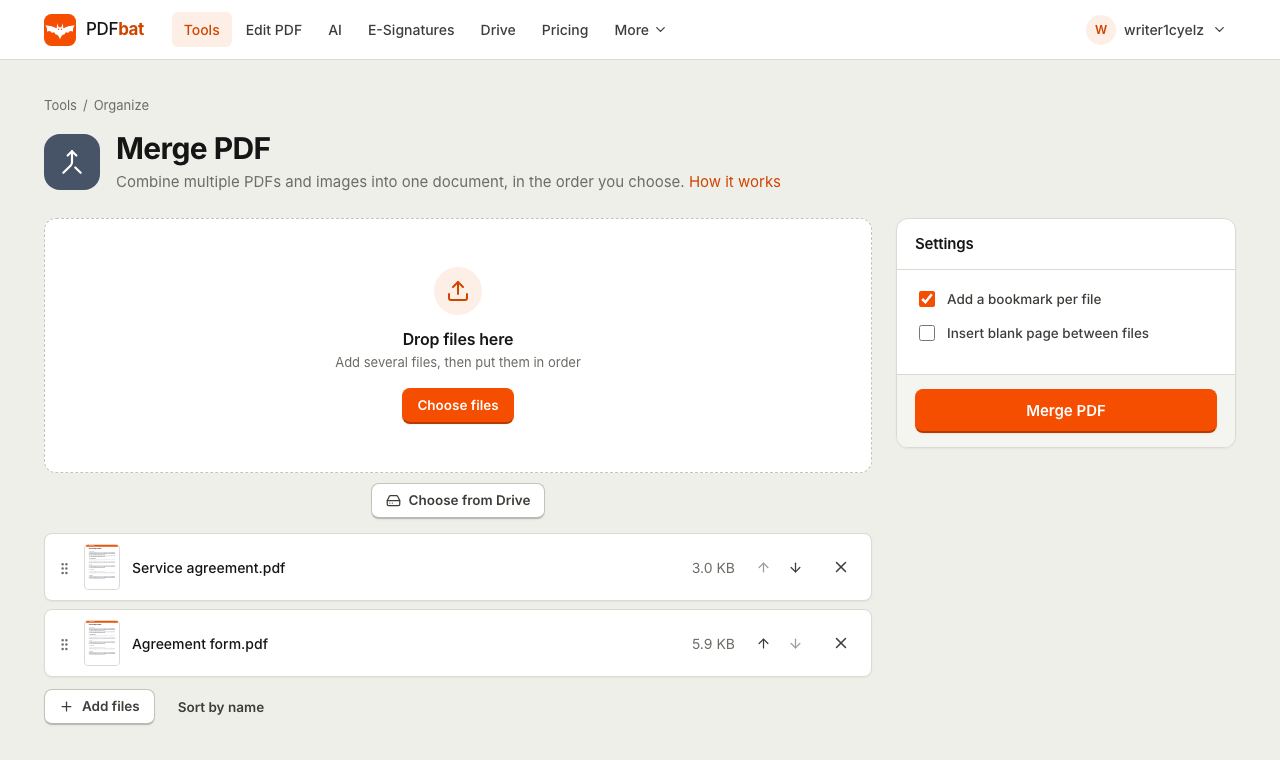
- Open Merge PDF.
- Drop in your files, or click the upload area to select several at once. You can mix PDFs and images. Use Choose from Drive to add files already stored in your PDFbat Drive.
- Put the files in order. Drag each file in the list to its place. If the names are numbered (for example
01 cover.pdf,02 form.pdf), click Sort by name. - Choose your options:
- Add a bookmark per file (on by default) creates a bookmark for each original file.
- Insert blank page between files adds an empty page after each file except the last.
- Click Merge PDF.
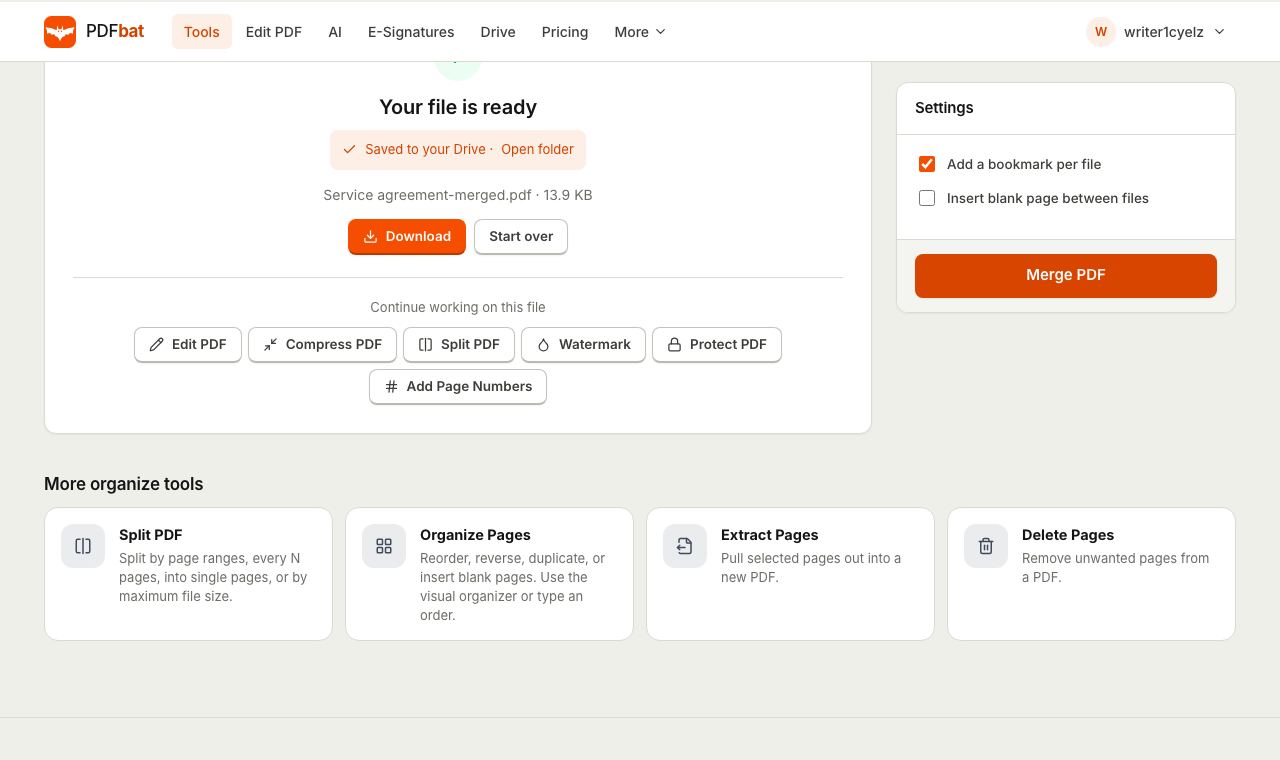
The combined PDF downloads automatically and a copy is saved to your Drive. From the result screen you can carry the merged file directly into another tool, such as Compress or Add Page Numbers, without uploading it again.
Every merge option explained
File order
Pages appear in the final document in the order of the file list, top to bottom, with each file's pages kept together in their original order. The order you see is the order you get, so check it before clicking merge.
Sort by name uses natural number sorting, so page 2.pdf comes before page 10.pdf. Plain alphabetical sorting, which many computers use, would put 10 first. If you control the file names, prefix them with numbers like 01, 02, 03 so they sort the same way everywhere.
Add a bookmark per file
Bookmarks are the clickable outline that PDF readers show in a side panel. With this option ticked, each original file becomes one bookmark, named after the file, pointing at its first page. In a merged application pack that might look like:
Application form.pdfCV.pdfDegree certificate.pdfPassport.pdf
Rename your files to something readable before uploading, because the names become the bookmark titles. Untick the option for a short merge or when the recipient's system does not want an outline.
Insert blank page between files
Adds an empty page after each file (but not after the last one), the same size as the page before it. The main use is double sided printing: if a file has an odd number of pages, the next file would otherwise start on the back of its last sheet. Note that the blank page goes after every file, even ones with an even page count, so for perfect duplex results you may want to add blanks only where needed with Organize Pages instead.
Merging images and other file types
Merge accepts more than PDFs:
- JPG and PNG images become one page each. The page is sized to match the image, so a large phone photo becomes a large page. It still prints and displays correctly, it is just not A4 or Letter.
- EPUB, XPS, CBZ and FB2 files are converted to PDF pages before they are combined.
If you want every image to sit on a standard page size, convert the images first with Images & Docs to PDF, which lets you choose a page size and margin, then merge the resulting PDF with your other documents.
Getting pages in the right order after merging
Merging keeps each file's pages together. To move individual pages, open the merged file in Organize Pages. It shows page thumbnails that you can drag into a new order, rotate, duplicate or delete, and you can insert blank pages exactly where you need them. It can also reverse the whole document in one click, which helps when a scanner fed pages in backwards.
To remove a few unwanted pages, such as a blank back page from a scan, Delete Pages is quicker: type the page numbers, for example 4, 9.
Merging double sided scans (odd and even pages)
If you scanned the fronts of a stack, then flipped it and scanned the backs, you end up with two files: pages 1, 3, 5 in one and pages 6, 4, 2 (in reverse) in the other. A normal merge would put all fronts first. Use Alternate & Mix instead:
- Upload the fronts file first and the backs file second.
- Tick Reverse order of second file (back side scans) if the backs came out in reverse.
- Leave Pages to take from each file at a time at 1.
The result interleaves the pages into the correct 1, 2, 3, 4 order.
Merging on a phone, Mac or Windows
PDFbat works in any modern browser, so the same steps apply on every device.
- iPhone and iPad: in Safari, tap the upload area and choose Browse to pick several PDFs from the Files app, or Photo Library to add pictures. Use the file list to drag them into order. The merged PDF saves to Downloads in Files.
- Android: in Chrome, tap the upload area and long press to select several files at once. The result lands in Downloads.
- Mac: Preview can combine PDFs by dragging thumbnails between windows, but it is fiddly with many files and does not add bookmarks per file. In a browser you drop them all in, sort and merge.
- Windows: Windows has no built in way to combine PDFs. A browser tool avoids installing anything, which is often not allowed on work or school computers.
Large files and many files
- Up to 20 files per merge. For a bigger set, merge in batches (files 1 to 20, then 21 to 40), and then merge the batch results together in order.
- Files up to 25 MB each on the free plan. If a scan is larger, run it through Compress PDF first.
- The merged file can be large. Merging adds the sizes together, so ten 3 MB scans make a 30 MB PDF. If you need to email it or upload it to a portal, compress the result afterwards. Our guide to compressing a PDF to 100 KB covers strict limits.
Browser merge versus desktop software
| PDFbat in the browser | Desktop PDF editors | |
|---|---|---|
| --- | --- | --- |
| Install | None | Required |
| Cost | Free plan, Pro at $4 a month | Often a paid subscription |
| Mix images and PDFs | Yes | Usually |
| Bookmark per file | Yes | Some editors |
| Drag to reorder | Yes | Yes |
| Works on phone | Yes | Rarely |
| Works offline | No | Yes |
If you assemble huge document sets offline every day, a desktop editor can be worth paying for. For merging a few files now and then, especially on a computer you do not own, a browser tool is the faster route.
Common problems and fixes
- The pages are in the wrong order. Check the file list order before merging; it decides the final order. Fix single pages afterwards with Organize Pages.
- "This PDF is password protected". A file needs a password to open. Remove it with Unlock PDF using the password you know, then merge. See how to remove a password from a PDF.
- A page is sideways. Rotate it in the result with Rotate PDF or in Organize Pages.
- Images appear huge compared with other pages. That is because image pages match the photo's dimensions. Convert images with Images & Docs to PDF at A4 or Letter size first.
- A file will not open or the merge fails. The source PDF may be damaged. Run it through Repair PDF and try again.
- The merged file is too big to email. Compress it after merging.
- Page numbers from the original files clash. Add a fresh sequence across the whole document with Add Page Numbers. Our guide on adding page numbers to a PDF explains skipping a cover page.
After merging: protect, sign or share
A merged pack often contains personal details. You can add a password with Protect PDF before sending it, and if the pack needs a signature, the PDF editor lets you sign it in the browser.
Tips for common merging jobs
Building a job or visa application pack
Put the documents in the order the checklist lists them, and rename each file to match, such as 1 Application form.pdf and 2 Passport.pdf. Click Sort by name, keep bookmarks on, and the reviewer can jump straight to each section. If the portal has a size cap, compress the finished pack before uploading.
Combining monthly statements
Download each month with the date at the start of the file name, like 2026 01 statement.pdf. Sorting by name then puts the year in order automatically. Bookmarks named after each file act as a month index.
Joining photos of receipts
Take each photo straight on, in good light, then drop the photos and your claim form into Merge together. Put the claim form first. If the photo pages look oversized next to the form, convert the photos to A4 pages first as described above.
Privacy and limits
Your files are sent over HTTPS and processed in memory. The merged result is stored only in your private Drive, which includes 1 GB free, and you can delete it whenever you like. The free plan gives you 10 tasks a day with files up to 25 MB, and one merge counts as one task however many files you combine. Pro is $4 a month and removes the daily task limit.
Frequently asked questions
How many files can I merge at once?
Up to 20 files in one merge. For more, merge them in batches of 20 and then merge the combined files together.
Can I merge images and PDFs together?
Yes. JPG and PNG images, plus EPUB, XPS, CBZ and FB2 files, are converted to PDF pages automatically as part of the merge.
How do I put the files in the right order?
Drag the files in the list into the order you want before merging. If your files are numbered, click "Sort by name", which puts 2 before 10 correctly.
Will bookmarks be added?
Yes, by default. "Add a bookmark per file" creates one bookmark for each original file, named after it, so readers can jump between sections. Untick it if you do not want them.
Can I merge password protected PDFs?
If a PDF needs a password to open, remove it first with Unlock PDF, using the password you already know. Then merge as normal.
Does merging reduce the quality?
No. Pages are copied into the new file as they are, so text, images and links look exactly the same as in the originals.