How to Compress a PDF to 100 KB (or 200 KB) for Online Forms and Portals
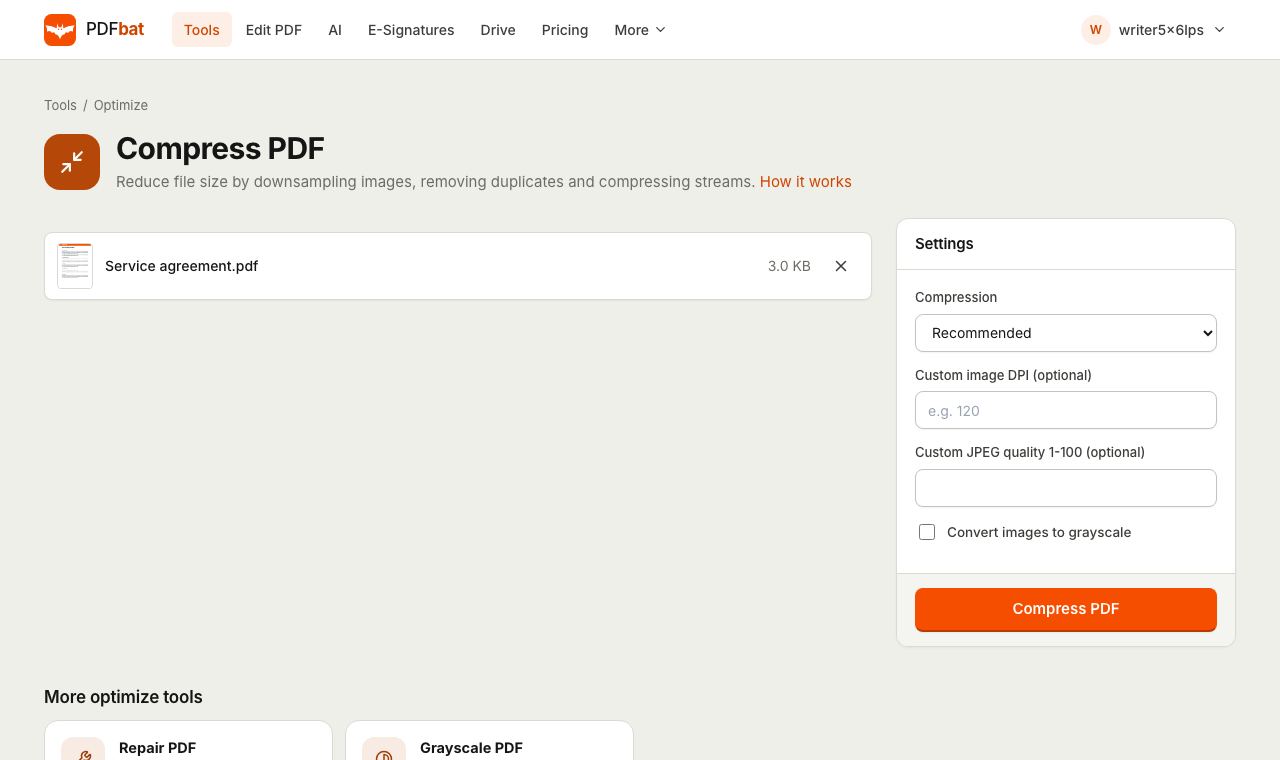
If a portal has told you your file is too large, you probably need to compress a PDF to 100 KB, or to 200 KB, before it will accept the upload. Government services, university admissions, job applications, visa forms and exam registrations all use limits like these, and a phone scan of a two page certificate can easily be 2 to 5 MB. This guide shows exactly which settings get a PDF under 100 KB in PDFbat, why some files resist, and what to do when they do, without making your document unreadable.
What makes a PDF big in the first place
Nearly all the weight in a scanned PDF comes from images. Each scanned page is a photo, often taken at the full resolution of your phone camera, which can be 12 megapixels or more. Text, lines and shapes drawn by software are tiny by comparison: a ten page report exported from Word might be 80 KB, while a single photographed page can be 3 MB.
Two things decide how big an image is inside a PDF:
- Resolution (DPI). How many pixels the image has for each inch of the page. A page scanned at 300 DPI has about nine times as many pixels as the same page at 100 DPI.
- Compression quality. How hard the image is squeezed. JPEG at quality 85 looks nearly perfect; at quality 40 it is much smaller and slightly softer around edges.
PDFbat's compressor works on both. It lowers the resolution of each image to fit the page at your target DPI, encodes it again as JPEG at the chosen quality, then removes duplicate objects, compresses the remaining data streams and trims unused characters from embedded fonts.
How to compress a PDF to 100 KB step by step
You need a free PDFbat account (username and password only). Your file is kept while you sign up, so you come straight back to it.
- Open Compress PDF.
- Upload the PDF, or use Choose from Drive if it is already stored in your PDFbat Drive.
- Set Compression to Extreme (smallest).
- In Custom image DPI (optional) enter
72. For a slightly sharper result that may still fit, try90or100. - Tick Convert images to grayscale. Most certificates, ID cards and mark sheets do not need colour, and dropping it saves a lot.
- Leave Custom JPEG quality empty at first. Extreme already uses a low quality setting.
- Click Compress PDF.
The result screen tells you how much smaller the file got, for example "Reduced by 96%: 2.4 MB → 92 KB", and shows the final file size underneath. The compressed PDF downloads automatically, and a copy is saved to your Drive.
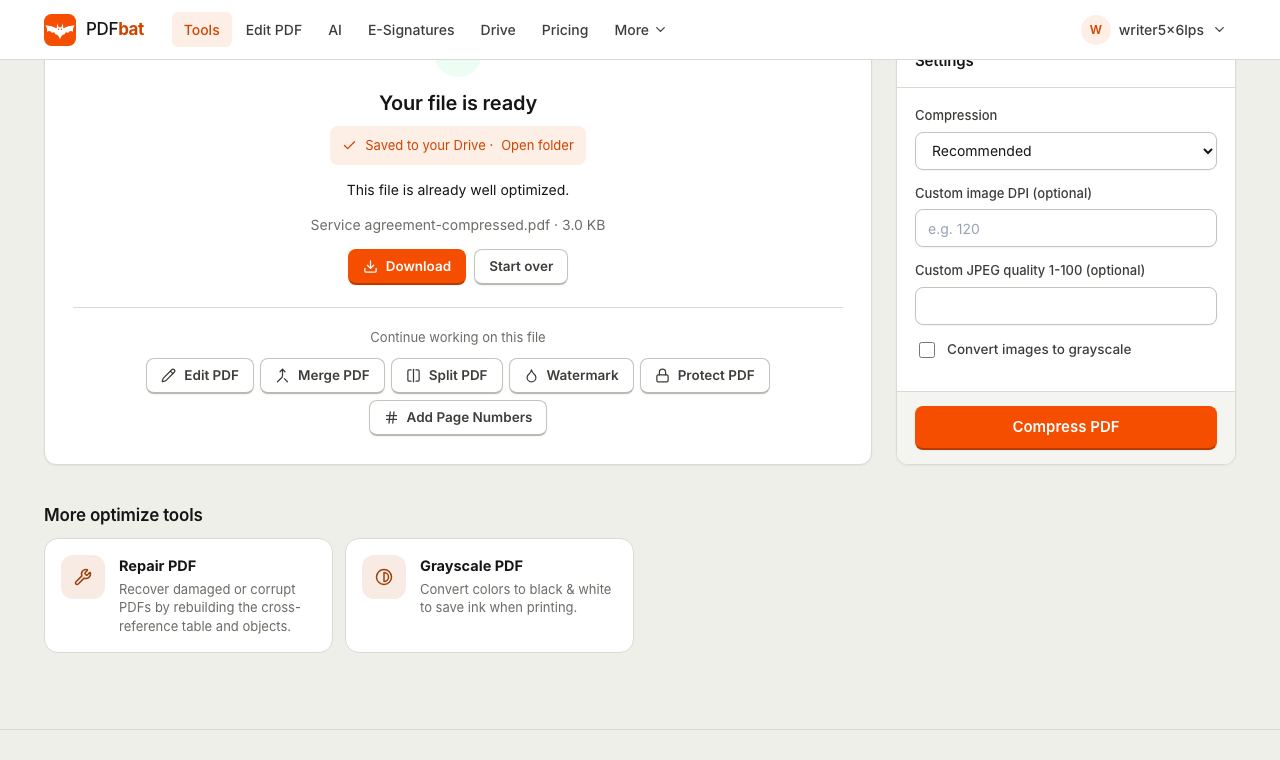
If the number is still above the limit, work through the section on stubborn files below. If it is comfortably under, you can try again with a higher DPI to get a sharper copy that still fits.
Every compression option explained
Compression levels
| Level | Image DPI | JPEG quality | Best for |
|---|---|---|---|
| --- | --- | --- | --- |
| Low (best quality) | 220 | 85 | Printing, keeping photos crisp |
| Recommended | 150 | 70 | Email, general sharing |
| High | 100 | 55 | 200 KB to 500 KB limits |
| Extreme (smallest) | 72 | 40 | 100 KB limits |
Images that are already smaller than the target are not enlarged, and if encoding an image again would make it bigger, the original image is kept.
Custom image DPI
This overrides the level's DPI while keeping its JPEG quality. It is the most powerful setting for hitting a specific size. Rough guide for scanned A4 or Letter pages:
- 150 DPI: clear for printing and reading on screen.
- 100 DPI: fine for reading on screen, small print still legible.
- 72 DPI: readable for most certificates and forms, but tiny print gets soft.
- Below 72: only for desperate cases; check every word afterwards.
Custom JPEG quality
A number from 1 to 100 that overrides the level's quality. Values between 30 and 50 suit strict limits. Going below 25 creates visible blocky artefacts, and lowering DPI usually costs you less readability than crushing quality, so adjust DPI first.
Convert images to grayscale
Turns every image into shades of grey before compressing. A colour image stores three channels of information; a grey one stores one, so this alone often cuts a scan's size by a third or more. Text and vector graphics keep their colours. If you need everything in black and white, including text and logos, use Grayscale PDF first.
Quick reference: settings for common upload limits
| Upload limit | Start with | If still too big |
|---|---|---|
| --- | --- | --- |
| 2 MB | Recommended | High |
| 1 MB | Recommended | High |
| 500 KB | High | High + grayscale |
| 300 KB | High + grayscale | Custom DPI 90 |
| 200 KB | High + DPI 100 + grayscale | Extreme |
| 100 KB | Extreme + DPI 72 + grayscale | Fewer pages, see below |
| 50 KB | Extreme + DPI 60 + grayscale, single page | Rescan, see below |
These are starting points. A clean scan of a mostly white page compresses far better than a photo of a colourful certificate with a patterned background.
When the PDF will not go under 100 KB
Upload only the pages they ask for
Portals often want "first page of the passport" or "final mark sheet", not the whole booklet. Use Extract Pages to keep just those pages (for example 1 or 1, 3), then compress the smaller file. Removing pages is the single biggest saving there is.
Split the document
Some forms accept several uploads, such as one per document. Split PDF can cut by page or by maximum file size. Read how to split a PDF into separate pages for every split mode.
Rescan instead of photographing
Phone photos include shadows, desk texture and uneven lighting, all of which add detail that compresses badly. A few habits make a big difference:
- Lay the page flat in even daylight and fill the frame with the page.
- Use a scanning mode (the Notes app on iPhone or Google Drive scan on Android) that crops and flattens the page.
- Choose black and white or grayscale in the scanner app if offered.
- If you use a flatbed scanner, scan at 150 DPI in grayscale rather than 600 DPI in colour.
Remove the background noise
A page with a busy watermark or security pattern will always be larger than a plain page at the same settings. There is not much to do about the pattern, but grayscale and a lower DPI help most here.
Check what the portal really means
Some sites say "100 KB" but accept 102,400 bytes, and others mean exactly 100,000. Aim for 95 KB or less to be safe.
Compressing on a phone, Mac or Windows
The tool runs in the browser, so you do not need an app on any device.
- iPhone and iPad: in Safari, tap the upload area, then Browse to pick the scan from Files. The compressed PDF saves to Downloads in the Files app, ready to attach in the portal's upload button.
- Android: in Chrome, pick the file from Downloads or Google Drive. The result lands in your Downloads folder.
- Mac: Preview has a "Reduce File Size" filter under File > Export, but it gives you no control over the result and often makes text scans unreadable or barely smaller. PDFbat lets you choose the exact DPI and quality.
- Windows: there is no built in PDF compressor in Windows. Use Edge, Chrome or Firefox with PDFbat; nothing needs installing, which helps on office or library computers.
Large files and long documents
The free plan accepts files up to 25 MB. If your scan is bigger than that, rescan it at a lower resolution or in grayscale, or scan the pages in smaller batches and compress each one. Pro ($4 a month) removes the daily task limit, which helps when you compress many documents for a single application.
Long text based PDFs, such as a 200 page thesis exported from Word, often barely shrink because there are few images to work on. If the result says "This file is already well optimized", the file is already close to as small as it can be. The remaining options are removing pages or, for a thesis with photos, lowering the DPI further.
Compressing in a browser versus desktop software
| PDFbat online | Desktop PDF editors | |
|---|---|---|
| --- | --- | --- |
| Install | None | Required |
| Choose exact DPI and JPEG quality | Yes | Some editors |
| Grayscale images during compression | Yes | Some editors |
| Shows before and after size | Yes | Varies |
| Works on phone | Yes | Rarely |
| Cost | Free plan, Pro at $4 a month | Often a paid subscription |
| Works offline | No | Yes |
Desktop software is worth it if you process large batches offline every day. For getting one or two documents under a portal's limit, a browser tool is faster and gives you the same core controls.
Common problems and fixes
- The text is blurry after compressing. The text is part of a scanned image. Raise the custom DPI to 90 or 100, and remove pages instead to stay under the limit.
- The file got bigger, or did not change. PDFbat never hands back a larger file; if compression would not help, you get the original and the message "This file is already well optimized". Try a stronger level or grayscale.
- The portal still says "invalid file". Some portals reject PDFs that are password protected. Remove the password with Unlock PDF if you know it, then compress.
- The portal wants a JPG, not a PDF. Convert the page with PDF to Image. Our guide to converting PDF to JPG explains resolution choices.
- The signature disappeared or looks faded. Light blue ink can fade in grayscale at low quality. Untick grayscale or raise the custom JPEG quality to about 55.
- The file says it is damaged. Run it through Repair PDF, then compress the repaired copy.
Privacy when compressing personal documents
Certificates, IDs and bank statements are sensitive, so it is reasonable to ask where they go. Files are sent to PDFbat over HTTPS, processed in memory and not shared with anyone. The compressed result is saved only in your private Drive (1 GB free), and you can delete it the moment your application is submitted. The free plan includes 10 tasks a day with files up to 25 MB, which covers a typical application in one sitting.
Frequently asked questions
Why is my PDF still above 100 KB?
Several pages scanned at high resolution simply hold a lot of image data. Use Extreme, set the custom DPI to 72, tick grayscale, and upload only the pages the portal actually asks for.
Will compression make text blurry?
Real text, such as a PDF exported from Word, stays sharp at every level because only images are downsampled. Scanned pages get softer as the DPI drops, but 100 DPI is usually still easy to read.
What does "This file is already well optimized" mean?
PDFbat could not make the file smaller with the chosen settings, so it gave you the original back. Try a stronger level, a lower custom DPI or grayscale.
How many pages fit in 100 KB?
A text based PDF can hold dozens of pages in 100 KB. For scans, expect one or two pages at Extreme in grayscale, depending on how busy the page is.
Can I compress a PDF to 100 KB on my phone?
Yes. The tool works in Safari and Chrome on iPhone and Android, with no app to install. Upload the scan, choose Extreme and download the result.
Is it safe to compress official documents online?
Files travel over HTTPS, are processed in memory and the result is kept only in your private Drive, which you can clear at any time.