How to Convert PDF to JPG in High Quality (300 DPI and Up) for Free
Turning a PDF page into a picture is useful all the time: a slide for a presentation, a post for Instagram or LinkedIn, a thumbnail for a website, a certificate for an app that only accepts images, or a page you want to print as a poster. The difference between a crisp image and a fuzzy one comes down to two choices, the resolution (DPI) and the format. This guide shows how to convert a PDF to JPG in high quality for free, explains what each setting really does, and covers the problems people hit with blurry text, huge files and scanned documents.
What "high quality" actually means for a PDF to JPG conversion
Most PDF pages are not pictures. They are instructions: draw this text in this font, put this line here, place this photo there. Converting to JPG means rendering those instructions into a grid of pixels. How many pixels you get is set by the DPI (dots per inch). More dots per inch means more pixels, sharper text and bigger files.
Here is what each DPI setting produces for a standard page:
| DPI | A4 page size in pixels | US Letter size in pixels | Good for |
|---|---|---|---|
| --- | --- | --- | --- |
| 72 | about 595 × 842 | 612 × 792 | Small previews and thumbnails |
| 150 | about 1240 × 1754 | 1275 × 1650 | Screens, slides, websites, social media |
| 300 | about 2480 × 3508 | 2550 × 3300 | Printing, zooming in, OCR, archiving |
| 600 | about 4961 × 7016 | 5100 × 6600 | Detailed drawings, plans, large prints |
Doubling the DPI roughly quadruples the number of pixels and the file size. So high quality does not always mean the highest setting. It means the lowest setting that looks sharp for the way you will use the image.
How to convert a PDF to JPG in high quality, step by step
You need a free PDFbat account (a username and password). It runs in your browser with nothing to install, on Windows, Mac, iPhone, Android and Chromebooks.
- Open PDF to Image and sign in.
- Upload your PDF. Free accounts can upload files up to 25 MB.
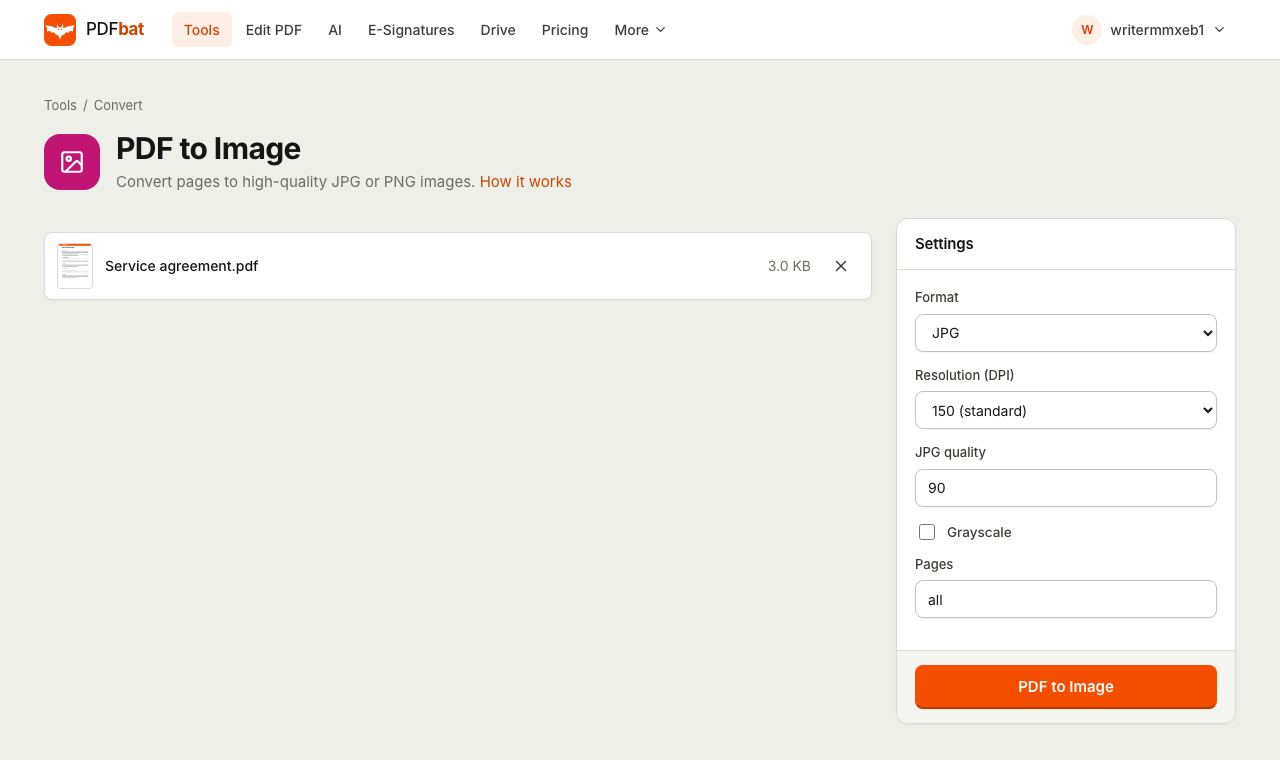
- Set Format to JPG for smaller files, or PNG for perfectly crisp text and lines.
- Choose a Resolution (DPI): 72 (screen), 150 (standard), 300 (print) or 600 (high). For high quality results, start with 300.
- If you chose JPG, set JPG quality. The default is 90.
- Tick Grayscale if you want black and white images.
- In Pages, leave
allor type the pages you want. - Click convert.
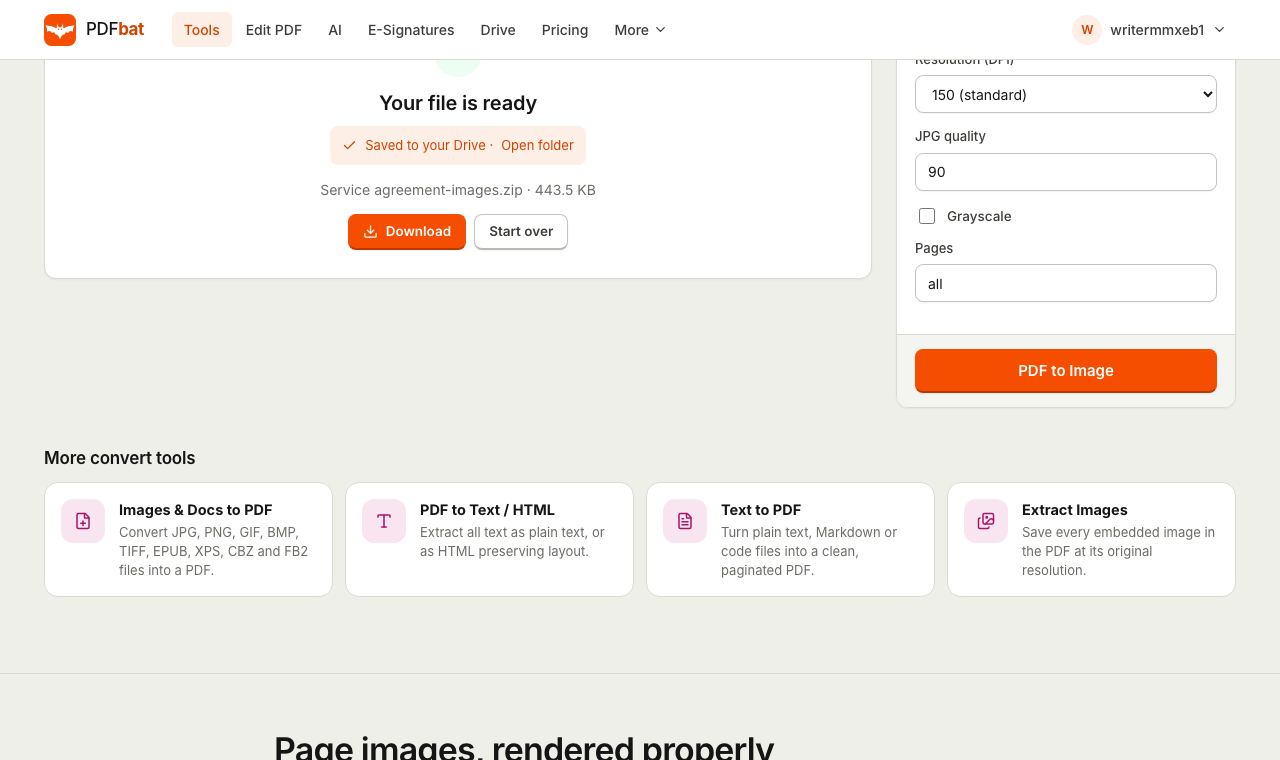
If you converted one page, you get a single image file. If you converted several, they arrive together in a ZIP, with each image named after your PDF and the page number, such as report-page-001.jpg, so they stay in order. The result is also saved to your PDFbat Drive (1 GB free), so you can download it again on another device.
Every option explained
Format: JPG or PNG
JPG uses lossy compression. It throws away detail your eye is unlikely to notice, which makes files far smaller. It is ideal for photos, scanned pages, colourful brochures and anything going on social media or into an email.
PNG is lossless. Every pixel is kept exactly. Text edges, thin lines, charts, logos and screenshots of forms look perfectly clean, but files are larger, often several times larger than JPG for a photo heavy page.
A simple rule: if the page is mostly text or line art and you care about crisp edges, choose PNG. Otherwise choose JPG.
Resolution (DPI)
Covered in the table above. For most people:
- Sharing on screen (slides, websites, WhatsApp, social media): 150 DPI.
- Printing at the same size as the page: 300 DPI.
- Printing larger than the original, or architectural and engineering drawings: 600 DPI.
- Thumbnails: 72 DPI.
JPG quality
This number controls how hard JPG compression works, on a scale up to 100. Higher means better detail and bigger files.
- 95: print work and images you will edit further.
- 90 (default): a very good balance for almost everything.
- 75 to 80: small files for email, chat apps and upload portals with size limits.
- Below 70: visible blocky artefacts around text. Avoid for documents.
If you need small files, lower the quality before lowering the DPI. Text stays readable longer that way.
Grayscale
Converts the output to shades of grey. It makes files smaller and is useful for scanned paperwork, faxes, receipts and anything you will print on a black and white printer.
Pages
Leave it as all, or type exactly what you want:
1for just the first page,1-3for pages one to three,1-3, 5, 8-for pages one to three, page five, and page eight to the end,oddorevenfor alternate pages,lastfor the final page.
Converting only the pages you need saves time and keeps the ZIP small.
Best settings for common jobs
| Job | Format | DPI | Quality |
|---|---|---|---|
| --- | --- | --- | --- |
| Instagram or LinkedIn post | JPG | 150 | 90 |
| PowerPoint or Google Slides | PNG for text slides, JPG for photo pages | 150 | 90 |
| Website image | JPG | 150 | 80 to 85 |
| Printing a page at full size | JPG or PNG | 300 | 95 |
| Poster or large print | PNG | 600 | n/a |
| Upload form that only accepts images | JPG | 150 | 75 to 80 |
| Scanned receipt or form | JPG, Grayscale | 150 to 300 | 85 |
| Thumbnail or preview | JPG | 72 | 80 |
Converting PDF to JPG on phone, Mac and Windows
On iPhone or iPad
Open PDFbat in Safari and upload the PDF from Files. If you converted one page, the JPG downloads to Files, Downloads. Open it and tap share, then Save Image to add it to Photos. If you converted several pages, tap the ZIP in Files and iOS expands it into a folder of images. Select them and save to Photos from the share sheet.
On Android
Use Chrome. Single images land in Downloads and appear in Google Photos under the Downloads folder. ZIP files can be opened with the Files by Google app, which extracts them in one tap.
On Mac
Preview can export a page as JPG through File, Export, but only one page at a time and with less control over resolution. PDFbat converts every page at once at a fixed DPI. Double click the ZIP in Finder to unzip it.
On Windows
Windows has no built in PDF to JPG converter. Right click the ZIP and choose Extract All to get the images. Many people try screenshots instead, but a screenshot is limited to your screen resolution, which is roughly equivalent to 100 DPI or less for a full page. A proper 300 DPI conversion is far sharper.
Large files and scanned documents
Scanned PDFs already contain a picture of each page at a fixed resolution, usually 200 to 300 DPI. Converting at a higher DPI than the scan will not add detail, it just makes larger files. For scans, 300 DPI is usually the useful ceiling, and Grayscale plus JPG keeps files small.
Long documents produce a lot of data. A 100 page report at 300 DPI as PNG can be hundreds of megabytes. Convert only the pages you need, use JPG, or drop to 150 DPI.
Files over 25 MB cannot be uploaded on the free plan. Shrink the PDF with Compress PDF or split it with Split PDF first. The guide to splitting a PDF into separate pages shows how.
Password protected PDFs need to be unlocked first. If you know the password, follow how to remove a password from a PDF, then convert the unlocked copy.
Common problems and fixes
Text looks blurry or soft. Increase the DPI to 300 and switch to PNG, or raise JPG quality to 95.
The images are huge. Lower the DPI to 150, use JPG instead of PNG, reduce quality to 80, or convert fewer pages.
Colours look slightly different. Some PDFs use print colour profiles that look a little different once rendered for screens. This is normal. For brand work, check colours in the app where the image will be used.
Thin lines or tiny text disappear. The resolution is too low for the detail. Use 300 or 600 DPI.
The page range is rejected. Page numbers must exist in the document. A ten page PDF cannot accept 12. Use last if you are unsure how many pages there are.
I wanted the photos, not the whole page. Rendering creates a picture of the full page. To pull out the original embedded pictures at their native resolution, use Extract Images. You can set it to ignore images smaller than a given number of pixels, which skips icons and decorations.
PDFbat compared with desktop software
| PDFbat | Adobe Acrobat Pro | Mac Preview | Screenshot | |
|---|---|---|---|---|
| --- | --- | --- | --- | --- |
| Cost | Free (10 tasks a day), Pro $4 a month | Paid subscription | Free, Mac only | Free |
| All pages at once | Yes, as a ZIP | Yes | One page at a time | No |
| Choose DPI | 72, 150, 300, 600 | Yes | Limited | No |
| JPG quality control | Yes | Yes | Yes | No |
| Works on phone | Yes | Separate app | No | Yes, low quality |
| Install needed | No | Yes | Built in | No |
Privacy notes
Files are uploaded over an encrypted connection and the images are stored in your private Drive, visible only to your account. Delete them from Drive when you are done. Remember that an image of a page shows everything on it, so if the page contains personal details you do not want to share, remove them permanently first with the redaction tool before you convert.
Summary
For a high quality PDF to JPG conversion, pick the format for the content (JPG for photos and scans, PNG for text and diagrams), pick the DPI for the destination (150 for screens, 300 for print, 600 for fine detail), and keep JPG quality around 90. Open PDF to Image, choose your settings, and download every page in one ZIP.
Frequently asked questions
Should I choose JPG or PNG?
JPG for photos, scanned pages and anything you will share online, because files are much smaller. PNG for diagrams, text, charts and logos where you want perfectly crisp edges.
Why are my images blurry?
The resolution was too low for how you are using them. 72 DPI is only for small previews. Use 150 DPI for screens and slides, and 300 DPI or more for printing or zooming in.
What JPG quality should I use?
The default of 90 is a good balance. Go up to 95 for print work, or down to 75 to 80 when you need small files for email or upload forms.
How do I get the original photos out of a PDF?
Use Extract Images instead. It saves each embedded image at its original resolution rather than rendering a picture of the whole page.
Can I convert only some pages?
Yes. Type a page range such as 1-3, 5 or 8- in the Pages box, or use odd, even or last. Leave it as all to convert every page.
Is it free?
Yes. A free account includes 10 tasks a day on files up to 25 MB. Pro is $4 a month for unlimited tasks.