How to Split a PDF Into Separate Pages or Files (Free, Online)
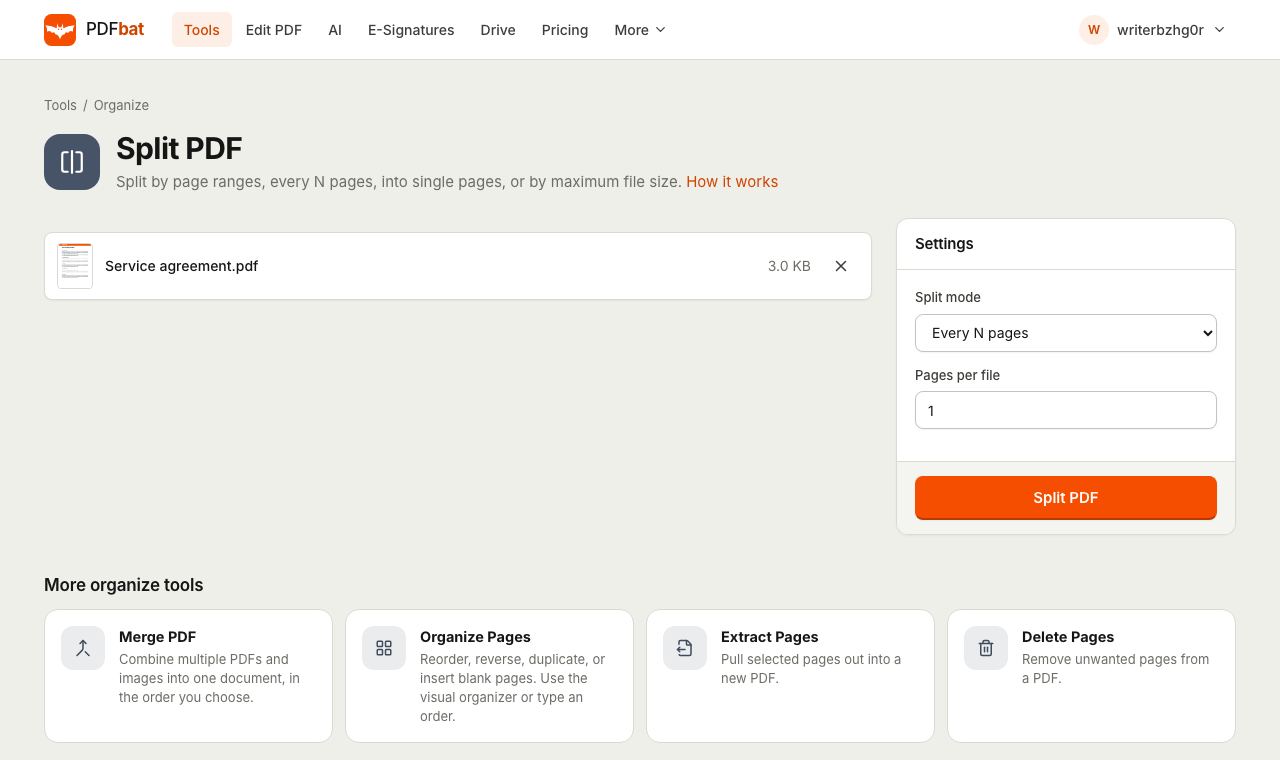
When you need to split a PDF into separate pages, you might want every page as its own file, a long report cut into chapters, or a big scan broken into pieces small enough to email. PDFbat does all of these in your browser with a single tool, and hands you the parts in one ZIP file. This guide walks through each split mode, shows how to write page ranges, and covers the cases people ask about most: one page only, odd and even pages, file size limits, scanned spreads and splitting on a phone.
Why split a PDF
Common reasons to break a PDF apart:
- Sending only what is needed. A client needs page 14 of a 60 page contract, not the whole thing.
- Upload limits. A portal wants each document as a separate file, or caps each upload at a few MB.
- Email limits. Many mail services reject attachments over 20 or 25 MB.
- Chapters and sections. A textbook or manual is easier to share and read in parts.
- Scanned batches. A scanner fed twenty different letters into one PDF, and each letter needs to be filed on its own.
How to split a PDF into separate pages step by step
You need a free PDFbat account to run tools, with just a username and password. Your file is kept while you sign up, so you come straight back to it.
- Open Split PDF.
- Upload your PDF, or use Choose from Drive for a file already stored in your PDFbat Drive.
- In Split mode, choose Every page.
- Click Split PDF.
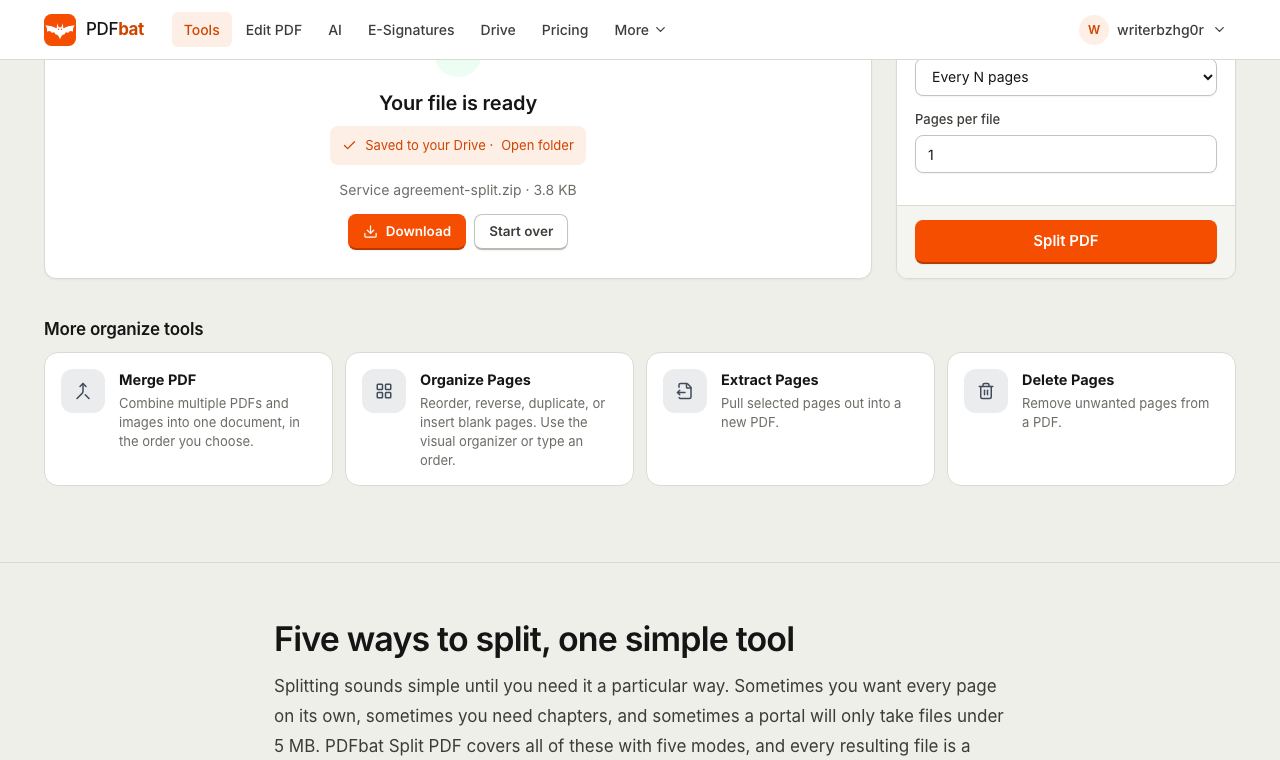
A ZIP file downloads containing one PDF for each page, named after the original with the page number added: report_1.pdf, report_2.pdf, report_3.pdf and so on. A copy of the ZIP is saved to your Drive as well. To use the pages, open the ZIP (double click it on Windows or Mac, or tap it in the Files app on iPhone and Android).
Every split mode explained
Every page
One PDF per page. Best when each page is a separate document, such as a stack of scanned invoices or a set of certificates.
Every N pages
Cuts the document into equal sized parts. Set Pages per file to the size you want:
2for two sided forms, where each form is a front and a back.3or4for multi page letters of the same length.10to break a long scan into manageable chunks.
If the page count does not divide evenly, the last file simply holds the remaining pages. A 25 page file split every 10 pages gives parts of 10, 10 and 5 pages.
Custom ranges
You decide exactly where each part starts and ends. Type your ranges in Ranges (one file per range), separated by commas. Each comma separated range becomes one file.
| You type | You get |
|---|---|
| --- | --- |
1-3, 4-10, 11- | Pages 1 to 3, pages 4 to 10, page 11 to the end |
1, 2-last | A cover page on its own, then the rest |
5-8 | One file with pages 5 to 8 only |
1-12, 13-24, 25-36 | Three monthly chunks from a yearly statement |
Range tips:
- An open range like
11-runs to the last page. You can also write11-last. - A range like
-5starts at page 1. - To put pages that are not next to each other in the same part, separate them with spaces inside one range:
1 5, 2-4gives one file with pages 1 and 5 and another with pages 2 to 4. - Ranges refer to the physical pages of the file, counting the first page as 1, regardless of any numbers printed on the pages.
By max file size
Set Max size per file (MB), for example 5 for email or 2 for an upload portal. PDFbat measures the pages and packs them into as few parts as it can while keeping each part under the limit, then checks each part with a real save. Pages are kept in order.
One caveat: a single page can never be split further. If one page is bigger than your limit on its own (a high resolution photo, say), it goes into a part by itself and that part will be over the limit. Compress the file first to fix that; see the large files section below.
Odd / even pages
Gives you exactly two files: one with pages 1, 3, 5 and so on, and one with pages 2, 4, 6. This is useful for separating the fronts and backs of a double sided scan, or for printing on a printer without duplex: print the odd file, flip the stack, then print the even file.
Just need one page or a few?
Split always produces a ZIP. If you only want a handful of pages as one PDF, use Extract Pages instead. Type the pages to keep, for example 3, 1, 4-6 or 10-last. It also understands odd and even. You get a single PDF back, with no ZIP to open.
The opposite job, keeping everything except a few pages, is quicker with Delete Pages: type the pages to remove, such as 2, 5-7, and you get the rest of the document as one file.
Splitting scanned two page spreads
If you scanned a book or a magazine with two pages side by side on each scan, the problem is not splitting the file but splitting each page down the middle. Use Split Pages in Half:
- Vertically (left | right) for book spreads.
- Horizontally (top / bottom) for documents scanned two to a sheet one above the other.
- Tick Right to left reading order for Arabic, Hebrew, Japanese or other books read from the right.
Each half becomes its own page in the correct reading order. You can then split the result into separate files as normal.
Splitting on a phone, Mac or Windows
The tool runs in any modern browser, so you do not need an app.
- iPhone and iPad: in Safari, tap the upload area and choose Browse to pick the PDF in Files. The ZIP saves to Downloads in the Files app; tap it once and Files unpacks it into a folder of PDFs.
- Android: in Chrome, pick the PDF from your storage or Google Drive. The ZIP lands in Downloads; open it with the Files by Google app and choose Extract.
- Mac: Preview can export pages by dragging thumbnails to the desktop one by one, which is slow for long documents. In a browser you choose a mode and get every part at once. Double click the ZIP in Finder to unpack it.
- Windows: Windows has no built in PDF splitter. Use Edge, Chrome or Firefox; right click the downloaded ZIP and choose Extract All.
Large files and long documents
The free plan accepts PDFs up to 25 MB. If your file is bigger, shrink it first with Compress PDF and then split the smaller copy. Compressing first also helps with By max file size when single scanned pages are too heavy to fit your limit. For strict portal limits, see our guide on how to compress a PDF to 100 KB.
Long documents with hundreds of pages split without trouble in any mode. Every part is a complete, standalone PDF, so each one opens on its own in any reader.
Splitting in a browser versus desktop software
| PDFbat in the browser | Desktop PDF editors | |
|---|---|---|
| --- | --- | --- |
| Install | None | Required |
| Cost | Free plan, Pro at $4 a month | Often a paid subscription |
| Every page, every N pages | Yes | Yes |
| Custom ranges | Yes | Yes |
| Split by file size | Yes | Some editors |
| Odd and even pages | Yes | Some editors |
| Works on phone | Yes | Rarely |
| Works offline | No | Yes |
Desktop editors suit people who split documents offline all day. For occasional splitting, or on a computer where you cannot install software, a browser tool does the same job with less effort.
Common problems and fixes
- "Invalid page range". One of your ranges mentions a page past the end of the document. Check the page count, or use
lastor an open range like11-instead of guessing the final page. - I got one file instead of several. In Custom ranges mode, each comma starts a new file.
1-3 4-6without a comma becomes one part; write1-3, 4-6. - A part is still over the size limit. That part is a single page larger than the limit. Compress the PDF first, then split by size again.
- "This PDF is password protected". Remove the password with Unlock PDF using the password you know, then split. Our guide on removing a password from a PDF explains the difference between open passwords and restrictions.
- I cannot open the ZIP on my phone. Use the Files app on iPhone or Files by Google on Android; both unpack ZIPs without extra apps.
- The pages are in the wrong order. Splitting keeps the original order. Fix the order first with Organize Pages, or use Merge PDF later to recombine parts in a new order.
Putting parts back together
Splitting is not one way. If you split a file to edit or replace a section, you can recombine the parts in any order with Merge PDF. Our guide to merging PDF files without software covers ordering and bookmarks.
Tips for specific splitting jobs
Separating a scanned batch of letters
If every letter has the same number of pages, Every N pages does it in one go. If they vary, flick through the PDF, note where each letter starts, and type the ranges, for example 1-2, 3-5, 6, 7-9. Rename the parts after unpacking the ZIP so they file neatly.
Sending one chapter of a report
Use Custom ranges with a single range, such as 12-30, or Extract Pages, which gives you the same pages as a plain PDF without a ZIP.
Uploading documents one by one to a portal
Split with Every page or with ranges matching each document, then upload the parts individually. If the portal also caps each file's size, check the sizes in the unpacked folder and compress any part that is too large.
Privacy and limits
Your PDF is sent over HTTPS and processed in memory. The ZIP of results is stored only in your private Drive, which includes 1 GB free, and you can delete it at any time. The free plan gives you 10 tasks a day with files up to 25 MB, and a single split counts as one task however many parts it creates. Pro costs $4 a month and removes the daily task limit.
Frequently asked questions
How do I save every page of a PDF as a separate file?
Open Split PDF, choose "Every page" as the split mode and click Split PDF. You get a ZIP with one single page PDF for each page.
How do I get just one page out of a PDF?
Use Extract Pages and type the page number, for example 3. You get a single PDF containing only that page, with no ZIP to unpack.
Can I split a PDF by file size?
Yes. Choose "By max file size" and enter a limit in MB, such as 5 for email. Pages are grouped so each part stays under the limit where possible.
How do I download all the split files?
The parts come together in one ZIP file that downloads automatically. A copy of the ZIP is also saved to your Drive.
What are the split files called?
Each part is named after the original file plus its page numbers, for example report_1.pdf or report_4-10.pdf, so you can tell them apart at a glance.
Does splitting reduce the quality?
No. Pages are copied into the new files exactly as they are. Text stays selectable and images keep their original resolution.