How to Password Protect a PDF for Free (AES 256) and Block Printing or Copying
Before you email a contract, payslip, tax return or medical record, it is worth taking thirty seconds to password protect the PDF. If the email is forwarded to the wrong person, the laptop is stolen or the file ends up in a shared folder, nobody can open it without the password. You can password protect a PDF for free in your browser with PDFbat, using AES 256 encryption, and optionally stop people from printing, copying or editing it.
This guide walks through every step and every option, explains the difference between the two kinds of PDF password, and covers the problems people actually run into, such as forgotten passwords, recipients who cannot open the file and readers that ignore restrictions.
What password protection actually does
When you protect a PDF, the file's contents are encrypted. Text, images, fonts and form fields are scrambled with a key derived from your password. Without the password the file is unreadable noise, not a document with a lock icon painted on top. That is why a properly encrypted PDF is safe to send over email or store in the cloud.
A PDF can carry two different passwords:
- Open password (also called the user password). Anyone who wants to view the document must type it. This is the one that keeps strangers out.
- Owner password (also called the permissions password). It controls what people who can open the file are allowed to do: print, copy text and images, modify pages, or add comments and fill forms.
Most people only need the open password. The owner password is useful when you want someone to read a document but not print it, copy from it or change it.
How to password protect a PDF for free, step by step
You need a free PDFbat account, which takes a username and a password to create. There is nothing to install and it works the same in Chrome, Safari, Edge and Firefox.
- Open Protect PDF and sign in.
- Upload your file by dragging it onto the page or clicking to browse. Free accounts can upload files up to 25 MB.
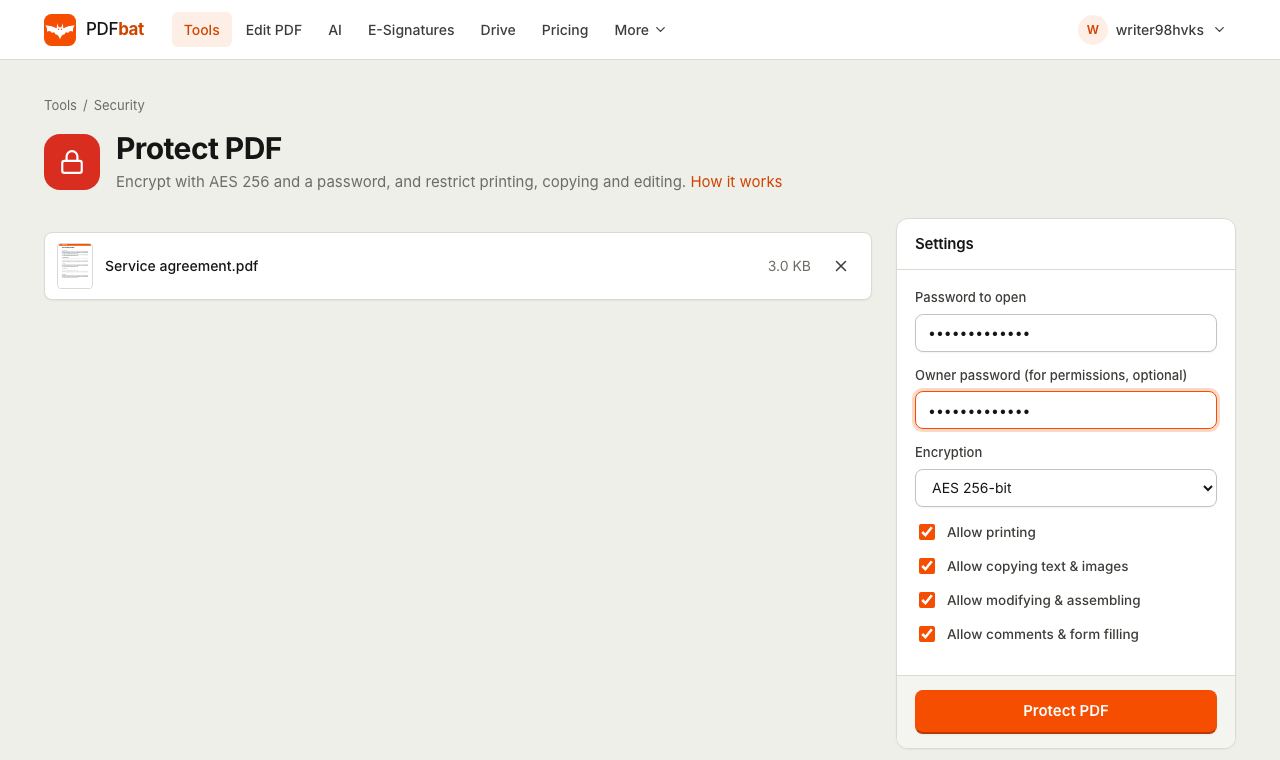
- Type a Password to open. This field is required.
- If you want to control permissions, type an Owner password too. Make it different from the open password.
- Leave Encryption on AES 256 bit unless you have a specific reason to change it (see below).
- Untick any permission you want to block: Allow printing, Allow copying text and images, Allow modifying and assembling, Allow comments and form filling. All four are ticked by default, which means everything is allowed.
- Click Protect PDF.
The protected file downloads straight away and a copy is saved to your PDFbat Drive, so you can download it again later from another device. Free accounts get 1 GB of Drive storage.
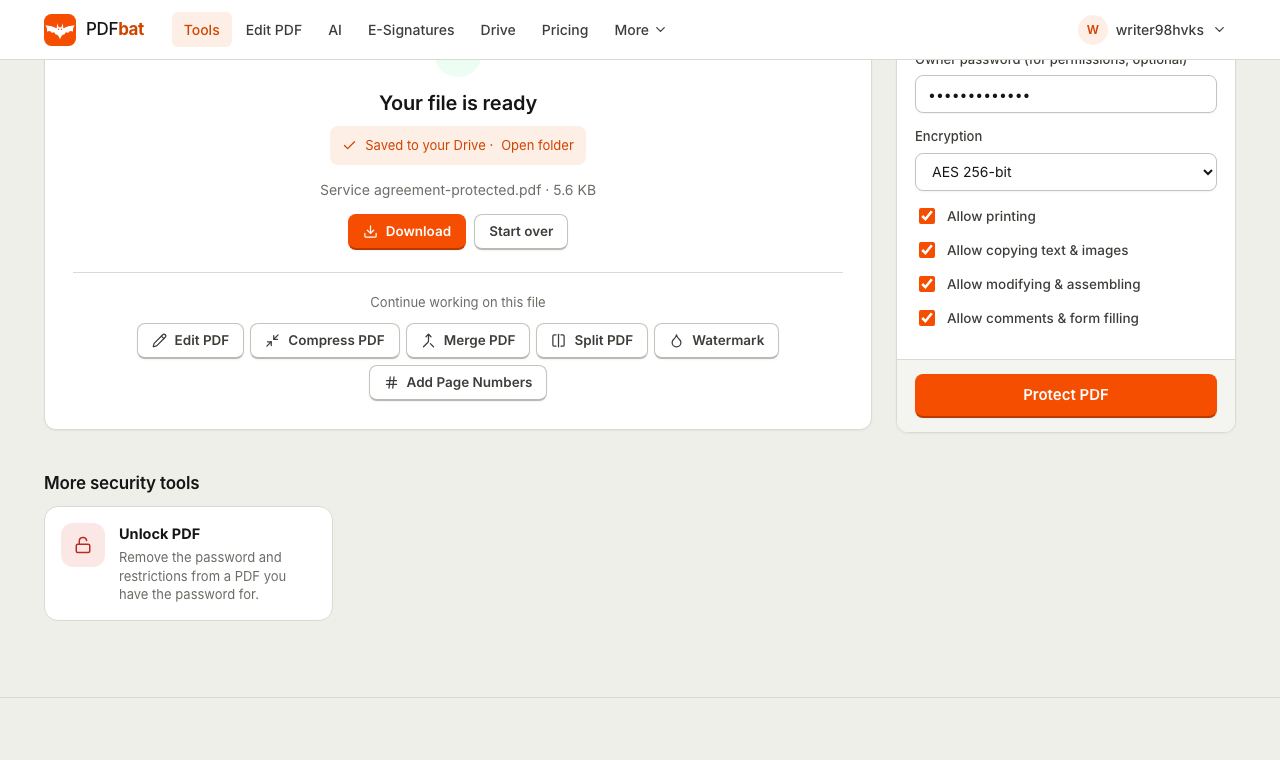
Open the downloaded file once yourself to confirm the password prompt appears and the password works before you send it to anyone.
Every option explained
Password to open
This is the password your recipient types. Choose something long. A random phrase of four or five unrelated words is easier to read out over the phone than a short string of symbols and much harder to guess. Passwords cannot contain a comma or an equals sign, so leave those characters out.
Owner password
The owner password unlocks the permission settings. If you leave it empty, PDFbat still applies the permission choices you made, but you will not have a separate password of your own for changing them later in desktop software. If restrictions matter to you, set your own owner password and store it safely.
Encryption level
| Option | When to use it |
|---|---|
| --- | --- |
| AES 256 bit | The default and the right choice for almost everyone. Supported by every current PDF reader. |
| AES 128 bit | Only if the recipient uses old software that cannot open AES 256 files. |
| RC4 128 bit (legacy) | Only for very old readers. RC4 is outdated and weaker, so avoid it for anything sensitive. |
If you are unsure, keep AES 256. Every reader released in the last decade or so handles it.
Permissions
- Allow printing: untick to stop the document being printed in readers that respect permissions.
- Allow copying text and images: untick to stop people selecting and copying content.
- Allow modifying and assembling: untick to stop page insertion, deletion, rotation and other edits.
- Allow comments and form filling: untick to stop annotations and form entry.
Be realistic about permissions. They are honoured by Adobe Reader, Preview, browsers and most mainstream apps, but they are a rule the reader software agrees to follow, not encryption of the content itself. Someone who can open the file could still take screenshots or photograph the screen. Use permissions to discourage casual copying and printing, and rely on the open password for real confidentiality.
How to share the password safely
Encryption is pointless if the password travels with the file. Follow a simple rule: send the file and the password through different channels.
- Email the PDF, then send the password by text message or WhatsApp.
- Read the password out on a phone call.
- Use your password manager's secure sharing feature.
- For recurring documents, agree a password with the recipient in advance so you never have to send it at all.
Never put the password in the email subject, the body of the same email, or the file name.
Password protect a PDF on iPhone, Android, Mac and Windows
On iPhone or iPad
Open PDFbat in Safari, sign in and go to Protect PDF. Tap the upload area and choose Browse to pick the file from the Files app, iCloud Drive or a connected service. After you protect it, Safari saves the download to your Downloads folder in Files. From there you can share it to Mail or Messages.
On Android
Use Chrome. The file picker lets you choose from internal storage, Downloads or Google Drive. The protected PDF lands in your Downloads folder and can be attached to Gmail or shared from the notification.
On Mac
Preview can add a password through File, Export and the Encrypt checkbox, but it offers fewer permission controls and is only on your Mac. PDFbat gives you the same result with explicit control over printing, copying and editing, and keeps a copy in your Drive.
On Windows
Windows has no built in tool for encrypting PDFs. Microsoft Word can export a password protected PDF from a Word document, but it cannot protect a PDF you already have. A browser tool is the quickest route on a work or school PC where you cannot install software.
Tips for specific situations
Large files and scans
Free accounts can upload up to 25 MB. Phone scans and image heavy reports can exceed that. Run the file through Compress PDF first, then protect the smaller result. Always compress before you protect, because most tools need the password to process an encrypted file. The compression guide for online forms explains the best settings for scans.
Combining several documents
If you are sending a bundle, such as an ID, a payslip and a bank statement, combine them first with Merge PDF and protect the single merged file. The recipient only has to type one password. See merging PDFs without software for the details.
Removing private details before protecting
A password protects the file in transit, but once the recipient opens it they see everything. If they do not need your account number or address, remove it permanently first with Redact PDF. The redaction guide explains why black rectangles are not enough.
Documents you send every month
For invoices or payslips that go to the same person repeatedly, agree one strong password with them and reuse it. Store it in your password manager so you never have to type it from memory. Pro removes the 10 task daily limit if you process a lot of files.
Common problems and fixes
The recipient says the file will not open. Check they are typing the open password, not the owner password, and that their keyboard is not adding a capital letter at the start (phones often do this). Passwords are case sensitive.
The recipient's software says the encryption is not supported. They are using a very old reader. Ask them to update, or protect the original again with AES 128 bit.
The recipient can still print or copy. Some readers ignore permission flags. This is a limitation of permissions in general, not of the file. If the content must not be copied at all, do not send it, or send a watermarked version so any copy is traceable. Add a watermark before protecting.
The tool says the password contains invalid characters. Remove commas and equals signs from both passwords.
My file is already protected and I want to change the password. Use Unlock PDF with the current password to get an unprotected copy, then protect that copy with the new password. The guide on removing a password from a PDF covers this.
I forgot the password. There is no recovery. That is the whole point of strong encryption. Use your unprotected original instead, which is why you should always keep one.
PDFbat compared with desktop software
| PDFbat | Adobe Acrobat Pro | Mac Preview | |
|---|---|---|---|
| --- | --- | --- | --- |
| Cost | Free (10 tasks a day), Pro $4 a month | Paid subscription | Free, Mac only |
| Install needed | No, runs in the browser | Yes | Built in |
| Works on phone | Yes | Separate app | No |
| AES 256 | Yes, default | Yes | Yes |
| Print, copy and edit permissions | Yes, four separate controls | Yes, more granular | Limited |
| Copy kept in the cloud | Yes, in your Drive | Optional | No |
Acrobat Pro offers extra controls such as certificate based encryption, which some large organisations require. For the everyday job of putting a strong password on a PDF before sending it, a browser tool does the same work without the subscription.
Security and privacy notes
- Files are uploaded over an encrypted connection and processed to produce your protected copy.
- Results are stored in your private Drive, visible only to your account. You can delete them at any time.
- PDFbat does not keep a record of the document password and cannot recover it for you later.
- Your account itself is protected by your PDFbat password. Use a different password for your account than for your documents.
- For the most sensitive material, delete both the original upload and the result from your Drive once you have downloaded what you need.
Quick checklist before you send
- Remove anything the recipient does not need with redaction.
- Merge related files into one PDF.
- Compress if it is large.
- Protect with AES 256 and a long open password.
- Open the result yourself to test the password.
- Send the file and the password by different channels.
That is all it takes to password protect a PDF for free and properly. Open Protect PDF and try it on your next document.
Frequently asked questions
How strong is the encryption?
PDFbat uses AES 256 by default, the same standard used for banking and government files. The encryption is only as strong as your password, so use a long one that nobody could guess.
What is an owner password?
It is a second, optional password that controls permissions such as printing, copying and editing. People with the open password can read the file but compliant PDF readers will enforce the limits you set.
What if I forget the password?
It cannot be recovered by PDFbat or anyone else. Keep an unprotected original somewhere safe, or store the password in a password manager before you send the file.
Can I password protect a PDF on my phone?
Yes. The tool runs in your mobile browser on iPhone and Android with no app to install. Upload the file from Files or Google Drive, set the password and download the protected copy.
Is it really free?
Yes. A free account lets you run 10 tasks a day on files up to 25 MB. Pro costs $4 a month and removes the daily limit.
Will the person I send it to need special software?
No. Any normal PDF reader, including Adobe Acrobat Reader, Preview on Mac, Chrome, Edge and the phone viewers, will ask for the password and then open the file.