How to Send a PDF for Signature for Free (A Simple DocuSign Alternative)
Emailing a PDF and waiting for someone to print it, sign it, scan it and send it back is slow, and the result is often a crooked, unreadable scan. When you send a PDF for signature free through an electronic signature workflow, the whole round trip takes minutes, signers can do it from their phone, and you end up with a much stronger record of who signed what and when. This guide walks through sending your first envelope, every option along the way, what the signer sees, legal validity, and how to fix the most common problems.
What you need before you start
- A free PDFbat account with a username and password.
- A verified email address. Recipients see who the request came from, so PDFbat asks you to verify your email in Account settings before your first send.
- Your document. A PDF works best. You can also upload an image, EPUB or XPS file and it is converted to PDF.
Signers need nothing at all: no account, no app, no download.
How to send a PDF for signature free, step by step
- Go to Request Signatures and click New envelope. Upload the document or choose it from your Drive.
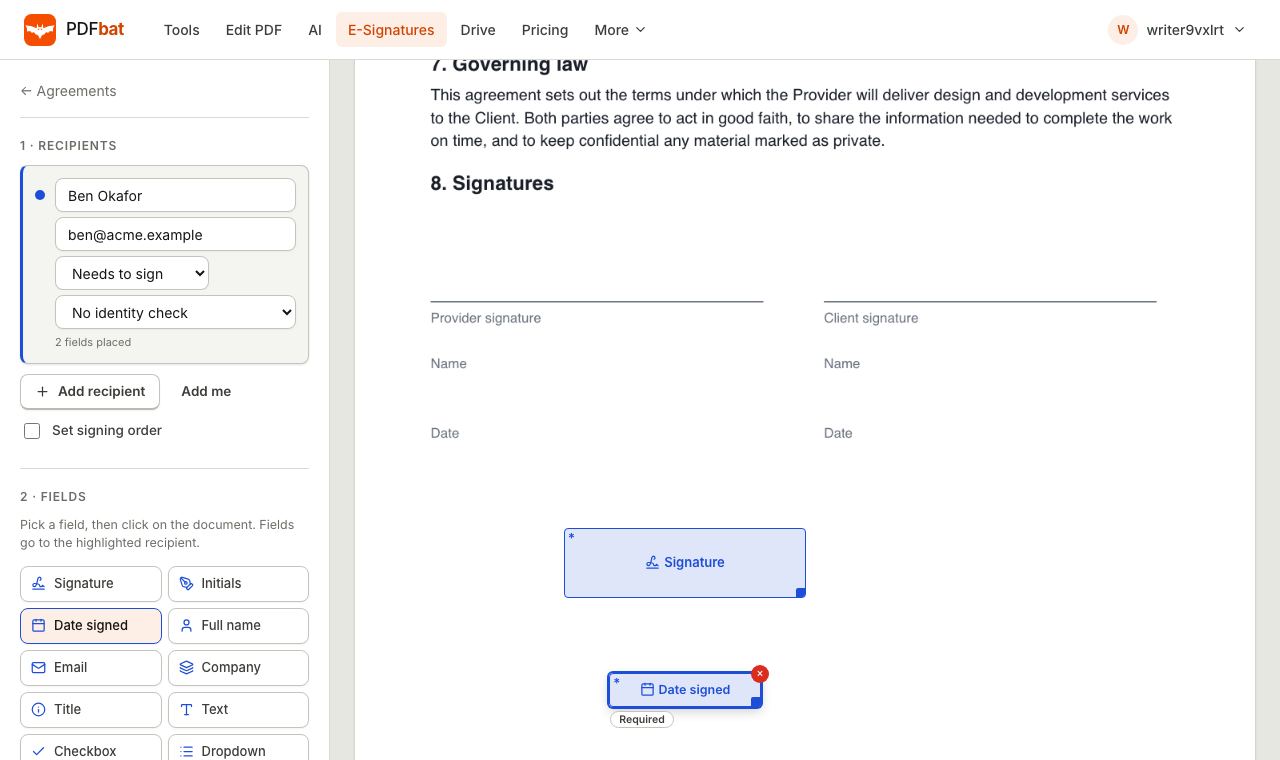
- Add recipients. Enter each person's full name and email. For each one choose Needs to sign or Receives a copy. Click Add me if you also need to sign.
- Set signing order if the order matters, for example the employee signs before the manager countersigns. Recipients then sign one at a time in the order listed.
- Choose an identity check for each signer if you need one: No identity check, Email a code to verify (a one time code is emailed and must be entered before signing) or Require an access code (a code you share with them separately, for example by phone or text message).
- Place fields. Highlight a recipient, pick a field type and click on the document where it belongs. Fields are colour coded per recipient. Mark each as required or optional.
- Write a subject and message, then choose Automatic reminders (off, every day, every 2 days, every 3 days or every week) and when the envelope Expires after (never, or 7, 14, 30, 60 or 120 days).
- Click Review before sending, check everything, and click Send.
Each signer receives an email with a private link. Drafts save automatically, so you can close the page halfway through and come back later.
Field types you can place
| Field | What it does |
|---|---|
| --- | --- |
| Signature | The signer draws, types or uploads a signature |
| Initials | For pages or clauses that need initialling |
| Date signed | Filled automatically with the signing date |
| Full name, Email | Filled in from the recipient details you entered |
| Company, Title | The signer types their organisation and job title |
| Text | Any free text answer |
| Checkbox | Tick to agree or select |
| Dropdown | Choose from options you list, separated by commas |
| Attachment | The signer uploads a file, such as an ID or a certificate |
Parallel or sequential signing
Without a signing order, everyone gets their link straight away and can sign in any order. That is fastest when the order does not matter, such as several partners signing a shared agreement. With Set signing order on, the second signer gets their email only after the first finishes. Use it when one signature depends on another, such as an approval chain or a countersignature. Recipients who only receive a copy get the completed document at the end.
What the signer sees
The signer opens the link, passes the identity check if you set one, and sees the document with their fields highlighted.
- They tick the consent box: I agree to use electronic records and signatures.
- They click Next field to move through each field. When they reach a signature, they create one by drawing, typing their name in a handwriting style, or uploading a photo of a paper signature.
- When every required field is complete, they click Finish and confirm.
Signers can also Decline with a reason, which closes the envelope and notifies you. If you allow it, they can Assign to someone else when the document should go to a colleague instead. Everything works on a phone; see our guide on how to sign a PDF on iPhone or Android for the mobile view.
Tracking progress and managing envelopes
The agreements dashboard sorts envelopes into Drafts, Waiting for others, Completed and Declined, voided or expired. Open an envelope to see who has viewed and signed and a full activity log. From there you can:
- Send reminder to nudge anyone who has not signed yet.
- Correct recipient to fix a misspelled name or wrong email. A new link is sent and the old one stops working.
- Copy the private signing link to share it through another channel.
- Void envelope if the terms change. Signers are told no action is needed.
- Delete an envelope and its audit trail permanently.
What you get at the end
When the last signer finishes, PDFbat prepares the sealed document, which usually takes a few seconds. The final PDF contains:
- every field filled in exactly where it was placed,
- a Certificate of Completion with the envelope ID, sender, created and completed times, a fingerprint (hash) of the original document, whether routing was sequential or parallel, and for each signer their role, view time, signing time, IP address, device and signature,
- any files signers attached, and the complete audit trail,
- a digital seal with a timestamp. Any modification after sealing invalidates the seal, so tampering is detectable.
Everyone receives a copy by email, and yours is saved to Signed documents in your Drive.
Saving time with templates, bulk send and public links
Templates
If you send the same document often, such as an NDA, an offer letter or a consent form, click Save as template after placing fields. Templates store the document and fields against roles rather than specific people. Next time, choose the template, fill in names and emails, and send. You can also create a template from an envelope you have already sent.
Bulk send
To send the same document to many people individually, use Bulk send with a CSV file. Each row becomes its own envelope and needs a name and email for every role. This suits annual policy acknowledgements, event waivers and contractor agreements.
Public signing links
A Public signing link can go on your website or in an email. Anyone with the link enters their name and email and signs their own copy. It is ideal for waivers, consent forms and simple agreements. Each signer creates a new envelope, which counts toward your plan.
Signing in person
If the signer is sitting in front of you, choose Sign in person and hand them your device. This works well at reception desks, in clinics and at job sites.
Are electronic signatures legally binding?
In most countries, yes, for most ordinary agreements. Here is a general overview. It is not legal advice, so check with a lawyer for anything high stakes.
- United States. The federal ESIGN Act (2000) and the Uniform Electronic Transactions Act, adopted by almost every state, say a signature or contract cannot be denied legal effect just because it is electronic. Both require that the parties intend to sign and agree to do business electronically, which is why signers tick a consent box.
- European Union. The eIDAS regulation defines three levels: simple, advanced and qualified electronic signatures. A simple electronic signature, the kind used by most signing services including PDFbat, cannot be refused as evidence in court merely because it is electronic. Only a qualified signature automatically carries the same legal effect as a handwritten one.
- United Kingdom. Electronic signatures are recognised under the Electronic Communications Act 2000 and long standing common law.
- Exceptions. Wills, some family law documents, certain property transfers, court filings, notarised documents and some government forms often need wet ink, witnesses or special signatures. Check the requirements for those.
What strengthens an electronic signature in practice is evidence: who signed, how they were identified, when, and proof the document was not changed. The certificate of completion, identity checks and sealed PDF exist for exactly that.
PDFbat compared with DocuSign
DocuSign is the best known electronic signature service and it is excellent at scale, with deep integrations, advanced and qualified signature options, enterprise admin controls and compliance programmes. Its paid plans are priced for business use, and the entry level personal tier caps the number of envelopes you can send each month. Check DocuSign's site for current pricing.
PDFbat covers the core workflow most individuals and small businesses need: multiple signers, signing order, identity checks, a wide range of field types, reminders, expiry, templates, bulk send, public links, in person signing, an audit trail and a sealed PDF. The Free plan includes 3 envelopes a month and Pro is $4 a month for unlimited sending, which also unlocks unlimited use of the PDF tools.
Common problems and fixes
"Verify your email address before sending"
Open Account settings, add or confirm your email, and click the verification link. Then send again.
A signer says they never got the email
Ask them to check spam or promotions folders. Confirm the address in the envelope; if it is wrong, use Correct recipient. You can also Copy the private signing link and send it to them directly.
The second signer has not received anything
With signing order on, they receive their link only after the person before them signs. Send a reminder to the first signer.
The terms changed after sending
Void the envelope, edit the document (our guide to editing text in a PDF without Acrobat helps), and send a new envelope. Never ask people to sign a document that differs from the one they agreed to.
You hit the free limit
The Free plan allows 3 envelopes a month, counted from the start of the month. Upgrade to Pro for unlimited envelopes, or wait for the new month.
Privacy and security
Documents are stored privately and only the people on an envelope can open it, through their own unique link. Identity checks add a second factor where it matters. The original document's hash is recorded, and the sealed final PDF reveals any later tampering. If you only need to sign something yourself, you do not need an envelope at all: use Fill & Sign instead.
Summary
To send a PDF for signature free, create an envelope, add recipients, place signature and other fields, choose reminders and expiry, and send. Signers sign from any device without an account, and you get a sealed PDF with a certificate of completion. Three envelopes a month are free; Pro makes it unlimited for $4 a month.
Frequently asked questions
Do signers need an account?
No. Each signer gets a private link by email and signs in their browser on a phone, tablet or computer. Only the sender needs a free PDFbat account with a verified email address.
How many documents can I send for free?
The Free plan includes 3 envelopes a month. Pro, at $4 a month, makes sending unlimited.
Are these electronic signatures legally binding?
For most everyday contracts, yes. Laws such as the US ESIGN Act and UETA and the EU eIDAS regulation recognise electronic signatures. Some documents, such as wills and certain court or property papers, have special rules. This is general information, not legal advice.
How do I prove who signed?
The final PDF includes a certificate of completion listing each signer's name, email, view and signing times, IP address and device, plus a full audit trail. The file is sealed with a digital signature so any later change is detectable.
Can several people sign in a set order?
Yes. Turn on Set signing order and each person receives their link only after the previous signer finishes. Leave it off and everyone can sign at the same time.
What if I sent it to the wrong email address?
Open the envelope and use Correct recipient to fix the name or email. The old link stops working and a new one is sent.
Can I reuse the same document for many people?
Yes. Save it as a template with fields already placed, then send it again, bulk send it from a CSV file, or share a public signing link.