How to Sign a PDF on iPhone or Android for Free (No App Needed)
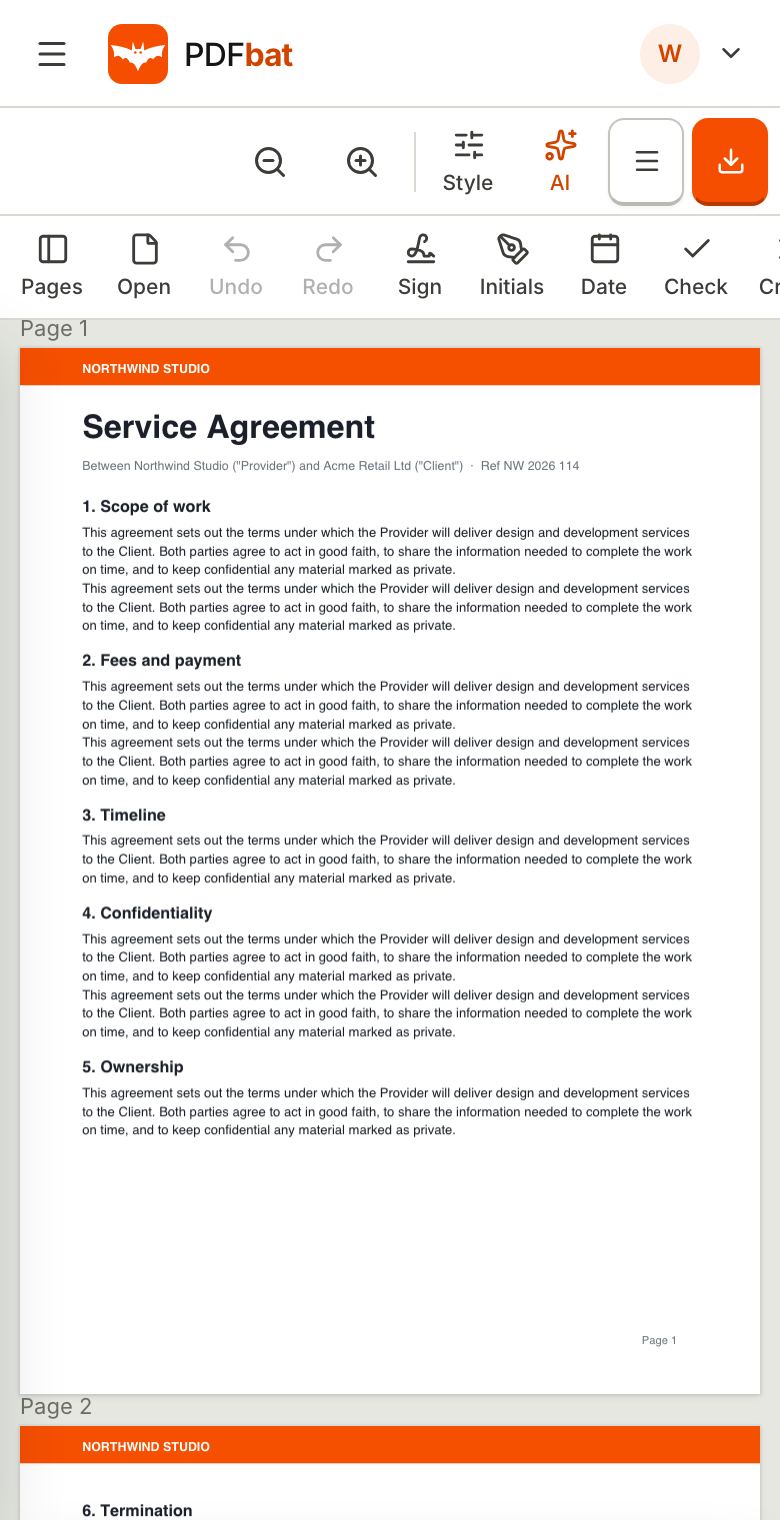
Someone just emailed you a PDF to sign and you are nowhere near a computer. You do not need a printer, a scanner or another app. This guide shows how to sign a PDF on iPhone free of charge using only Safari, and the same steps work on Android in Chrome. It also covers the iPhone's own Markup tool, filling blanks and dates, sending the signed file back, getting other people's signatures, legal validity, and fixes for the problems people run into on small screens.
Your options at a glance
| Method | Cost | Best for | Limits |
|---|---|---|---|
| --- | --- | --- | --- |
| iPhone Markup (Files or Mail) | Free, built into iOS | A single quick signature | Basic form support, no organised copies, iPhone only |
| PDFbat Fill & Sign in the browser | Free account | Signing, initialling, dates, filling forms | Needs an internet connection |
| PDFbat Request Signatures | 3 envelopes a month free | Getting other people to sign | Sender needs a verified email |
Option 1: iPhone's built in Markup
Apple includes a simple signing tool in iOS.
- Open the PDF in the Files app (or tap the attachment in Mail).
- Tap the Markup icon, which looks like a pen tip.
- Tap + and choose Add Signature.
- Sign with your finger, tap Done, then drag the signature into place and resize it.
- Tap Done to save, then share the file.
Markup is fine for one signature on a simple document. It is less helpful when you need to fill several form fields, initial every page, keep consistent dates in boxes, or find the signed copy later on another device. It is also not available on Android.
Option 2: How to sign a PDF on iPhone free with Fill & Sign
This works the same on iPhone, iPad and Android phones. You need a free PDFbat account, which takes a few seconds to create. If you choose a file before signing in, it is kept and reopened for you after sign up.
Step 1: Get the PDF onto your phone
- From Mail on iPhone: tap the attachment, tap the share icon and choose Save to Files.
- From Gmail or another app: download the attachment. On Android it lands in Downloads.
- Already in your PDFbat Drive: skip this step and use Open from Drive.
Step 2: Open it in Fill & Sign
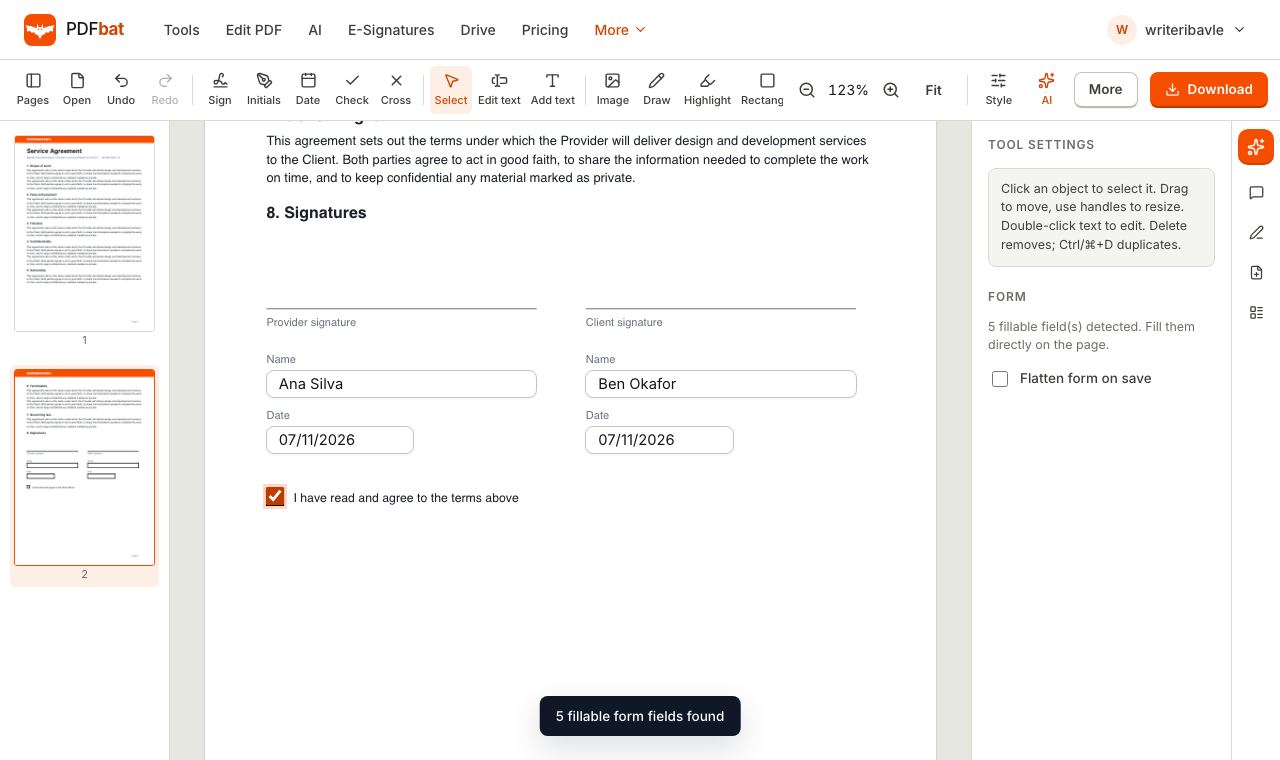
Open Fill & Sign in Safari or Chrome. Tap Choose PDF, then pick the file from Files, Downloads or iCloud Drive. The page fits your screen width automatically. If the PDF has fillable fields, a message tells you how many were found.
Step 3: Create your signature
Tap Sign. You have three ways to create a signature:
- Draw it with your finger or a stylus. Tap Clear to start again.
- Type your name and choose one of several handwriting styles.
- Upload a photo of your signature written on white paper. The background is removed automatically, leaving just the ink.
Pick a colour (black or blue suits most documents), tick Save for next time if you want to reuse it, and tap Apply.
Step 4: Place it on the page
Tap where the signature should go. Drag it to adjust the position and pull the corners to resize it so it sits neatly on the line. Zoom in with the zoom buttons for precise placement, then tap Fit to return to full width.
Step 5: Add initials, dates and other details
- Initials works just like Sign. Your initials are suggested from your name.
- Date stamps today's date as editable text. Tap where it goes.
- Add text lets you fill any blank line: name, address, job title, reference number.
- Check and Cross mark tick boxes.
- If the form has real fields, tap each one and type. The keyboard appears like any web form.
Step 6: Download and send it back
Tap Download. On iPhone, Safari saves the signed PDF to the Downloads folder in the Files app; on Android it goes to Downloads. A copy is saved to Edited PDFs in your PDFbat Drive too. To return it, reply to the email and attach the file from Files or Downloads.
Before you sign: a quick checklist
Signing on a phone is fast, which makes it easy to skip the reading. Take a minute first:
- Read the whole document. Scroll to the end and check the pages before the signature line, not only the page you sign.
- Check names, dates and amounts. Mistakes are much easier to fix before you sign than after.
- Look for every signature and initials box. Contracts often ask for initials on each page and a signature plus date at the end.
- Fill in any blanks the sender expects you to complete, such as your address or job title.
- Ask before signing if something does not match what you agreed. Reply to the sender rather than editing their document.
Signing a PDF from Gmail or Outlook on iPhone
In the Gmail app, tap the PDF attachment, tap the share or download icon, and choose Save to Files. In Outlook for iPhone, open the attachment, tap the share icon and choose Save to Files as well. Once the file is in Files, open Fill & Sign in Safari and pick it from there. When you reply, attach the signed copy from the Downloads folder in Files.
Tips for signing on a small screen
- Turn the phone sideways before drawing. A wider canvas gives a smoother, more natural signature.
- Use a typed signature if your drawn one looks shaky. Handwriting fonts look clean and consistent.
- Upload a paper signature for the most authentic look. Sign on plain white paper with a dark pen, take the photo in good light, and fill the frame.
- Zoom before placing. Signature lines on contracts are often thin and close to other text.
- Open the Pages panel to jump between pages. On a phone it slides in from the left.
- Use the Style panel to change colour, size or font of text you add. On a phone it slides up from the bottom.
- Undo mistakes with the Undo button in the toolbar.
Signing on iPad
The same steps apply on iPad, and the larger screen makes it easier. An Apple Pencil works well with the Draw option and produces a smooth signature. In landscape orientation the toolbar and panels have more room.
Signing on Android
Open Fill & Sign in Chrome, Samsung Internet, Firefox or Edge. When you tap Choose PDF, Android shows its file picker; look in Downloads or the app the PDF came from. Downloads save to the Downloads folder, which you can reach from the Files app or the notification after download.
Common problems and fixes
I cannot find the PDF when I tap Choose PDF
On iPhone, the file has to be saved to Files first. Go back to Mail or the app holding it and use Save to Files. On Android, check the Downloads folder or use the file picker's search.
My drawn signature looks jagged
Draw more slowly and larger, then shrink it after placing. Turning the phone sideways helps. Alternatively use Type or Upload.
The uploaded signature has a grey background
The background remover works best with a bright, evenly lit photo of dark ink on white paper. Retake the photo near a window without shadows across the page.
The page keeps zooming when I tap
Use the zoom buttons instead of pinching, and tap Fit to reset. Select the Select tool before dragging items so taps move objects rather than place new ones.
The file is too big to email back
Mail providers often reject attachments above about 20 to 25 MB. Compress the signed PDF first, or share a link from your Drive instead.
The sender needs a certificate or audit trail
A signature placed with Fill & Sign is a simple electronic signature on the page. If the sender needs proof of who signed and when, ask them to send it through an electronic signature service like PDFbat's Request Signatures, which produces a certificate of completion.
Getting someone else's signature from their phone
If you need other people to sign, do not email the PDF back and forth. Use Request Signatures: upload the document, add each person's name and email, place signature, initials and date fields for each, and send. They receive a private link, open it on their phone, tick the consent box, tap through each field with Next field and tap Finish. No account or app is needed on their side.
You get a sealed final PDF with a certificate of completion showing each signer's email, signing time, IP address and device. The Free plan covers 3 envelopes a month and Pro is $4 a month for unlimited. Our full guide on how to send a PDF for signature free covers signing order, identity checks, reminders and templates.
Is a phone signature legally valid?
In most countries, a signature added on your phone is just as valid as one added on a computer. Electronic signatures are widely recognised for everyday contracts, forms and agreements. This is general information, not legal advice.
- United States: the ESIGN Act and the Uniform Electronic Transactions Act (UETA) give electronic signatures the same legal standing as handwritten ones for most transactions, as long as the signer intends to sign.
- European Union: under eIDAS, a simple electronic signature like a drawn or typed signature cannot be rejected as evidence just because it is electronic. Some transactions call for an advanced or qualified signature.
- United Kingdom: electronic signatures are accepted under the Electronic Communications Act 2000 and common law.
- Exceptions: wills, some family law and property documents, court filings and notarised documents may still require wet ink, witnesses or a special type of signature.
If the person who sent you the document has asked for a particular signing method, follow their instructions.
Privacy
Your PDF is processed on PDFbat servers to apply your signature, then downloaded to your phone. A copy is kept in your private Drive (1 GB free), which you can delete at any time. Saved signatures are kept only in your browser on that device, not uploaded to your account, so they are ready next time you sign on the same phone. Untick Save for next time if you prefer not to keep one, especially on a shared or public device, and sign out when you finish.
Summary
To sign a PDF on iPhone free, save the PDF to Files, open Fill & Sign in Safari, tap Sign, draw, type or upload your signature, place it, add the date and any text, and download. The same steps work on Android in Chrome. For forms with lots of fields, see our guide to filling a PDF form online free, and to collect other people's signatures, use Request Signatures.
Frequently asked questions
How do I sign a PDF on iPhone for free?
Open Fill & Sign in Safari, choose the PDF from Files, tap Sign, draw or type your signature, tap where it goes and download. You need a free PDFbat account and no app.
Is a signature added on my phone legally valid?
For most everyday agreements, yes. Electronic signatures are recognised under laws like the US ESIGN Act and UETA and the EU eIDAS regulation. Some documents, such as wills and certain property or court papers, still need wet ink or special signatures. This is general information, not legal advice.
Can I reuse my signature?
Yes. Tick Save for next time when you create it, and it appears as a one tap option whenever you sign in the same browser on that device.
Do I need to install an app?
No. PDFbat runs in Safari, Chrome and other mobile browsers on iPhone, iPad and Android.
Where does the signed PDF go on my iPhone?
Safari saves it to the Downloads folder in the Files app. A copy is also stored in your PDFbat Drive, so you can open it from any device.
Can I get other people to sign from their phones?
Yes. Send the PDF through Request Signatures. Each person gets a private link and signs in their mobile browser without an account.