Sign a PDF on your iPad or iPhone
Open the PDF in Safari, draw your signature with a finger or Apple Pencil, add the date and initials, and download the signed file. If other people must sign, send it from the same device.
- No app to install
- Finger or Apple Pencil
- Signers need no account
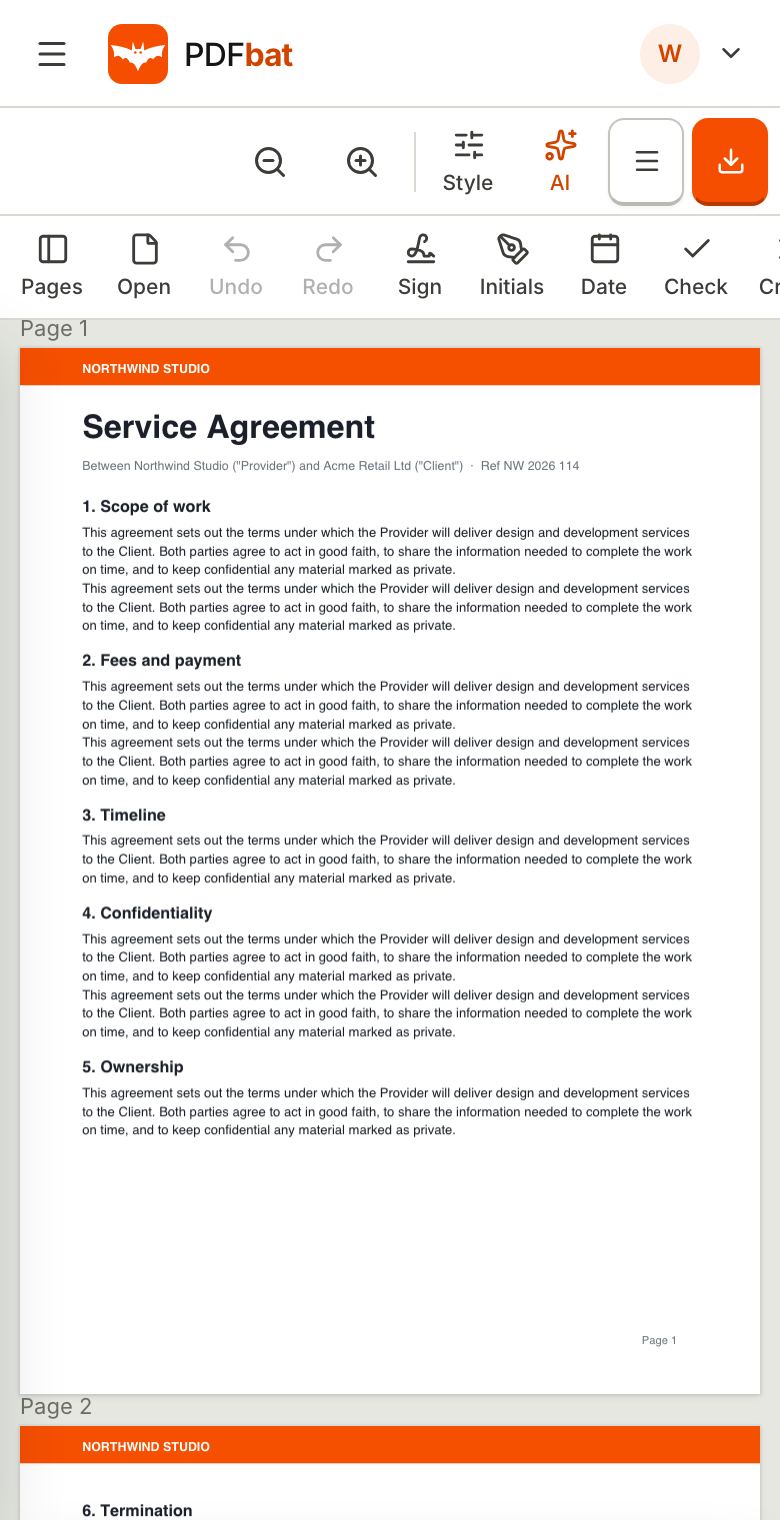
Two ways to sign, depending on who signs
If you are the only person who needs to sign, use Fill and Sign. Open the PDF, tap Sign, draw your name with your finger or Apple Pencil, place it on the line, add the date and download. It takes under a minute, and the free plan covers it.
If someone else must sign too, use Send for signature. You place a signature field for each person, PDFbat emails them a secure link, and they sign in their own browser without creating an account. You see when each person opened and signed, and the final PDF is sealed with an audit trail and a certificate of completion.
Both run in Safari on iPad and iPhone, so there is no App Store download. If you got the PDF as a Mail or Messages attachment, save it to Files first, then pick it in the browser. If someone sends you a PDFbat signing link, just tap it and sign.
Why sign on iPad with PDFbat
Three ways to sign
Draw with a finger or Apple Pencil, type your name in a handwriting style, or upload a photo of your signature.
Save your signature
Tick Save for next time and your signature and initials are one tap away on the next document.
Date, initials and checks
Add today's date, initials and tick marks, then move or resize each one.
Others can sign too
Send to several signers with signing order, reminders and a sealed audit trail.
Nothing to install
Runs in Safari. No App Store app, and no subscription to start.
Flatten when finished
Turn on Flatten form on save so filled values cannot be changed afterwards.
How to sign a PDF on iPad
- 1
Open the PDF in Fill and Sign
In Safari go to Fill and Sign, then choose the PDF from Files, iCloud Drive or your PDFbat Drive.
- 2
Draw and place your signature
Tap Sign, draw with your finger or Apple Pencil, then tap the line where it goes. Pinch to zoom, and drag the corners to resize it. Add the date and initials the same way.
- 3
Download or send
Download the signed PDF to Files, or share it by email or Messages. A copy is kept in your Drive.
What you can do while signing
- Signature options
- Draw, type or upload. Uploaded photos get their background removed automatically.
- Initials
- A separate initials mark for pages that need initials.
- Date
- Today's date placed as text you can move and restyle.
- Check and cross
- Clean marks for checkboxes on flat or scanned forms.
- Form fields
- Type into real form fields, dropdowns and checkboxes directly on the page.
- Add text
- Click a line on a flat form and type your answer in any language.
- Send to others
- Use e signatures to collect signatures from clients, tenants or staff.
- Sealed result
- Envelopes end as a digitally sealed PDF with an audit trail and certificate.
Signing tips for the iPad screen
- Zoom in before placing a signature on a small line, then resize it to sit just above the line.
- Use landscape for wide forms such as rental or school paperwork.
- Sign with Apple Pencil for a more natural stroke, or use your finger if you do not have one.
- Rotate the PDF first if it scanned sideways. See Rotate PDF.
Is a signature drawn on iPad valid?
An electronic signature you add to your own document is accepted for many everyday agreements in most countries. When you need proof of who signed and when, send the document with e signatures, which records timestamps, IP addresses and identity checks. A few document types have special rules, so check if yours is one of them.
Frequently asked questions
Can I sign a PDF on iPad for free?
Yes. Fill and Sign is on the free plan with 10 tool tasks a day and files up to 25 MB.
Do I need an app?
No. It works in Safari. You can add it to your Home Screen from the Share menu.
Can I use Apple Pencil?
Yes. Draw your signature with Apple Pencil or your finger.
How do I sign a PDF I got in Mail?
Save the attachment to Files, open Fill and Sign in Safari, and choose it from Files.
Can I send a PDF for others to sign from my iPad?
Yes. Use Send for signature. Free accounts can send 3 envelopes a month, and signers do not need an account.
Can I save my signature?
Yes. Leave Save for next time ticked and it appears at the top of the signature dialog next time.
Does it work on iPhone as well?
Yes. The same tools run on iPhone in Safari.
Related features and tools
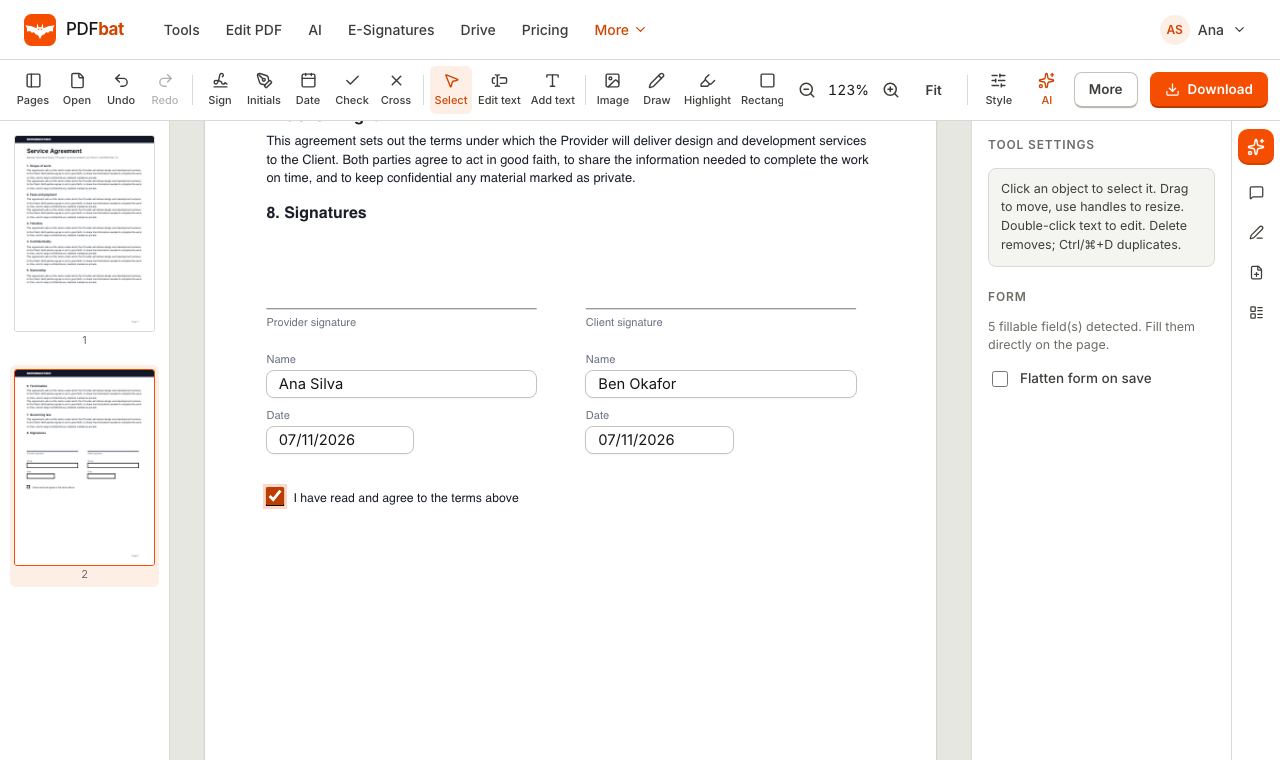 Fill and SignFill PDF forms, sign, add initials, dates and checkmarks, then flatten and download.
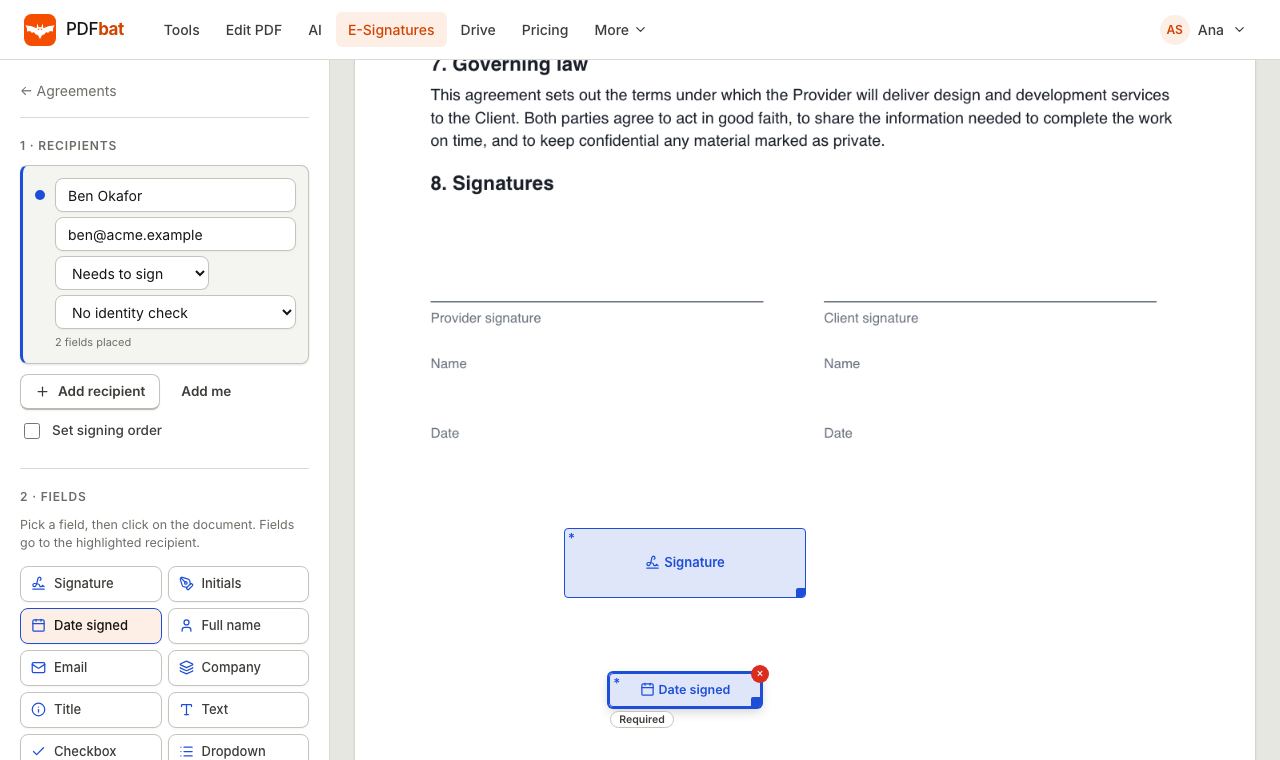 E-SignaturesSend PDFs for legally binding e signatures with signing order, identity checks, reminders and a sealed final PDF.
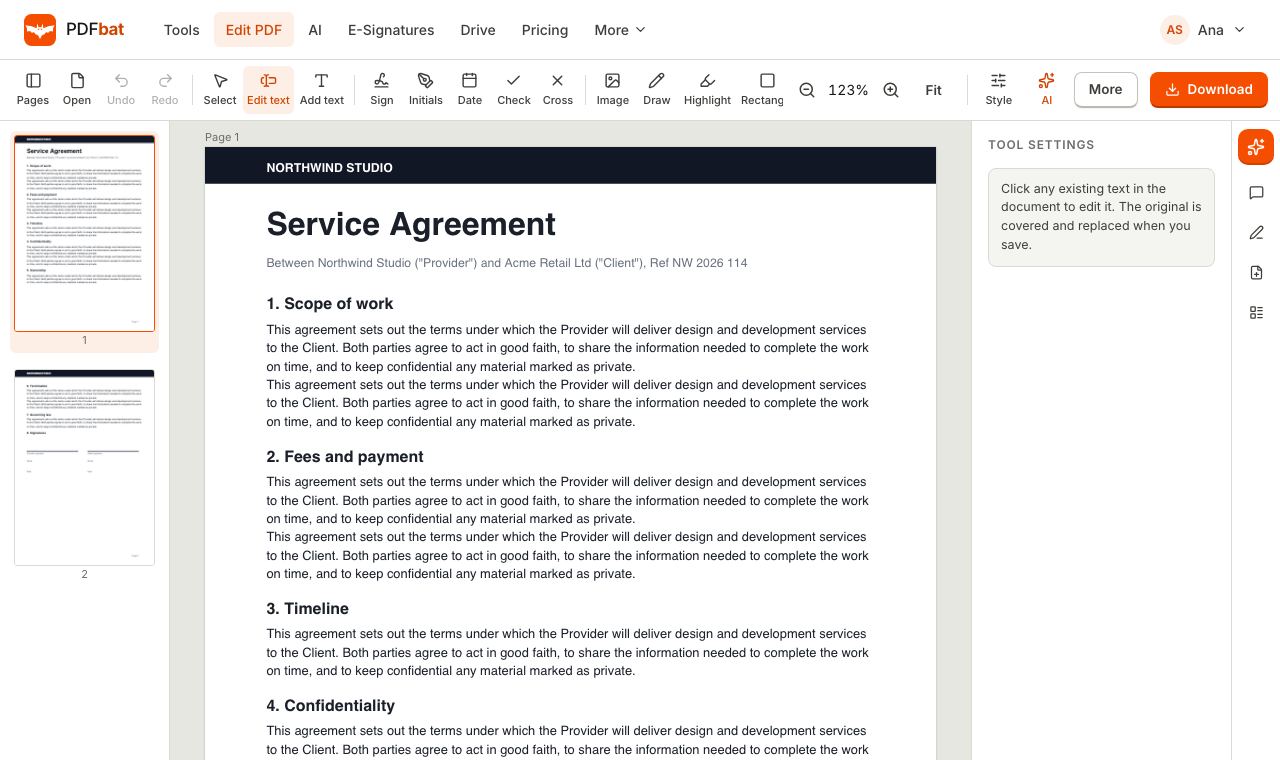 Edit PDF on iPad and iPhoneEdit PDF text, add images, sign and annotate on iPad and iPhone in Safari, with nothing to install.Sign PDF on AndroidSign a PDF on an Android phone or tablet in Chrome with your finger or stylus, or send it for others to sign.
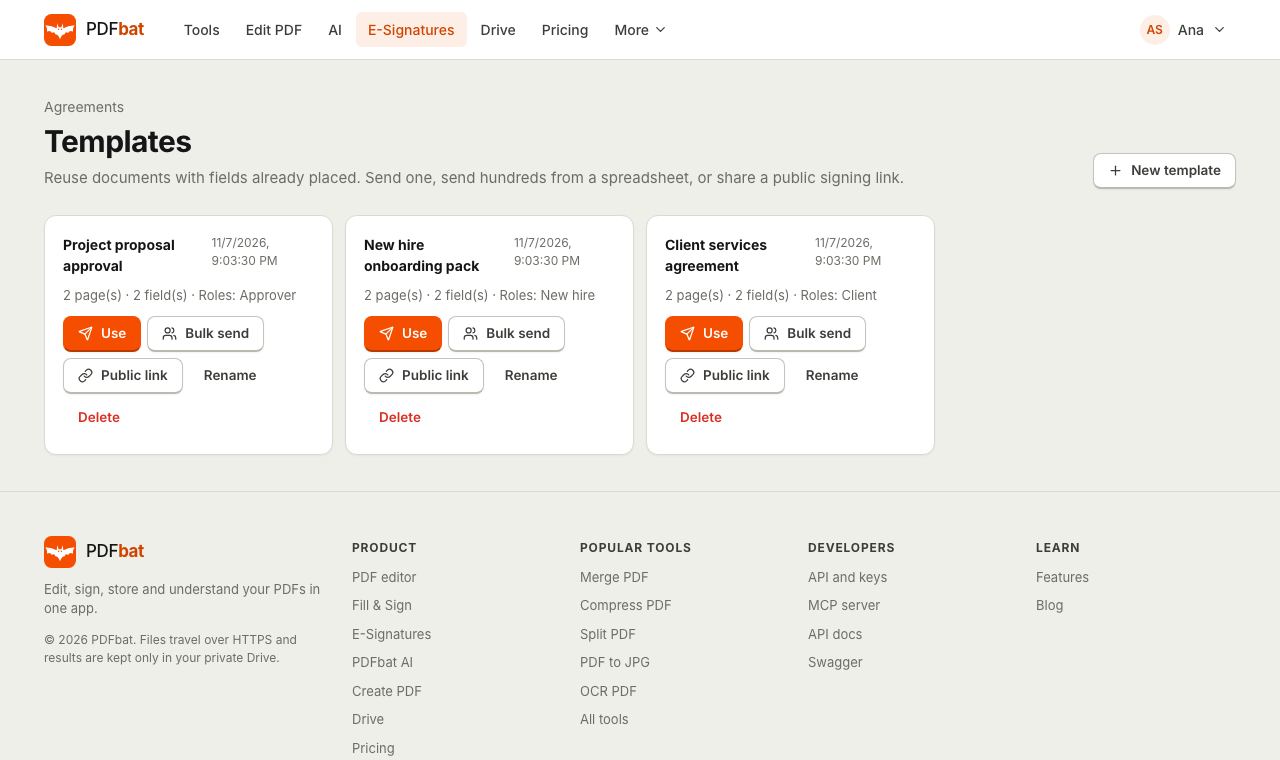 Templates and Bulk SendSave any envelope as a reusable template, send it to hundreds of people from a CSV, or publish a public signing link.
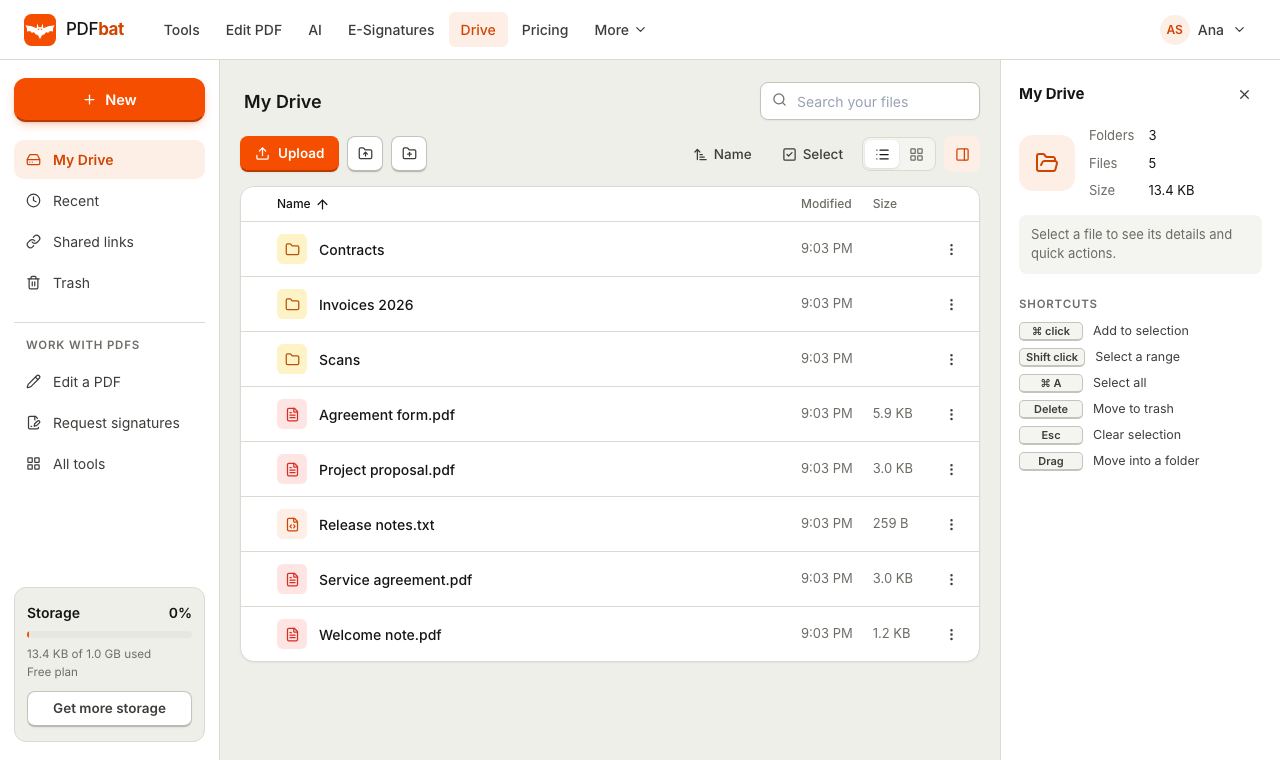 Cloud DrivePrivate cloud storage for PDFs with folders, share links and every tool result saved automatically.
Sign your PDF on iPad now
Open Fill and Sign in Safari, draw your signature and download the signed PDF.