Edit a PDF on your iPad or iPhone in Safari
Open PDFbat in Safari, pick a PDF from Files or Drive and edit it with your finger or Apple Pencil. Rewrite text, add images, highlight, draw and sign, then save a clean PDF. No app to download.
- Works in Safari
- No app from the App Store
- Touch and Apple Pencil
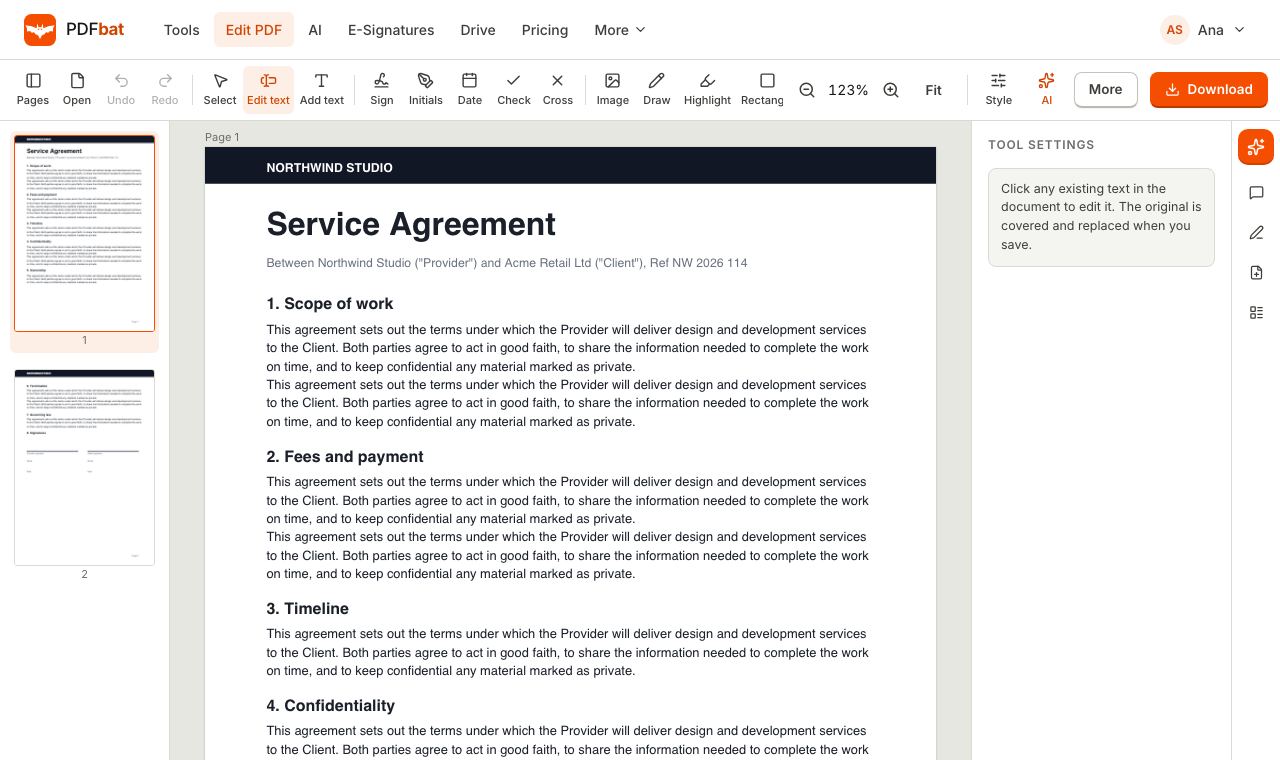
A real PDF editor without the App Store
iPad and iPhone have good built in tools for marking up a PDF, but they stop at drawing and typing a text box. They cannot rewrite a line that is already on the page, fill a flat form neatly, merge another file in, or run OCR on a scan. The usual answer is another app, often with a subscription and a watermark.
PDFbat runs in Safari, so there is nothing to install and nothing to update. Open the editor, choose a PDF from the Files app, iCloud Drive, Dropbox or your PDFbat Drive, and edit. The toolbar is built for touch: large targets, pinch to zoom, and drag handles that move and resize anything you place.
Edit text clicks into place with a tap, and the new text is drawn at the same position and size. Add a photo from your library, highlight a paragraph, draw with Apple Pencil, whiteout a mistake, redact private details, and sign with your finger. When you tap download, the PDF goes to your Files app and a copy stays in your Drive.
Why edit PDFs on iPad this way
Nothing to install
Use Safari or any modern browser. No App Store download, no storage used, no update prompts.
Edit existing text
Tap a line and retype it. Most iPad apps can only add new text boxes on top.
Built for touch
Pinch to zoom, drag to move and resize. Draw and sign with a finger or Apple Pencil.
Add photos and logos
Insert an image from your Photos library, then move and resize it on the page.
Any language keyboard
Type with the iPad keyboard in Hindi, Arabic, Chinese or any other language. Text is shaped correctly.
Files and Drive
Open from Files and iCloud, and keep a copy in your private PDFbat Drive.
How to edit a PDF on iPad
- 1
Open PDFbat in Safari
Go to the editor and sign in. Tap Add to Home Screen in the Share menu if you want an icon like an app.
- 2
Choose your PDF
Tap to browse. Pick the file from Files, iCloud Drive or other sources the iPad offers, or open it from your Drive.
- 3
Edit, then download
Use Edit text, Add text, Image, Draw, Highlight or Sign. Tap download and the PDF lands in your Files app.
Tools you can use on iPad and iPhone
- Edit text
- Tap an existing line and rewrite it in place.
- Add text
- Tap anywhere to place text on a flat form or scan. Choose font, size and color.
- Images and stamps
- Add a logo, photo or stamp from your library.
- Draw and highlight
- Freehand pen and translucent highlighter, ideal with Apple Pencil.
- Whiteout and redact
- Cover a mistake, or permanently remove sensitive content on download. See Redact PDF.
- Pages panel
- Reorder, rotate, duplicate and delete pages from thumbnails.
- Fill forms
- Type into form fields and tick boxes, then flatten on save. See Fill and Sign.
- Sign
- Draw, type or upload a signature. Full steps are on Sign PDF on iPad.
Tips for editing on a small screen
- Use landscape on iPad and zoom to fit width before placing text so edits stay aligned.
- On iPhone, pinch in to the exact line you want to change. The handles are easier to grab when the page is large.
- Turn on Request Desktop Website only if a menu looks cramped. The editor works well in the default mobile view.
- Large files over 25 MB need Pro. You can shrink them first with Compress PDF.
iPad compared with desktop
The editor is the same on every device. The difference is input: touch and pencil replace mouse and keyboard. If you plan to edit a lot of text, a keyboard case helps, but short fixes, signatures and markup are comfortable with touch alone.
Frequently asked questions
Can I edit a PDF on iPad for free?
Yes. The free plan lets you edit PDFs in Safari with 10 tool tasks a day and files up to 25 MB, with no watermark.
Do I need to download an app?
No. PDFbat works in Safari and other browsers. You can add it to your Home Screen from the Share menu.
Can I change existing text, not just add a text box?
Yes. Tap Edit text, tap a line and type. For scans, run OCR first.
Does it work with Apple Pencil?
Yes. Use the Draw and Highlight tools with Apple Pencil, or sign with it.
Where does the edited PDF go?
The download goes to your Files app, and a copy is saved to your PDFbat Drive.
Does it work on iPhone too?
Yes. The same editor runs on iPhone in Safari, with touch controls.
Can I edit in Arabic or Hindi on iPad?
Yes. Switch the iPad keyboard to your language and type. See every language.
Related features and tools
PDF EditorEdit existing text, add text in any language, images, shapes, highlights, redactions, links and comments.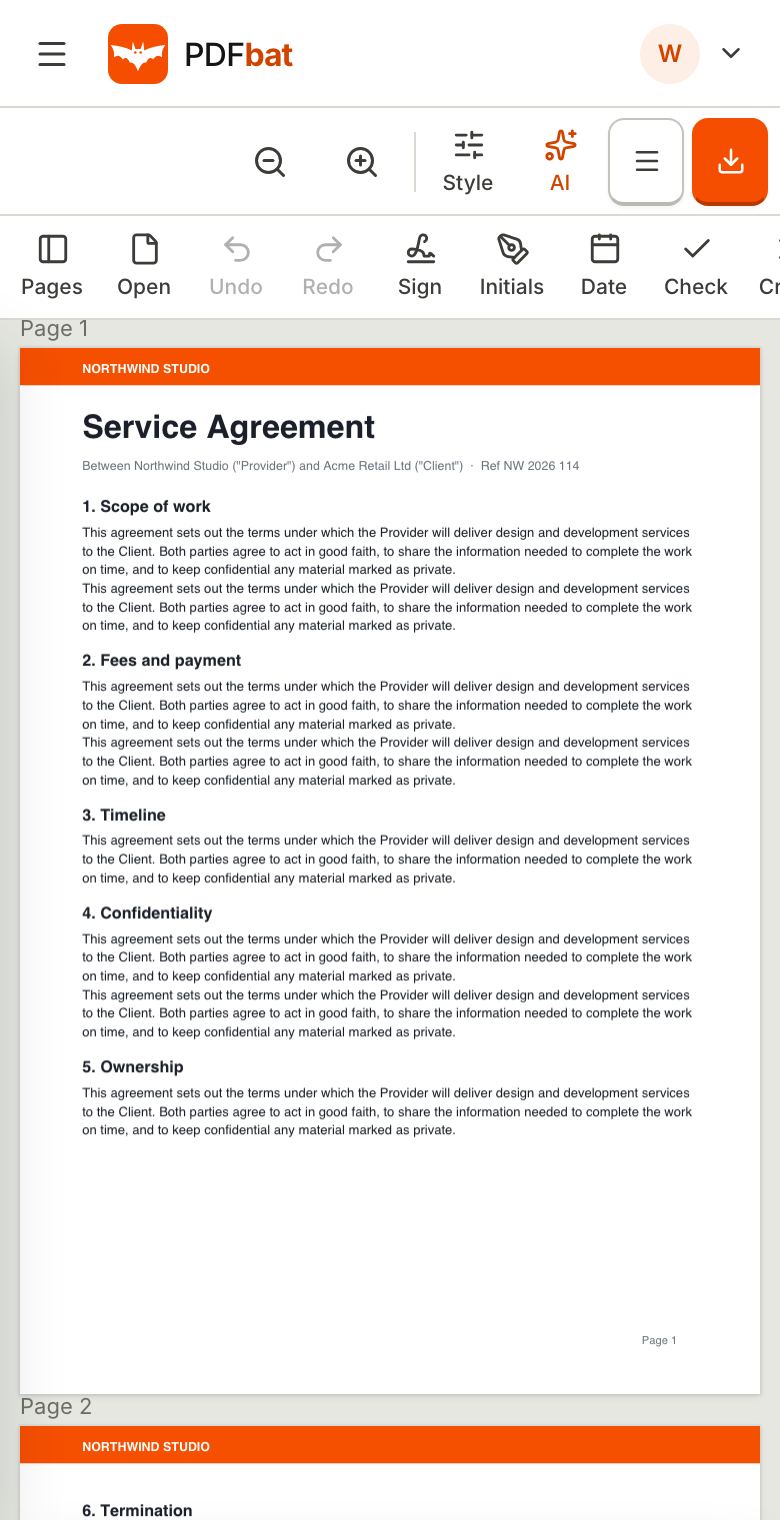 Sign PDF on iPadSign a PDF on iPad or iPhone with your finger or Apple Pencil in Safari, or send it to others to sign.
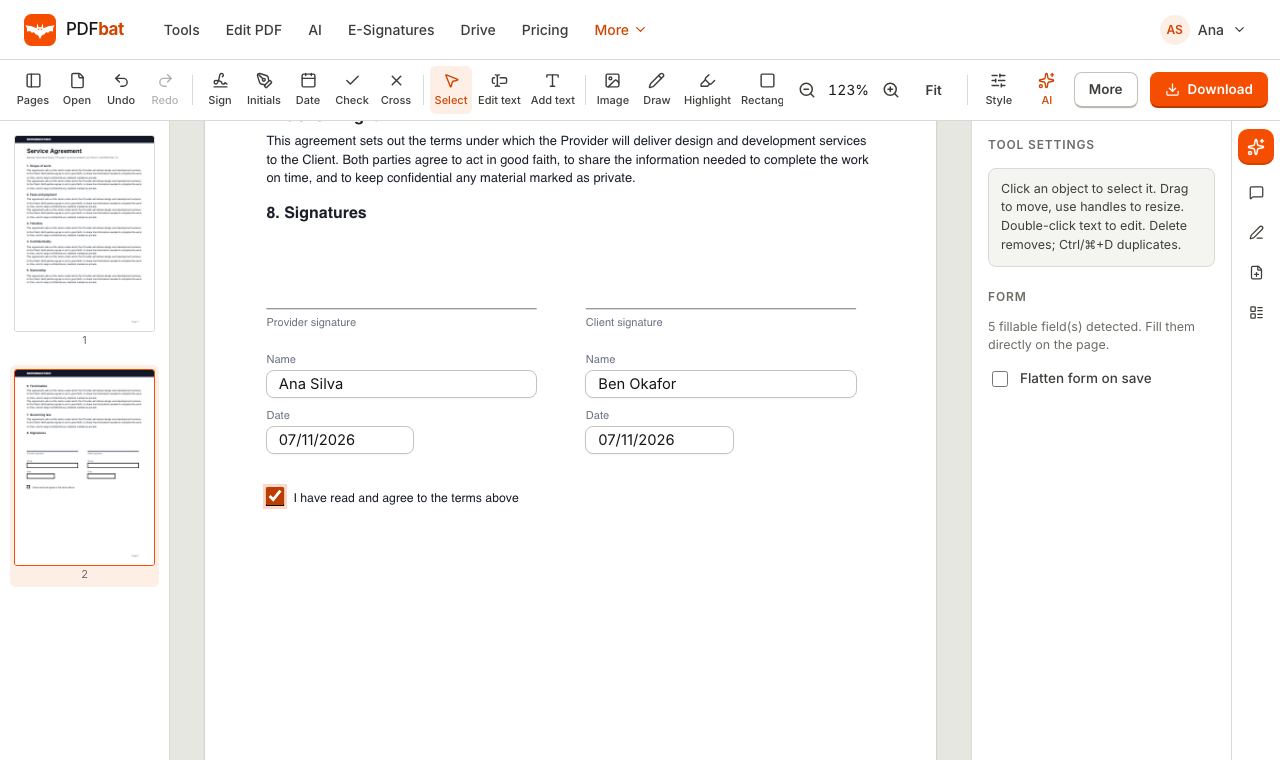 Fill and SignFill PDF forms, sign, add initials, dates and checkmarks, then flatten and download.
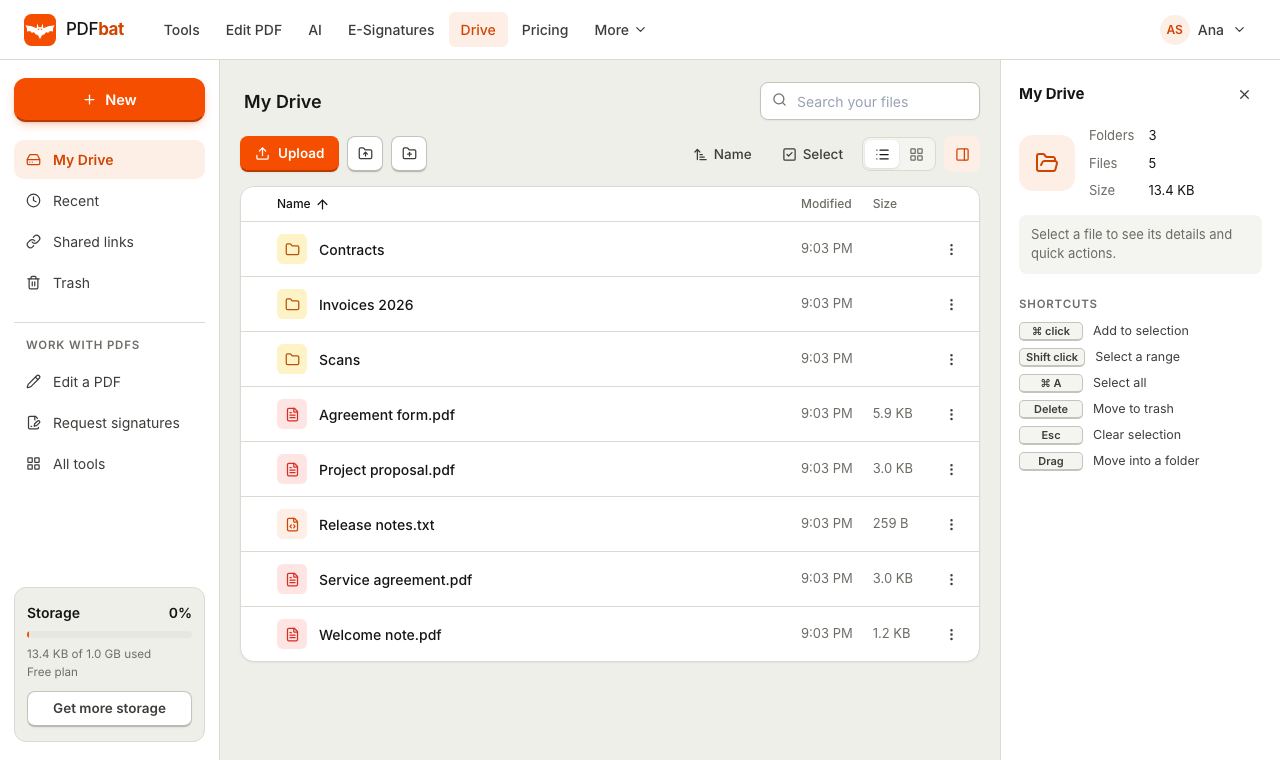 Cloud DrivePrivate cloud storage for PDFs with folders, share links and every tool result saved automatically.
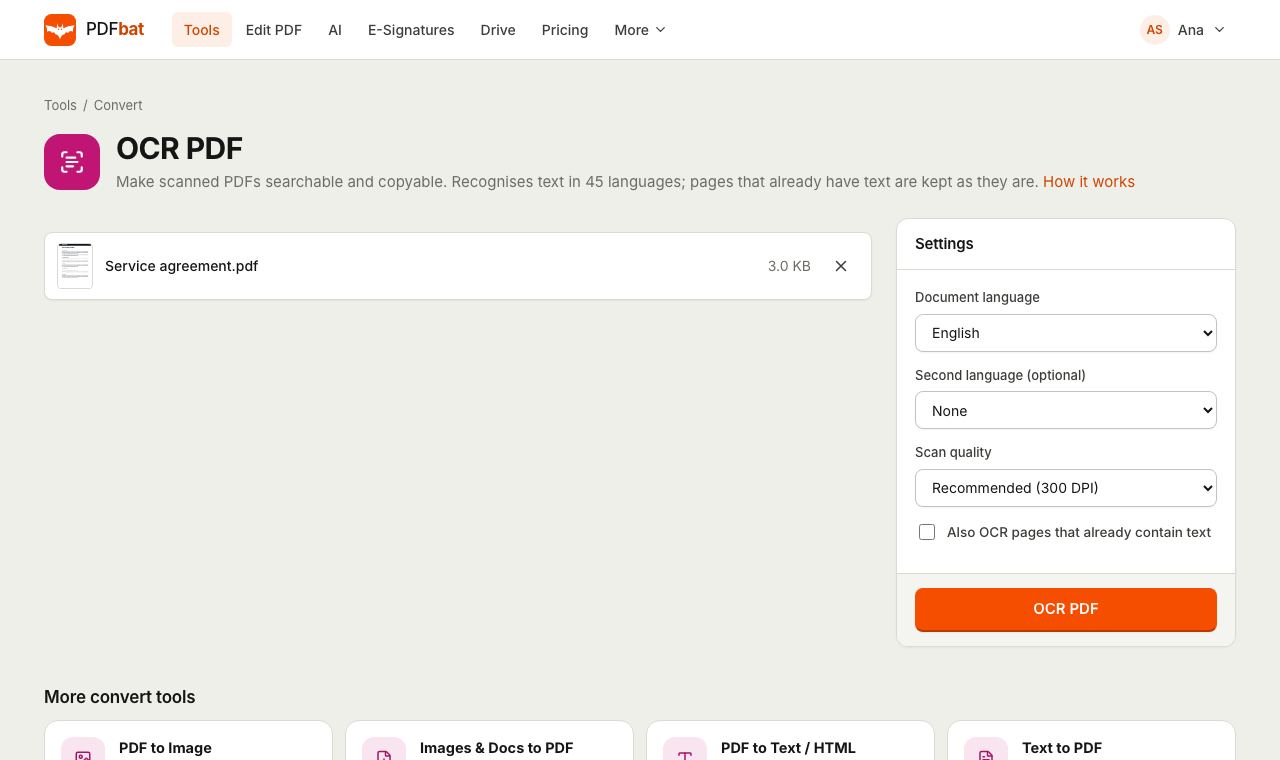 OCR PDFMake scanned PDFs searchable and copyable in 45 languages, with a second language for mixed documents.
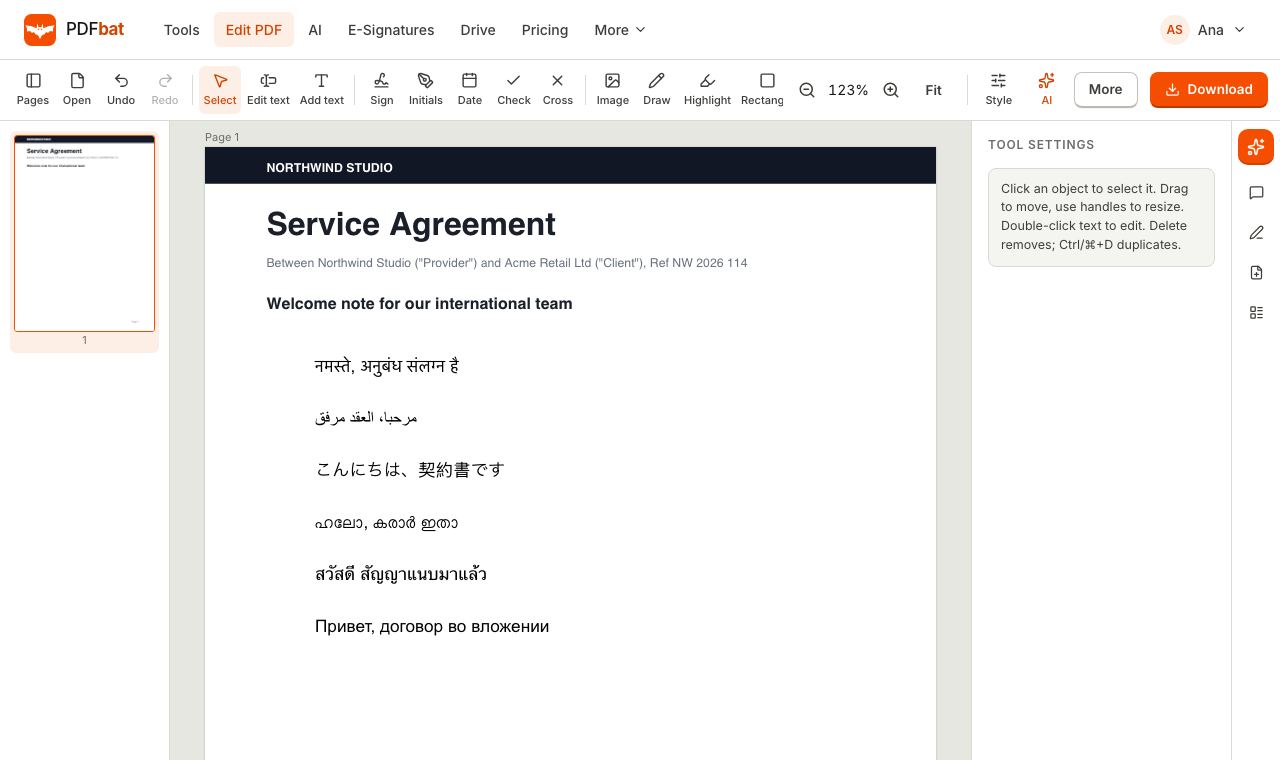 Every languageType in Hindi, Arabic, Chinese, Thai, Tamil and every other script, with correct shaping and searchable text.
Edit your PDF on iPad now
Open Safari, go to the editor and make your changes. No App Store, no install.