OCR PDF: make scanned documents searchable
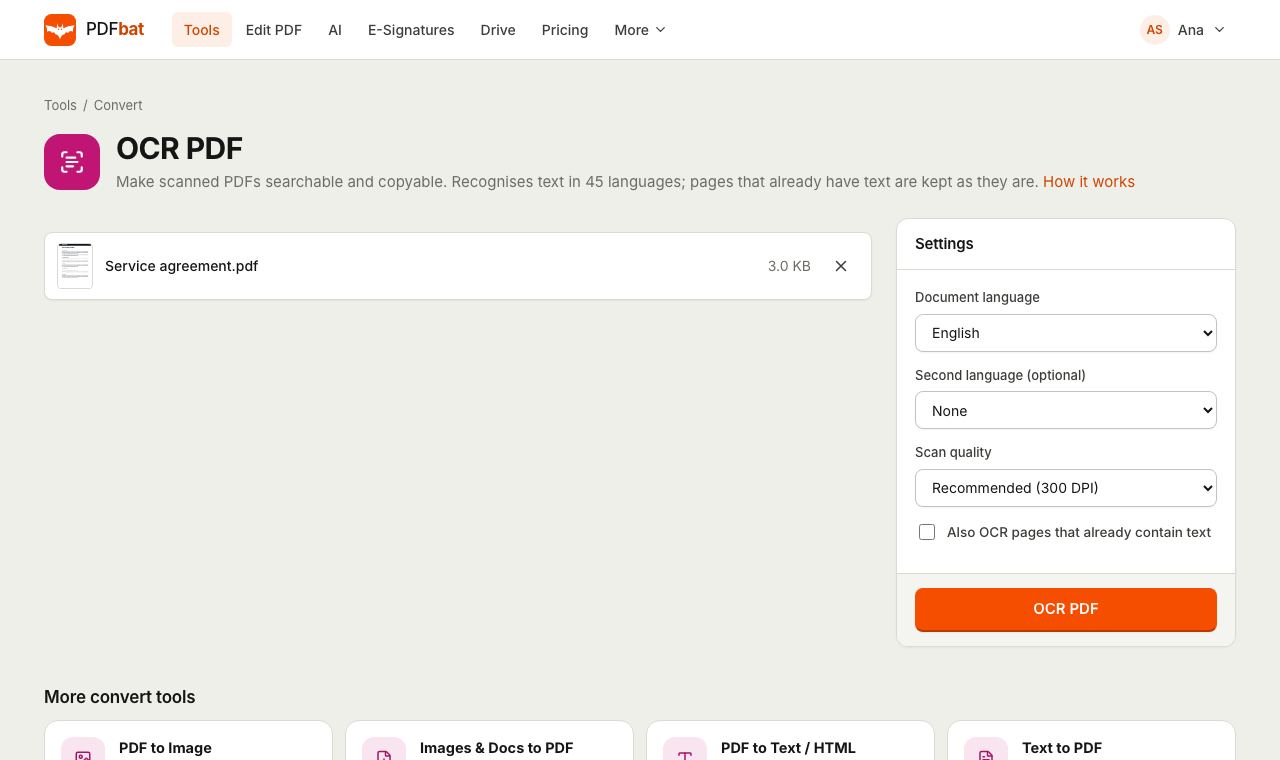
PDFbat recognises the text on scanned pages in 45 languages and adds an invisible text layer, so you can search, select and copy it while the page looks exactly as it did.
- 45 languages
- Up to 200 pages per run
- Nothing to install
Why scanned PDFs need OCR
A scanner or phone camera saves each page as a picture. It looks like a document, but to a computer it is just pixels: Ctrl+F finds nothing, you cannot copy a sentence, screen readers stay silent and document search in your email or Drive ignores it.
Optical character recognition, or OCR, reads the letters in those pictures. PDFbat renders every scanned page at the resolution you choose, recognises the words with the Tesseract engine, and places an invisible text layer exactly over the image. The page keeps its original look, but now the text can be searched, selected, copied and indexed.
Pages that already contain real text, such as a typed cover page in an otherwise scanned file, are detected and kept exactly as they are, unless you ask PDFbat to OCR them too.
Why use PDFbat for OCR
Search and copy scanned text
Find any word with Ctrl+F, copy quotes and numbers, and let search tools index your paper archive.
45 languages, two at once
From English and Spanish to Hindi, Arabic, Thai, Japanese and Swahili. Add a second language for bilingual documents.
Pages look the same
The scanned image stays as it is. The recognised text sits invisibly on top, aligned with the words you see.
Text pages left alone
Pages that already have a text layer are copied over untouched, so mixed documents never get worse.
How to OCR a PDF
- 1
Upload the scanned PDF
Drop it on the page or open it from your Drive. Free accounts handle files up to 25 MB and Pro up to 100 MB.
- 2
Choose the language
Pick the main language of the document, add a second one if the text is mixed, and keep Recommended scan quality for most files.
- 3
Download the searchable PDF
PDFbat returns the same pages with a text layer. It is saved to your Drive, ready to search, copy or open in another tool.
Every OCR option explained
- Document language
- The main language of the text. Choosing the right one matters most for accuracy, because each language has its own alphabet and dictionary.
- Second language (optional)
- For documents that mix two languages, such as an English and Arabic contract or a French form with English notes.
- Fast (200 DPI)
- Renders pages at 200 DPI before recognition. Quicker, and fine for clean scans with normal size print.
- Recommended (300 DPI)
- The default. The best balance of speed and accuracy for typical office scans and phone photos.
- Small print (400 DPI)
- Use it for footnotes, receipts, fine print and dense tables. Slower, but it catches small characters better.
- Also OCR pages that already contain text
- Off by default. Turn it on when a file has a poor or broken text layer that you want replaced with fresh recognition.
- Automatic page detection
- Without the option above, only pages that need it are recognised, which keeps typed pages perfect and saves time.
- Up to 200 pages per run
- Large archives can be split into parts with Split PDF and processed one after another.
Supported OCR languages
PDFbat recognises these 45 languages, and any two can be combined:
- European: English, Spanish, French, German, Italian, Portuguese, Dutch, Polish, Turkish, Russian, Ukrainian, Greek, Swedish, Norwegian, Danish, Finnish, Czech, Romanian, Hungarian.
- Middle East: Arabic, Hebrew, Persian, Urdu.
- South Asia: Hindi, Marathi, Bengali, Gujarati, Punjabi, Tamil, Telugu, Kannada, Malayalam, Odia, Sinhala, Nepali.
- East and Southeast Asia: Chinese (Simplified), Chinese (Traditional), Japanese, Korean, Thai, Vietnamese, Indonesian, Malay, Filipino.
- Africa: Swahili, Amharic.
Tips for the best OCR results
- Scan straight and flat. Use Rotate PDF first if pages are sideways or upside down.
- Pick the real language of the text. A Hindi document read as English gives poor results.
- Use Small print (400 DPI) for receipts, invoices with tiny totals and legal footnotes.
- Keep the original scan as sharp as possible. OCR reads clean, high contrast pages far better than heavily compressed ones, so run it before you shrink the file for sharing.
- Need the text itself? Run PDF to Text on the OCR result to get a .txt, HTML or JSON file.
What people use OCR for
- Making years of scanned bills, bank letters and tax documents searchable in Drive.
- Copying clauses and figures out of scanned contracts instead of retyping them.
- Preparing scans for accessibility, so screen readers can read them aloud.
- Getting scanned invoices ready for data extraction to CSV with AI.
PDFbat OCR compared with Adobe Acrobat Pro
| Feature | PDFbat | Adobe Acrobat Pro |
|---|---|---|
| Price | Free plan, Pro $4/mo | $19.99/mo, annual plan |
| OCR scanned PDFs | Yes | Yes |
| Keeps pages that already have text | Yes | Yes |
| Result saved to a private cloud Drive | Yes, automatically | Adobe cloud storage |
| OCR through an API | Included, 250 free calls a month | Separate Adobe developer product |
Competitor details reflect their public plan pages in November 2026. Check their sites for current terms.
Frequently asked questions
Is the OCR really free?
Yes. OCR is one of the tools on the free plan, which includes 10 tool tasks a day. Pro removes the daily limit for $4 a month.
Will OCR change how my PDF looks?
No. Scanned pages keep their image. The recognised text is added as an invisible layer on top, so you can search and copy it.
How many languages are supported?
45, including English, Spanish, Arabic, Hindi, Tamil, Chinese, Japanese, Korean, Thai and Swahili. You can combine any two.
What if some pages already have text?
They are detected and kept exactly as they are. Turn on Also OCR pages that already contain text if you want them recognised again.
Is there a page limit?
OCR works on up to 200 pages per run. Split a larger PDF into parts and run each one.
Why are some words wrong?
OCR depends on scan quality. Blurry, skewed or very small text is harder to read. Try Small print (400 DPI), straighten the pages, and check the language setting.
Can I OCR on my phone?
Yes. The tool works in Safari and Chrome on iPhone and Android. Upload a scan, choose the language and download the searchable PDF.
Related features and tools
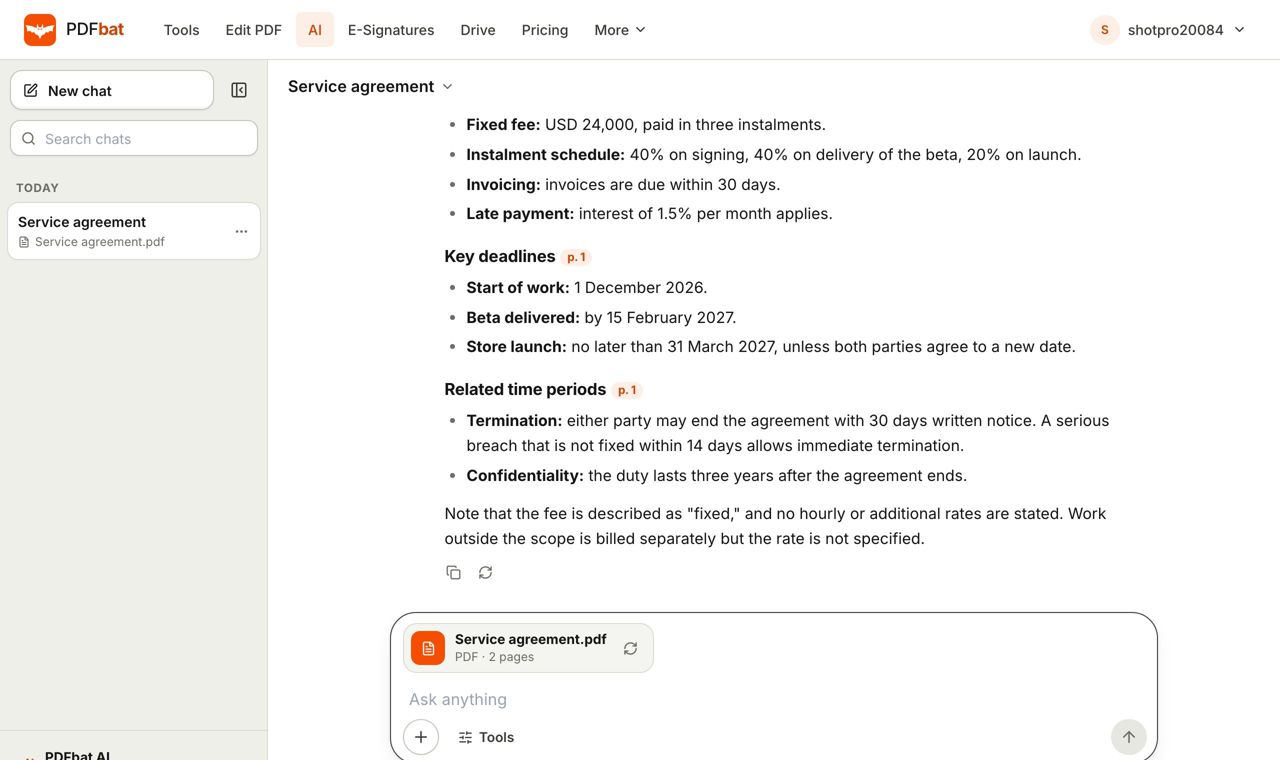 AI PDFChat with a PDF, summarize, translate, extract data, review contracts and redact personal data with AI.
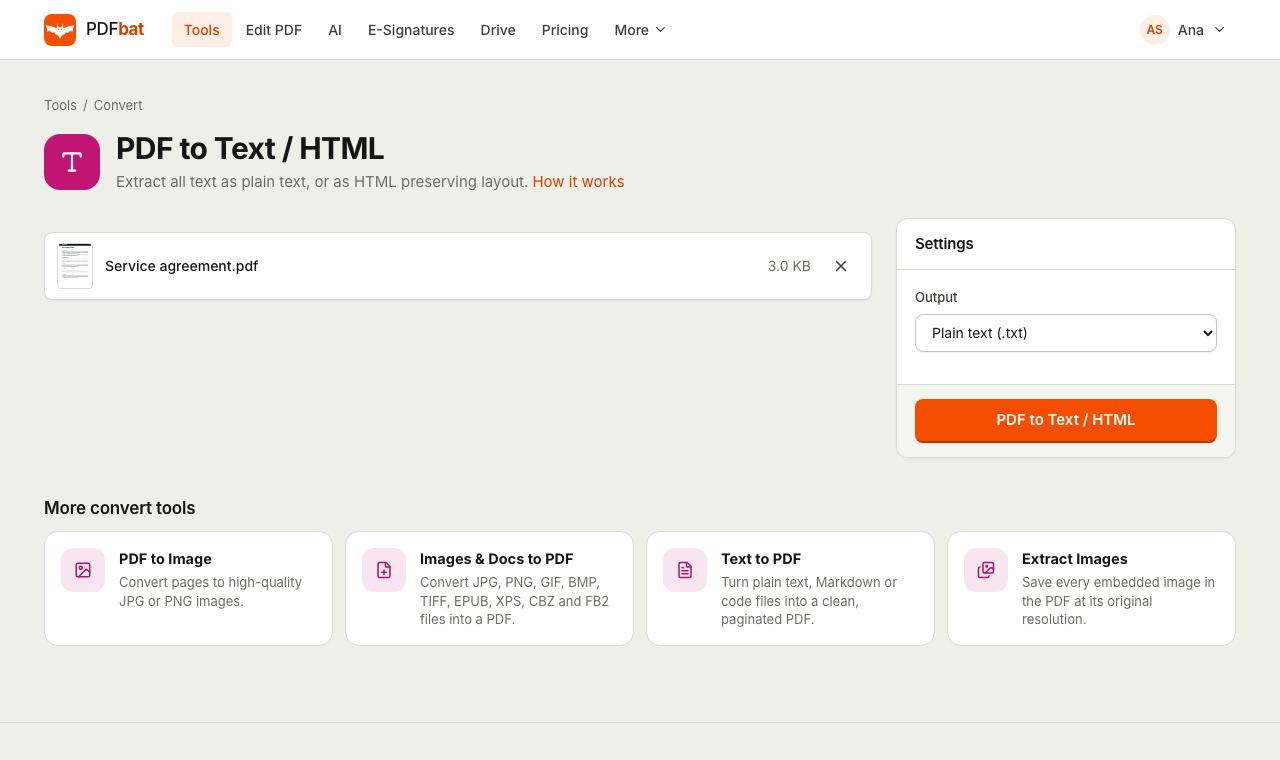 PDF to TextExtract all text from a PDF as plain text, layout preserving HTML or structured JSON.
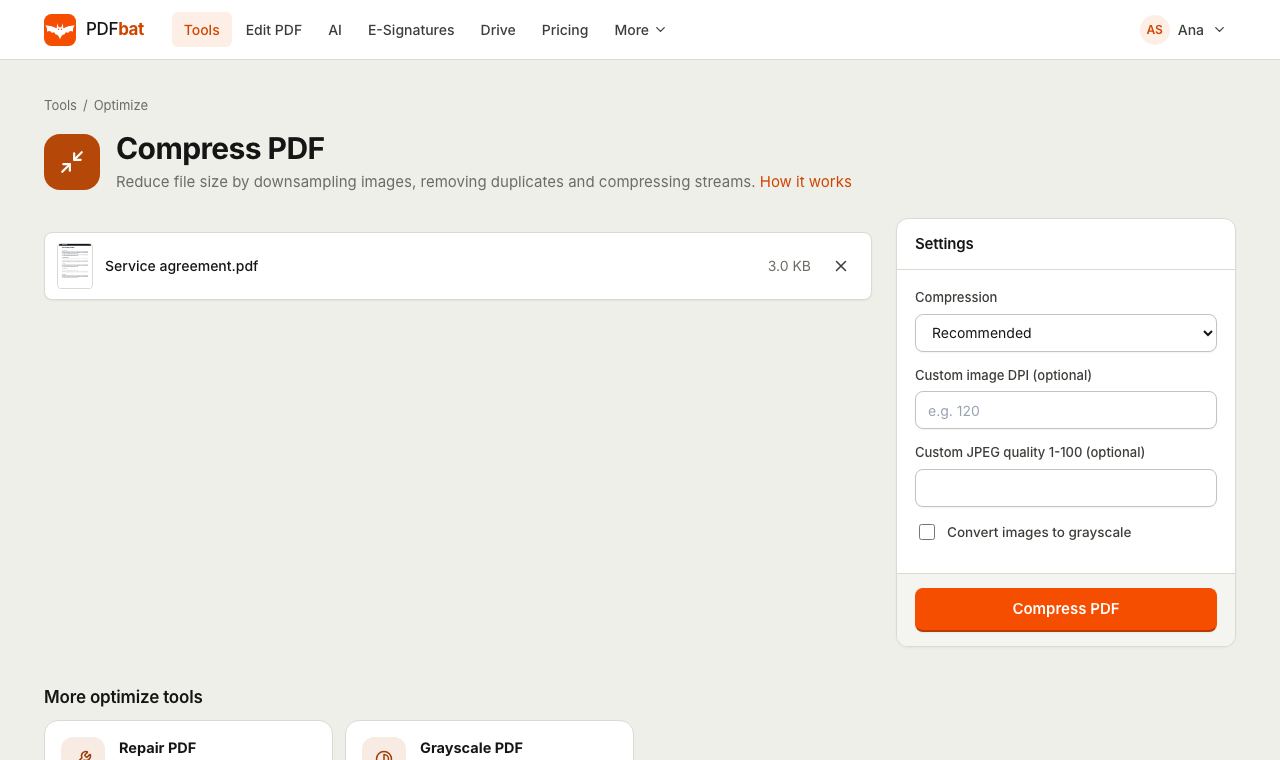 Compress PDFShrink PDFs for email and upload portals with four levels, custom DPI and grayscale.
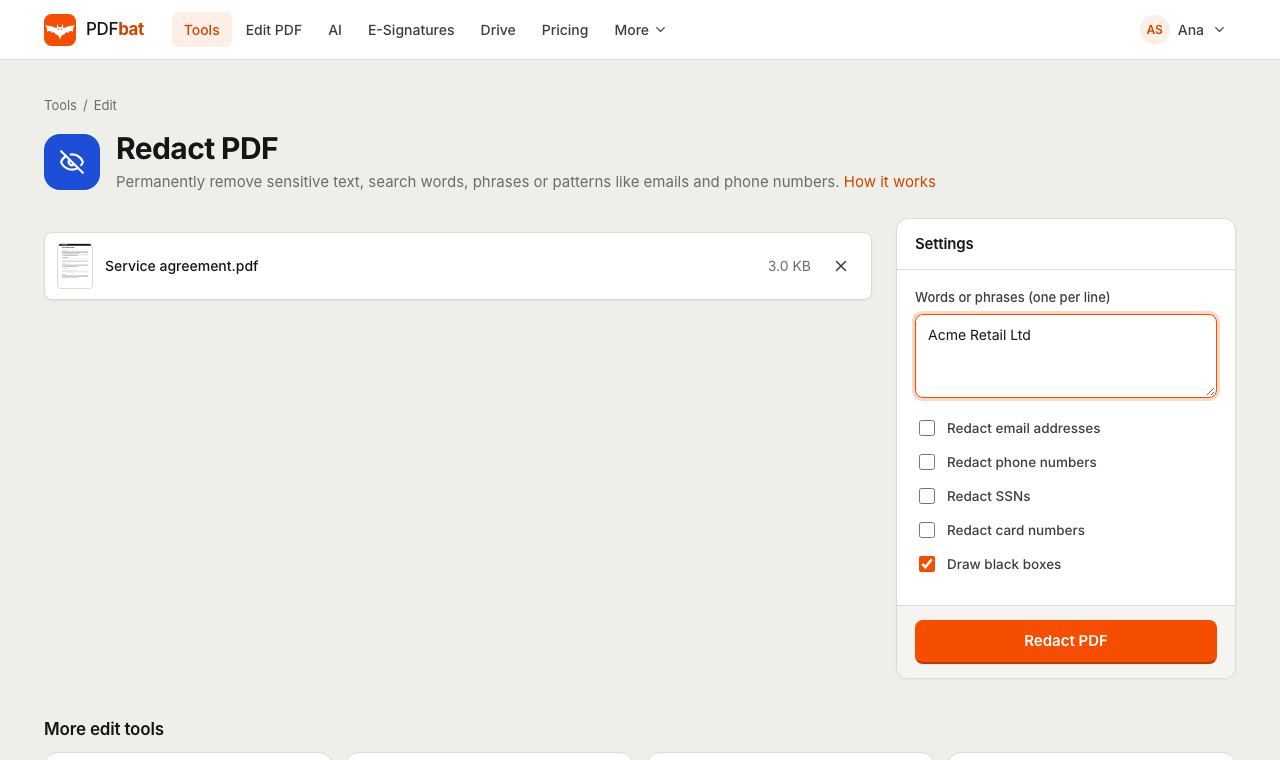 Redact PDFPermanently remove names, emails, phone numbers and card numbers from a PDF.
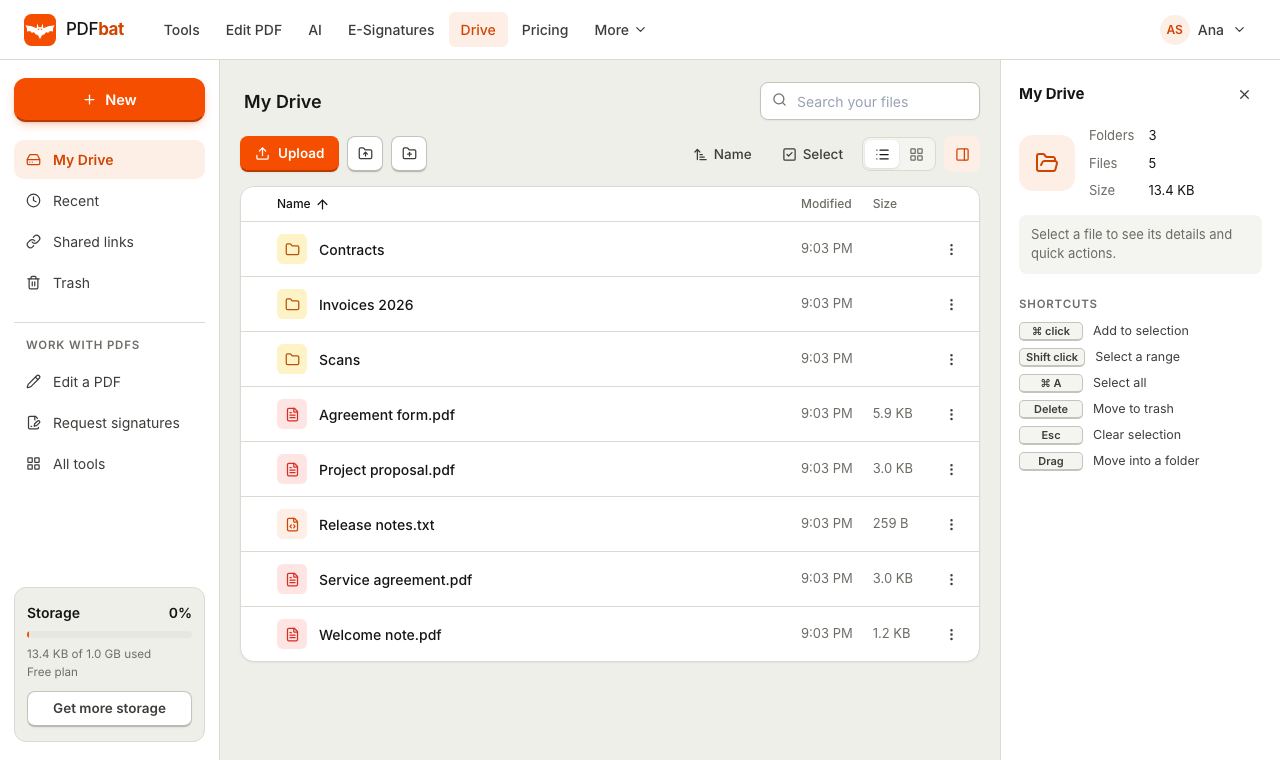 Cloud DrivePrivate cloud storage for PDFs with folders, share links and every tool result saved automatically.
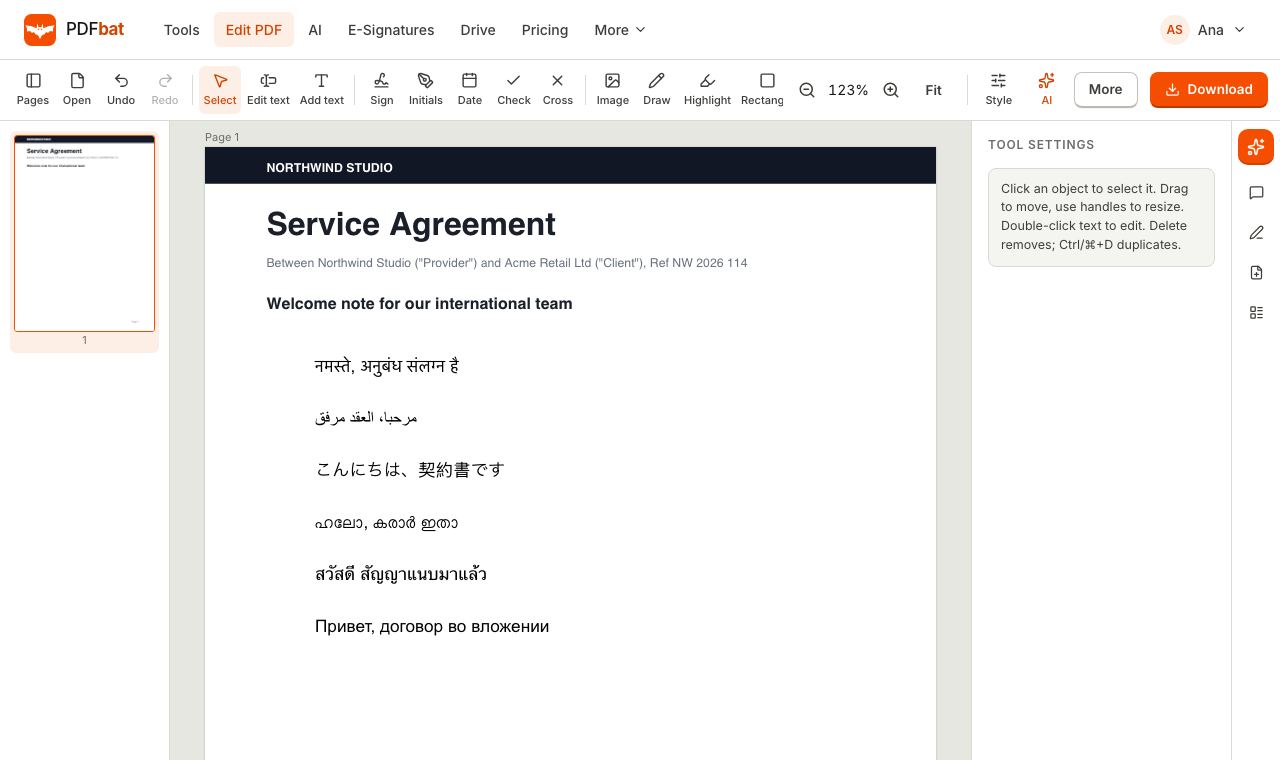 Every languageType in Hindi, Arabic, Chinese, Thai, Tamil and every other script, with correct shaping and searchable text.
Make your scans searchable for free
Upload a scanned PDF, choose the language and download a searchable copy in a few moments.