Split a PDF into separate files, exactly how you need
Break one large PDF into smaller documents by page count, by your own ranges, page by page, by odd and even, or into parts that stay under an upload limit. You get every part in one ZIP.
- Free plan, no credit card
- Nothing to install
- Works on phone, tablet and desktop
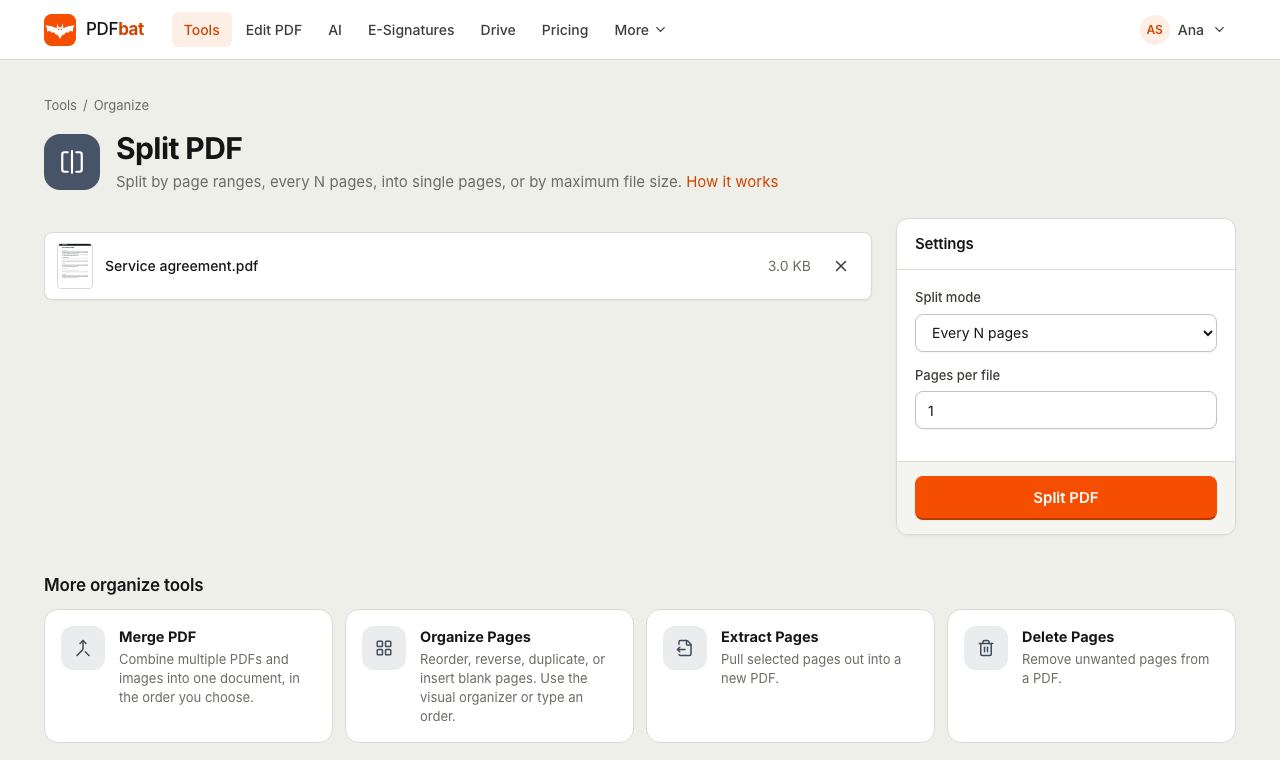
Five ways to split, one simple tool
Splitting sounds simple until you need it a particular way. Sometimes you want every page on its own, sometimes you need chapters, and sometimes a portal will only take files under 5 MB. PDFbat Split PDF covers all of these with five modes, and every resulting file is a normal PDF with the original pages copied across untouched.
The parts are named after the original file and the pages they contain, for example report_1-3.pdf and report_4-7.pdf, and delivered together as a single ZIP so nothing gets lost.
Why split with PDFbat
Five split modes
Every N pages, custom ranges, every page, by maximum file size, or odd and even pages. Pick the one that matches the job.
Split by file size
Set a limit such as 5 MB and PDFbat packs as many pages as fit into each part, then checks every part against the limit.
Tidy ZIP download
All parts arrive in one ZIP with clear names that show which pages each file holds.
Pages copied untouched
Text stays searchable, links and images stay as they were. Nothing is re-rendered or recompressed.
Saved to your Drive
The ZIP is stored in your private Drive, so you can download it again later from any device.
How it works
- 1
Upload your PDF
Drop a PDF onto the page or choose it from your device or Drive. Free accounts handle files up to 25 MB, Pro up to 100 MB.
- 2
Choose a split mode
Pick every N pages, custom ranges, every page, by file size or odd and even, then fill in the one setting that mode needs.
- 3
Download the parts
PDFbat creates every part and hands you one ZIP. It is also saved to Drive automatically.
Every split mode explained
- Every N pages
- The default. Set Pages per file to cut the document into equal chunks, for example 2 for two page forms or 10 for long batches of scans. The last part holds whatever is left over.
- Custom ranges
- Type ranges separated by commas, one file per range.
1-3, 4-7, 8-makes three files, and a range left open at the end, like8-, runs to the last page. You can also uselast, as in10-last. - Every page
- Turns a 20 page PDF into 20 single page PDFs. Handy for separating scanned letters, certificates or invoices that were scanned in one batch.
- By max file size
- Enter a size in MB, such as 5 or 9.5. Pages are grouped in order until the next page would push the part over the limit. Each part is then saved and measured, and split again if shared fonts or images made it larger than estimated. A single page bigger than the limit stays on its own.
- Odd and even pages
- Produces two files, one with pages 1, 3, 5 and so on, the other with 2, 4, 6. Useful for manual duplex printing or separating front and back scans.
- Clear file names
- Each part is named after the original file plus its page numbers, such as
contract_4-7.pdf, so you always know what is inside.
When to use each mode
- Upload portals with a size cap: By max file size, set just under the portal limit.
- Separating a batch scan: Every page, or Every N pages if each document is the same length.
- Pulling chapters out of a book or report: Custom ranges, one range per chapter.
- Printing double sided on a single sided printer: Odd and even pages, then print one file, flip the stack and print the other.
- Sending only one part to someone: Use Extract Pages, which gives you one PDF with just the pages you pick.
Tips for splitting
- Not sure where chapters start? Open the file in the PDF editor and check page numbers in the Pages panel first.
- If parts are still too large even when split by size, the pages themselves are heavy. Run Compress PDF first, then split.
- To put parts back together in a new order later, use Merge PDF.
- Splitting a scanned book where each page shows two pages side by side? Split Pages in Half cuts each spread down the middle.
PDFbat compared with Adobe Acrobat Pro
| Feature | PDFbat | Adobe Acrobat Pro |
|---|---|---|
| Price | Free plan, Pro $4/mo | $19.99/mo, annual plan |
| Split by number of pages | Yes | Yes |
| Split by file size | Yes | Yes |
| Result saved to a private cloud Drive | Yes, automatically | Adobe cloud storage |
| Split from your own app with an API | Yes, 250 free calls a month | Sold separately |
Competitor details reflect their public plan pages in November 2026. Check their sites for current terms.
Frequently asked questions
How do I split a PDF into single pages?
Choose the Every page mode and click split. You get one PDF per page inside a ZIP file.
How do I write custom ranges?
Separate ranges with commas, one output file per range, for example 1-3, 4-7, 8-. A range with no end, like 8-, runs to the last page, and last also works, as in 5-last.
Can I split a PDF to stay under an upload limit?
Yes. Choose By max file size and enter the limit in MB. PDFbat checks each part after saving it and splits again if needed, so parts stay under the limit unless a single page is already larger.
Why do I get a ZIP file?
Splitting usually produces several PDFs, so they are bundled into one ZIP for a single download. Every operating system can open ZIP files without extra software.
Does splitting reduce quality?
No. Pages are copied as they are. Text stays selectable and images keep their original resolution.
What is the difference between Split and Extract Pages?
Split produces several files that together cover the document. Extract Pages produces one new PDF containing only the pages you pick.
Can I split PDFs automatically?
Yes. The PDFbat API runs the same split modes with 250 free calls a month.
Related features and tools
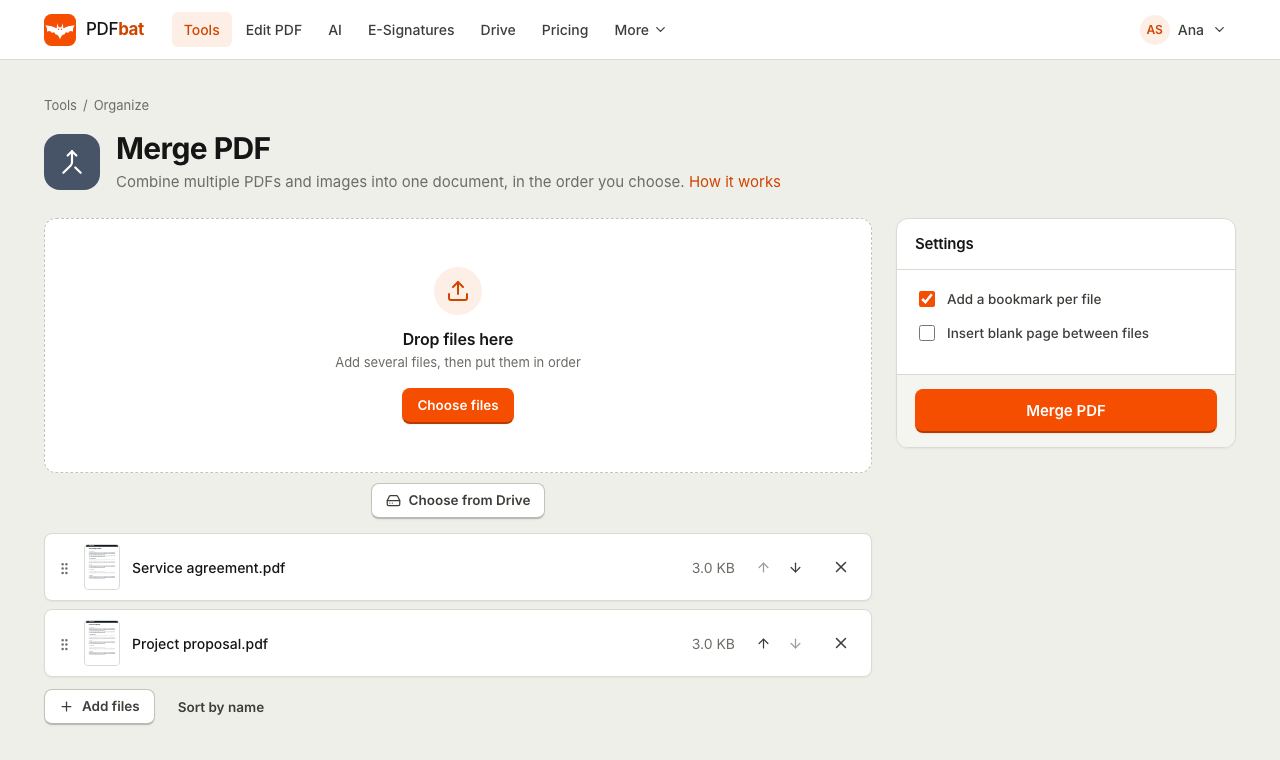 Merge PDFCombine PDFs, images and ebooks into one file in the order you choose, with a bookmark per file.
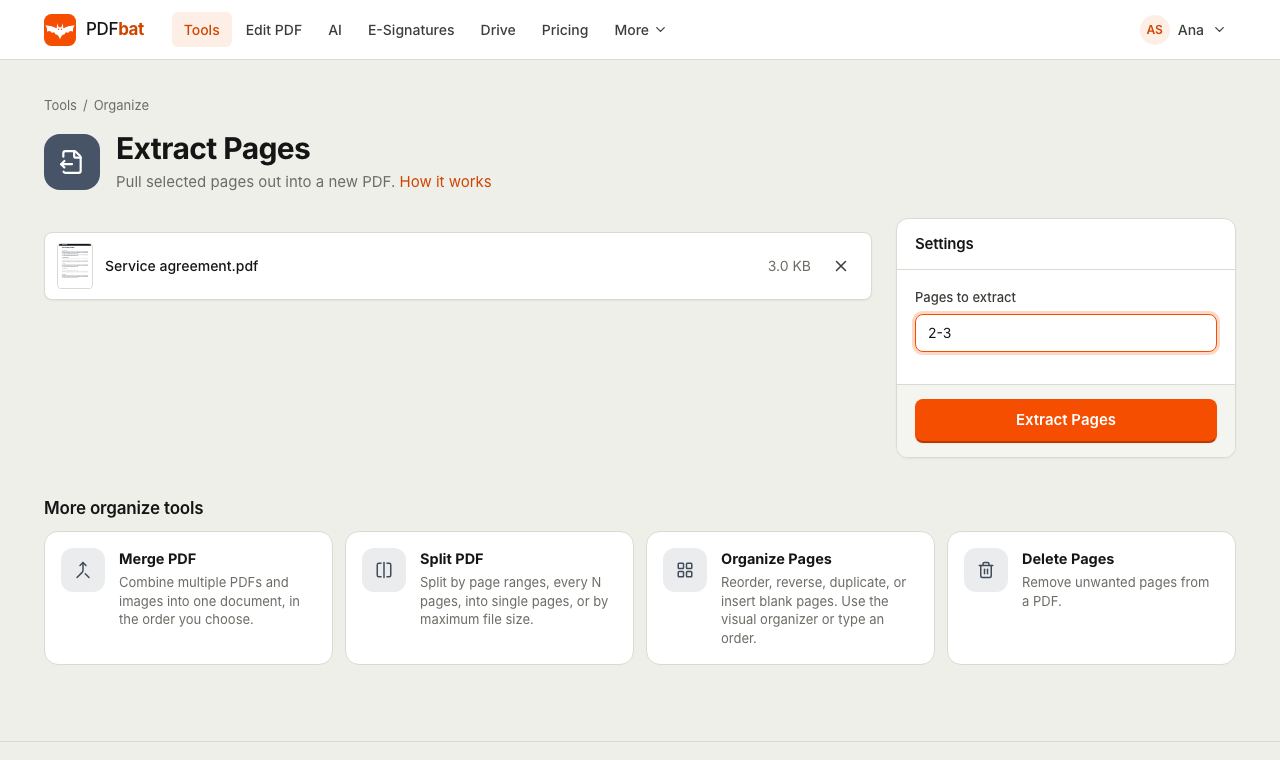 Extract PDF PagesPull selected pages into a new PDF using numbers, ranges, odd, even or last.
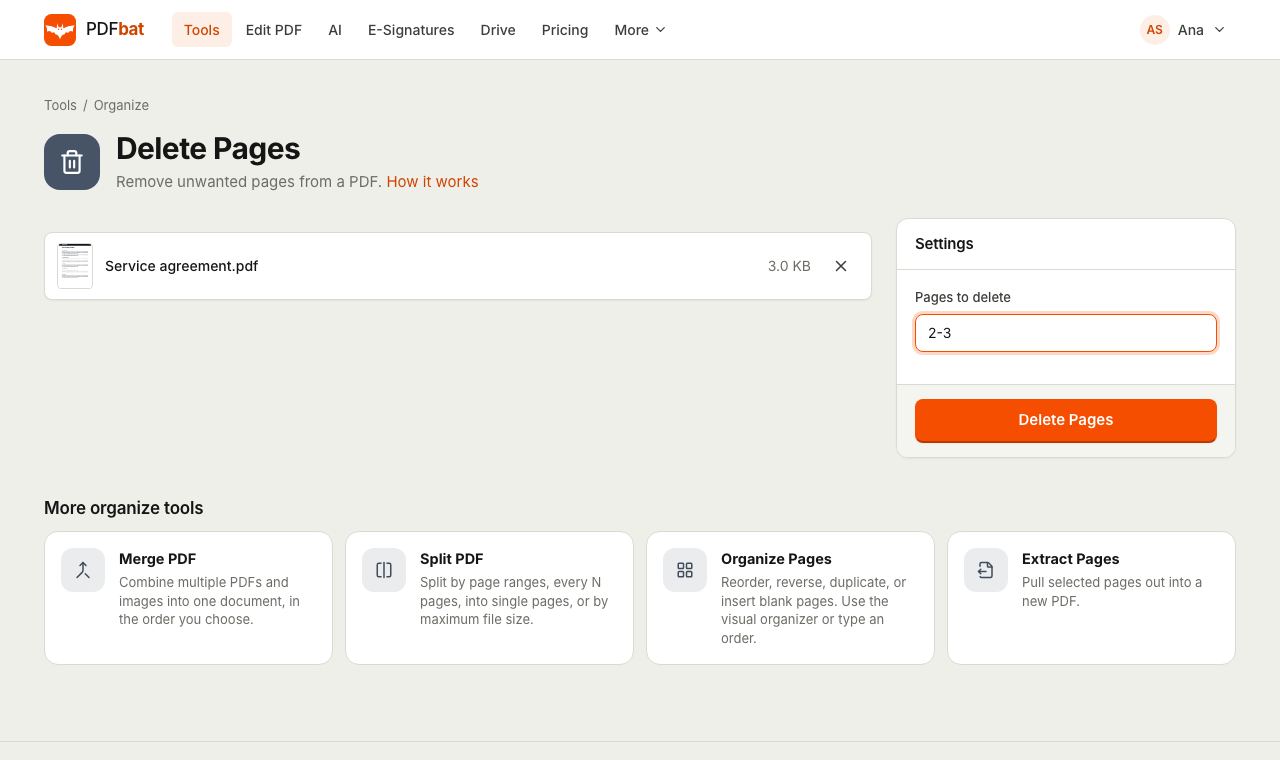 Delete PDF PagesRemove unwanted pages from a PDF by number or range, in one step.
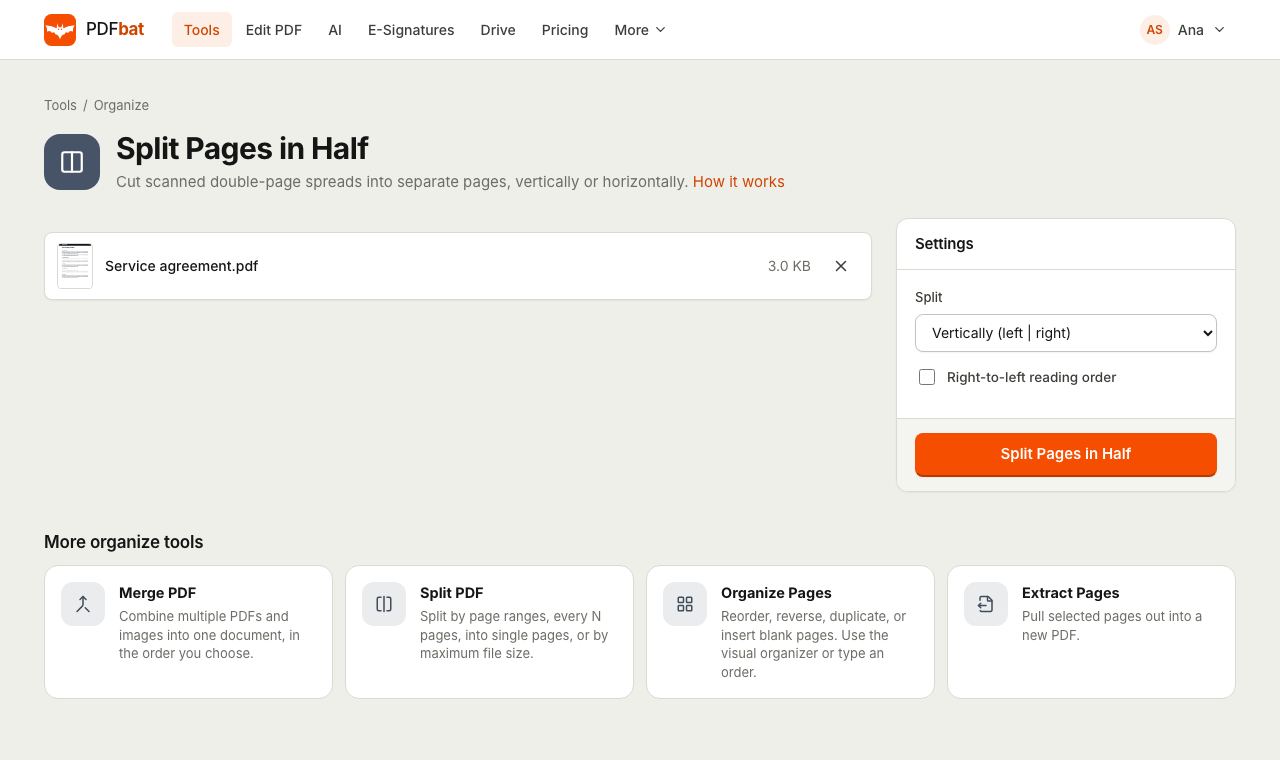 Split PDF Pages in HalfCut scanned double page spreads into single pages, vertically or horizontally, with right to left support.
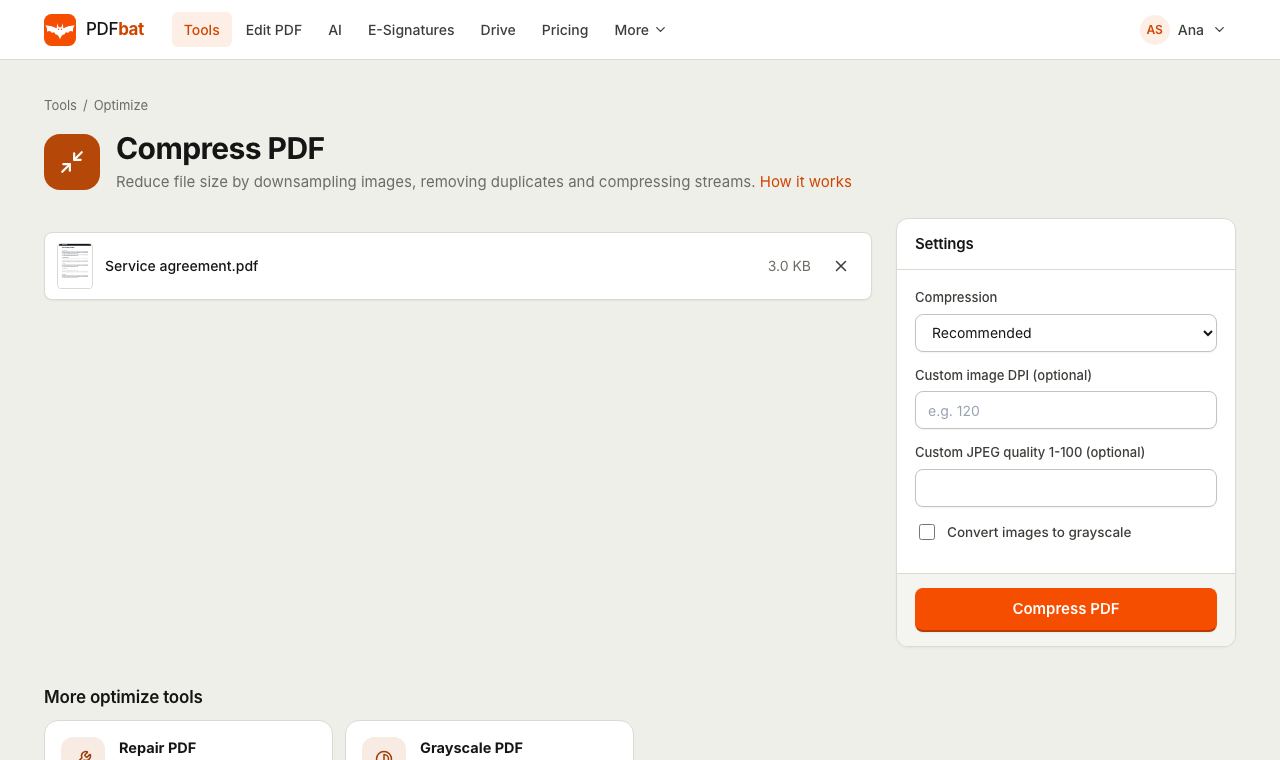 Compress PDFShrink PDFs for email and upload portals with four levels, custom DPI and grayscale.
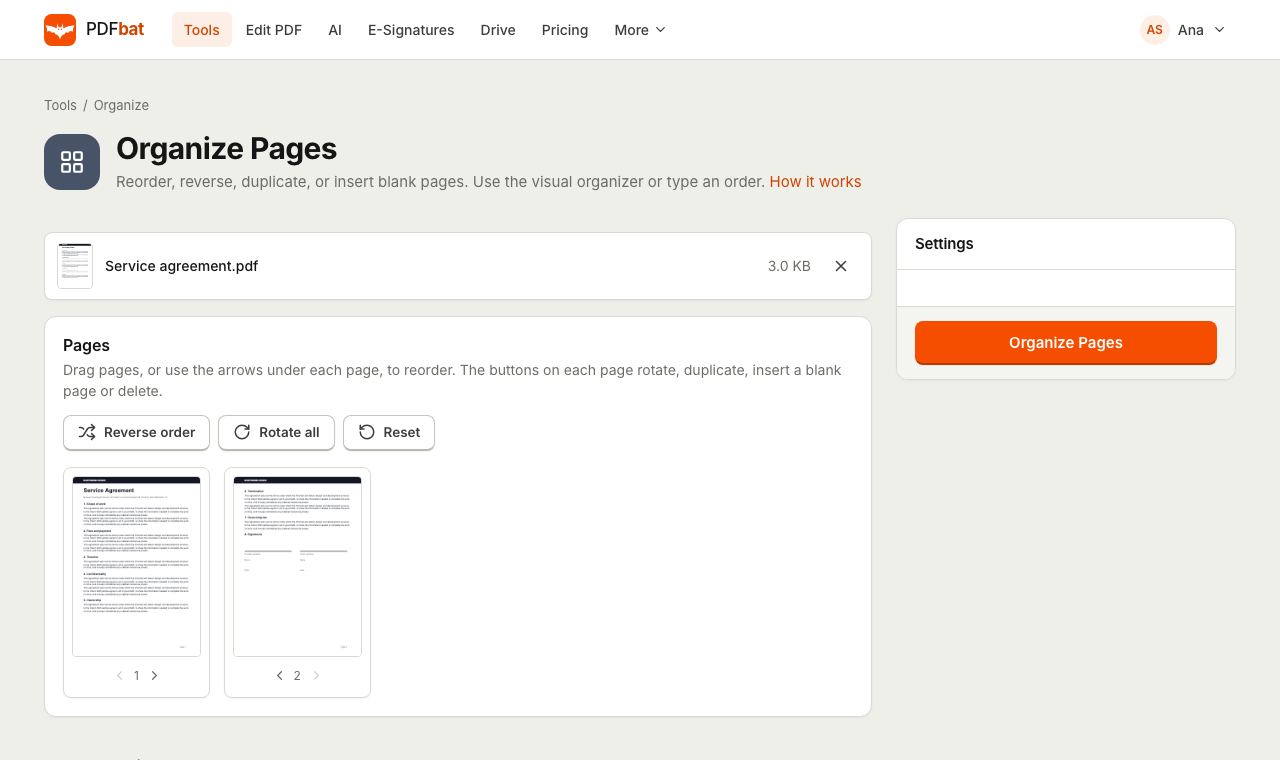 Organize PDFRearrange, rotate, duplicate, delete and insert blank pages with a visual drag and drop organizer.
Try Split PDF free
Create a free account in seconds. No credit card, nothing to install, and it works on any device.