Split PDF pages in half and turn spreads into single pages
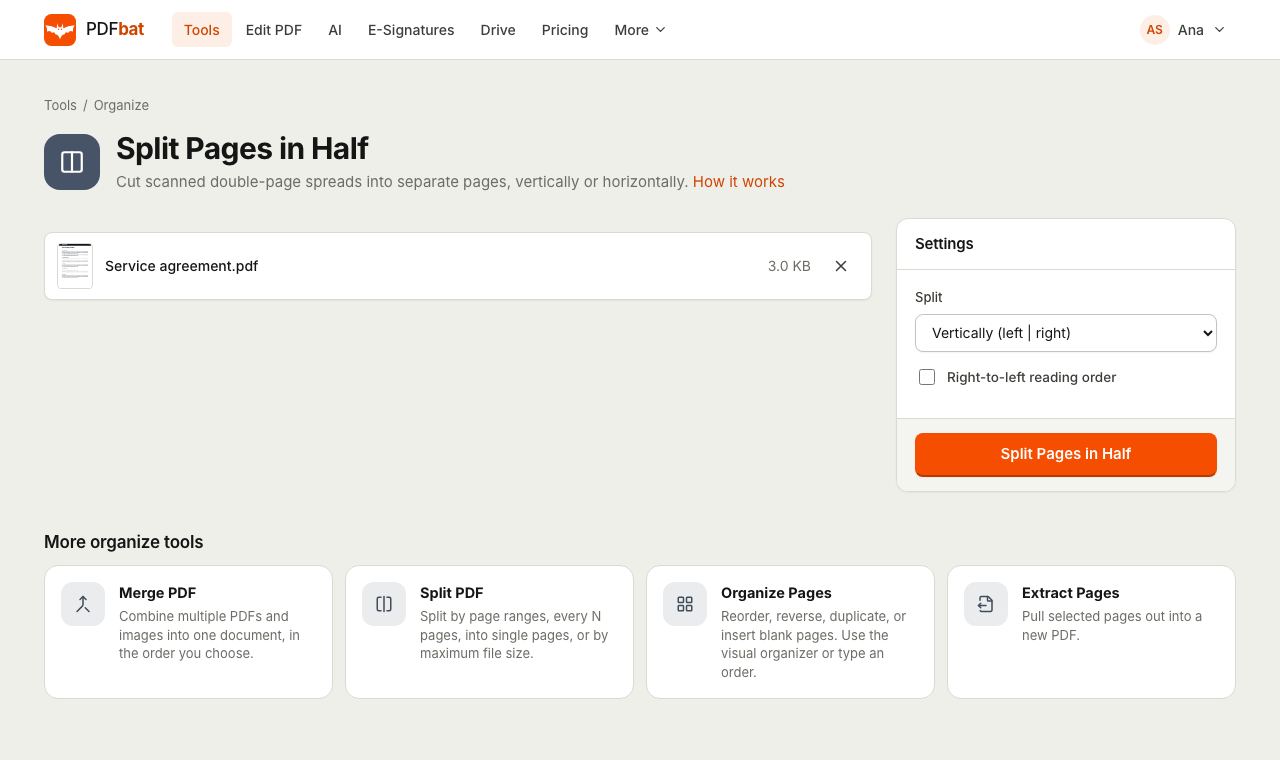
Scanned a book or magazine two pages at a time? Cut every sheet down the middle, left and right or top and bottom, and get a PDF with one page per page.
- Free plan, no credit card
- Nothing to install
- Works on phone, tablet and desktop
From scanned spreads to a readable document
Placing an open book on a scanner or photographing it flat captures two pages in one image. That is fast to scan but awkward to read on a phone and hard to print. Split Pages in Half cuts every page of the PDF into two equal halves and puts them in reading order, so a 50 page scan of spreads becomes a 100 page document.
The cut is made by adjusting each page's visible area rather than re-rendering it, so scan quality is untouched and any text layer from OCR stays in place.
Why use Split Pages in Half
Vertical or horizontal
Cut left and right for book spreads, or top and bottom for calendars and tall layouts.
Right to left reading
One checkbox puts the right half first, for Arabic, Hebrew, Persian, Urdu and manga style layouts.
Every page in one pass
All pages are split at once, with the halves kept in reading order.
No quality loss
The original scan is not recompressed. Each half shows the exact pixels of the original.
Saved to your Drive
The split PDF lands in your private Drive automatically.
How it works
- 1
Upload your scan
Drop the PDF onto the page or pick it from your device or Drive.
- 2
Choose the direction
Pick vertically for left and right halves or horizontally for top and bottom. Tick right to left if the document reads that way.
- 3
Download the result
Every page is cut in two and saved as a new PDF in your Drive.
Options explained
- Split: Vertically (left and right)
- The default. Each page is cut down the middle into a left half and a right half. Use it for open book and magazine spreads.
- Split: Horizontally (top and bottom)
- Each page is cut across the middle into a top half and a bottom half. Use it for wall calendars, tall flyers or two forms printed on one sheet.
- Right-to-left reading order
- Off by default. When on, the second half comes first: the right half before the left for vertical splits, or the bottom before the top for horizontal ones. Use it for right to left languages and manga.
- Exact halves
- Every page is cut at exactly 50 percent of its visible area. If the spread is off center, trim it first with Crop PDF.
- Text layer kept
- If the scan already has searchable text from OCR, it stays aligned with the image on each half.
Getting a clean result
- Rotate first. If spreads were scanned sideways, fix them with Rotate PDF before splitting, so the cut goes between the pages.
- Crop uneven edges. Scanner beds often capture a dark border on one side. Remove it with Crop PDF so the middle of the page is the spine.
- Cover pages. A front cover scanned on its own will be cut in half too. Split the scan, then remove the extra half with Delete Pages, or extract the cover separately first.
- Make it searchable. Run OCR PDF on the result. Recognition is often more accurate on single pages than on spreads.
Who uses it
Students digitising library books, researchers working with archive scans, families scanning old photo albums and recipe books, and anyone who photographed a document two pages at a time. The tool is equally handy for print shops that receive imposed two up files and need single pages back.
Frequently asked questions
How do I split a scanned book into single pages?
Upload the PDF, choose Vertically, and run the tool. Each spread becomes two pages in reading order.
Does it work for right to left books?
Yes. Tick Right-to-left reading order and the right half of each spread becomes the first page.
Can I split pages top and bottom?
Yes. Choose Horizontally and each page is cut into a top half followed by a bottom half.
Will splitting reduce the scan quality?
No. The original image is not recompressed. Each half simply shows part of the original page.
My spreads are not centered. What can I do?
The cut is always at the exact middle. Use Crop PDF first to trim the extra margin so the spine sits in the center.
What is the difference from Split PDF?
This tool cuts each page into two pages. Split PDF separates whole pages into several files.
Related features and tools
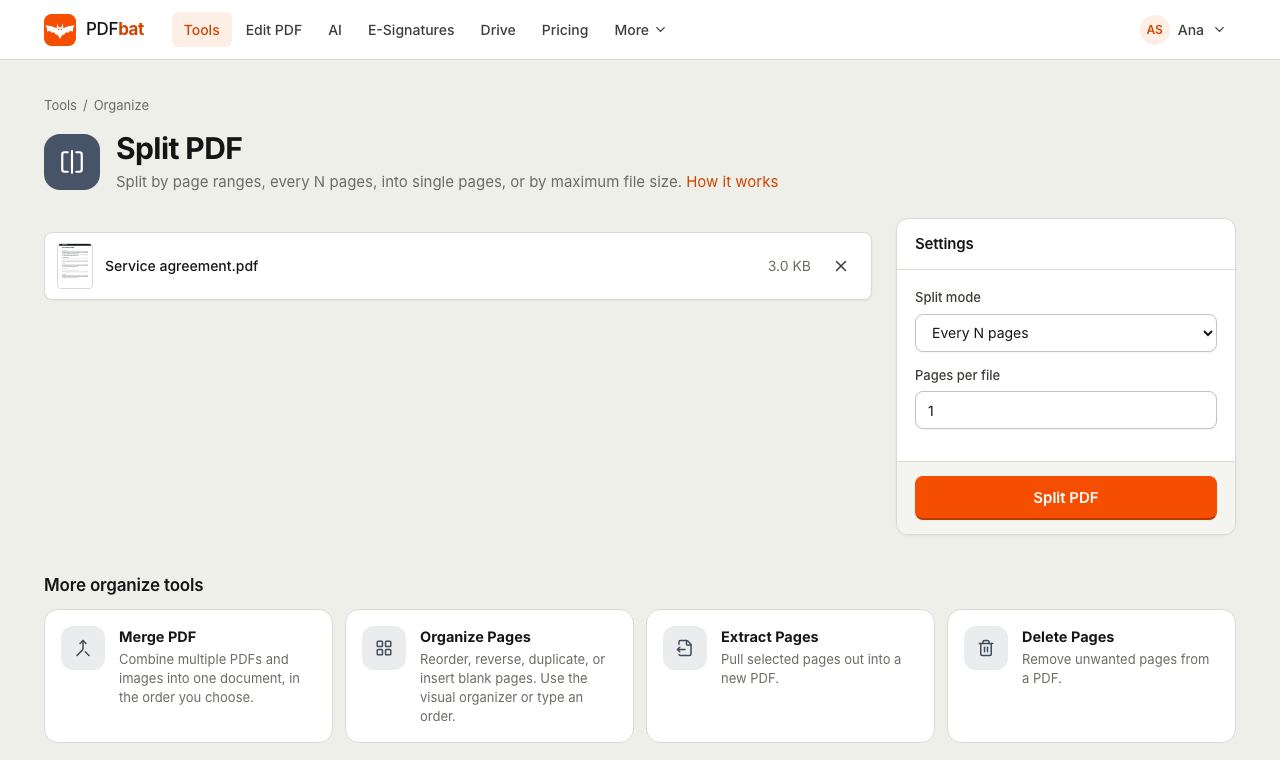 Split PDFSplit a PDF every N pages, by custom ranges, into single pages, by file size or into odd and even.
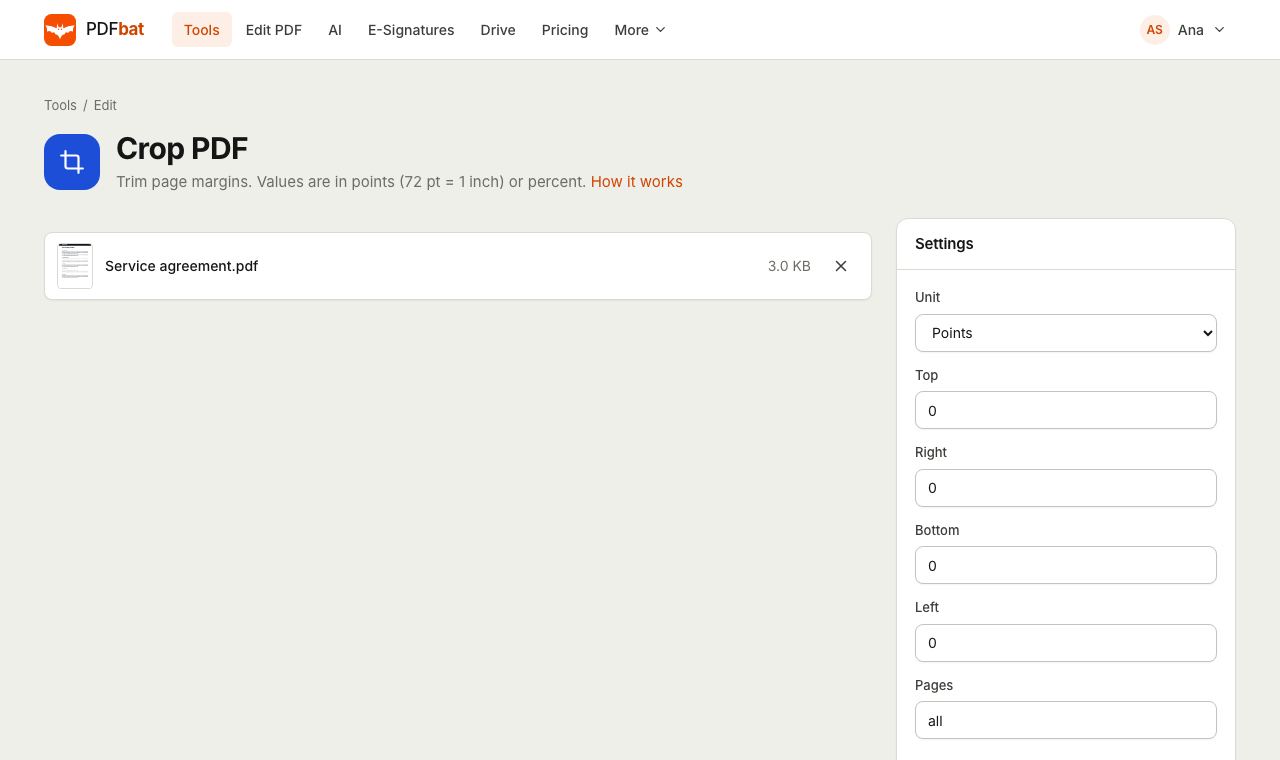 Crop PDFTrim page margins in points, millimetres or percent, on all or selected pages.
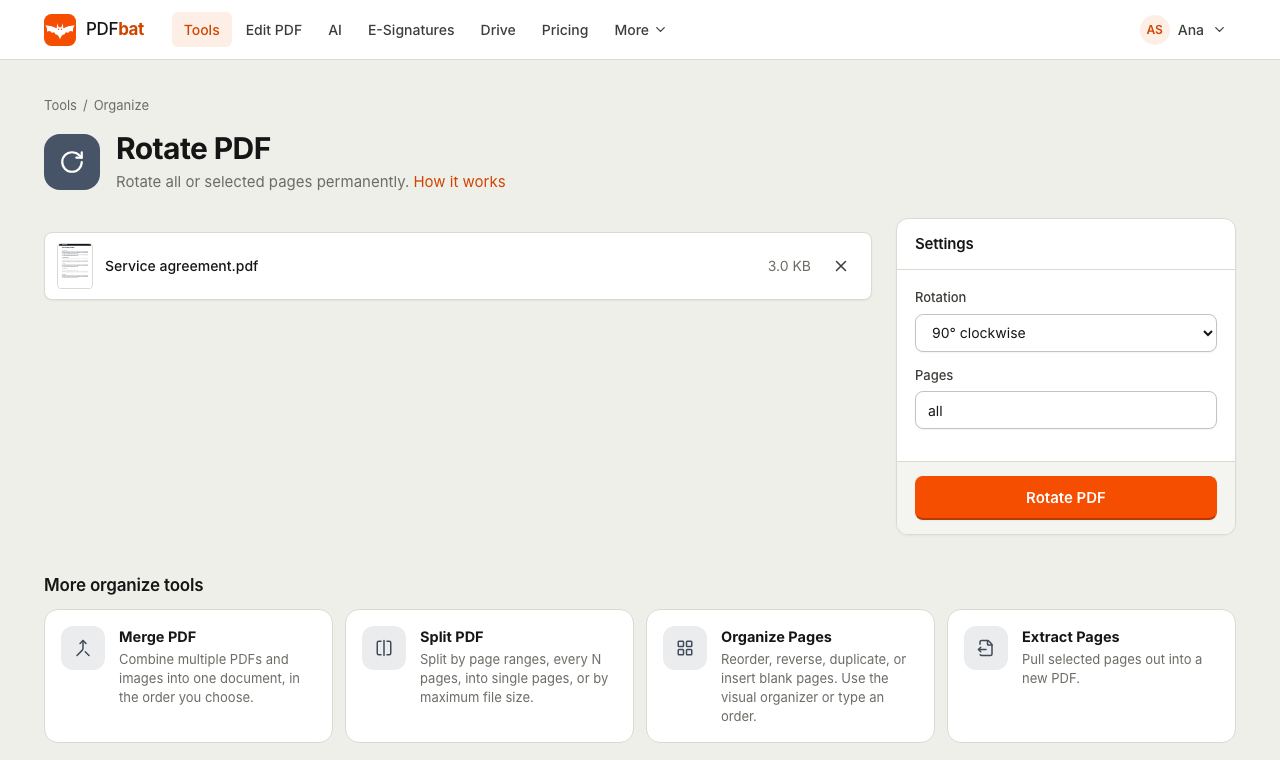 Rotate PDFRotate all pages or selected pages 90 or 180 degrees and save it permanently.
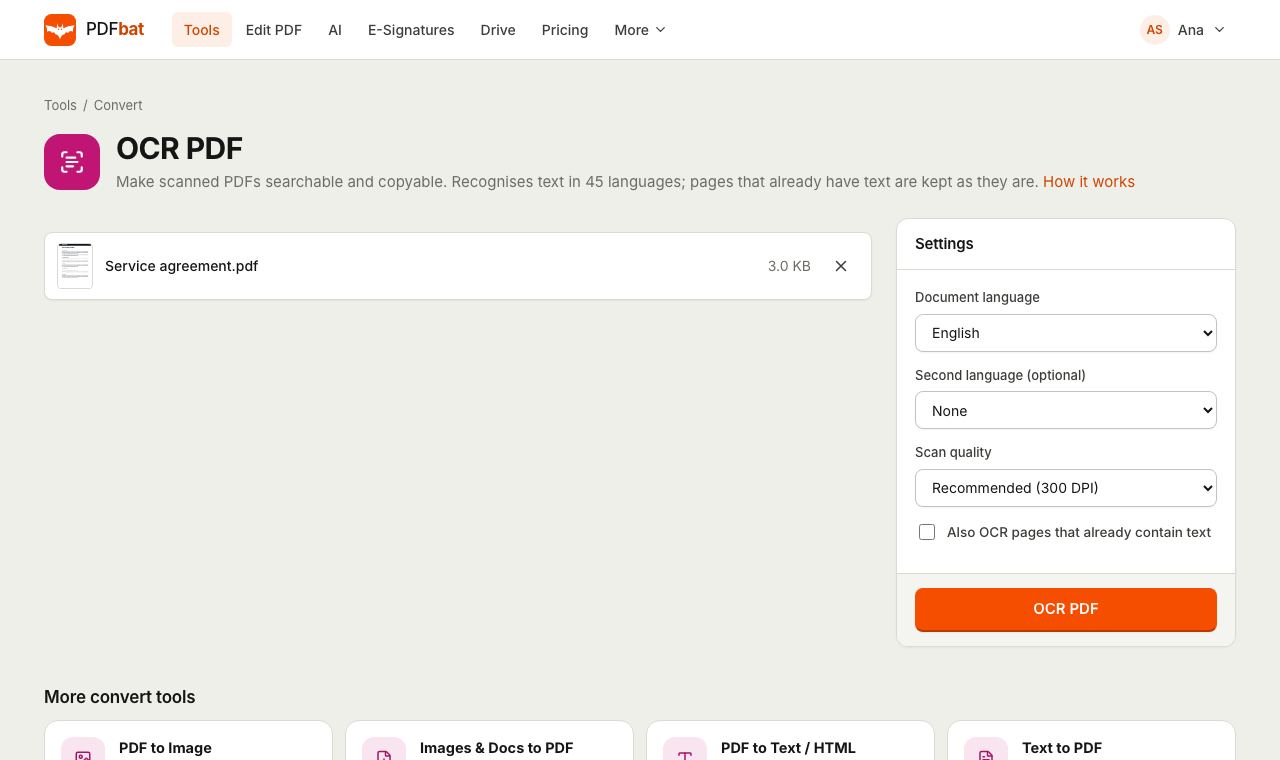 OCR PDFMake scanned PDFs searchable and copyable in 45 languages, with a second language for mixed documents.
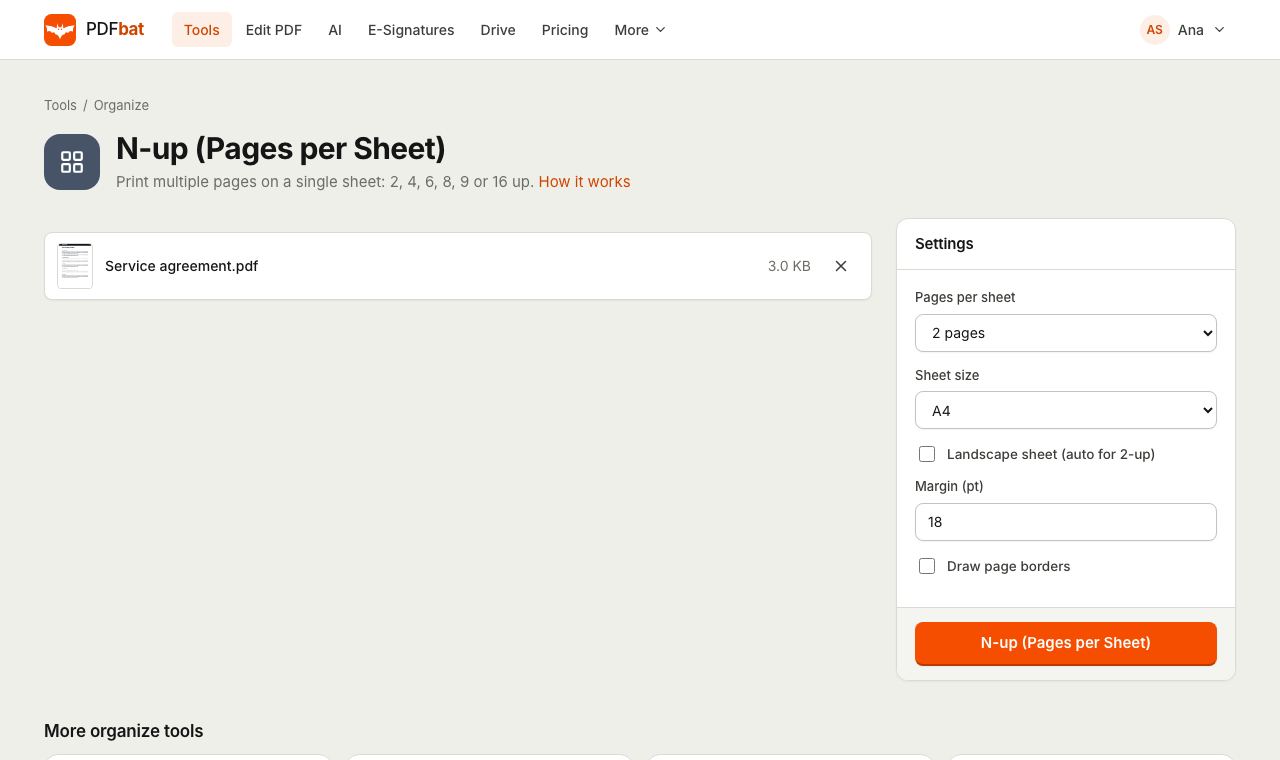 N-up PDFPrint 2, 4, 6, 8, 9 or 16 PDF pages per sheet on A4, Letter and other paper sizes.
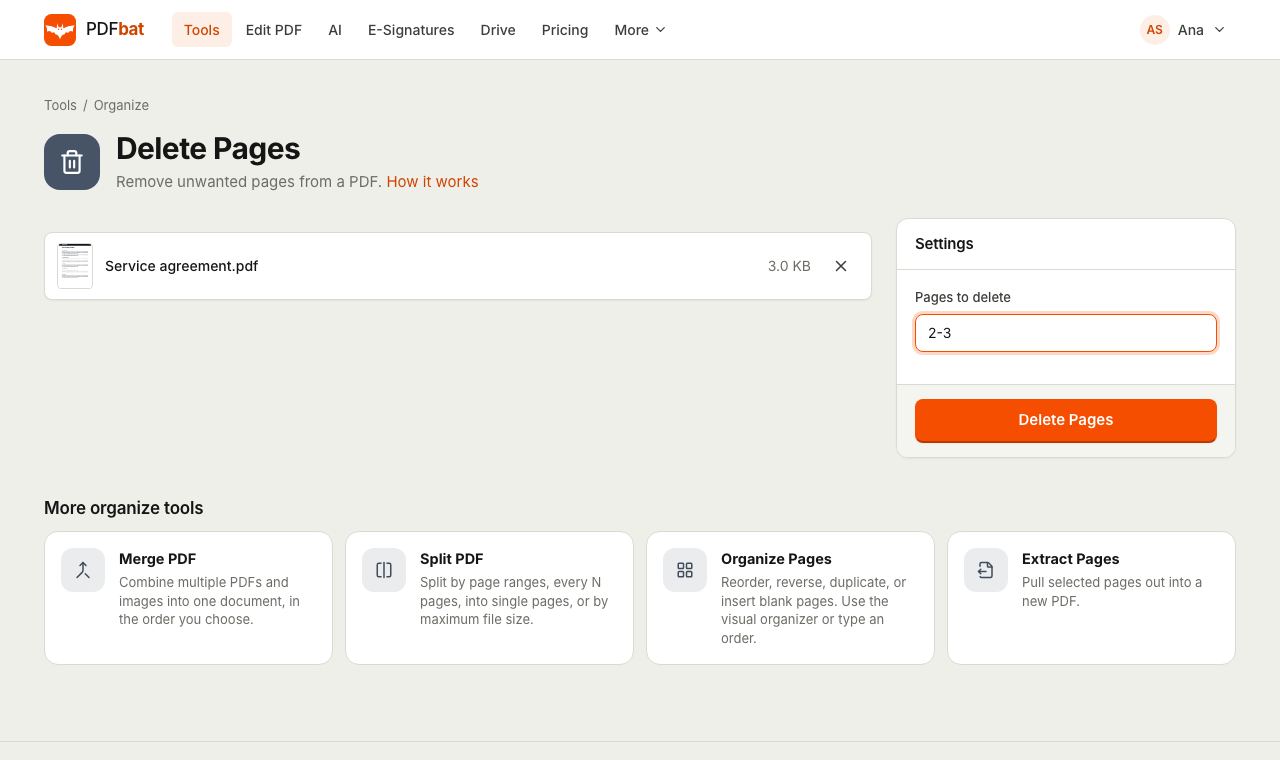 Delete PDF PagesRemove unwanted pages from a PDF by number or range, in one step.
Try Split PDF Pages in Half free
Create a free account in seconds. No credit card, nothing to install, and it works on any device.