How to Rotate One Page in a PDF and Save It Permanently
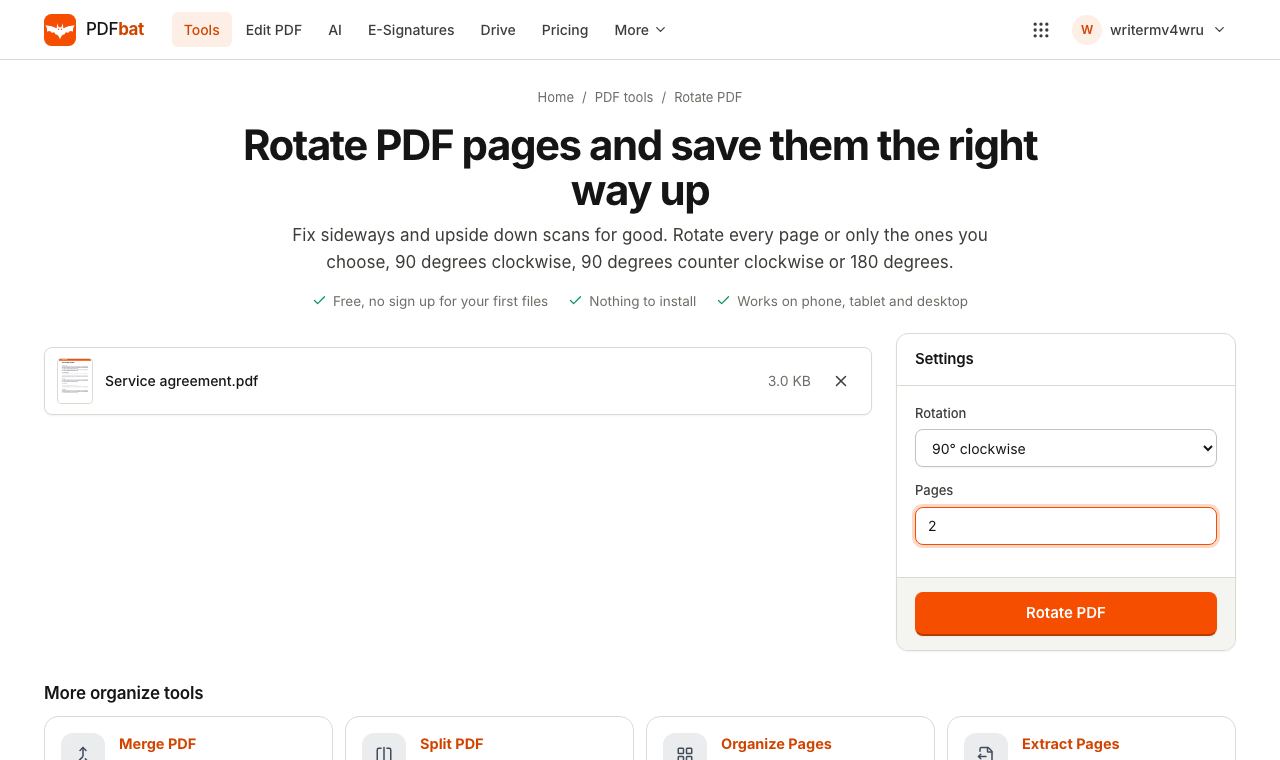
To rotate one page in a PDF and keep it rotated, use a tool that saves a new file rather than your reader's rotate button, which usually only turns your view. In PDFbat, open Rotate PDF, upload the file, type the page number in Pages (for example 3), choose the direction and click Rotate PDF. Only that page turns, and the change is saved in the downloaded file, so it opens the right way up for everyone.
This guide covers three ways to do it, how to pick the right direction, page range examples and why rotations sometimes "don't stick".
Why the rotate button in your reader doesn't stick
Most PDF readers, including the viewers in Chrome and Edge, have a rotate button. It turns the page on your screen, and that's it: close the file, send it to someone or open it on your phone, and the page is sideways again. Some readers let you save afterwards, but many don't, and some turn every page instead of just the one you wanted.
A PDF stores a rotation setting for each page. To fix a page for everyone, that setting has to change inside the file and you have to keep the new file. All three methods below do that.
Method 1: Rotate PDF with a page number
Best when you know which pages are wrong.
- Open Rotate PDF.
- Upload the PDF.
- Choose Rotation:
- 90° clockwise when the top of the page points left.
- 90° counter-clockwise when the top points right.
- 180° when the page is upside down.
- In Pages, replace
allwith the page or pages to turn (examples below). - Click Rotate PDF and download the result. The new file ends in
-rotated.
Page range examples
| You type | Pages rotated |
|---|---|
3 | Page 3 only |
2, 5 | Pages 2 and 5 |
4-7 | Pages 4, 5, 6 and 7 |
9- or 9-last | Page 9 to the end |
last | The final page only |
odd | Pages 1, 3, 5 and so on |
even | Pages 2, 4, 6 and so on |
all | Every page |
Page numbers mean the position in the file, counting the first page as 1, whatever is printed on the page itself. If page 3 of your file is labelled "ii" in the footer, still type 3.
If some pages need clockwise and others counter-clockwise, run the tool twice: first with the clockwise pages, then upload the result and run it again with the others. Or use Method 2.
Method 2: Organize Pages, click by click
Best when you'd rather see the pages than count them, or when different pages need different turns.
- Open Organize Pages and upload the PDF.
- Every page appears as a thumbnail. Hover over a page to show its buttons. On phones and tablets the buttons are always visible.
- Click the rotate button on each page that needs it. Each click turns that page 90° clockwise; click twice for 180°, three times for 90° counter-clockwise.
- Click Organize Pages and download the result.
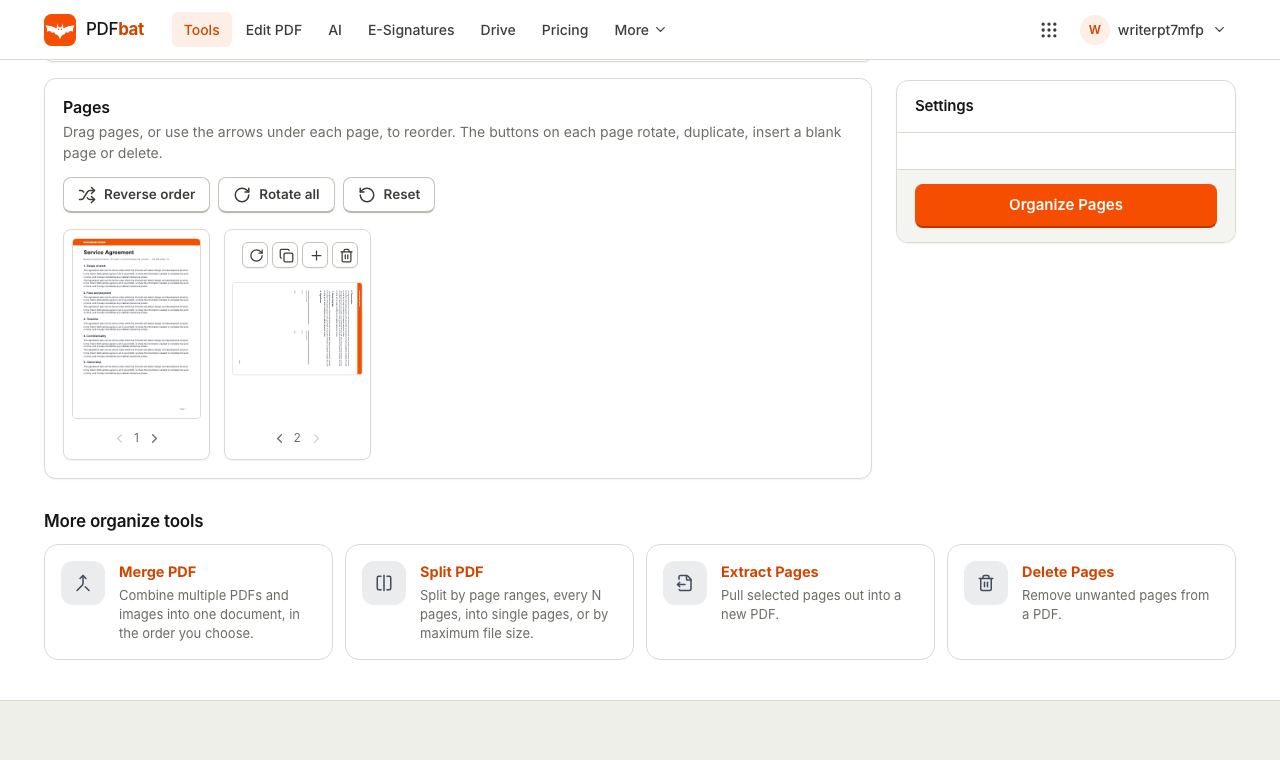
While you're there, you can also drag pages into a new order, delete a blank scan or duplicate a page, all in the same save. Rotate all turns every page at once, and Reset undoes everything if you lose track.
Method 3: Rotate while editing in the PDF editor
If you're already working on the document (adding text, filling a form or signing), there's no need to switch tools. Open it in the PDF editor, click Pages in the toolbar to show the page thumbnails on the left, and use the rotate button on the page you want to turn. The rotation is saved with your other changes when you download.
Which method to use
| Situation | Best method |
|---|---|
| You know the page numbers | Rotate PDF |
| Many pages, all turning the same way | Rotate PDF with a range |
| Pages need different directions | Organize Pages |
| You also need to reorder or delete pages | Organize Pages |
| You're editing or signing the PDF anyway | PDF editor |
| Scanned book, every second page upside down | Rotate PDF with even or odd |
Common jobs
A landscape table in a portrait report
Reports often have one wide spreadsheet or chart page that's been printed sideways. Turn just that page with its number, for example 14, choosing the direction that puts the table's heading at the top. Every reader then shows it the right way up, and it prints the right way round too.
Scans that came out upside down
Feeding paper into a scanner the wrong way round, or scanning double sided pages, often leaves every second page upside down. Choose 180° and type even (or odd, whichever is wrong). One run fixes the whole stack.
If the fronts and backs were scanned as two separate files, see our guide to merging PDF files without software to combine them first.
Photos turned into a PDF
Pictures taken on a phone sometimes end up sideways in a PDF, especially when someone else converted them with an app that ignored the photo's orientation. Rotate the affected pages after conversion, using their page numbers.
Before OCR
Text recognition reads upright pages best. If you plan to copy text from a scanned PDF, rotate sideways pages first, or those pages may come back with little or no text.
Rotation and other tools
- Rotating keeps quality. Text, images and fonts aren't touched, only the page's rotation setting. File size barely changes.
- Rotation survives later steps. Merging, splitting, compressing and signing keep each page's orientation.
- Resizing makes it permanent in a different way. When you change the page size with Resize Pages, rotated pages are redrawn upright on the new sheet. Our guide to converting a PDF from Letter to A4 explains how.
- Rotating isn't the same as changing orientation of the content. Turning a portrait page to landscape doesn't reflow the text; it just turns the whole page. To change the layout itself, you need the original document.
Rotating with apps you already have
You may not need a web tool at all, as long as the app really saves the rotation into the file:
- Preview on a Mac can do it. Show the thumbnails (View > Thumbnails), select the page, click the rotate button in the toolbar, then File > Save. Preview rotates only the pages you selected.
- Acrobat (paid) rotates individual pages in its Organize Pages view and saves them.
- Browser viewers in Chrome and Edge rotate the view of the whole document. The change is not saved into the file that other people receive.
A quick test tells you whether the app really saved it: close the file, open it again in a different app, and look at the page. If it is sideways again, the rotation was only in the view.
Rotating a PDF page on a phone
All three methods run in the browser on iPhone, iPad and Android.
- iPhone and iPad: in Safari, open Rotate PDF, tap the upload area and choose Browse to find the PDF in Files. Type the page number, choose the direction and tap Rotate PDF. The rotated file saves to Downloads in the Files app.
- Android: in Chrome, upload the PDF from your storage or Google Drive, set the page and direction, and download. The file lands in Downloads.
In Organize Pages on a touch screen, each page shows its buttons all the time, so you just tap rotate.
Common problems and fixes
- "Invalid page range". One of the numbers is past the end of the file. Check the page count, or use
lastinstead of guessing. - The wrong page turned. You probably used the number printed on the page rather than its position in the file. Count from the first page of the file, including the cover.
- It turned the wrong way. Run the result through again with the opposite direction, or choose 180° if it is now upside down.
- The page still looks sideways in one app. You may have opened the original. Open the downloaded file, whose name ends in
-rotatedor-organized. - The PDF needs a password. Unlock it first with the password you know; see removing a password from a PDF.
Privacy and limits
Files are uploaded over HTTPS and processed in memory. If you're signed in, the result is saved only to your private Drive. You can rotate a few files a day without an account; the free account gives 10 tasks a day on files up to 25 MB, and Pro ($10.99 a month) removes the daily limit and accepts files up to 100 MB.
Frequently asked questions
How do I rotate only one page of a PDF?
In Rotate PDF, type that page's number in the Pages box, for example 3, choose the direction and click Rotate PDF. Only page 3 turns; every other page stays as it is.
Why does my rotation not save?
Most readers' rotate buttons only change your view, not the file. To fix a page for everyone, rotate it with a tool that saves a new PDF, such as Rotate PDF or Organize Pages, and use the downloaded file.
Which way should I rotate?
If the top of the page points left, rotate 90° clockwise. If it points right, rotate 90° counter clockwise. If the page is upside down, choose 180°.
Can I rotate several separate pages at once?
Yes. List them with commas, such as 2, 5, 9-11. Pages that need different directions take two runs, or use Organize Pages and click each page's rotate button.
Does rotating reduce quality?
No. Rotating changes the page's orientation setting; text, images and fonts are untouched, and the file size barely changes.
Can I rotate a page on my phone?
Yes. All three methods in this guide run in the browser on iPhone, iPad and Android, with no app to install.