How to Copy Text From a Scanned PDF (Free OCR in Your Browser)
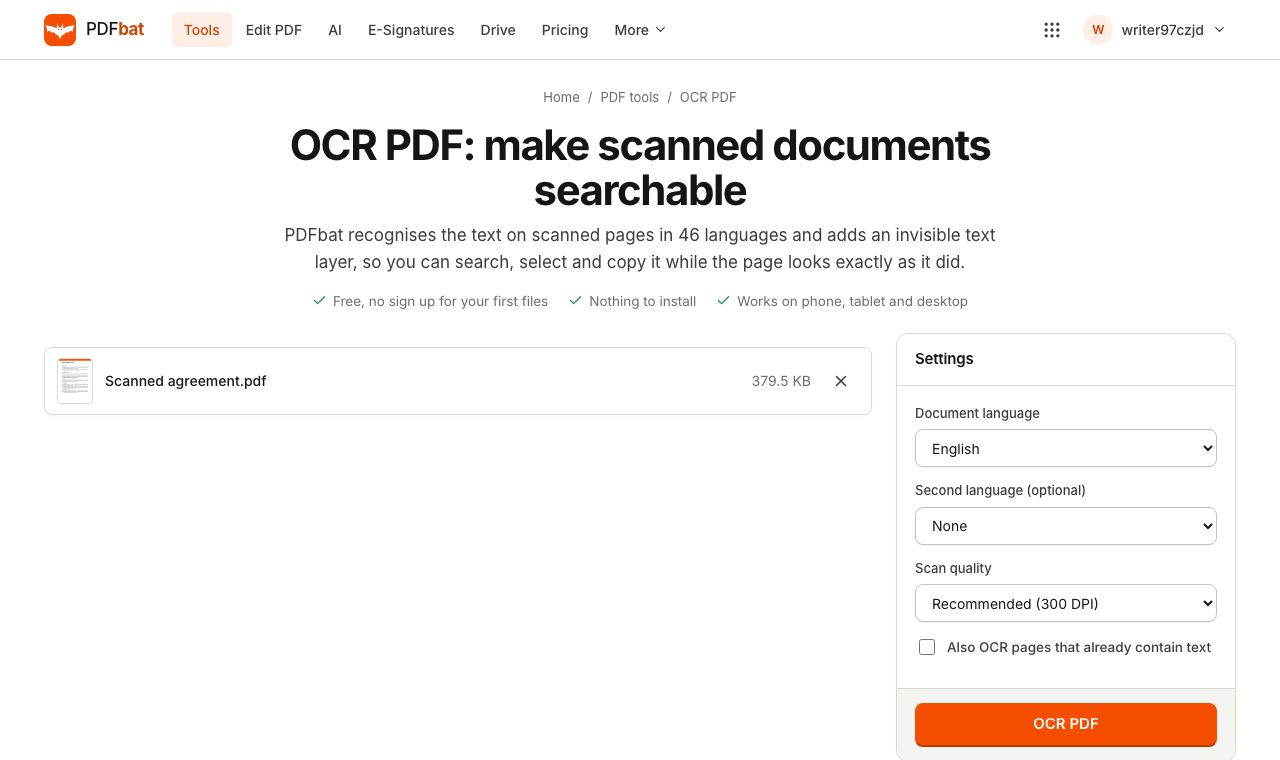
To copy text from a scanned PDF, you first have to turn the picture of the page into real text with OCR (optical character recognition). In PDFbat, open OCR PDF, upload the scan, choose the document's language and click OCR PDF. The file you get back looks the same, but you can now select, copy and search the words, or pull all of the text out at once with PDF to Text.
The rest of this guide explains how to tell whether your PDF is a scan, how to get the cleanest result, and what to do when the copied text comes out wrong.
Why you can't select text in a scanned PDF
A PDF can hold two very different kinds of page:
- Digital pages, made by Word, Google Docs, a website's "Save as PDF" or an invoicing system. The file stores each letter and its font. You can select, copy and search them.
- Scanned pages, made by a scanner, a photocopier's scan-to-email button or a phone scanning app. The file stores a photograph of the paper. To your eyes it is text; to the computer it is a grid of coloured dots.
When you drag across a scanned page in a PDF reader, one of three things happens: nothing at all, the whole page turns blue as one big image, or you can only draw a snapshot rectangle. All three tell you the same thing. There are no characters in the file to copy.
OCR fixes this by looking at the image, recognising the shapes of the letters, and writing the result into the PDF as an invisible text layer lined up with the picture. The page looks exactly as before, but now there is something to select.
How to check whether your PDF is a scan
Before running anything, take ten seconds to check:
- Open the PDF and press Ctrl+F (Windows) or Cmd+F (Mac) and search for a word you can clearly see on the page. If the reader says "no matches", the page is almost certainly an image.
- Zoom in to 300 or 400 percent. Real text stays sharp at any zoom. Scanned text goes fuzzy or blocky at the edges.
- Look for scan marks: a slightly tilted page, a grey shadow down one side, a hole-punch shadow, or a coffee ring.
Some PDFs are mixed. A contract might have nine typed pages and a tenth page that was printed, signed and scanned back in. PDFbat handles that case for you, as explained below.
How to copy text from a scanned PDF, step by step
OCR is part of the free PDFbat account. Most tools let you try a few files without signing up, but OCR needs the free account from the start because recognising a long document takes far more computing time than, say, rotating it. Sign-up is a username and password, and your file waits for you while you do it.
- Open OCR PDF.
- Upload the scanned PDF, or pick it with Choose from Drive if it is already in your PDFbat Drive.
- Set Document language to the main language of the text. This matters more than any other setting; see the language section below.
- If the document mixes two languages (an English and French contract, say), choose the second one in Second language (optional).
- Leave Scan quality on Recommended (300 DPI) unless you have a reason to change it.
- Click OCR PDF.
When it finishes, the result screen shows the new file name (your original name plus -ocr) and a note such as "Recognised text on 2 of 2 page(s)". Click Download. A copy is also saved to your Drive.
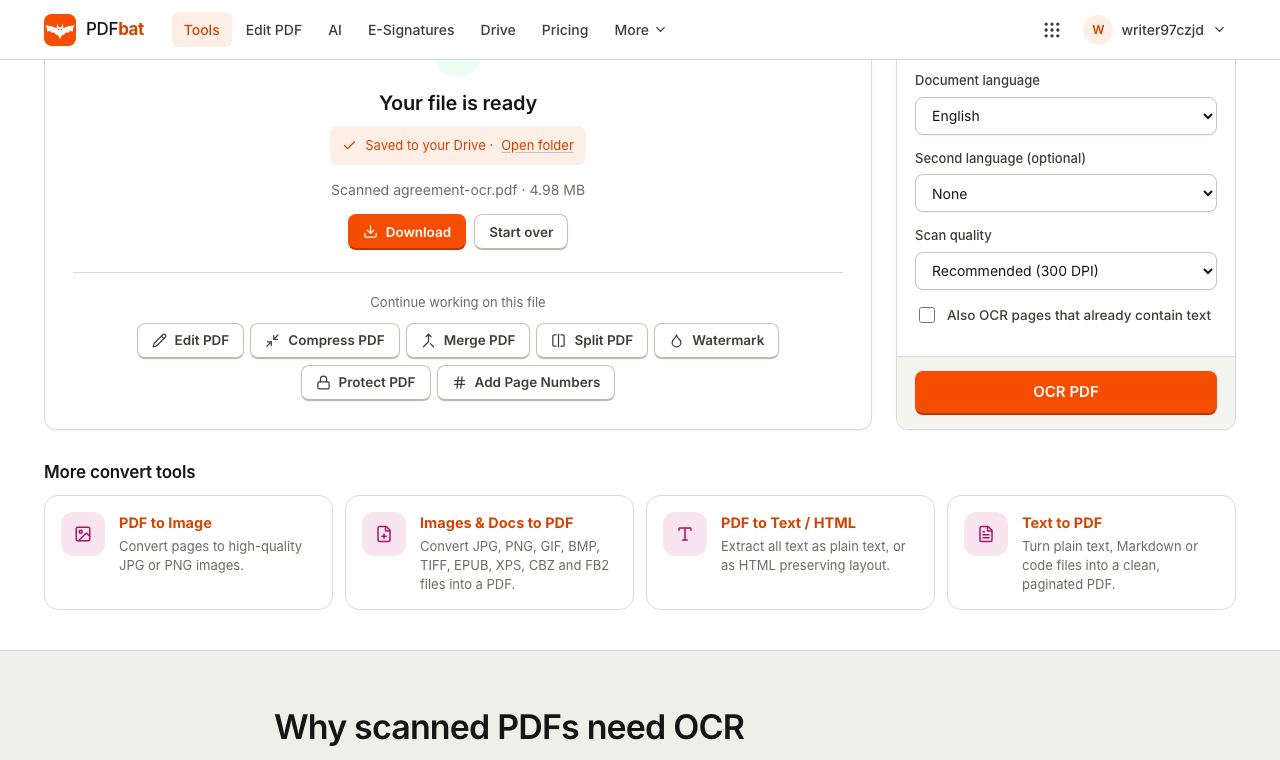
Now open the downloaded file in any PDF reader (Chrome, Edge, Safari, Preview, Acrobat Reader) and drag across a paragraph. The text highlights line by line, and Ctrl+C or Cmd+C copies it. Search works too.
Getting all of the text out at once
Copying page by page is fine for a paragraph or two. For a 40 page report you want the whole thing in one file.
- Take the
-ocrPDF you just made. On the result screen you can go straight to it from your Drive. - Open PDF to Text and upload it.
- Choose the Output:
- Plain text (.txt) for pasting into an email, a spreadsheet or an AI chat. Each page starts with a line like
--- Page 3 ---, so you can find your place. - HTML (.html) if you want something closer to the original layout, with each page as its own block.
- Structured JSON (.json) if you are feeding the text into a script and need the position of every line.
- Plain text (.txt) for pasting into an email, a spreadsheet or an AI chat. Each page starts with a line like
- Click the button and download the file.
When we ran a one page scanned service agreement through OCR and then PDF to Text, the output was word for word correct, including the reference number "NW 2026 114" and the amount "$4,250.00". That was a clean, straight, 150 DPI scan of typed text. Real scans with stamps, handwriting or creases will not always be perfect, so read through anything you are going to rely on.
Choosing the right settings
Document language
OCR does not just recognise shapes; it uses a dictionary and the rules of the language to decide between look-alike letters (rn and m, 0 and O, l and 1). Picking the wrong language is the most common reason for garbled output. PDFbat supports 46 languages, among them:
| Group | Languages |
|---|---|
| Western European | English, Spanish, French, German, Italian, Portuguese, Dutch |
| Central and Eastern European | Polish, Turkish, Russian, Ukrainian, Greek |
| Right to left | Arabic, Hebrew, Persian, Urdu |
| Indian | Hindi, Marathi, Bengali, Gujarati, Punjabi, Tamil, Telugu and more |
| East Asian | Chinese, Japanese, Korean and more |
If the language list does not include yours, choose the closest one that uses the same alphabet. The result will be rougher but often usable.
Second language
Use it only when the page really does contain two languages. Adding a second language you do not need gives the recogniser more ways to be wrong.
Scan quality
This is the resolution PDFbat uses when it reads each page:
- Fast (200 DPI): fine for large, clear typed text. Smaller output files.
- Recommended (300 DPI): the right choice for most letters, contracts and invoices.
- Small print (400 DPI): for footnotes, fine print in terms and conditions, receipts and tiny table cells.
Higher is not always better. If the original scan was made at a low resolution, reading it at 400 DPI will not add detail that was never captured, and the file will be larger.
"Also OCR pages that already contain text"
Off by default, and best left off. PDFbat checks every page first and only runs OCR on pages with no real text. In the mixed contract example above, the nine typed pages are copied across untouched and only the scanned tenth page is recognised. If you run OCR twice on the same file, the second run simply says that every page already has text.
Tick the box only when a page has a bad text layer: for example, a PDF made by an old scanner whose built-in OCR produced nonsense. Then PDFbat replaces it with a fresh reading.
Why the file gets bigger, and what to do about it
This surprises people, so it is worth knowing before you email the result. A page that has been through OCR is saved as an image at the scan quality you picked, with the invisible text on top. A phone scan saved as a heavily compressed JPEG can therefore grow a lot.
In our test, a two page scanned agreement went from 379.5 KB to 4.98 MB at the Recommended 300 DPI setting. If that is too large:
- Run Compress PDF on the OCR result. It shrinks the page images and leaves the text layer alone, so the text stays copyable. In a one page test, the OCR file went from 345 KB to 49 KB at the Recommended level, and the copied text was still word for word correct.
- Or redo the OCR at Fast (200 DPI) if the text is large and clear.
- For strict upload limits, our guide to compressing a PDF to 100 KB walks through the options.
When the copied text comes out wrong
| What you see | Likely cause | Fix |
|---|---|---|
| Random symbols, wrong accents | Wrong document language | Run OCR again with the correct language |
| Some words right, others garbled | Low quality or blurry scan | Re-scan at 300 DPI if you can; try Small print (400 DPI) |
| Nothing recognised on a page | Page is upside down or sideways | Rotate the page first, then OCR |
| Columns mixed together when pasted | Reader copies across columns | Copy one column at a time, or use PDF to Text in HTML mode |
| Handwriting not recognised | OCR is built for printed text | Type the handwritten parts yourself |
| "OCR works on up to 200 pages at a time" | Very long document | Split the PDF into parts, OCR each, then merge |
Sideways pages deserve a special mention because they are common with phone scans and mixed portrait and landscape documents. Turn them the right way up with Rotate PDF before OCR; our guide to rotating one page in a PDF shows how to fix just the pages that need it.
For documents over 200 pages, use Split PDF to cut the file into parts of up to 200 pages, run OCR on each part, then put them back together with Merge PDF.
Copying text from a scan on a phone
Everything above works in the browser on iPhone, iPad and Android, with no app to install.
- iPhone and iPad: in Safari, open OCR PDF, tap the upload area and choose Browse to pick the scan from Files. After downloading, open the PDF in Files, press and hold a word, then drag the handles to select. iOS also has Live Text, which can copy text straight from a photo; it works well for a single page but does not change the PDF, so the file stays unsearchable for everyone else.
- Android: in Chrome, upload the PDF from your storage or Google Drive. Open the result in a PDF viewer that supports text selection, then press and hold a word and drag the handles.
Other ways to copy text from a scanned PDF
You have other options, and some of them are perfectly good for a quick job:
- Screenshot tools with text recognition. Windows Snipping Tool and iPhone Live Text can read text from a screenshot. Handy for one paragraph; you have to repeat it for every page, and the PDF itself stays unsearchable.
- Google Docs. Uploading a PDF to Google Drive and opening it with Google Docs runs OCR, but you get a Google Doc rather than a searchable PDF, and the layout is usually lost.
- Desktop PDF software. Paid editors include OCR and work offline, which matters for very sensitive documents or for people who OCR hundreds of files a day.
PDFbat's approach keeps the original PDF as the deliverable: same pages, same look, now with text. That is what you want when the document itself has to be filed, shared or searched later, not just quoted once.
After OCR: editing, signing and more
Once the scan has a text layer, more becomes possible:
- Edit it. Open the result in the PDF editor to fix a typo, cover a line or add new text. Our guide to editing text in a PDF without Acrobat covers the details.
- Search it later. Desktop search such as Spotlight on a Mac or Windows Search can now find the document by a word inside it, which is the main reason offices OCR everything they scan.
- Remove sensitive details before sharing. If the scan holds account numbers or a home address, read how to redact a PDF permanently and check the result carefully, since scans hold the words both as picture and as text.
Privacy and limits
Your file is uploaded over HTTPS and processed in memory. The OCR result is stored only in your private Drive, and you can delete it at any time. The free account includes 10 tasks a day with files up to 25 MB; each OCR run counts as one task, however many pages it reads, up to 200 pages per run. Pro costs $10.99 a month, removes the daily task limit and accepts files up to 100 MB.
Frequently asked questions
Why can't I copy text from my PDF?
Because the page is an image. Scanners and phone scan apps save a photo of each page, so there are no letters in the file to select. OCR reads the picture and adds real text on top of it.
Is OCR in PDFbat free?
Yes. OCR is included in the free account, which gives you 10 tasks a day on files up to 25 MB. OCR is the one tool that needs a free account even for a first try, because it takes much more computing time than other tools.
Will OCR change how my scan looks?
No. Each page keeps its look; the recognised text is placed invisibly over the image, in the same position as the words you see. You select and copy it exactly as you would in a normal PDF.
Which languages can it read?
46 languages, including English, Spanish, French, German, Arabic, Hebrew, Hindi, Bengali, Tamil, Russian, Chinese, Japanese and Korean. You can pick a second language for documents that mix two.
Why did my file get bigger after OCR?
Recognised pages are saved as images at the scan quality you chose plus the text layer. A two page scan we tested went from 380 KB to about 5 MB at 300 DPI. Run Compress PDF afterwards if size matters.
How do I get all the text out at once?
After OCR, run PDF to Text on the result. You get a .txt file with every page's text, marked page by page, or an HTML or JSON file if you need the layout.