How to Convert a PDF From US Letter to A4 Without Cutting Anything Off
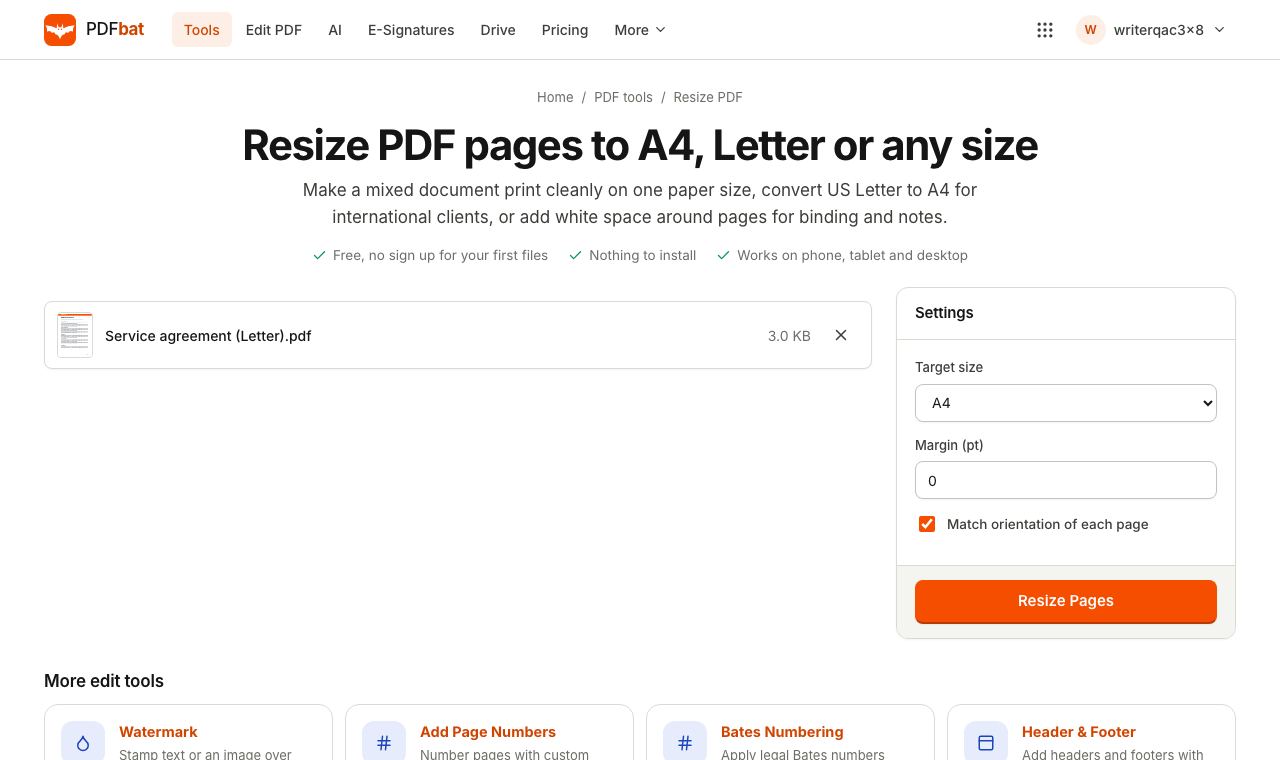
To convert a PDF from US Letter to A4 without cutting anything off, scale each page to fit the new paper instead of changing the page box. In PDFbat, open Resize Pages, upload the PDF, set Target size to A4 and click Resize Pages. Every page becomes 210 × 297 mm, the content shrinks slightly to fit and is centred, and the text stays sharp and selectable.
This guide covers why the two sizes clash, exactly what happens to your pages, the settings worth changing, and the things a resize does not carry over.
Why Letter and A4 don't swap cleanly
The two sizes look almost the same on a desk, but they are different shapes:
| Paper | Inches | Millimetres | PDF points |
|---|---|---|---|
| US Letter | 8.5 × 11 | 215.9 × 279.4 | 612 × 792 |
| A4 | 8.27 × 11.69 | 210 × 297 | 595 × 842 |
| US Legal | 8.5 × 14 | 215.9 × 355.6 | 612 × 1008 |
A4 is narrower and taller than Letter. That one fact explains most of the problems people hit:
- Printing a Letter PDF on A4 paper at 100 percent clips about 3 mm off each side, which is enough to cut off text that runs close to the edge, page numbers in the corner or a border.
- Printing an A4 PDF on Letter paper at 100 percent loses about 9 mm off the top and bottom, often taking the header or footer with it.
- Some upload portals and print shops reject files whose page size isn't the one they asked for, even if the content would fit.
Changing the page box alone (some tools call it "page size" or "media box") does not help: it makes the paper bigger or smaller around content that stays the same size, which either crops it or leaves it off centre. What you want is to scale the content so that the whole page fits inside the new sheet.
How to convert a PDF from Letter to A4, step by step
- Open Resize Pages.
- Upload your PDF, or choose one from your PDFbat Drive.
- Set Target size to A4.
- Leave Margin (pt) at
0unless you want extra white space (see below). - Leave Match orientation of each page ticked.
- Click Resize Pages and download the result. The file name ends in
-resized, and if you are signed in a copy goes to your Drive.
You can try a few files without an account. A free account gives you 10 tasks a day with files up to 25 MB.
What happens to your pages
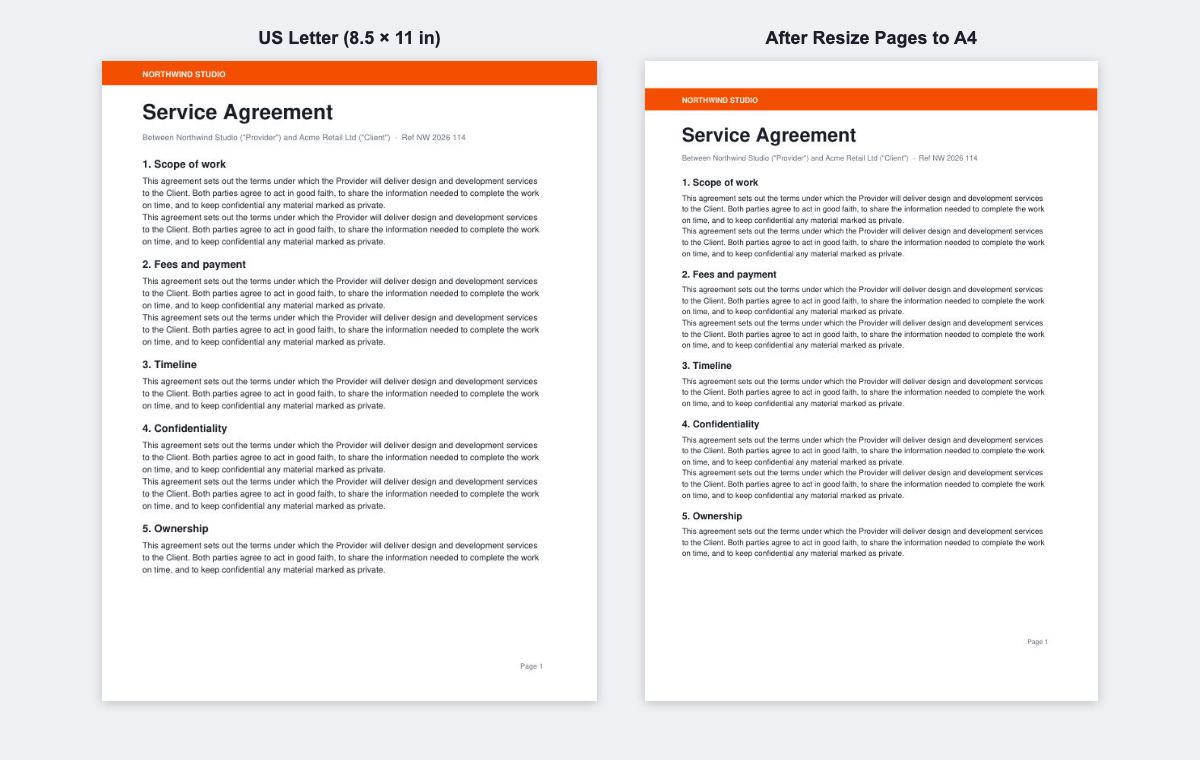
PDFbat takes each page, scales it by the largest amount that still fits completely inside the new sheet, and centres it. The proportions never change, so nothing is stretched or squashed. Since the shapes differ, there is always a little spare room on one pair of edges.
Here are the real numbers for the common conversions, with Margin at 0:
| From → To | Content scaled to | Spare room |
|---|---|---|
| Letter → A4 | 97.3% | About 12.6 mm at top and bottom |
| A4 → Letter | 94.1% | About 9.2 mm at left and right |
| Legal → A4 | 83.5% | About 14.8 mm at left and right |
| Legal → Letter | 78.6% | About 23 mm at left and right |
A 97 percent scale is hard to spot: 11 pt body text becomes about 10.7 pt. Even the Legal to Letter case keeps text comfortably readable for most documents.
The content stays as it was: text is still text (you can select, copy and search it), vector drawings stay vector, and images keep their original resolution. Nothing is converted into a picture.
Settings worth knowing
Margin (pt)
Adds white space inside the new sheet before scaling. PDF sizes are measured in points: 72 points make an inch, and about 2.83 points make a millimetre.
0gives the largest content, with a band only where the shapes differ.18(about 6 mm) keeps content away from the edges, which helps printers that cannot print right to the edge of the paper.36(half an inch, about 12.7 mm) is a comfortable margin for documents that will be hole-punched or bound.
A margin shrinks the content further, so use it only when you need it.
The tool also has an Add margin only target, which keeps each page's own size and simply adds the margin around it. That is useful when the page size is already right but the content runs to the edge.
Match orientation of each page
With this ticked (the default), a landscape page becomes a landscape A4 page rather than being squeezed into portrait. That matters for reports with a wide table or a chart in the middle. Untick it only if you need every page portrait, for example to meet a portal rule, and accept that landscape pages will shrink a lot.
Pages that are rotated in the original (a sideways page in a scan, say) come out upright in the resized file, so you don't end up with a page turned the wrong way.
Custom sizes
Choose Custom to type any size in points. A few useful ones:
| Paper | Width × height (pt) |
|---|---|
| A6 | 298 × 420 |
| B5 (ISO) | 499 × 709 |
| Half Letter | 396 × 612 |
| 6 × 9 in book | 432 × 648 |
A3, A5, Legal, Tabloid and Executive are in the list already, so you don't need to type them.
What a resize does not carry over
Resizing builds a fresh PDF with your pages placed on new sheets. The visible content comes across exactly, but some interactive parts do not. We checked this with a test file before writing this guide:
- Fillable form fields are not carried over. If the PDF is a form, fill it in first, then flatten it so your answers become part of the page, then resize.
- Clickable links (web links and links inside the document) stop being clickable.
- Bookmarks (the outline panel in your reader) are not kept.
- The document title and other properties are reset.
For most uses (printing, uploading to a portal, sending to an international client) none of this matters. If you need a version with working links, keep your original and send the resized copy only where A4 is required.
Printing a Letter PDF on A4 paper without converting
If you only need a paper copy, you may not have to convert the file at all. Most print dialogs have a scaling option:
- In Chrome and Edge, open More settings and set Scale to Fit to printable area (or similar wording).
- In Acrobat Reader, choose Fit or Shrink oversized pages under page sizing.
- On a Mac in Preview, tick Scale to Fit.
That gives a similar result on paper each time you print. Converting the file is better when you are sending it to someone else, uploading it somewhere that checks the page size, or printing it many times, because the fix travels with the file.
Mixed page sizes in one PDF
PDFs made by merging files from different places often mix Letter, A4 and odd scanner sizes. Printing them gives you some pages that fit and some that don't, and they look untidy on screen.
Resize Pages treats every page on its own and puts each one on the target size, so the result is uniform. This is especially handy after combining files; see our guide to merging PDF files without software. If some of those pages are also sideways, fix them first with Rotate PDF.
Letter to A4 on a phone
The tool runs in the browser, so it works the same on iPhone, iPad and Android. Tap the upload area, choose the PDF from Files (iPhone) or your storage or Google Drive (Android), pick A4 and tap Resize Pages. The result goes to your Downloads and your PDFbat Drive.
Common problems and fixes
- The content looks a little small. That is the scaling needed to fit. Set Margin to 0 if it isn't already. For Legal to Letter, the reduction is larger because Legal is much longer.
- A landscape page came out tiny. Match orientation of each page was unticked. Tick it and run again.
- My form fields disappeared. Fields are not carried over. Fill and flatten the form first, then resize the flattened copy.
- The file says it is password protected. Remove the open password with Unlock PDF, using the password you know. See how to remove a password from a PDF.
- The text is cut off in the original too. Resizing keeps what is on the page; it cannot bring back content that was already outside the page. Use Crop PDF if you need to trim edges instead.
- The file is too large to upload. The free plan accepts files up to 25 MB. Compress the PDF first, then resize.
Privacy and limits
Files are uploaded over HTTPS and processed in memory. The resized PDF is stored only in your private Drive, where you can delete it at any time. A free account gives 10 tasks a day with files up to 25 MB; Pro costs $10.99 a month, removes the daily limit and takes files up to 100 MB.
Frequently asked questions
How do I change a PDF from Letter to A4?
Open Resize Pages in PDFbat, upload the PDF, set Target size to A4, keep Margin at 0 and click Resize Pages. Every page becomes 210 × 297 mm with the content scaled to fit.
Will anything get cut off?
No. The content is scaled down until the whole page fits and is centred, so nothing is cropped. Going from Letter to A4, the content shrinks to about 97 percent and a band of roughly 12.6 mm appears at the top and bottom.
Does the text stay sharp and selectable?
Yes. Pages are placed as vector content, not turned into pictures, so text stays crisp at any zoom and you can still select, copy and search it.
Can I go from A4 to Letter instead?
Yes. Choose Letter as the target size. A4 content shrinks to about 94 percent and gets a thin white band of about 9 mm on the left and right.
What is lost when I resize?
Fillable form fields, clickable links, bookmarks and the document title are not carried over. Fill and flatten forms before resizing, and keep the original file if you need its links.
Is it free?
Yes. A free account gives 10 tasks a day on files up to 25 MB, and you can try a few files without an account. Pro is $10.99 a month for unlimited tasks.