What Does Flattening a PDF Do? How to Flatten a Form Before Sending It
Flattening a PDF turns its interactive parts, mainly fillable form fields and annotations like comments, highlights and stamps, into ordinary page content. The page looks exactly the same, but nothing can be clicked or retyped any more. Flatten a filled form before you send it so your answers appear in every app, print reliably and can't be changed by accident. In PDFbat, use Flatten PDF, or tick Flatten form on save in the editor while you fill the form.
This guide explains what actually changes inside the file, when flattening helps and when it gets in the way, and how to do it in two ways.
What flattening actually changes
A fillable PDF has two layers of a sort. There is the page itself (the printed text, lines and boxes) and, floating on top, interactive objects:
- Form fields: text boxes, checkboxes, radio buttons, dropdowns and signature fields. The answer you type is stored in the field, not on the page.
- Annotations: comments and sticky notes, highlights, stamps, freehand drawings and shapes added in a review.
Reader apps draw those objects on top of the page when they display it. That works well until an app doesn't bother: some mobile previewers, older printers, a few upload portals and some print shops' systems show the page without the fields, so your carefully filled form arrives blank.
Flattening merges the objects into the page itself. After flattening:
- The answers are drawn on the page like any other text, so every app shows them.
- The fields are gone, so nobody can click in and change a value.
- Comments and markup are drawn where they were, but no longer listed as comments.
In PDFbat, flattened text stays real text. We filled a form with the name "Ana Silva", flattened it, and the name could still be found with the reader's search and copied out. Flattening is not the same as turning a page into an image, although some tools and printer drivers do that and call it flattening too.
When to flatten a PDF
Good reasons:
- Sending a completed form. Tax forms, applications, registration forms and order forms all go to someone who should see your answers, not edit them.
- Uploading to a portal. Government, school and job portals often process the page, not the fields.
- Printing. A flattened form prints the same from any computer and printer.
- Final versions after review. Flattening a reviewed draft turns the stamps and comments into a fixed record of what was said.
- Combining files. When you merge several filled forms that use the same field names (two copies of the same form, say), the fields can clash. Flatten each one first and the answers stay put.
When not to flatten
- The other person needs to fill in more. If your manager still has to sign or a client has to tick a box, send it unflattened.
- You may need to change answers later. Flattening can't be undone. Keep the fillable original and flatten a copy.
- The form calculates totals or checks entries. Those scripts stop working once the fields are gone, which is fine for a finished form but not for a draft.
- You want a tamper-proof document. Flattening stops casual edits to answers, not determined ones. Someone with an editor can still cover or add text. A digital signature is what shows whether a file changed after signing.
How to flatten a PDF with the Flatten tool
Use this when the form is already filled, by you in another app or by someone else.
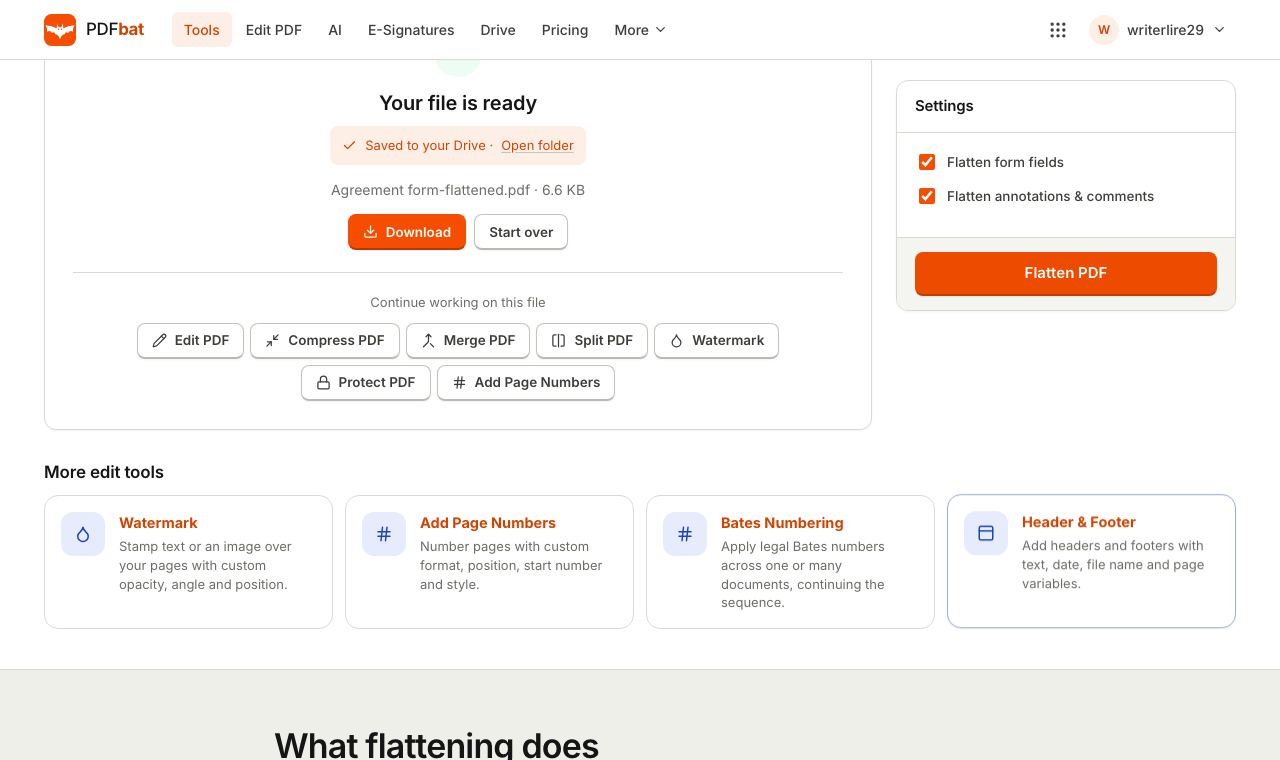
- Open Flatten PDF.
- Upload the filled PDF.
- Choose what to flatten:
- Flatten form fields (ticked by default) turns fields and their answers into page content.
- Flatten annotations & comments (ticked by default) does the same for comments, highlights, stamps and drawings.
- Click Flatten PDF and download the result. The new name ends in
-flattened.
Untick one box when you want to keep part of the interactivity. For example, flatten the form answers but keep reviewers' comments as comments so the next person can still reply to them.
How to fill and flatten in one go in the editor
If you are filling the form yourself, there is no need for a separate step.
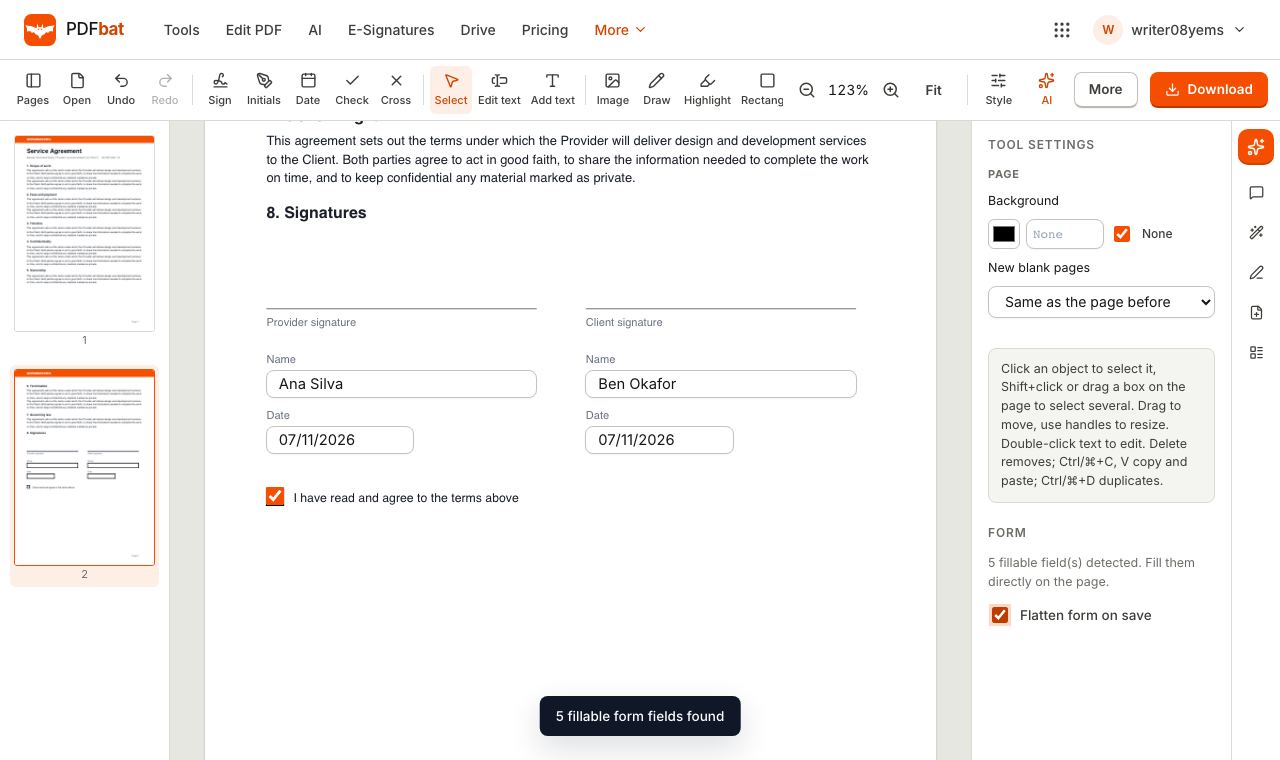
- Open the PDF in Fill & Sign. PDFbat detects the fillable fields and tells you how many it found.
- Click into each field and type, or tick the checkboxes.
- In the right hand panel, under Form, tick Flatten form on save.
- Add a signature if the form needs one, then click Download.
The downloaded file has your answers baked in. Your signature, any text you added and any drawings made in the PDFbat editor are already written into the page, so they don't need flattening. Sticky notes and links you add stay interactive.
Our guide to filling in a PDF form online covers the filling part in more detail, including forms that have no fillable fields at all.
Flattening and signatures
There are two kinds of signature in PDFs, and flattening treats them very differently.
- A drawn, typed or image signature placed with an editor is just a mark on the page. In PDFbat, signatures added in Fill & Sign are written into the page when you download, so there is nothing left to flatten. If a signature was added in another app as an annotation, flattening fixes it onto the page so it shows everywhere.
- A digital signature (the kind that shows a certificate and a "signed and all signatures are valid" banner) is a seal over the exact bytes of the file. Any change made afterwards, flattening included, breaks that seal, and readers will report that the document was changed after signing.
So the order matters: fill and flatten first, then apply a digital signature last. Never flatten a document that someone has already digitally signed; send it as it is. If you need signatures from other people, our guide to sending a PDF for signature covers that.
Checking that it worked
Open the flattened file in a reader and:
- Try to click into a field. Nothing should happen, and the cursor should not change to a text cursor.
- Look for the reader's form bar or "highlight fields" button. It should not appear, because there are no fields.
- Open the comments panel. Comments you flattened will no longer be listed, though their marks remain on the page.
- Use search to find one of your answers. In a PDFbat flattened file it should still be found.
If you can still click into fields, the flatten step was skipped. That happens if you downloaded the original rather than the result, or unticked Flatten form fields.
Flattening and file size
Flattening rarely changes the size much. Each field's look already exists in the file; flattening moves it into the page. In our test, a small three page test form went from 2.4 KB to 2.9 KB. For large scanned forms, compress after flattening if needed.
Flattening versus other ways to "lock" a PDF
People often flatten when they really want something else. Here is how the options compare:
| Goal | Best tool | What it does |
|---|---|---|
| Answers show everywhere and can't be retyped | Flatten PDF | Turns fields and annotations into page content |
| Only certain people can open the file | Password protect | Encrypts the file with an open password |
| Remove names or numbers for good | Redact | Deletes the text and draws a black box |
| Prove who signed and that nothing changed | Digital signature | Seals the file; edits break the seal |
| Mark a document as a draft or confidential | Watermark | Stamps text across every page |
You can combine them. A common sequence for a sensitive application form is: fill, flatten, then password protect before emailing it.
Common problems and fixes
- My answers disappeared after flattening. They were never saved into the fields. Some viewers let you type into a form but don't save the answers. Fill the form in PDFbat or another full editor, download, then flatten.
- Checkboxes show as empty. The same cause. Make sure the ticks are saved in the file you upload.
- The text looks slightly different from what I typed. Flattening uses each field's own font and size, which the form's author chose. That is how the form was designed to print.
- The PDF asks for a password. Unlock it with the password you know first, then flatten.
- I flattened the wrong version. Go back to the fillable original. A flattened file cannot be turned back into a form.
Privacy and limits
Files are uploaded over HTTPS and processed in memory. If you're signed in, the result is saved only to your private Drive, and you can delete it at any time. Without an account you can flatten a few files a day; a free account gives 10 tasks a day on files up to 25 MB, and Pro ($10.99 a month) removes the daily limit and accepts files up to 100 MB.
Frequently asked questions
What does flattening a PDF mean?
It turns interactive parts of a PDF, mainly fillable form fields and annotations such as comments and stamps, into ordinary page content. The page looks the same, but the fields can no longer be clicked or changed.
Why should I flatten a PDF form before sending it?
So your answers show up the same in every app and can't be edited by accident. Some phone apps, printers and upload portals ignore form fields and show the form blank, while flattened answers are part of the page and always appear.
Does flattening turn my PDF into an image?
Not in PDFbat. Field values and annotations become normal page content. In our test, the typed name in a flattened form could still be searched and copied. Some other tools rasterise pages, which is a different thing.
Can a flattened PDF be unflattened?
No. Once fields are flattened there is no field left to restore. Keep the fillable original if you might need to change the answers later.
Does flattening protect a document from editing?
Only partly. Nobody can retype the answers in a form field any more, but someone with a PDF editor can still add or cover content on the page. For tamper evidence, use a digital signature.
Is it free?
Yes. Flatten PDF works for a few files a day without an account, and the free account gives 10 tasks a day on files up to 25 MB.