Add page numbers to a PDF exactly how you want them
Number a thesis, a report or a merged bundle in seconds. Choose the wording, the style, where the numbers sit and where the count starts.
- Free plan, no credit card
- Nothing to install
- Works on phone, tablet and desktop
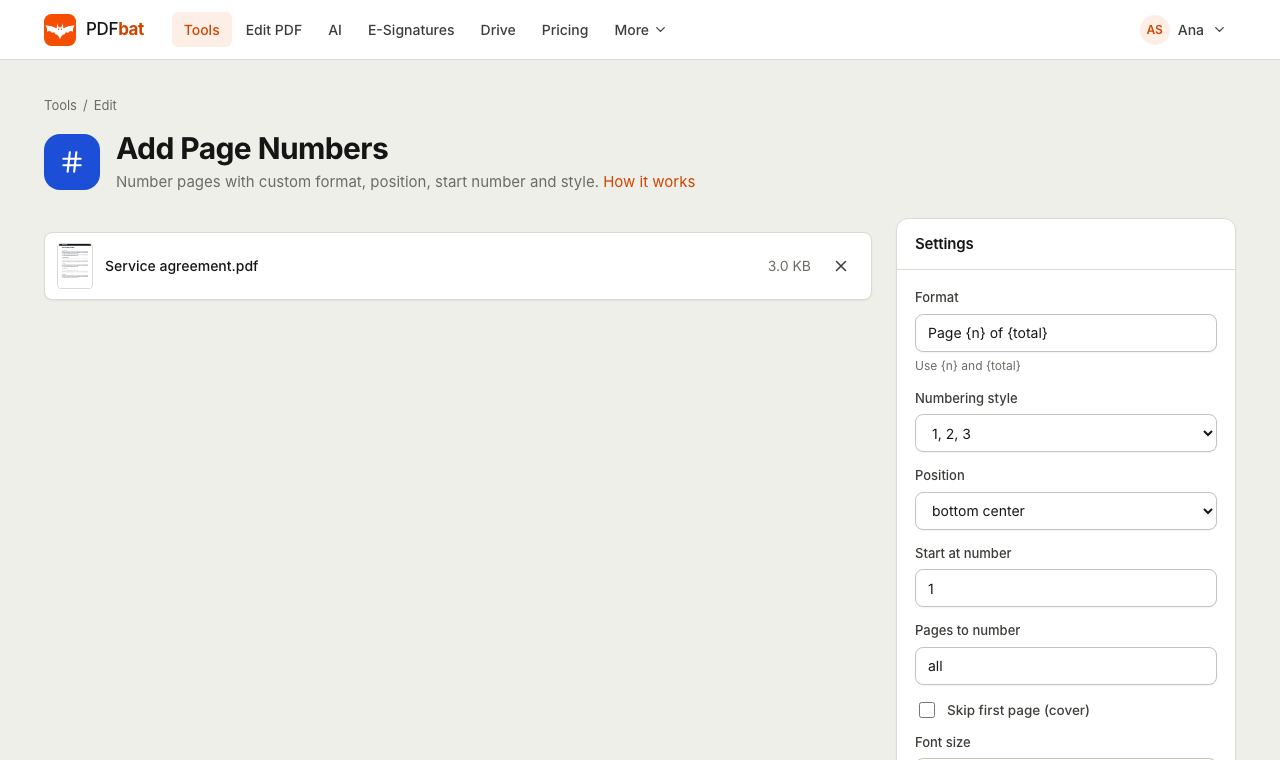
Page numbers that fit your document
Documents put together from several sources rarely number cleanly. A merged application pack, a scanned book or a report exported from a slide tool often has no page numbers at all, or numbers that restart in every section. PDFbat stamps new numbers onto the pages you choose, in the format you type.
Numbers are drawn as real text, upright on every page even when a page is rotated, and they stay searchable. Pick a corner or the center at the top or bottom, set the font, size, color and distance from the edge, and the tool handles the rest.
Why use PDFbat to number pages
Your own format
Write any pattern with {n} and {total}, such as Page {n} of {total}, {n}/{total} or just {n}.
Arabic or Roman
Number with 1, 2, 3 or i, ii, iii or I, II, III for front matter and appendices.
Skip the cover
Leave the title page unnumbered with one checkbox, or number only the pages you list.
Six positions
Top or bottom, left, center or right, with an adjustable margin from the page edge.
Correct on rotated pages
Numbers are placed upright from the reader's view, even on landscape or rotated pages.
How it works
- 1
Upload your PDF
Drop the file on the page or choose it from your device or Drive.
- 2
Set format and position
Type the format, pick the numbering style and position, and set the start number and pages to number.
- 3
Download the numbered PDF
Every selected page is numbered in seconds. Download the file or send it to another tool.
Every option explained
- Format
- The text to print. {n} becomes the page number and {total} the last number. The default is Page {n} of {total}.
- Numbering style
- 1, 2, 3 for regular numbering, i, ii, iii for lowercase Roman numerals, or I, II, III for uppercase.
- Position
- Top left, top center, top right, bottom left, bottom center or bottom right.
- Start at number
- The first number printed. Use 5 if the document continues from a four page section.
- Pages to number
- all by default, or a list such as 3-last, odd, even or 2, 4, 6. Pages not listed are left untouched.
- Skip first page (cover)
- Leaves page 1 blank. Numbering still starts at your start number on the next selected page.
- Font, size and color
- Helvetica, Times or Courier, any size in points (10 by default) and any color (dark gray by default).
- Margin
- Distance from the page edge in points. 24 pt is about a third of an inch; 72 pt is one inch.
How the count works
Numbers count only the pages that receive a number. If you skip the cover and start at 1, page 2 of the file shows 1 and the total equals the number of numbered pages. That matches how printed books and theses are numbered. If you prefer the cover to count, leave Skip first page off and number pages 2-last with a start number of 2.
Recipes for common documents
- Thesis with front matter: run the tool twice. First number the preface pages with i, ii, iii, then number the main chapters from 1 using a page range.
- Merged application pack: merge the files with Merge PDF, then number everything as Page {n} of {total}.
- Printed booklet: set position to bottom center so numbers sit in the same place on left and right pages.
- Legal exhibits: use Bates Numbering instead, which adds a prefix and zero padded numbers across several files.
Tips
- If an existing footer is in the way, raise the margin so your numbers sit above it, or move them to the top.
- Want the date or file name next to the number? Header and Footer supports {date} and {file} as well.
- Need to reorder pages first? Use Organize PDF and number afterwards.
PDFbat compared with Adobe Acrobat Pro
| Feature | PDFbat | Adobe Acrobat Pro |
|---|---|---|
| Price | Free plan, Pro $4/mo | $19.99/mo, annual plan |
| Custom format with page and total | Yes | Yes |
| Roman numerals | Yes | Yes |
| Skip the cover page | Yes | Set through a page range |
| Works in any browser, nothing to install | Yes | Desktop app for header and footer options |
Competitor details reflect their public product pages in November 2026. Check their sites for current terms.
Frequently asked questions
How do I write Page 1 of 10?
Use the default format Page {n} of {total}. PDFbat replaces {n} with each page number and {total} with the last number.
Can I skip the cover page?
Yes. Tick Skip first page (cover). The first numbered page then shows your start number.
Can I start numbering at a number other than 1?
Yes. Set Start at number to any value, which is handy when a document continues another one.
Can I use Roman numerals?
Yes. Choose i, ii, iii or I, II, III as the numbering style. {total} uses the same style.
Will page numbers be searchable?
Yes. They are added as real text, so they can be searched and copied like the rest of the document.
Is it free?
Yes. The free plan includes 10 tool tasks a day for files up to 25 MB. Pro is $4 a month with unlimited tasks.
Can I add page numbers from my own app?
Yes. The PDFbat API exposes the same options, with 250 free calls a month.
Related features and tools
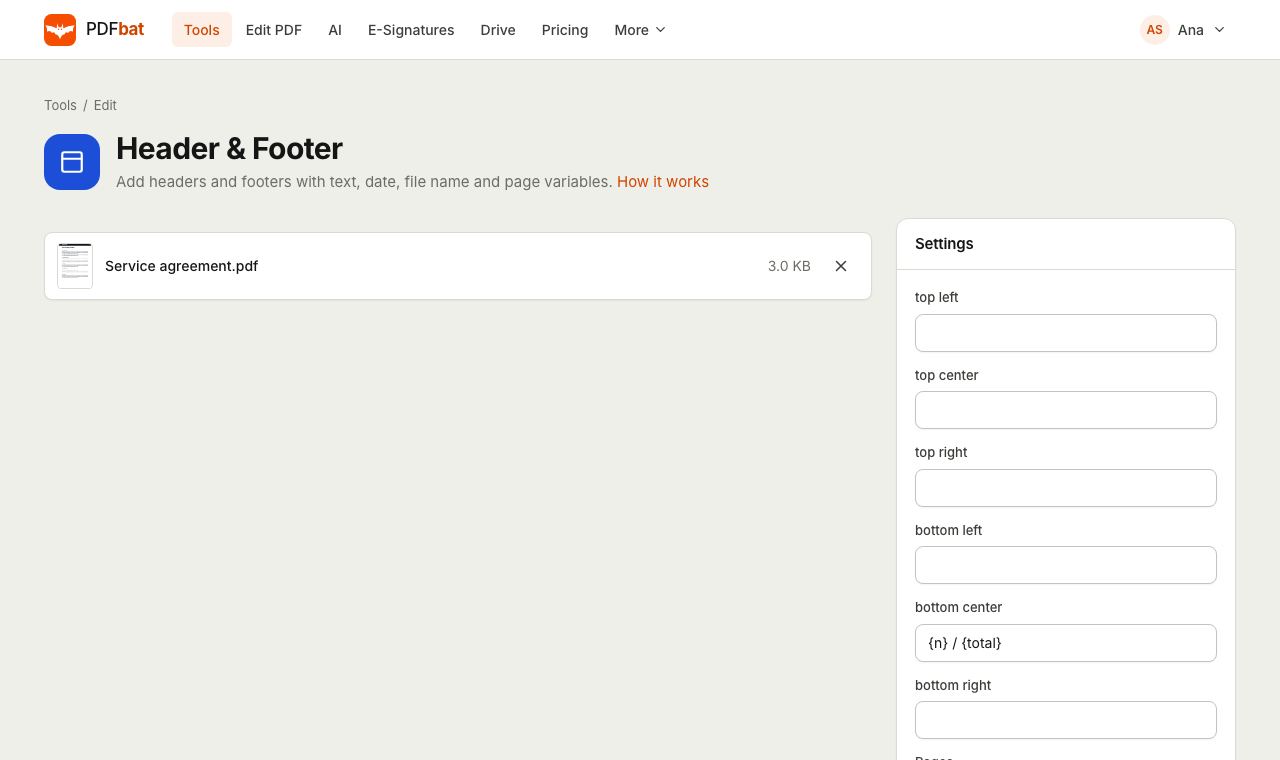 Header and FooterAdd headers and footers with page numbers, today's date and the file name.
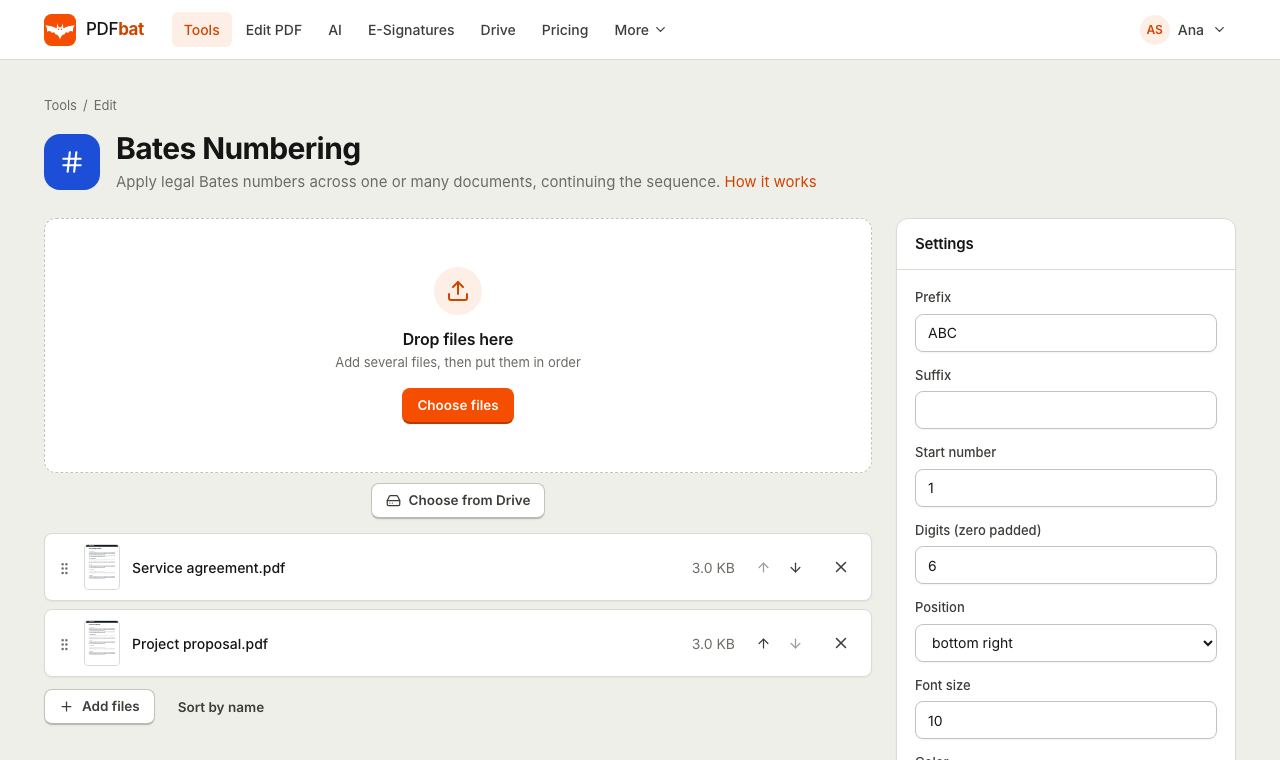 Bates NumberingStamp legal Bates numbers across many PDFs with one continuous sequence.
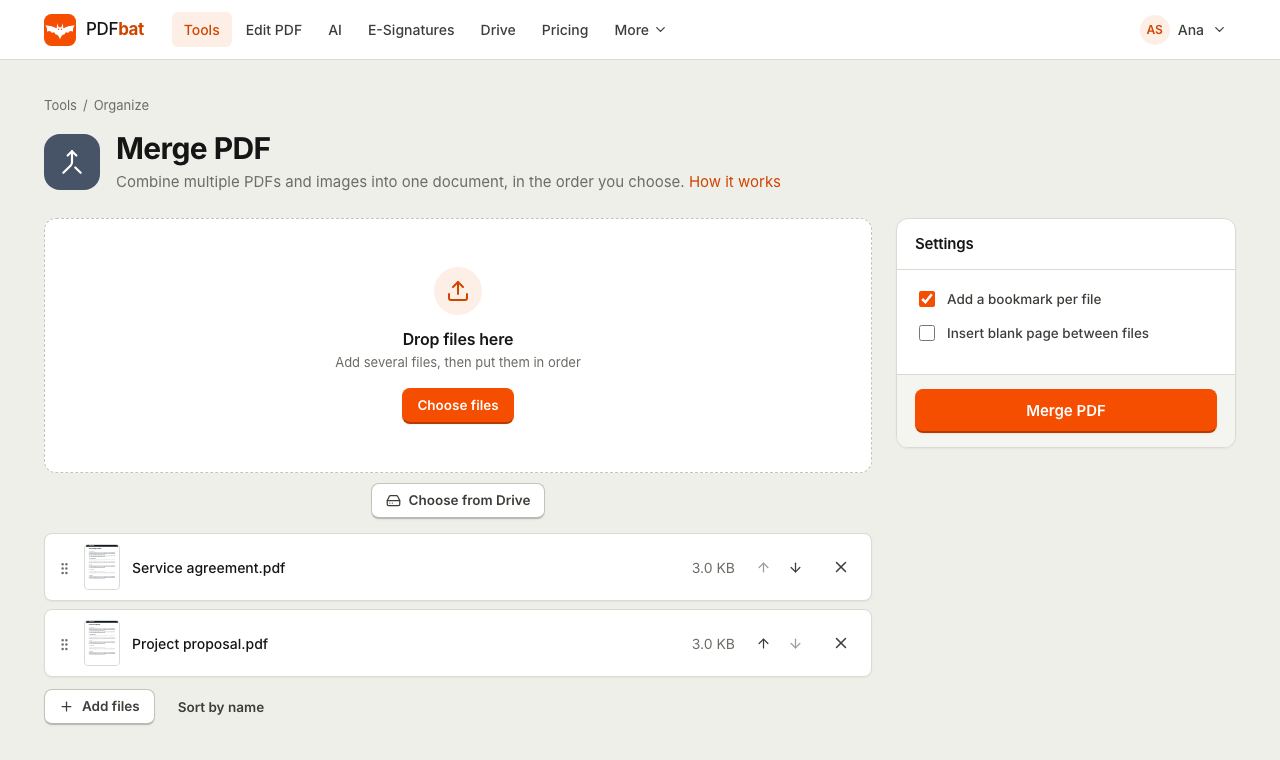 Merge PDFCombine PDFs, images and ebooks into one file in the order you choose, with a bookmark per file.
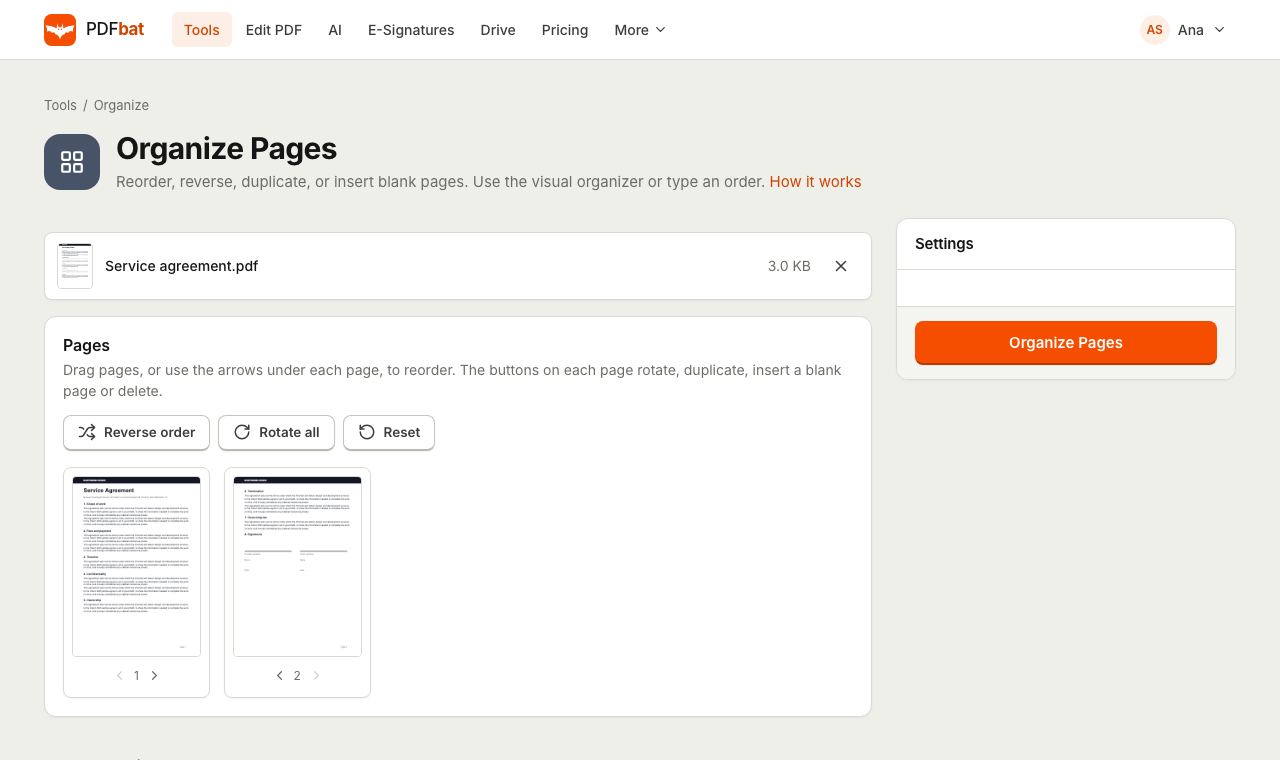 Organize PDFRearrange, rotate, duplicate, delete and insert blank pages with a visual drag and drop organizer.
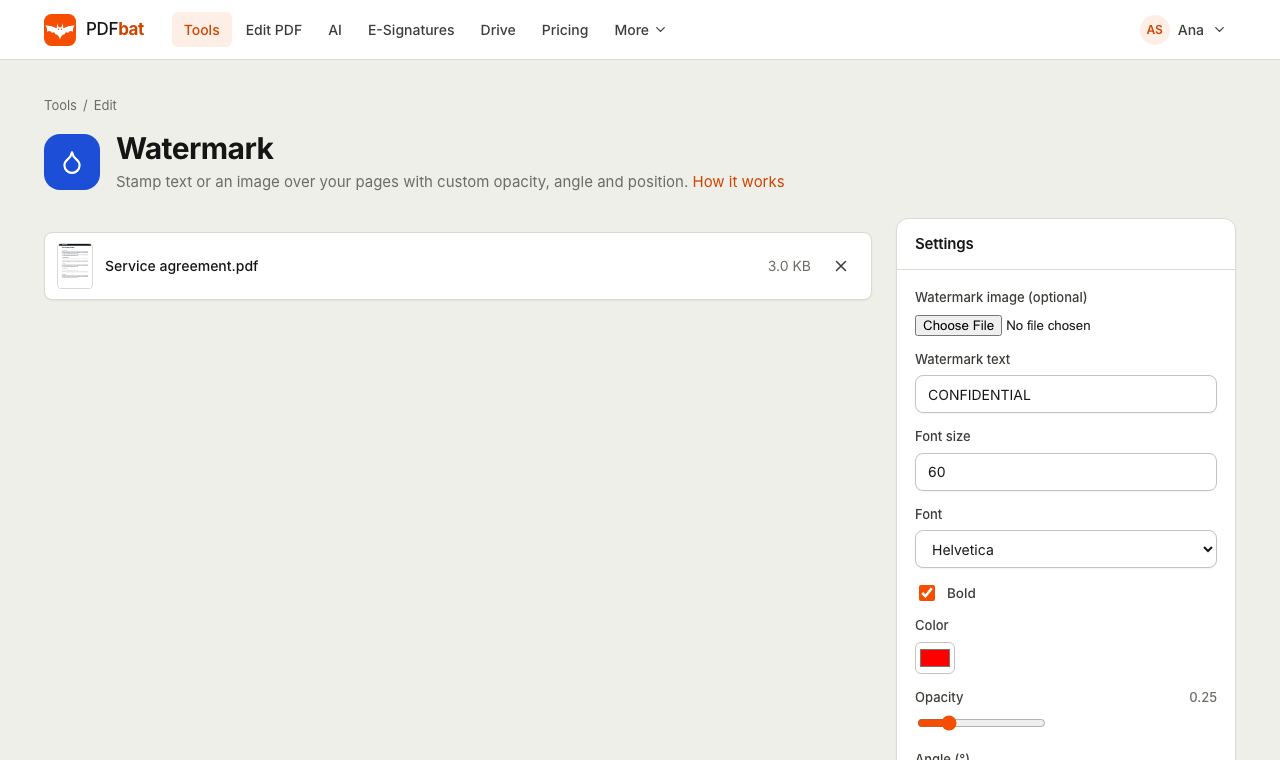 Watermark PDFStamp text or a logo on your pages with custom opacity, angle and position.
 Free PDF Tools30+ tools to merge, split, compress, convert, protect, redact, number and OCR PDFs.
Try Add Page Numbers free
Create a free account in seconds. No credit card, nothing to install, and it works on any device.