Convert a PDF to grayscale in seconds
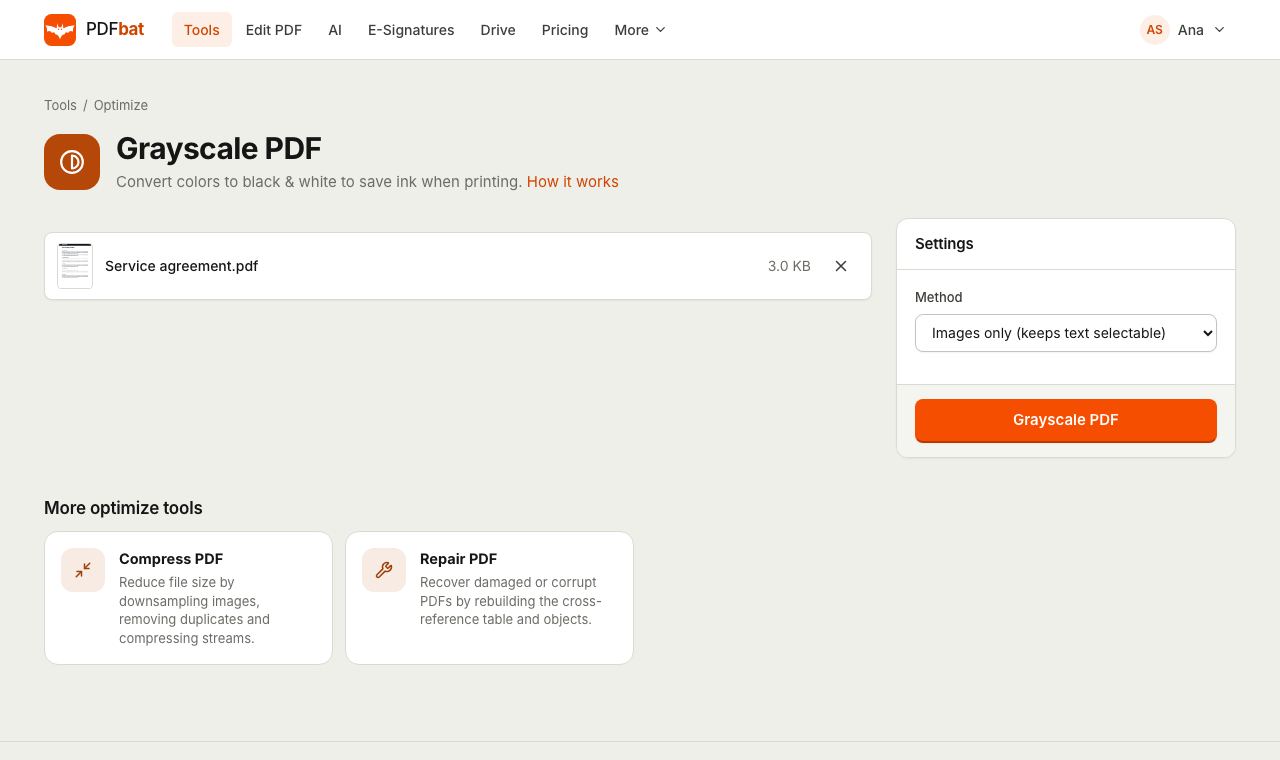
Turn a color PDF into black and white to save ink, meet print shop rules or shrink color scans. Choose between keeping text selectable or converting absolutely everything.
- Free plan, no credit card
- Nothing to install
- Works on phone, tablet and desktop
Two ways to remove color
Color in a PDF comes from two places: images, such as photos, logos and scanned pages, and vector content, such as colored text, table shading and charts. PDFbat gives you a method for each need.
Images only converts every embedded image to grayscale and leaves text and vector drawings untouched, so the document stays sharp, searchable and selectable. Everything renders each page to a grayscale image at the resolution you pick and builds a new PDF from those images, which guarantees there is no color left anywhere on the page.
Why convert a PDF to grayscale
Save ink and toner
Black and white output prints on any office printer without using color cartridges.
Text stays selectable
The default method changes only images, so you can still search, copy and edit the text afterwards.
Guaranteed no color
The Everything method converts every pixel of every page, for print shops and forms that reject any color.
Smaller color scans
Gray images carry one channel instead of three, so photo heavy documents usually get noticeably smaller.
Saved to your Drive
The grayscale copy lands in your private Drive, ready to download, share or open in another tool.
How it works
- 1
Upload your PDF
Drop a PDF on the page or choose one from your computer, phone or Drive.
- 2
Pick a method
Keep Images only for documents you still want to search and copy. Choose Everything and set a Raster DPI when every trace of color must go.
- 3
Download the result
Your black and white PDF is ready in seconds. Download it or send it to another tool from the result screen.
Every option explained
- Method: Images only (keeps text selectable)
- Every raster image is converted to gray and re-encoded at high quality (up to 300 DPI, JPEG quality 90). Text, lines and shapes keep their original vector form and their original colors.
- Method: Everything (rasterize pages)
- Each page is rendered in grayscale and placed into a new PDF of the same page size. Colored text, highlights, charts and backgrounds all become gray.
- Raster DPI
- Shown only for the Everything method. The default of 200 is crisp for reading and office printing. Use 300 for fine print or small type, 150 for smaller files.
- Same page size
- Both methods keep each page at its original dimensions, so the document prints and paginates exactly as before.
Which method should you choose?
Images only is right for most documents. Reports, brochures and manuals with colored photos print in gray, while their text remains real text that you can search and copy. Note that colored text and colored vector shapes stay colored with this method, because they are not images.
- Print shop or form that demands pure grayscale: choose Everything at 300 DPI.
- Scanned color pages you want to archive smaller: Images only is enough, because a scan is one image per page.
- Slides or charts with colored text: choose Everything so every element turns gray.
- You still need to edit the text later: stay with Images only. Rasterized pages are pictures, so their text can no longer be selected unless you run OCR.
Tips
- To make a grayscale file as small as possible, run Compress PDF afterwards, or use its own grayscale checkbox in one step.
- If you used Everything and need searchable text again, run OCR PDF on the result.
- Printing a long document? Combine pages onto one sheet with N-up to save paper as well as ink.
PDFbat compared with Adobe Acrobat Pro
| Feature | PDFbat | Adobe Acrobat Pro |
|---|---|---|
| Price | Free plan, Pro $4/mo | $19.99/mo, annual plan |
| Convert to grayscale in the browser | Yes | Through print production tools in the desktop app |
| Result saved to a private cloud Drive | Yes, automatically | Adobe cloud storage |
Competitor details reflect their public product pages in November 2026. Check their sites for current terms.
Frequently asked questions
Will my text still be searchable after converting to grayscale?
Yes with the Images only method, which leaves text untouched. The Everything method turns each page into an image, so run OCR afterwards if you need searchable text.
Why is some text still colored after conversion?
The Images only method changes images, not vector text or shapes. Choose Everything to convert colored text, highlights and charts too.
Does grayscale make the file smaller?
Usually, when the document has color images, because gray images store less data. Text only PDFs change very little.
What DPI should I use for the Everything method?
200 DPI is the default and reads well on screen and paper. Use 300 for small print or documents you will print professionally.
Is the grayscale tool free?
Yes. The free plan includes 10 tool tasks a day with files up to 25 MB. Pro is $4 a month for unlimited tasks and files up to 100 MB.
Can I convert PDFs to grayscale automatically?
Yes. The PDFbat API runs the same tool with the same options, and includes 250 free calls a month.
Related features and tools
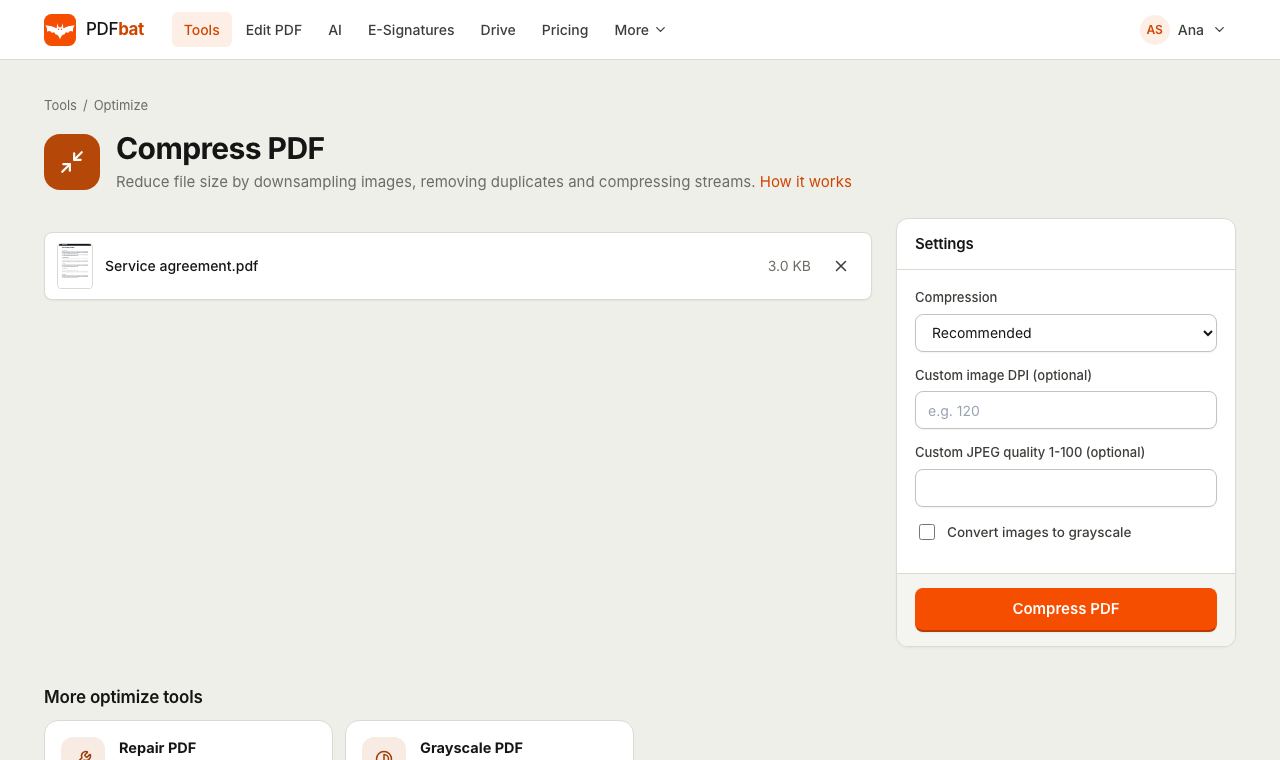 Compress PDFShrink PDFs for email and upload portals with four levels, custom DPI and grayscale.
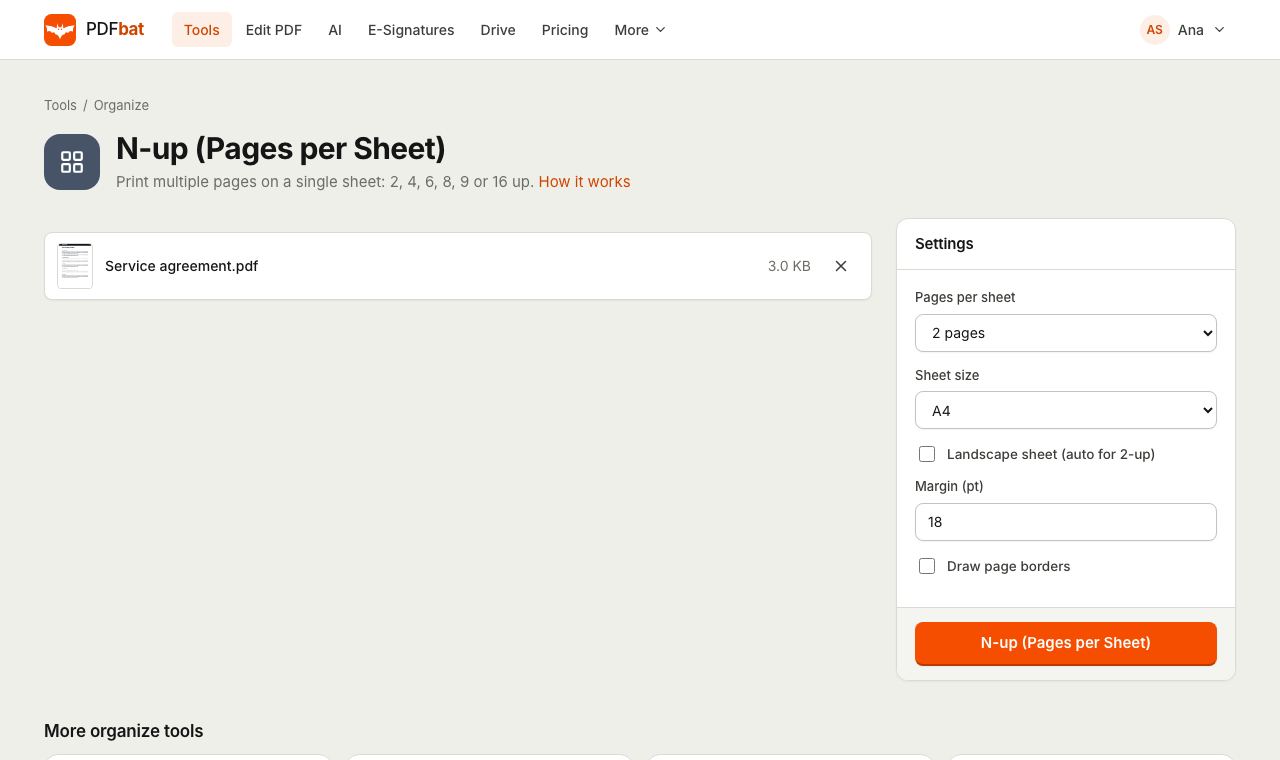 N-up PDFPrint 2, 4, 6, 8, 9 or 16 PDF pages per sheet on A4, Letter and other paper sizes.
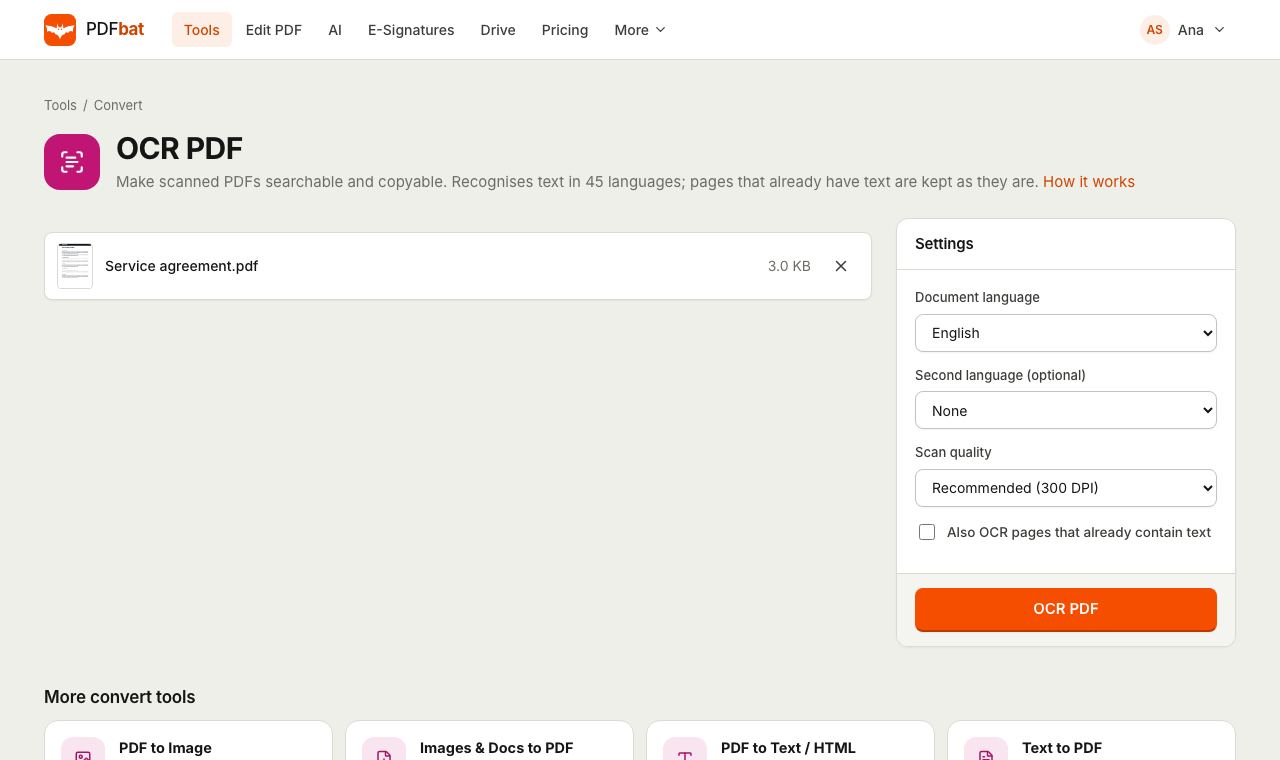 OCR PDFMake scanned PDFs searchable and copyable in 45 languages, with a second language for mixed documents.
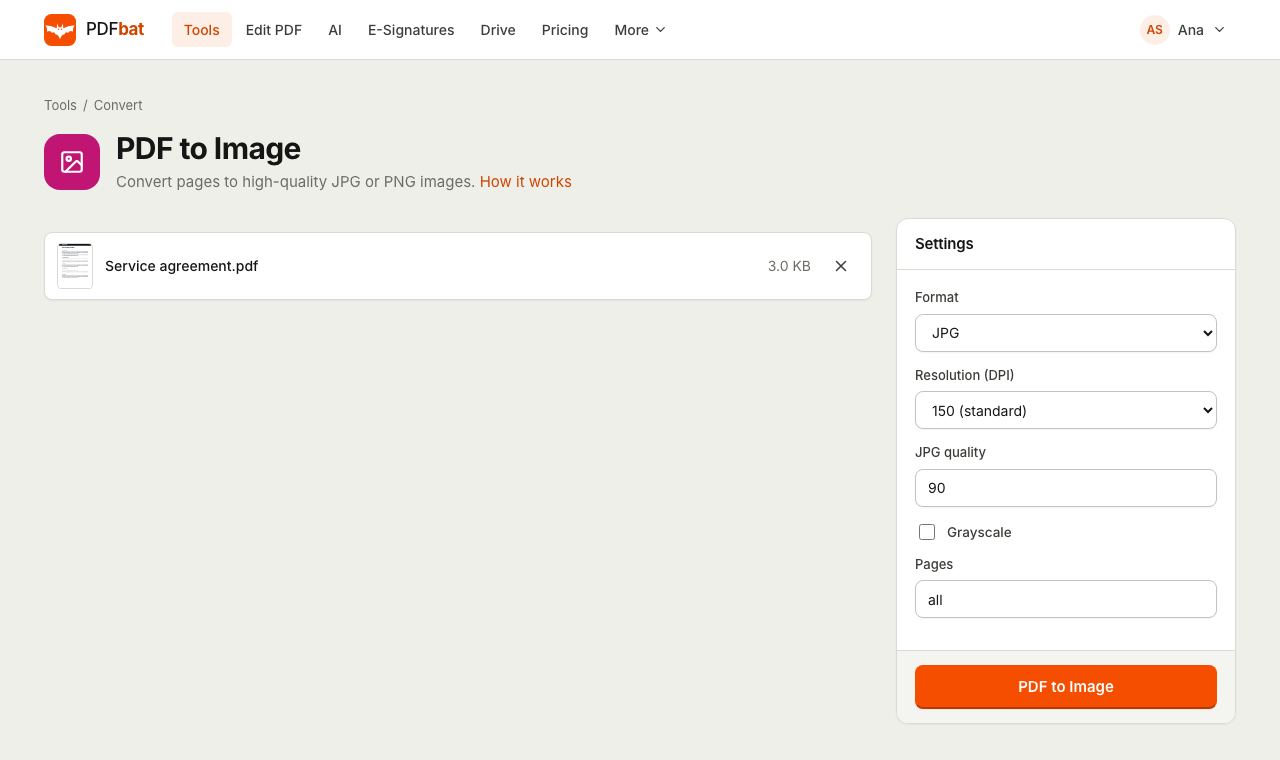 PDF to JPGTurn PDF pages into JPG or PNG images at up to 600 DPI.
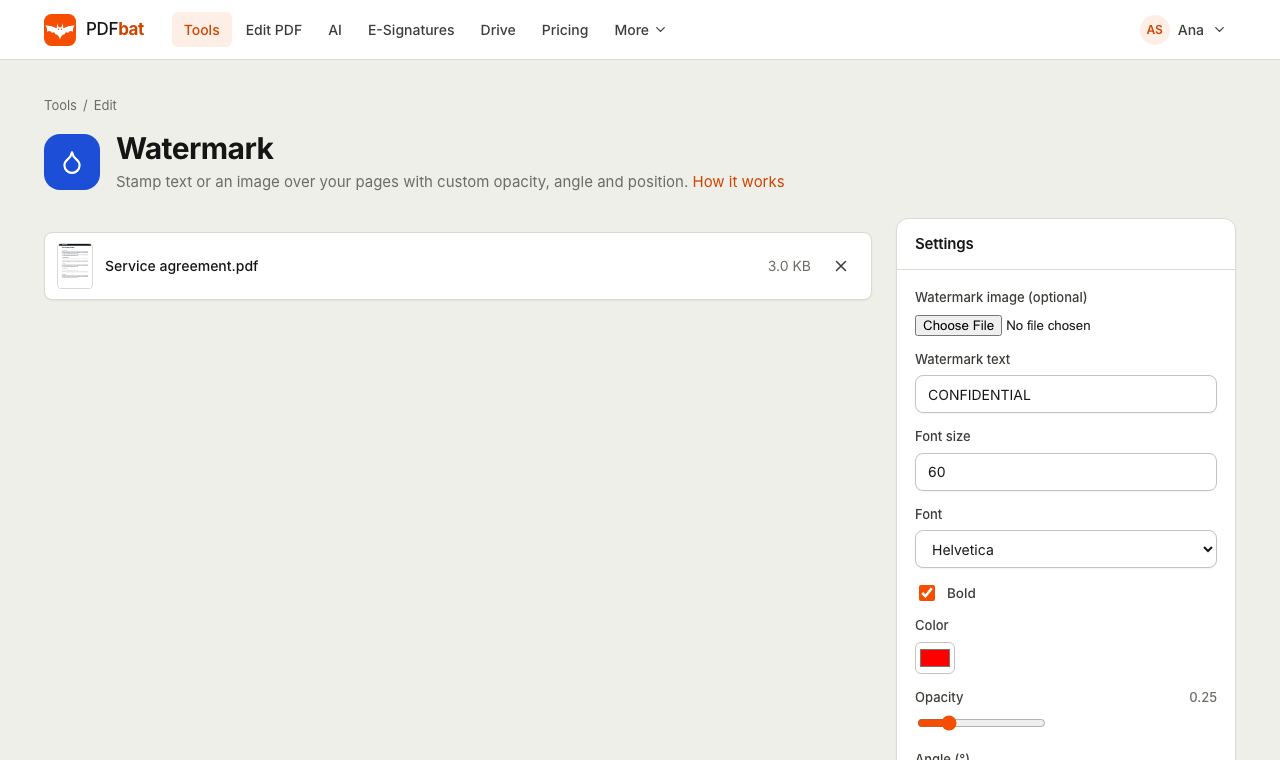 Watermark PDFStamp text or a logo on your pages with custom opacity, angle and position.
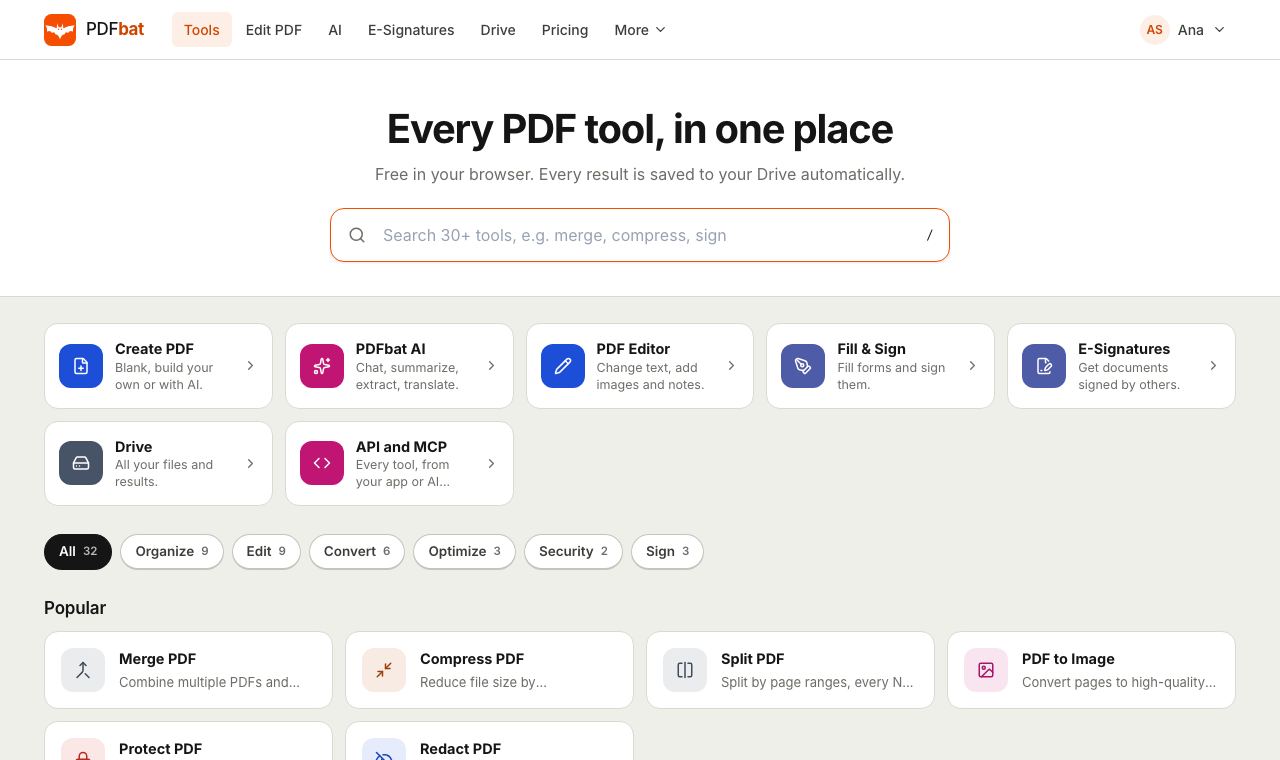 Free PDF Tools30+ tools to merge, split, compress, convert, protect, redact, number and OCR PDFs.
Try Grayscale PDF free
Create a free account in seconds. No credit card, nothing to install, and it works on any device.