PDF Won't Open? How to Fix "Failed to Load PDF Document" and Damaged Files
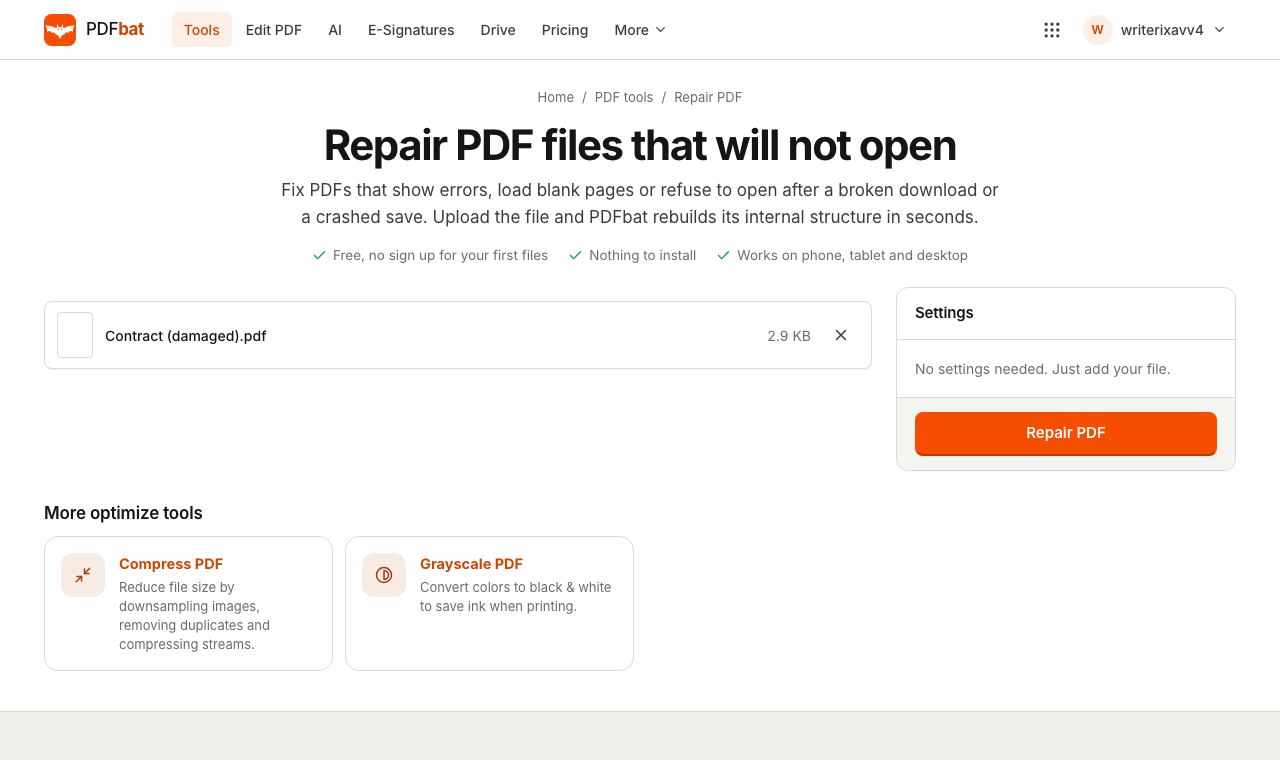
When a PDF won't open, the cause is almost always one of four things: the file never finished downloading, it isn't actually a PDF, it is password protected, or its internal structure is damaged. Start by downloading the file and opening it in a different reader. If it still fails, check that it really is a PDF, and if it is, run it through Repair PDF, which rebuilds the file's internal index so readers can find the pages again.
Below is a checklist that goes from the quickest fix to the last resort, with what each error message usually means.
What the error messages mean
Different readers word the same problem differently. Here is a rough decoder:
| Message | Where you see it | Most likely cause |
|---|---|---|
| "Failed to load PDF document" | Chrome, Edge | Incomplete download, not a real PDF, or a viewer issue |
| "There was an error opening this document. The file is damaged and could not be repaired" | Acrobat Reader | Damaged structure or truncated file |
| "The file is not a supported file type or has been damaged" | Acrobat Reader | Not a real PDF, or badly truncated |
| "Couldn't open PDF" or "Can't open file" | Phones, Google Drive | Incomplete download or not a real PDF |
| Blank grey page, endless spinner | Any browser | Very large file still loading, or a blocked viewer |
| Password prompt | Any reader | The file is encrypted; not damage |
Step 1: Get the file out of the browser preview
Many "won't open" problems are not about the file at all. When you click a PDF link, the browser tries to show it inside its own viewer while it is still downloading. If the connection drops, the website blocks the viewer, or the file is very large, you get "Failed to load PDF document" even though the file is fine.
- Right click the link and choose Save link as (or Download linked file in Safari), then open the saved file.
- If it is an email attachment, save it to your computer or phone first instead of previewing it.
- In Chrome, you can make PDFs always download instead of opening in the browser: go to
chrome://settings/content/pdfDocumentsand choose Download PDFs.
Step 2: Try a second reader
Readers differ in how strict they are. A file that one reader refuses may open in another, which also tells you something: if any reader can open it, the file is not hopeless.
Try at least two of these: Chrome or Edge (drag the file into a new tab), Firefox, Acrobat Reader, Preview on a Mac, or the Files app on iPhone. If an older reader fails but a newer one works, update the old one.
Step 3: Check that it really is a PDF
This is the step most guides skip, and it explains a lot of "corrupted" files. When a website's download link fails, it often sends back a web page ("Access denied", "Session expired", a login screen) and your browser saves it with the .pdf name it expected. No PDF tool can open or repair that, because there is no PDF inside.
Two quick checks:
- Look at the size. A 30 page report that is 0 KB, or 12 KB, is not a 30 page report. Compare it with the size the website or the sender mentioned.
- Look at the first characters. Open the file in a plain text editor (Notepad on Windows, TextEdit on a Mac). A real PDF starts with
%PDF-followed by a version number, such as%PDF-1.7. If you see<html>,<!DOCTYPE, or a readable error message, it's a web page.
If it is not a PDF, download it again, signed in to the site if needed, or ask the sender to attach it again. If you upload a file like that to PDFbat's Repair PDF, it tells you plainly that the file is not a PDF, so you don't waste time on it.
Step 4: Rule out a password
An encrypted PDF is not broken, but some apps and upload portals report it as "can't open" or "invalid file" rather than asking for the password.
- If a reader asks for a password, you need it. There is no legitimate way around an open password you don't know; ask the sender.
- If you have the password and the problem is a portal or app that won't accept encrypted files, remove the password with Unlock PDF. Our guide on removing a password from a PDF explains the difference between open passwords and permission restrictions.
Step 5: Repair the file
If the file is a real PDF and every reader still refuses it, the structure is damaged. To understand what repair can and cannot do, it helps to know how a PDF is built.
What breaks inside a PDF
A PDF is a set of numbered objects (pages, fonts, images, text) plus an index at the end of the file, called the cross-reference table, that says exactly where each object starts. A reader jumps to the end, reads the index and then fetches the pages.
That design means damage at the end of the file is common and nasty: a download that stops at 97 percent, a sync that cuts off, an app that crashes while saving. The pages are all there, but the index that points to them is missing, so strict readers give up.
How to repair it in PDFbat
- Open Repair PDF. There are no settings to choose.
- Upload the damaged file. Don't worry if its thumbnail shows up blank; that just means your browser couldn't read it either.
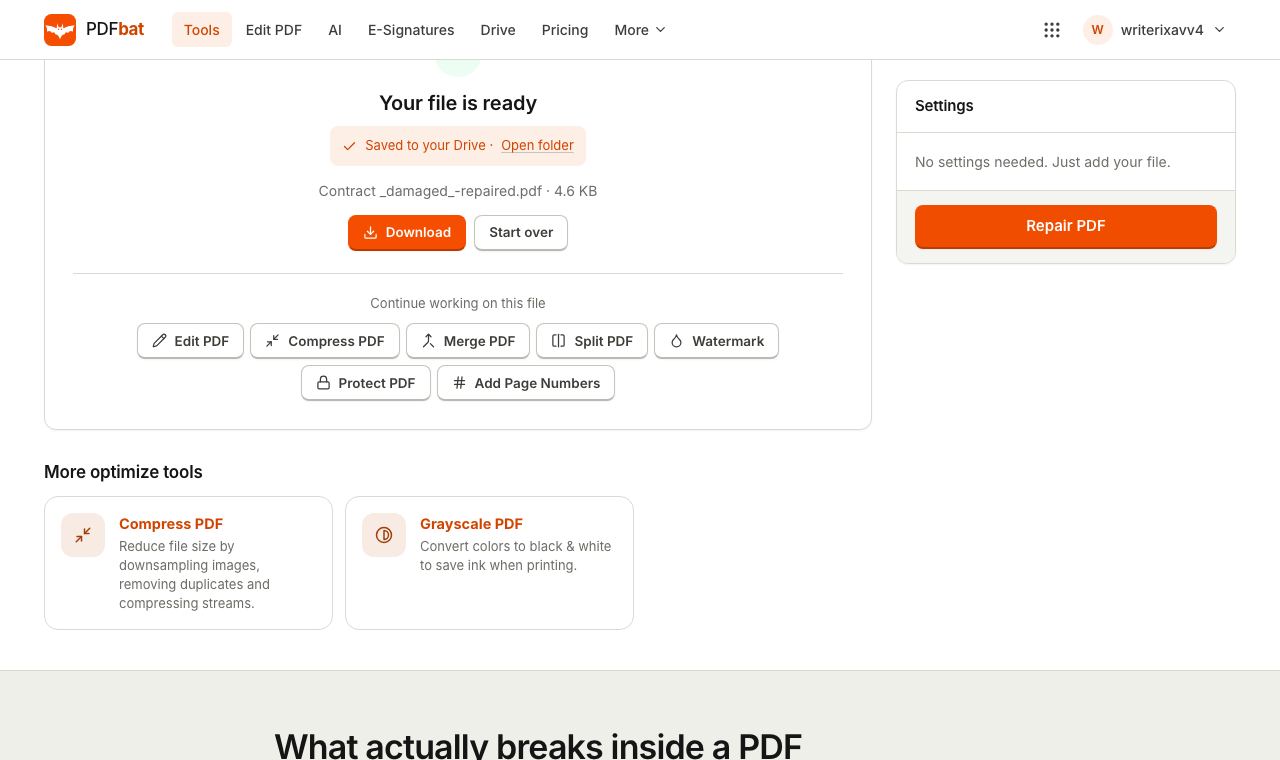
- Click Repair PDF and download the result. The new file name ends in
-repaired.
PDFbat scans the whole file for the objects that are still there, builds a new index from them, drops unused data, and saves a clean, compressed copy that any reader can open.
What to expect
We tested this on a contract PDF that we cut short on purpose, the way an interrupted download does:
| Damage | Result |
|---|---|
| Last 3% of the file missing (index gone) | Repaired, every page back |
| Last 10% of the file missing | Repaired, every page back |
| Index pointing to the wrong place | Repaired, every page back |
| 40% of the file missing | Could not be repaired |
The pattern holds in general: if the damage only affects the index or the very end, repair usually gets everything back. If whole pages' worth of data is missing, those pages are gone; no tool can recreate content that isn't in the file. In that case, the best fix is a fresh copy from the source.
Step 6: Find an older or original copy
When repair can't help, look for another copy before rebuilding the document by hand:
- The sender or the website. Ask for the file again, or download it again on a stable connection.
- Your email. The original attachment in the sent or received message is often fine even if the copy on your computer isn't.
- Cloud version history. Google Drive, OneDrive, Dropbox and iCloud Drive can restore earlier versions of a file. A version saved before the damage will open normally.
- The app that made it. If you created the PDF from Word, a spreadsheet or a scanner app, export it again.
Files that open but look wrong
Sometimes the PDF opens, but something is off. These are not damage in the usual sense, and they have their own fixes:
- Pages are sideways or upside down. Fix them with Rotate PDF; see how to rotate one page in a PDF.
- Text can't be selected or searched. The PDF is a scan. Run OCR first; see how to copy text from a scanned PDF.
- Form answers vanish when printed or opened elsewhere. The answers live in form fields that some apps don't display. Flatten the form before sending.
- The file is huge and slow. Use Compress PDF; our guide to compressing a PDF to 100 KB shows how far it can go.
Preventing damaged PDFs
- Wait for downloads and cloud syncs to finish before opening or moving the file.
- Don't edit a PDF straight from an email attachment preview or a USB stick you might unplug; save it to your device first.
- Keep the original when you edit, compress or convert a file, at least until you have checked the new copy.
- For important documents, keep a copy in more than one place.
Privacy and limits
Files are uploaded over HTTPS and processed in memory. If you are signed in, the repaired copy is saved to your private Drive, where you can delete it at any time. You can repair a few files a day without an account; a free account gives 10 tasks a day with files up to 25 MB, and Pro ($10.99 a month) removes the daily limit and accepts files up to 100 MB.
Frequently asked questions
Why does my PDF say "Failed to load PDF document"?
Usually the file never finished downloading, it is not really a PDF (often a web page saved with a .pdf name), or the browser's built-in viewer is having trouble. Download the file and open it in another reader first; if it still fails, the file itself is damaged.
Can a corrupted PDF be repaired?
Often, yes. Most damage is to the index at the end of the file that tells a reader where each page is. Repair PDF rebuilds that index from the pages that are still there. Pages whose data is missing cannot be brought back.
How do I know if my file is really a PDF?
Check its size (0 KB or a few KB for a long document is a bad sign) and open it in a plain text editor. A real PDF starts with %PDF. If you see HTML tags or an error message, the download saved a web page instead.
What if the PDF asks for a password?
It is encrypted, not damaged. Enter the password, or if you know it and want to stop typing it, remove it with Unlock PDF. Nobody can legitimately open it without the password.
Is repairing a PDF free?
Yes. Repair PDF works without an account for a few files a day, and a free account gives 10 tasks a day on files up to 25 MB.
Will repairing change my document?
The pages are rewritten in a clean structure but look the same. The repaired file may be slightly larger or smaller because unused data is dropped and the rest is compressed.