How to edit a scanned PDF online
A scanned PDF is a picture of text, so you cannot click and type. Run OCR to add a text layer, then edit in the PDFbat editor, or whiteout and retype directly on the scan. Both are free to start.
- OCR in 45 languages
- Pages keep their look
- Free to start
Why you cannot edit a scan directly
When you scan paper or photograph a page, the PDF holds an image. There are no letters inside it, only pixels, which is why clicking does nothing and search finds no words. To change a scanned document you have two practical routes, and which one fits depends on how much you need to change.
Route one is OCR (optical character recognition). OCR reads the image and adds an invisible text layer on top, keeping the page looking exactly the same. You can then search and copy it, and edit it with the PDF editor. PDFbat OCR supports 45 languages, including Arabic, Hindi, Tamil, Chinese, Japanese and Korean, and you can combine two languages for mixed documents.
Route two is a direct cover and retype. For a small fix such as a date, a number or a name on one line, use Whiteout to cover the old words with a matching box and Add text to type the new ones on top. It is quick and needs no recognition at all, and it works well when the scan is clean and the background is plain white.
What this gives you
OCR in 45 languages
Recognise text in English, Arabic, Hindi, Tamil, Chinese and many more, with two languages per run if needed.
Searchable and copyable
After OCR you can find words, copy text and use the document with assistive tools.
Edit in the editor
Change recognised text, add new text, signatures, images and redactions.
Whiteout and retype
Cover an area and type new text for quick fixes on clean scans.
Pages keep their look
The scan image stays, so signatures and stamps remain.
Works on your phone
Run OCR and edit from Safari or Chrome. Nothing to install.
How to edit a scanned PDF
- 1
Run OCR
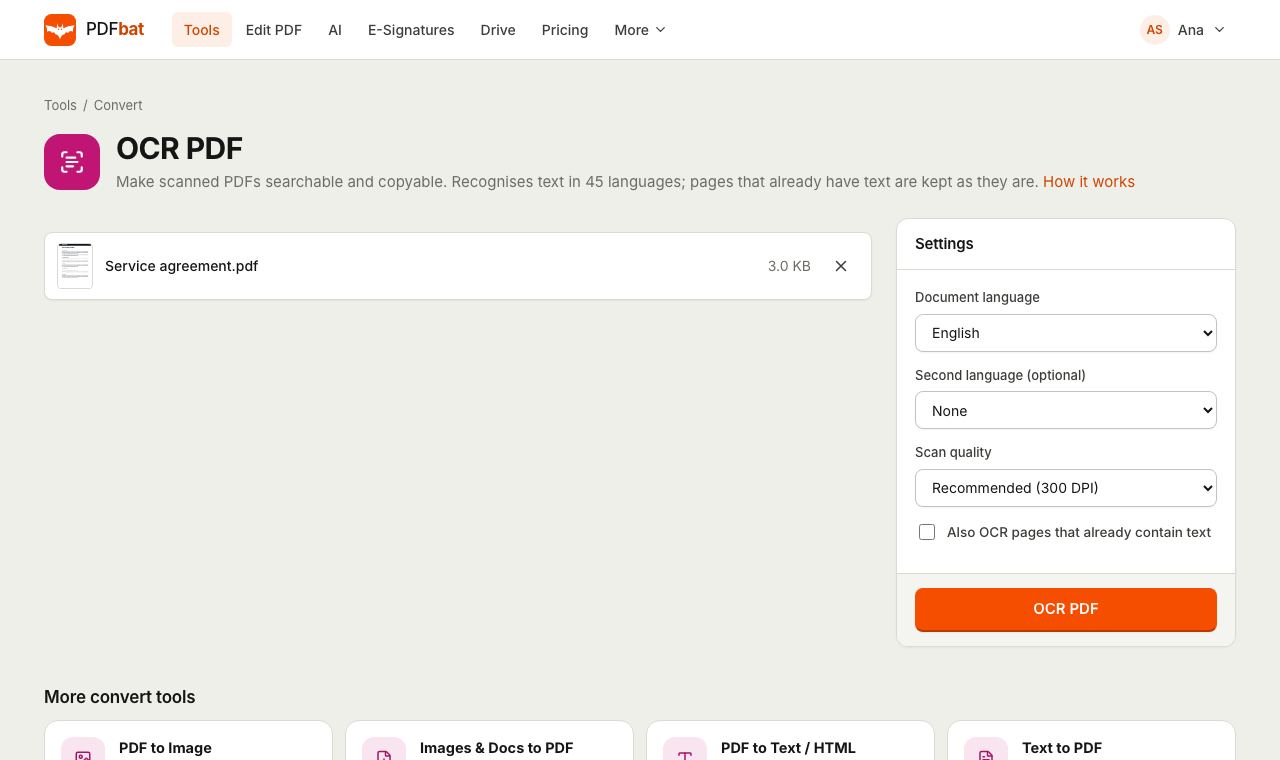
Open the OCR tool, pick the document language and the Recommended 300 DPI setting, and download the searchable PDF.
- 2
Open it in the editor
Drop the OCR result into the editor. Choose Edit text and click the line you want to change.
- 3
Fix and download
Retype the words, or use Whiteout and Add text for areas OCR missed. Download the finished PDF, saved to your Drive too.
Settings that improve results
- Document language
- Choose the main language for the best accuracy, and add a second one for mixed documents.
- Fast 200 DPI
- Quicker for clean scans with normal size print.
- Recommended 300 DPI
- The default for most office scans and phone photos.
- Small print 400 DPI
- For receipts, footnotes and dense tables.
- Up to 200 pages per run
- Split larger archives with Split PDF.
- Skips pages with text
- Pages that already have text are kept exactly as they are.
- Whiteout and Add text
- Manual fixes for logos, handwriting or low quality areas.
- Redact
- Permanently remove private details with Redact PDF.
Getting the best scan before you start
- Scan at 300 DPI or higher, in black and white or grayscale for text pages.
- Keep the page straight. Use Rotate PDF if it is sideways.
- Choose the right OCR language. A wrong language is the most common cause of garbled words.
- Avoid shadows and folds. Photograph pages flat, in even light.
Which route should you pick?
Pick OCR then edit when you need to change several lines, search the document, or copy its text. Pick whiteout and retype when the change is tiny. Handwriting and stamps are not turned into text by OCR, so cover and retype or leave them as they are. If the edited line uses a different font from the surrounding scan, retype the whole line so it looks even. For a document with rows of figures, check every number against the original after OCR.
Frequently asked questions
Can I edit a scanned PDF for free?
Yes. OCR and the editor are on the free plan with 10 tool tasks a day, files up to 25 MB and no watermark.
Will OCR change how my scan looks?
No. The page image stays and the recognised text is added as an invisible layer.
Which languages does OCR support?
45, including English, Spanish, Arabic, Hindi, Tamil, Chinese, Japanese, Korean and Thai.
Why are some words wrong after OCR?
Blurry, skewed or very small text is harder to read. Try Small print 400 DPI, straighten pages and check the language.
Can I just change one word without OCR?
Yes. Whiteout the old word and use Add text to type the new one on top.
Can I edit a scan on my phone?
Yes. Both OCR and the editor work in mobile browsers.
Does it handle handwriting?
OCR is built for printed text. Handwriting is often not recognised, so cover and retype or keep it as an image.
Related features and tools
OCR PDFMake scanned PDFs searchable and copyable in 45 languages, with a second language for mixed documents.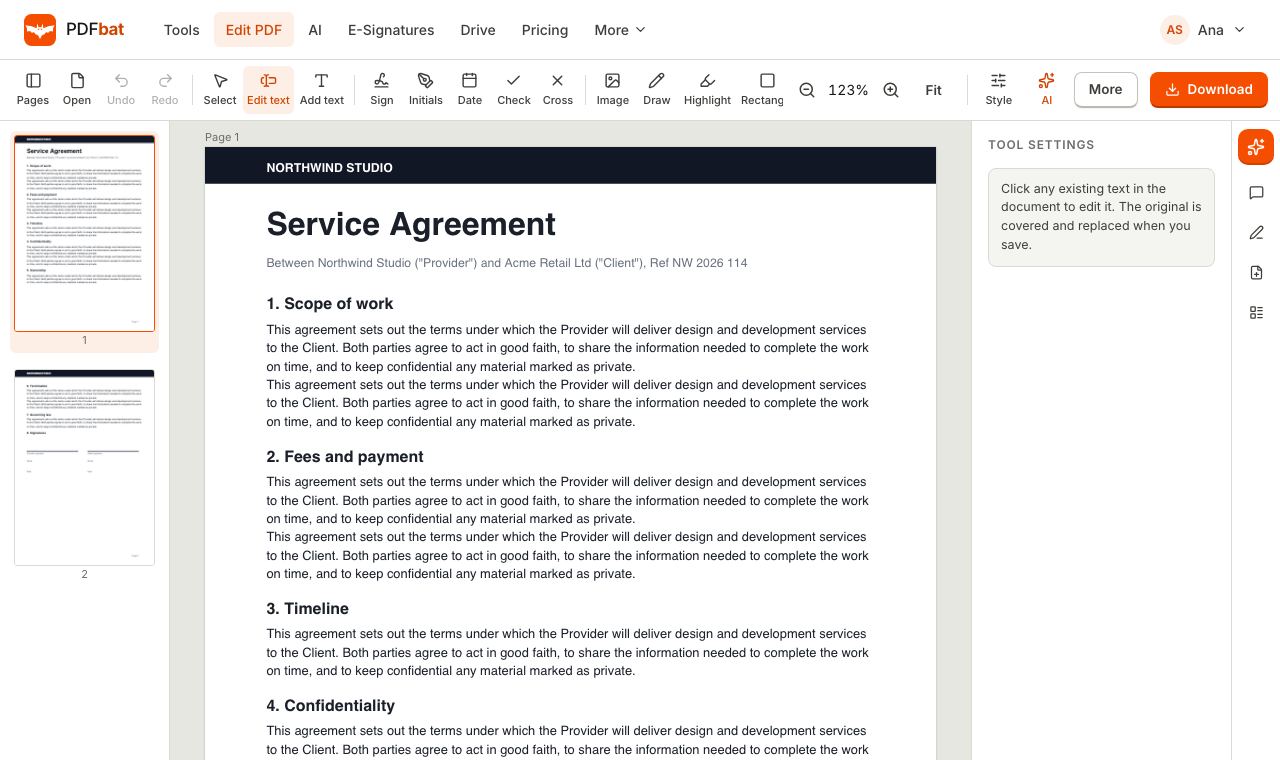 PDF EditorEdit existing text, add text in any language, images, shapes, highlights, redactions, links and comments.
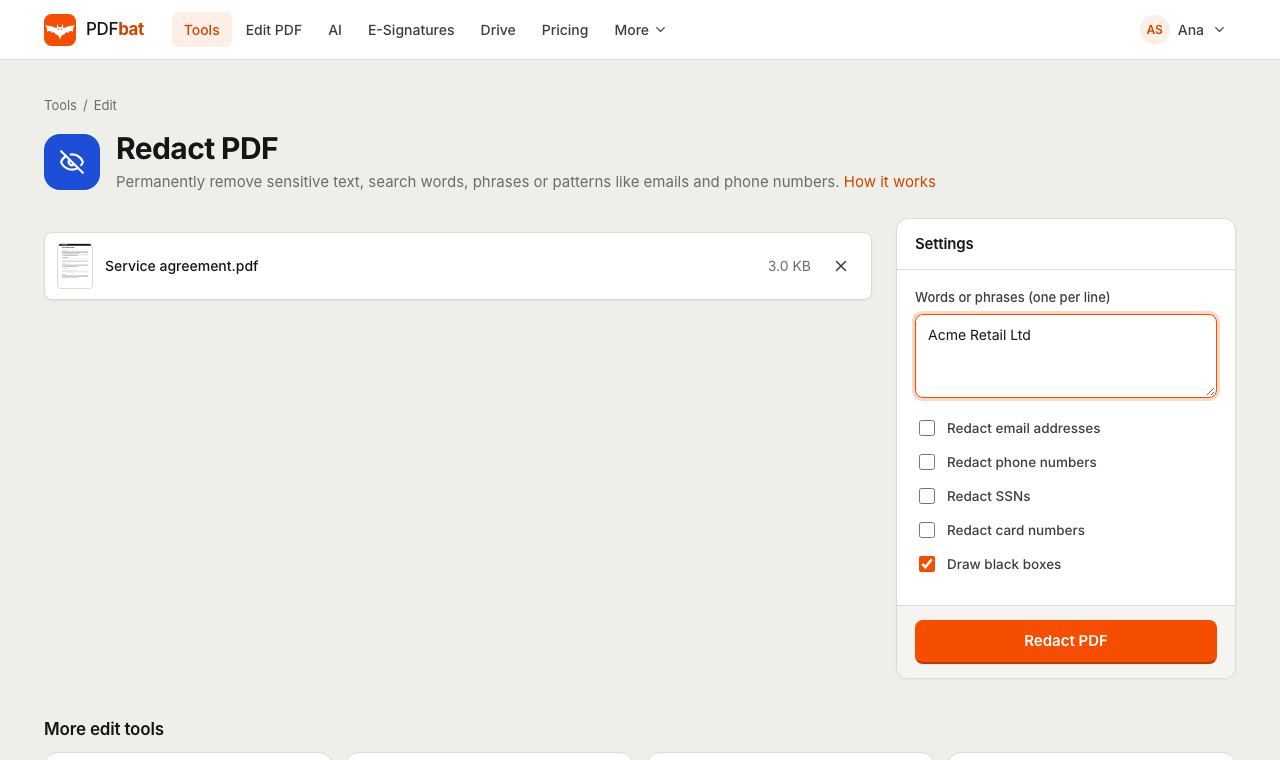 Redact PDFPermanently remove names, emails, phone numbers and card numbers from a PDF.
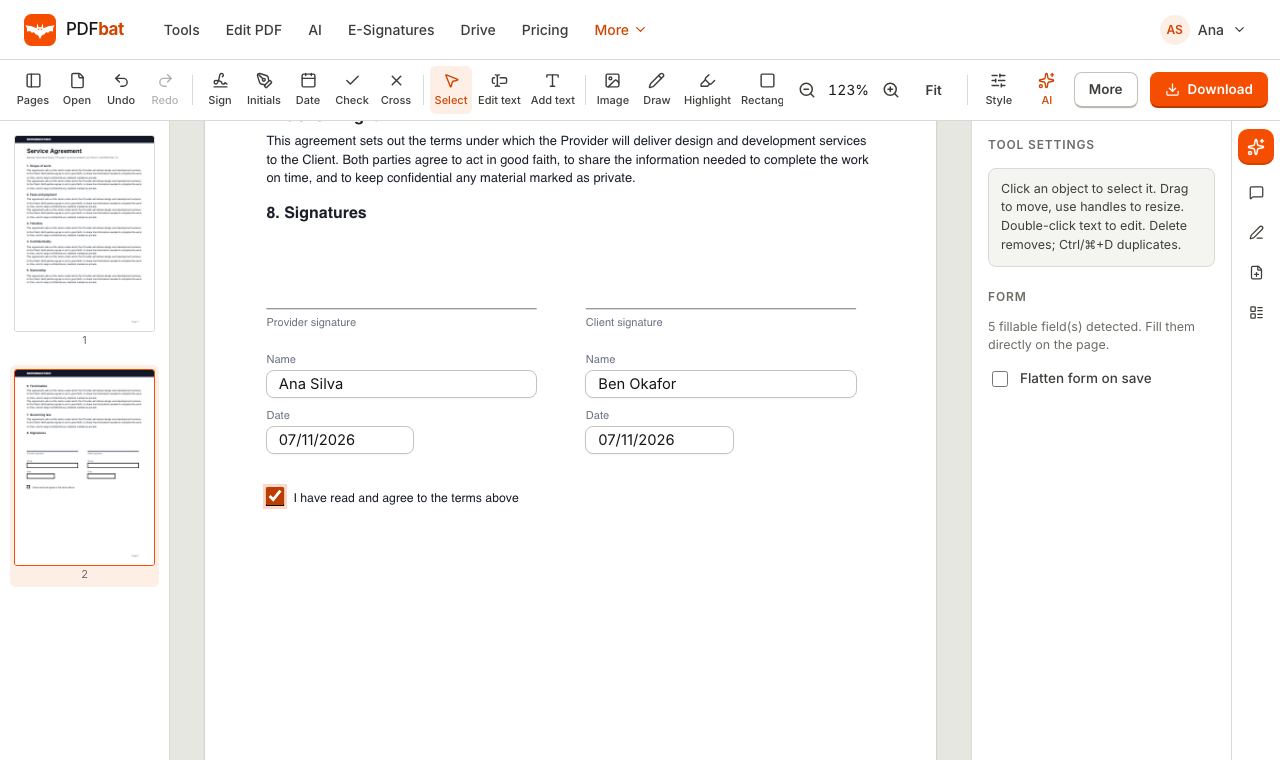 Fill and SignFill PDF forms, sign, add initials, dates and checkmarks, then flatten and download.
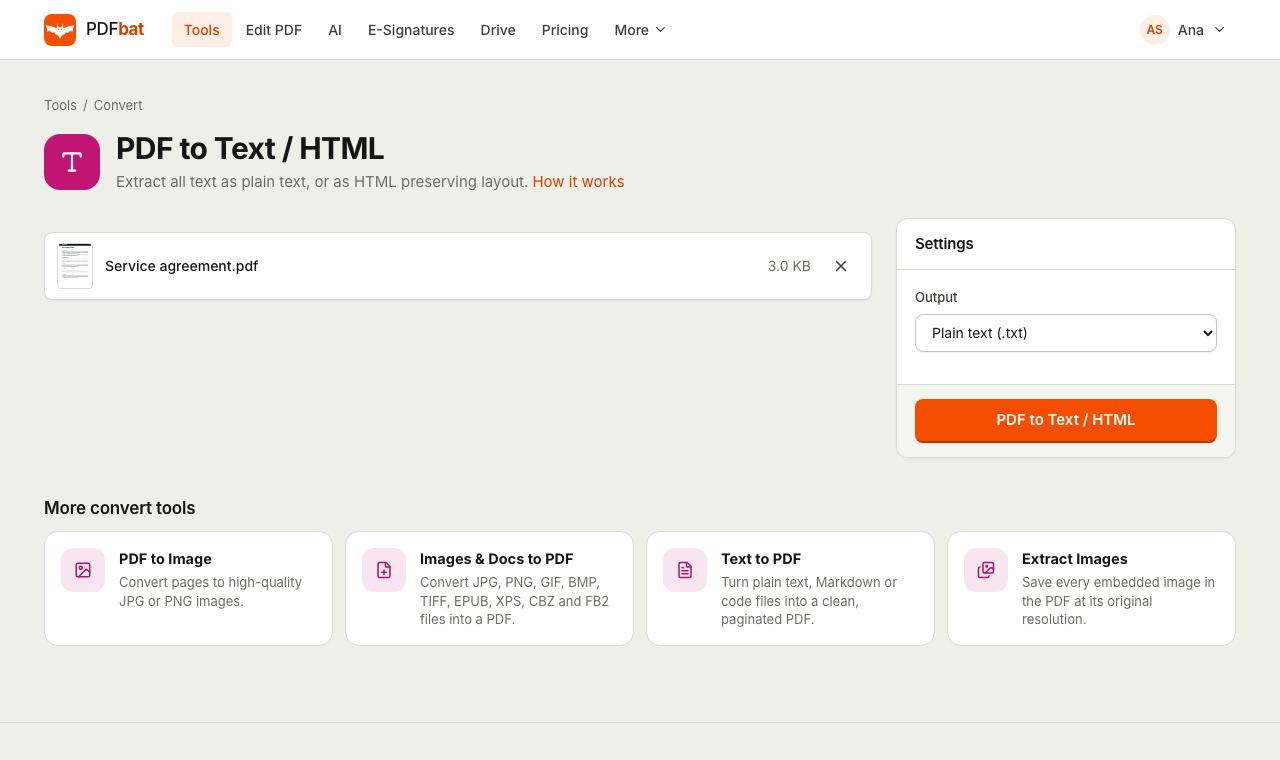 PDF to TextExtract all text from a PDF as plain text, layout preserving HTML or structured JSON.
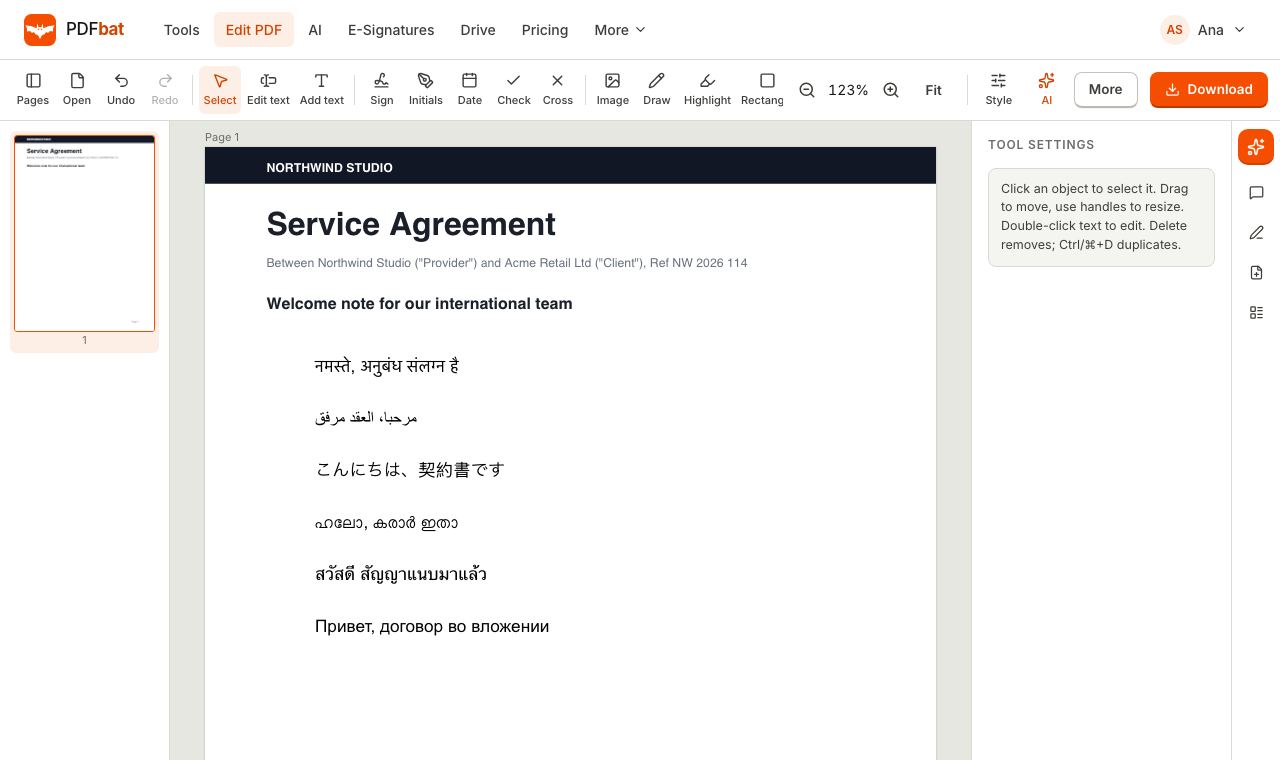 Every languageType in Hindi, Arabic, Chinese, Thai, Tamil and every other script, with correct shaping and searchable text.
Make your scan editable
Run OCR, open the result in the editor and change what you need.